
1. Giriş
This manual provides essential information for the safe and efficient use of your Samsung Galaxy Tab S9. Please read this manual thoroughly before operating the device to ensure proper functionality and to prevent damage.
The Samsung Galaxy Tab S9 is a high-performance Wi-Fi tablet featuring a 27.81 cm (11 inch) Dynamic AMOLED 2X display, powered by a Snapdragon 8 Gen 2 chip. It includes an S Pen and boasts IP68 water and dust resistance for enhanced durability.
2. Paket İçeriği
Ürün kutunuzda tüm öğelerin mevcut olduğundan emin olun:
- Samsung Galaxy Tab S9 Tablet
- S Kalemi
- USB C Tipi Kablo
- Ejeksiyon Pimi
- Hızlı Başlangıç Kılavuzu (QSG)
Not: Güç adaptörü kutuya dahil değildir ve ayrıca satın alınmalıdır.
3. Cihaz Düzeni
Familiarize yourself with the physical components of your Galaxy Tab S9.
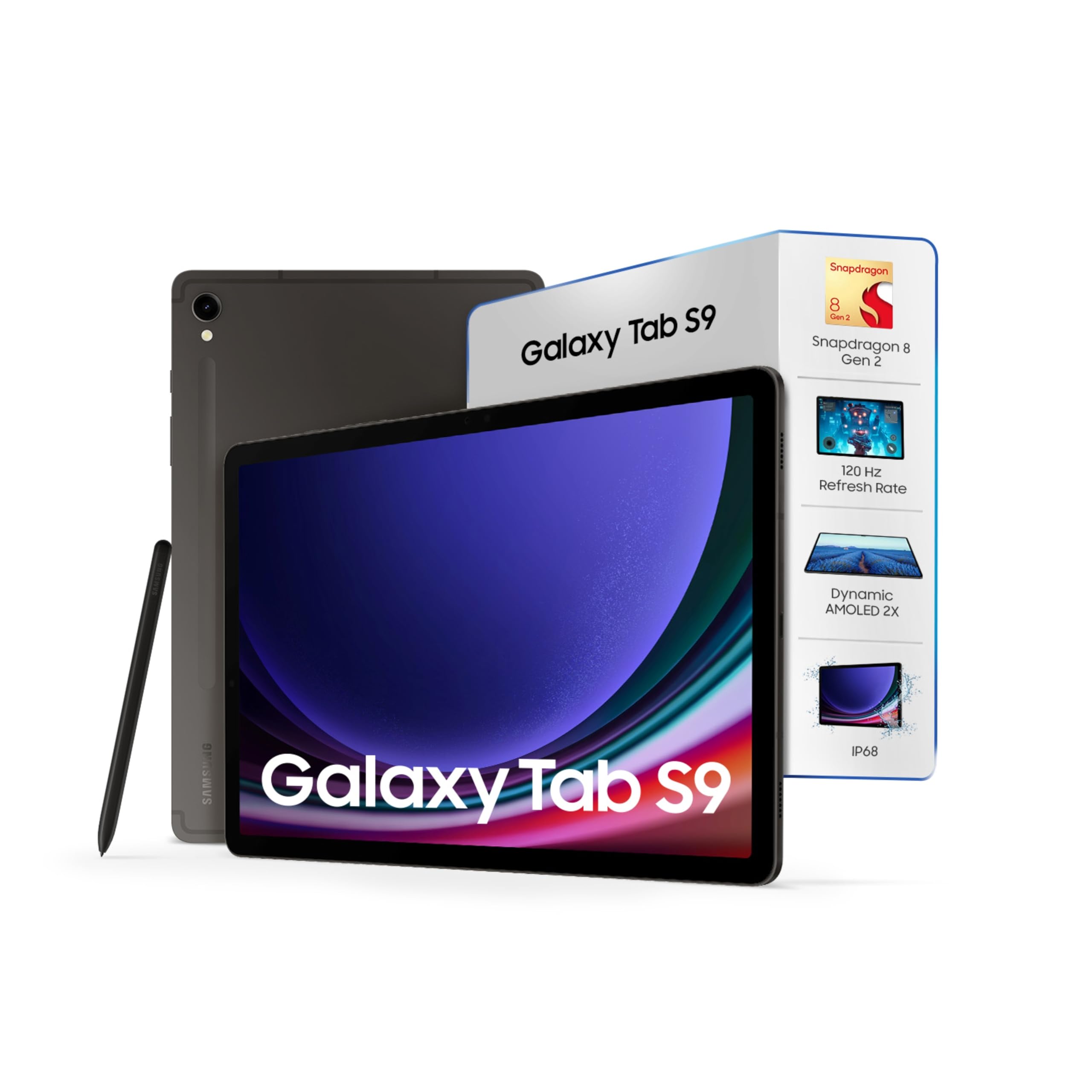
Resim: Ön ve arka view Samsung Galaxy Tab S9'in özelliklerini sergiliyor.asing ekran ve kamera modülü.
- Ön Kamera: Yatay olarak tutulduğunda üst orta kısımda yer alır.
- Arka Kamera: Arka tarafın sol üst köşesinde yer almaktadır.
- USB Tip-C Bağlantı Noktası: Şarj ve veri aktarımı için.
- Güç Düğmesi: Genellikle yan tarafta.
- Ses Düğmeleri: Genellikle yan tarafta.
- S Pen Magnetic Attachment Area: On the back, below the camera module.
- Konuşmacılar: Sürükleyici ses deneyimi için dörtlü hoparlör sistemi.
4. Kurulum
4.1 İlk Şarj
Before first use, fully charge your Galaxy Tab S9 using the provided USB Type-C cable and a compatible power adapter (sold separately). Connect the cable to the tablet's USB-C port and the adapter to a power outlet.

Resim: A Samsung Galaxy Tab S9 connected to a charger via a USB-C cable, illustrating the charging process.
4.2 Açma/Kapatma
- Açmak İçin: Samsung logosu görünene kadar Güç düğmesini basılı tutun.
- Kapatmak İçin: Güç düğmesine basılı tutun, ardından ekranda "Kapat" seçeneğine dokunun.
- Yeniden başlatmak: Güç düğmesini basılı tutun, ardından ekranda "Yeniden Başlat" seçeneğine dokunun.
4.3 İlk Kurulum Sihirbazı
Cihazı ilk açtığınızda, ekrandaki talimatları izleyerek aşağıdaki işlemleri gerçekleştirin:
- Dilinizi seçin.
- Bir Wi-Fi ağına bağlanın.
- Google hesabınızla giriş yapın veya yeni bir hesap oluşturun.
- Güvenlik özelliklerini ayarlayın (PIN, desen, parola, parmak izi).
- Önceki bir cihazdan verileri geri yükleyin (isteğe bağlı).
4.4 S Pen Kurulumu
The S Pen is included and ready to use. Attach it magnetically to the back of the tablet for charging and pairing. The S Pen supports bi-directional charging.

Resim: The S Pen magnetically attached to the rear of the Samsung Galaxy Tab S9, demonstrating its secure storage and charging position.
5. Kullanım Talimatları
5.1 Görüntüleme ve Gezinme
The Galaxy Tab S9 features a 27.81 cm (11 inch) Dynamic AMOLED 2X display with a 120 Hz refresh rate for smooth visuals and responsive touch interaction. Navigate using touch gestures or the S Pen.

Resim: The Samsung Galaxy Tab S9 display showing vibrant colors, highlighting the Dynamic AMOLED 2X technology.
5.2 Using the S Pen
The S Pen allows for precise input, drawing, and note-taking. Hover the S Pen over the screen to activate Air Command, providing quick access to S Pen features like Create Note, Smart Select, Screen Write, and Live Message.

Resim: A user writing notes on the Samsung Galaxy Tab S9 using the S Pen, demonstrating its functionality for productivity.
5.3 Kamera Fonksiyonları
The tablet is equipped with a 13 MP rear camera and a 12 MP ultra-wide front camera. Open the Camera app to capture photos and videos. Tap the screen to focus, and use pinch gestures to zoom.
5.4 Bağlantı
- Wifi: Access Wi-Fi settings from the Quick Panel or Settings app to connect to available networks.
- Bluetooth: Ayarlar > Bağlı cihazlar > Bluetooth üzerinden kulaklık veya hoparlör gibi Bluetooth cihazlarıyla eşleştirin.
- USB C: Connect to a computer for data transfer or use compatible USB-C accessories.
5.5 Galaxy AI Özellikleri
The Galaxy Tab S9 integrates AI features to enhance productivity and creativity:
- Summarize Notes: AI can summarize, format, and organize your notes.
- Fotoğraf Yardımı: Relocate, edit, and enhance objects in your photos.
- Aramak için daire içine alın: Experience Circle to Search with Google for quick information retrieval.

Resim: Bir fazlaview of Galaxy AI features on the Samsung Tab S9, including note summarization, photo editing, and Circle to Search.
6. Bakım
6.1 Cihazın Temizlenmesi
Use a soft, lint-free cloth to clean the screen and body of the tablet. Avoid using harsh chemicals or abrasive materials. The device and S Pen are IP68 rated for water and dust resistance, meaning they can withstand submersion in up to 1.5 meters of fresh water for up to 30 minutes.

Resim: A Samsung Galaxy Tab S9 being splashed with water, illustrating its IP68 water and dust resistance.
6.2 Pil Bakımı
To prolong battery life, avoid exposing the device to extreme temperatures. Charge the battery regularly and avoid letting it fully discharge frequently. The 8400 mAh battery provides extended usage time.
6.3 Yazılım Güncellemeleri
Regularly check for and install software updates to ensure optimal performance and security. Go to Settings > Software update > Download and install.
7. Sorun Giderme
7.1 Cihaz Açılmıyor
- Ensure the battery is charged. Connect the tablet to a charger for at least 10 minutes before attempting to power on.
- Press and hold the Power button and Volume Down button simultaneously for 7-10 seconds to force restart.
7.2 Ekran Tepki Vermiyor
- Force restart the device as described above.
- Ekranın temiz olduğundan ve nem veya kalıntılardan arındırılmış olduğundan emin olun.
7.3 Wi-Fi Bağlantı Sorunları
- Toggle Wi-Fi off and on in the Quick Panel.
- Wi-Fi yönlendiricinizi yeniden başlatın.
- Ağı unutun ve şifreyi tekrar girerek yeniden bağlanın.
7.4 S Pen Yanıt Vermiyor
- Ensure the S Pen is properly attached to the magnetic area on the back of the tablet to charge.
- Check S Pen settings in Settings > Advanced features > S Pen.
8. Özellikler
| Özellik | Detay |
|---|---|
| Model Adı | Galaksi Tab S9 |
| Görüntülemek | 27.81 cm (11 inch) Dynamic AMOLED 2X, 2560 x 1600 (WQXGA) Pixels, 120 Hz Refresh Rate |
| İşlemci | Snapdragon 8 Gen 2, Octa-Core (3.36GHz, 2.8GHz, 2GHz) |
| Veri deposu | 8 GB |
| Dahili Depolama | 128 GB (Expandable via microSD up to 1 TB) |
| Arka Kamera | 13 MP |
| Ön Kamera | 12 MP Ultra geniş açı |
| Pil Kapasitesi | 8400 mAh |
| İşletim Sistemi | Android |
| Bağlantı | Wi-Fi (802.11 ac/b/g/n), USB 3.2 Gen 1 |
| Dayanıklılık | IP68 Water and Dust Resistance (Tablet & S Pen) |
| Dimensions (L x W x Thickness) | 16.6 cm Uzunluk x 25.4 cm Genişlik x 0.6 cm Kalınlık Santimetre |
| Ağırlık | 498 Gram |
| Ses | Dolby Atmos Quad Speakers |
9. Garanti Bilgileri
Your Samsung Galaxy Tab S9 comes with a manufacturer's warranty:
- Cihaz: Satın alma tarihinden itibaren 1 yıl üretici garantisi.
- In-box Accessories (including batteries): 6 months manufacturer warranty from the date of purchase.
For detailed warranty terms and conditions, please refer to the warranty card included in your package or visit the official Samsung India webalan.
10. Destek
For technical assistance, product inquiries, or service requests, please contact Samsung customer support:
- Toll-free Number (India): 1800 40 7267864
- E-posta Desteği: destek.india@samsung.com
- Çevrimiçi Kaynaklar: Visit the official Samsung India website for FAQs, software downloads, and service center locations.