
1. Giriş
Satın aldığınız için teşekkür ederizasing the FLAMMA FX11 Bass Headphone Amplifier. This portable device is designed to provide bass players with a versatile and convenient practice solution. It integrates multiple amp models, effects, drum grooves, and connectivity options for an enhanced playing experience.

Image 1: FLAMMA FX11 Bass Headphone Amplifier. This image shows the compact, orange-colored device with its 1/4-inch instrument input jack extended, ready for connection to a bass guitar. Control buttons for AMP, TONE, EFX, DRUM, and volume are visible on the side.
2. Temel Özellikler
- 7 Amp Modeller: Offers a variety of bass amplifier tones with individual save functions for each.
- 7 Built-in Effects: Includes various effects with adjustable parameters to shape your sound.
- 5 Tone Color Levels: Adjust the tonal character from darker to brighter.
- 28 Davul Ritimleri: Provides a selection of drum patterns for practice, with adjustable speed and volume.
- Bluetooth Bağlantısı: Allows audio playback from external devices for jamming along.
- USB Audio Recording & Playback: Supports direct audio recording to and playback from a computer or mobile device (OTG function).
- Şarj Edilebilir Pil: Built-in Lithium Polymer battery for portable use.
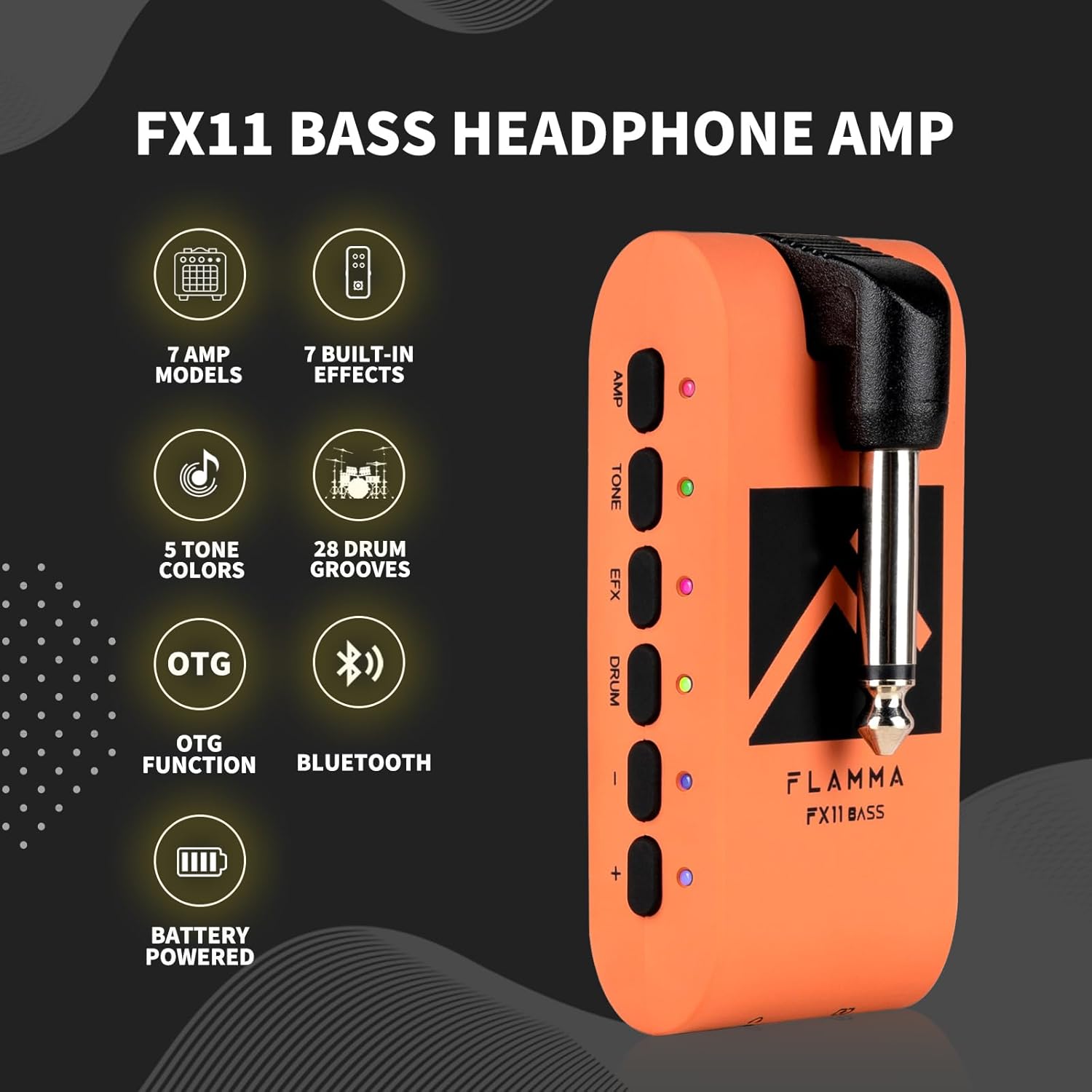
Resim 2: Üzeriview of FLAMMA FX11 features. This graphic highlights the main functionalities: 7 Amp Models, 7 Built-in Effects, 5 Tone Colors, 28 Drum Grooves, OTG Function, Bluetooth, and Battery Powered.
3. Kontroller ve Bağlantı Noktaları

Image 3: Detailed diagram of the FLAMMA FX11 controls and ports.
- 1/4" Instrument Input Jack: Bas gitarınızı buraya bağlayın.
- Ses Kontrolü: Genel çıkış ses seviyesini ayarlar.
- Three-way Power Switch: ON/OFF/BT (Bluetooth pairing).
- AMP Düğme: Selects and cycles through amp modeller.
- SES DÖNDÜRME Düğmesi: Selects and cycles through tone color levels.
- EFX Button: Selects and cycles through built-in effects.
- DAVUL Düğmesi: Activates/deactivates and controls the drum machine.
- -/+ Düğmeler: Adjust parameters (amp model, effect parameter, tone color, drum speed/volume/groove).
- 1/8" TRS Headphone Jack: Özel pratik için kulaklığınızı bağlayın.
- USB-C Bağlantı Noktası: For charging, USB audio, and firmware updates.
4. Kurulum
4.1 Cihazı Şarj Etme
The FX11 has a built-in rechargeable Lithium Polymer battery. To charge, connect the supplied USB-C cable to the USB-C port (10) on the device and to a compatible USB power source. The LED indicators will show charging status.
4.2 İlk Bağlantı
- Plug the 1/4" Instrument Input Jack (1) into your bass guitar's output jack. The jack can rotate for optimal positioning.
- Connect your headphones to the 1/8" TRS Headphone Jack (9).
- Slide the Power Switch (3) to the 'ON' position to power on the device.
5. Kullanım Talimatları
5.1 Amp Modeller
The FX11 features 7 different bass amp models, each with an individual save function.
- Basın AMP button (4) to enter AMP module selection mode.
- Use the -/+ buttons (8) to select between the 7 different amp modeller.
- The color of the LED indicator next to the AMP button will show the currently selected amp modeli.
- To save your current settings (amp, tone, effects), press and hold the AMP button until the LED flashes.

Image 4: Close-up of the FLAMMA FX11 showing the AMP button and LED indicators. Text lists the 7 amp models: Clean, Slap, Jazz, Metal Rhythm, Solo Time, Dyna Wah, Fuzz.
5.2 Built-in Effects (EFX)
The device includes 7 built-in effects with parameter adjustment.
- Press the EFX button (6) to activate/deactivate the effects module.
- To cycle through different effects, press the EFX button repeatedly.
- To enter parameter adjustment mode for the selected effect, press and hold the EFX button. Use the -/+ buttons (8) to adjust parameters.
5.3 Tone Color
Adjust the overall tonal character of your sound.
- Press the TONE button (5) to enter tone color selection mode.
- Use the -/+ buttons (8) to select between 5 levels of tone color (e.g., Darker, Dark, Flat, Bright, Brighter).
5.4 Drum Machine
Practice with 28 different drum grooves.
- Press the DRUM button (7) to activate/deactivate the drum machine.
- When the drum machine is on, the LED indicator will show the current parameter adjustment mode:
- Kırmızı LED: Select Drum Groove (use -/+ buttons).
- Yeşil LED: Adjust Volume (use -/+ buttons).
- Mavi LED: Adjust Speed (use -/+ buttons).
- Tap the DRUM button to cycle through these adjustment modes.

Image 5: FLAMMA FX11 demonstrating drum groove functionality. The image shows the device connected to a bass, with visual cues for selecting drum groove (red), adjusting speed (blue), and adjusting volume (green).
5.5 Bluetooth Ses Çalma
Connect your mobile device to play backing tracks.
- Slide the Power Switch (3) to the 'BT' position. The LED will flash blue, indicating pairing mode.
- On your mobile device, enable Bluetooth and select 'FLAMMA FX11' from the list of available devices.
- Once connected, the LED will turn solid blue. You can now play audio from your device through the FX11.

Image 6: FLAMMA FX11 connected via Bluetooth to a smartphone for audio playback. The device is plugged into a bass guitar, and headphones are shown connected to the FX11.
5.6 USB Audio Recording (OTG Function)
Record your playing directly to a computer or mobile device.
- Connect the FX11 to your computer via the USB-C port (10) using a USB-C to USB-A cable.
- For mobile devices, an OTG cable (not included) may be required to connect the USB-C port (10) to your phone/tablet.
- The FX11 will be recognized as an audio interface. Select it as your input device in your recording software or app.
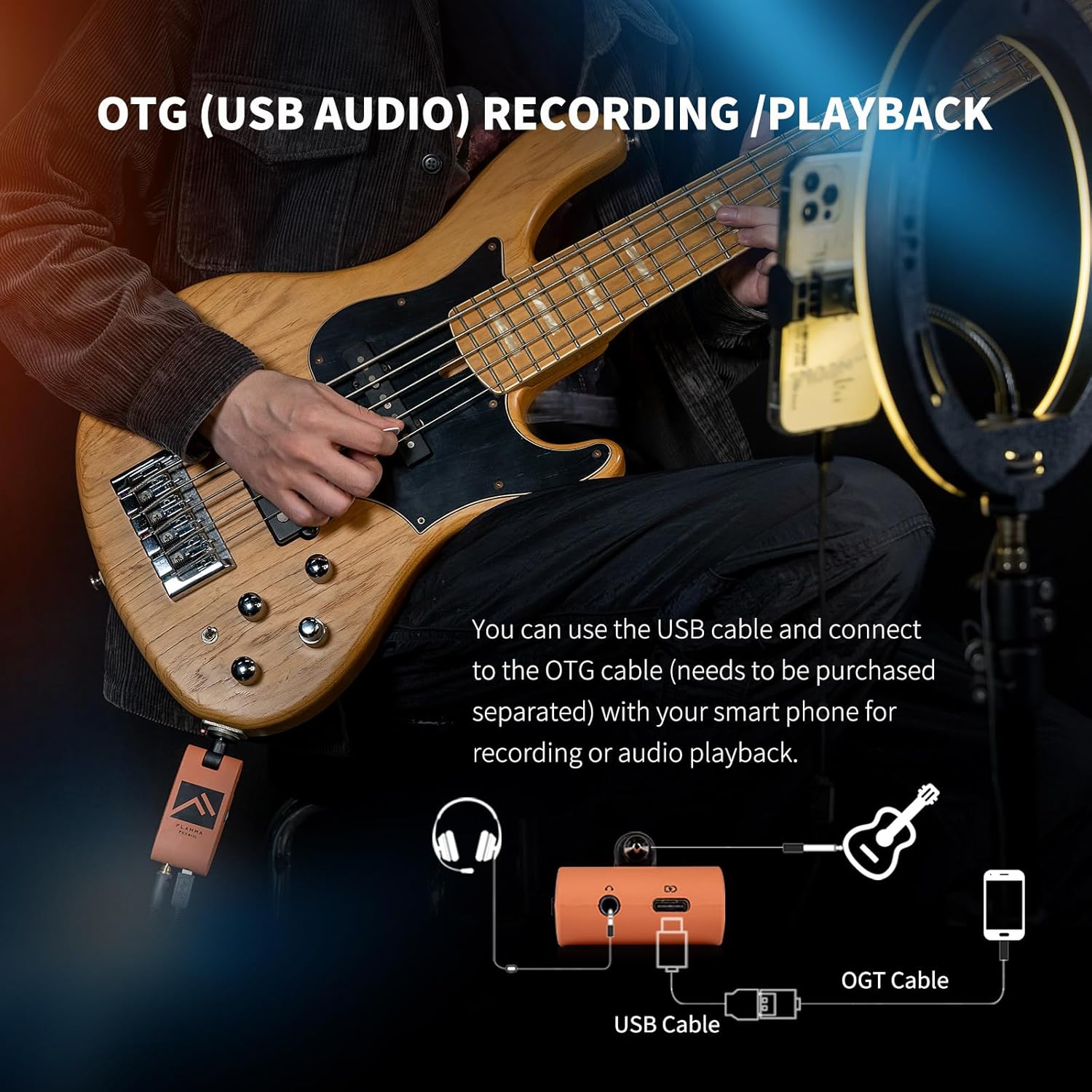
Image 7: Diagram illustrating the OTG (USB Audio) recording and playback function of the FLAMMA FX11. It shows the device connected to a bass, headphones, and a smartphone via a USB cable and an OTG cable.
5.7 Resmi Ürün Videoları
Watch these official videos from FLAMMA for demonstrations and further insights into the FX11 Bass Headphone Amp.
Video 1: FLAMMA FX11 Bass Headphone Amp Demo by Yet Another Guitar Channel. This video provides a comprehensive demonstration of the FX11's features and sound capabilities.
Video 2: FLAMMA FX11 Bass Guitar Headphone Amp. This video offers another perspective on the FX11, showcasing its portability and various tones.
6. Özellikler
| Ürün Ağırlığı | 2.08 ons |
| Ürün Boyutları | 3.2 x 1.6 x 1.2 inç |
| Ürün Model Numarası | FX11 |
| Piller | 1 Lityum Polimer pil gerekli (dahil) |
| Uyumlu Cihazlar | Bas gitar |
| Bağlayıcı Türü | USB |
| Malzeme Türü | Plastik |
| Çıkış Watttage | 5 Watt |
| Güç Kaynağı | Şarj edilebilir pil |
| Renk | Turuncu |
7. Sorun Giderme
- Ses Yok: Ensure the device is powered on, headphones are properly connected, and volume is turned up. Check that your bass guitar is plugged in correctly and its volume is not at zero.
- Kötü Ses Kalitesi/Gürültü: Try different headphones. Ensure the instrument cable is fully inserted. Check for interference from other electronic devices.
- Bluetooth Bağlantı Sorunları: Ensure the device is in Bluetooth pairing mode (flashing blue LED). Forget the device from your mobile device's Bluetooth settings and try pairing again.
- Cihaz Şarj Olmuyor: Verify the USB-C cable is securely connected to both the FX11 and the power source. Try a different USB-C cable or power adapter.
- Düğmeler Yanıt Vermiyor: Power cycle the device (turn off and on). If issues persist, contact customer support.
8. Garanti ve Destek
For warranty information, technical support, or service inquiries, please refer to the documentation included with your purchase or visit the official FLAMMA webSite. Satın alma belgenizi garanti talepleriniz için saklayın.