
Keenetic KN-2112-01TR
Keenetic Extra DSL AC1200 Wi-Fi Mesh VDSL2/ADSL2+ Modem Gigabit Fiber Router User Manual
Model: KN-2112-01TR
giriiş
This manual provides comprehensive instructions for the setup, operation, maintenance, and troubleshooting of your Keenetic Extra DSL AC1200 Wi-Fi Mesh VDSL2/ADSL2+ Modem Gigabit Fiber Router. Please read this manual carefully before using the device to ensure optimal performance and safety.
The Keenetic Extra DSL AC1200 is a versatile networking device designed to provide high-speed internet access and robust Wi-Fi coverage. It supports VDSL2/ADSL2+ connections and features Gigabit Ethernet ports for wired connectivity, along with dual-band Wi-Fi for seamless wireless networking.
Paket İçeriği
Kurulum işlemine geçmeden önce, lütfen paketinizdeki tüm öğelerin eksiksiz olduğundan emin olun:
- Keenetic Extra DSL AC1200 Router (KN-2112-01TR)
- Güç Adaptörü
- Ethernet kablosu
- DSL Kablosu
- Hızlı Başlangıç Kılavuzu (Bu kılavuz, ayrıntılı bir rehber niteliğindedir)
Fiziksel Aşırıview
Familiarize yourself with the various ports and indicators on your Keenetic Extra DSL router.

Şekil 1: Ön taraf view of the Keenetic Extra DSL AC1200 Router, showing its compact design and antenna configuration.
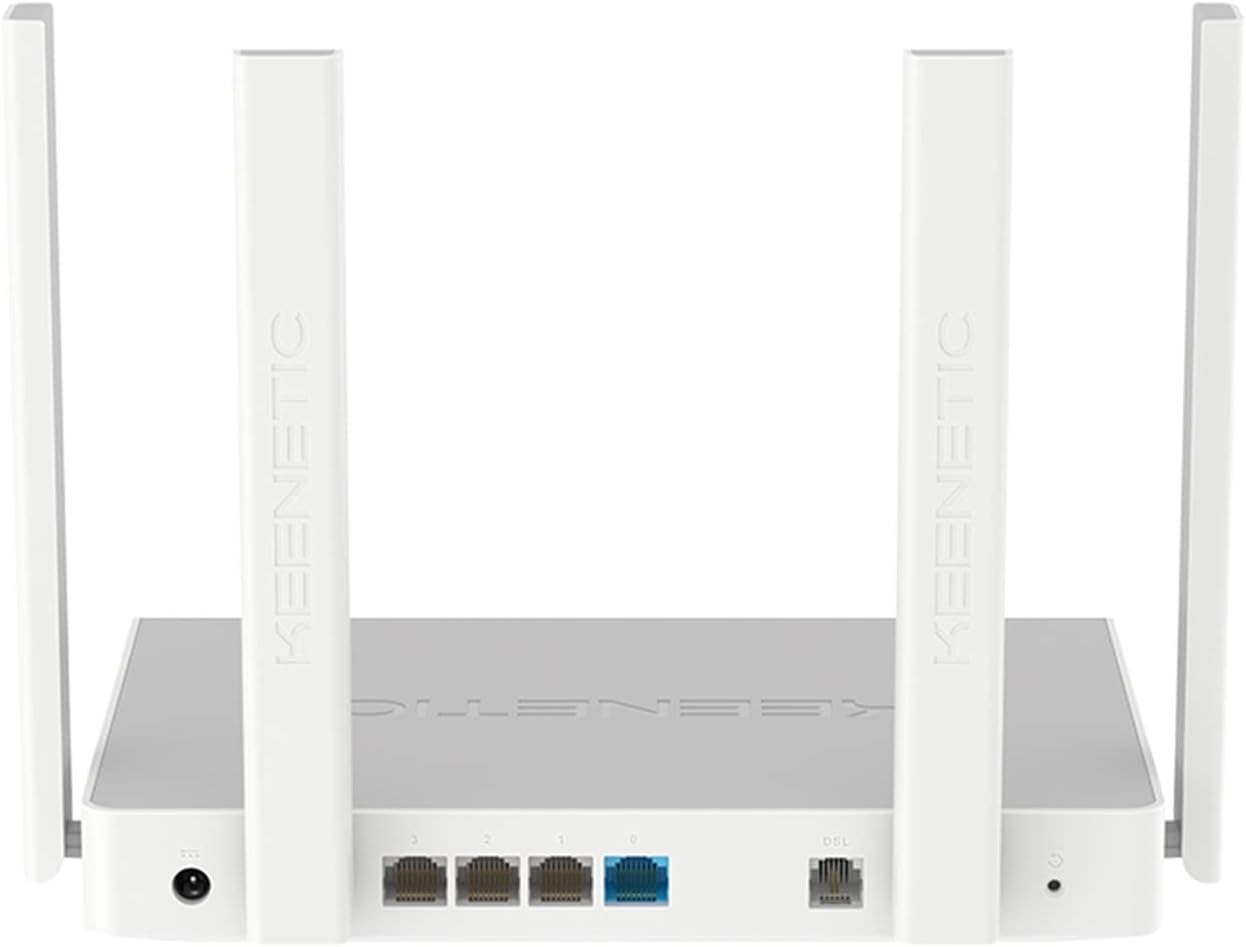
Şekil 2: Arka view of the Keenetic Extra DSL AC1200 Router, highlighting the DSL port, four Gigabit Ethernet ports, and the USB 2.0 port.
- DSL Bağlantı Noktası: Connects to your VDSL2/ADSL2+ line.
- Ethernet Portları (LAN/WAN): Four 1Gbit/s ports for wired devices or WAN connection.
- USB 2.0 Bağlantı Noktası: For connecting external storage or 3G/4G modems.
- Güç Girişi: Ürünle birlikte verilen güç adaptörüne bağlanır.
- Sıfırlama Düğmesi: Fabrika ayarlarına geri dönmek için kullanılır.
Kurmak
1. Donanım Bağlantısı
- DSL hattını bağlayın: Plug one end of the DSL cable into the DSL port on the router and the other end into your wall's DSL jack.
- Güce Bağlanın: Connect the power adapter to the router's power input and then plug it into a power outlet. The router will power on automatically.
- Kablolu Cihazları Bağlayın (İsteğe Bağlı): Use an Ethernet cable to connect your computer or other wired devices to any of the Gigabit Ethernet ports on the router.
- Başlatmayı Bekleyin: Allow a few minutes for the router to boot up and establish a connection. The indicator lights on the front panel will show the status of the connection.
2. İlk Yapılandırma
The Keenetic Extra DSL features a user-friendly interface for easy setup.
- Erişim Web Arayüz: Bir tane aç web browser on a device connected to the router (either wired or wirelessly using the default Wi-Fi name and password found on the router's label). Type
my.keenetic.netor192.168.1.1Adres çubuğuna girmek için Enter’a basın. - Kurulum Sihirbazını Takip Edin: The first time you access the interface, a setup wizard will guide you through the initial configuration steps, including setting up your internet connection (VDSL/ADSL parameters), Wi-Fi network name (SSID), and password.
- Yönetici Şifresini Ayarla: Create a strong administrator password for accessing the router's settings.
- Ayarları Kaydet: Yapılandırmayı tamamladıktan sonra ayarlarınızı kaydedin ve istenirse yönlendiriciyi yeniden başlatın.
Yönlendiriciyi Çalıştırma
Wi-Fi Bağlantısı
The router supports dual-band Wi-Fi (2.4 GHz and 5 GHz) for optimal wireless performance.
- Bağlantı Cihazları: On your wireless device, search for available Wi-Fi networks. Select your configured network name (SSID) and enter the password.
- Wi-Fi Mesh: This router supports Wi-Fi Mesh technology. For extending coverage, additional Keenetic devices can be added to create a seamless mesh network. Refer to the Keenetic website for detailed instructions on mesh setup.
Gelişmiş Özellikler
The Keenetic OS provides a wide range of features accessible through the web arayüz:
- Misafir Wi-Fi Ağı: Create a separate Wi-Fi network for guests to isolate them from your main network.
- Ebeveyn Kontrolleri: Manage internet access for specific devices or users.
- Port Yönlendirme: Configure rules for specific applications or services.
- VPN Sunucusu/İstemcisi: Establish secure connections.
- USB Uygulamaları: Utilize the USB 2.0 port for file sharing (FTP/SMB), connecting a printer, or using a 3G/4G USB modem as a backup internet source.
Bakım
- Donanım Yazılımı Güncellemeleri: Yönlendiricinin yazılımı aracılığıyla düzenli olarak aygıt yazılımı güncellemelerini kontrol edin ve yükleyin web Arayüz. Güncellemeler genellikle performans iyileştirmeleri, güvenlik yamaları ve yeni özellikler içerir.
- Yönlendirici Yerleşimi: Place the router in a central location, away from obstructions and sources of interference (e.g., microwaves, cordless phones) to maximize Wi-Fi coverage.
- Temizlik: Yönlendiriciyi temiz ve tozdan arındırılmış halde tutun. Temizlik için yumuşak, kuru bir bez kullanın. Sıvı temizleyiciler kullanmayın.
- Yeniden başlatma: Ağ sorunları yaşıyorsanız, güç adaptörünü 10 saniyeliğine çıkarıp tekrar takarak yönlendiriciyi yeniden başlatmayı deneyin.
Sorun giderme
| Sorun | Olası Neden | Çözüm |
|---|---|---|
| İnternet Erişimi Yok | DSL line not connected, incorrect ISP settings, modem not synced. | Check DSL cable connection. Verify ISP settings in the router's web interface. Restart the router and wait for DSL sync. Contact your ISP if the issue persists. |
| Zayıf Wi-Fi Sinyali | Router placement, interference, too many devices. | Relocate the router to a central, open area. Avoid placing near other electronics. Consider adding a Keenetic Wi-Fi Mesh extender. |
| Yönlendiriciye erişilemiyor Web Arayüz | Incorrect IP address, network configuration issues. | Ensure your device is connected to the router. Try my.keenetic.net or 192.168.1.1. Clear browser cache. Try a different browser. If all else fails, perform a factory reset (see below). |
| Yavaş İnternet Hızı | Network congestion, outdated firmware, ISP issues. | Update router firmware. Limit bandwidth-intensive activities. Perform a speed test directly connected to the router. Contact your ISP. |
Fabrika Ayarlarına Sıfırlama
If you encounter persistent issues, you may need to perform a factory reset. This will erase all custom settings and restore the router to its default configuration.
- Yönlendirici açıkken, şunu bulun: Sıfırla button (usually a small pinhole button) on the back panel.
- Use a paperclip or a thin object to press and hold the Reset button for approximately 10 seconds until the system LED blinks rapidly.
- Release the button and wait for the router to restart. You will then need to reconfigure the router from scratch.
Özellikler
| Özellik | Detay |
|---|---|
| Model Adı | KN-2112-01TR |
| Marka | Keenetik |
| kablosuz standardı | 802.11ac, 802.11n |
| Frekans Bant Sınıfı | Çift Bant |
| Temel Özellikler | Wi-Fi Mesh, User-Friendly Interface |
| Ethernet Bağlantı Noktaları | 4 x Gigabit (1Gbit/s) |
| USB Bağlantı Noktaları | 1 adet USB 2.0 |
| Boyutlar (U x G x Y) | 37x28.6x6.2 cm |
| Ağırlık | 1 Kilogram |
| Renk | Beyaz |
| Menşei ülke | Çin |
Garanti ve Destek
For warranty information and technical support, please refer to the official Keenetic website or contact Keenetic customer service. Specific warranty terms may vary by region and retailer.
Note: No specific warranty duration or detailed support contact information was provided in the product data. Please consult your purchase documentation or the manufacturer's official resources for the most accurate and up-to-date information.
İlgili Belgeler - KN-2112-01TR
 |
Keenetic Extra DSL AC1200 Modem Yönlendirici: VDSL, ADSL, Ethernet ve 3G/4G Bağlantıları için Hızlı Başlangıç Kılavuzu Keenetic Extra DSL AC1200 modem yönlendiricinizi kullanmaya hızlıca başlayın. Bu kılavuz, VDSL, ADSL, Ethernet ve 3G/4G USB modem bağlantıları, kurulum seçenekleri, LED göstergeleri ve sorun giderme konularını kapsamaktadır. |
 |
Keenetic Omni DSL KN-2011 Hızlı Başlangıç Kılavuzu Keenetic Omni DSL KN-2011 modem yönlendiricisi için VDSL/ADSL, Ethernet ve 3G/4G USB modem bağlantıları, kurulum, LED göstergeleri, portlar ve sorun giderme konularını kapsayan kapsamlı bir hızlı başlangıç kılavuzu. |
 |
Keenetic Buddy 5 AC1200 Mesh Wi-Fi 5 Ethernet Portlu Menzil Genişletici - Veri Sayfası Evinizin her yerinde güvenilir Wi-Fi kapsama alanını genişletmek için tasarlanmış Ethernet portlu bir AC1200 Mesh Wi-Fi 5 menzil genişletici olan Keenetic Buddy 5 (KN-3311) için ayrıntılı teknik özellikler ve özellikler. |
 |
Keenetic Giga Kullanıcı Kılavuzu: Kurulum, Özellikler ve Sorun Giderme Keenetic Giga AC1300 Çift Bantlı Akıllı Wi-Fi Yönlendirici için kapsamlı kullanıcı kılavuzu. Kurulum, çeşitli yöntemlerle internete bağlanma, Wi-Fi optimizasyonu, USB sürücü kullanımı, sorun giderme ve garanti bilgileri hakkında bilgi edinin. |
 |
Keenetic Runner 4G Hızlı Başlangıç Kılavuzu Keenetic Runner 4G N300 Mesh Wi-Fi 4G Modem Yönlendirici ve 4 Portlu Akıllı Anahtar (Model: KN-2210) kurulumu ve ayarları için hızlı başlangıç kılavuzu. SIM kart takma, anten kurulumu, güç bağlantısı ve Wi-Fi veya Ethernet üzerinden ilk yapılandırma talimatlarını içerir. |
 |
Keenetic Orbiter Pro AC1300 Mesh Wi-Fi Yönlendirici/Genişletici Hızlı Başlangıç Kılavuzu Keenetic Orbiter Pro AC1300 Mesh Wi-Fi 5 Gigabit Yönlendirici/Genişletici (Model KN-2810) için kurulum, montaj ve temel yönetimi kapsayan hızlı başlangıç kılavuzu. |
Ask a question about this manual
Ask about setup, troubleshooting, compatibility, parts, safety, or missing instructions. Manuals+ will review the question and use this page’s manual context to help answer it.