
1. Giriş
This manual provides detailed instructions for the Hexgears GK715 Mechanical Gaming Keyboard. Please read this manual thoroughly before using the product to ensure proper operation and to maximize your experience.

Image 1.1: The Hexgears GK715 Mechanical Gaming Keyboard.
2. Temel Özellikler
- 104-Tuş Düzeni: Full-size keyboard for comprehensive functionality.
- Kailh Box Switches: Durable and responsive mechanical switches.
- Blue Backlighting: Enhances visibility and aesthetic appeal.
- Sıcak Değiştirilebilir Tasarım: Allows for easy switch replacement without soldering.
- Double Shot ABS Keycaps: Ensures legends do not fade over time and provides a premium feel.
- Gölgelenme Önleme: Guarantees accurate registration of multiple simultaneous key presses.
- Su geçirmez Yapı: Kazara dökülmelere karşı koruma sağlar.

Image 2.1: The GK715 keyboard showcasing its 104-key layout and anti-ghosting capability.

Resim 2.2: Ayrıntılı view of the double-shot ABS keycaps and blue backlighting on the GK715 keyboard.
3. Kurulum
- Klavyeyi Paketinden Çıkarın: Carefully remove the Hexgears GK715 keyboard from its packaging.
- Bilgisayara bağlanın: Plug the USB cable from the keyboard into an available USB port on your computer. The keyboard is a corded electric device and requires a USB connection.
- Sürücü Kurulumu: İşletim sisteminiz gerekli sürücüleri otomatik olarak algılayıp yükleyecektir. Genellikle ek yazılım kurulumuna gerek yoktur.
- Klavye Açısını Ayarla: The keyboard features dual-segment foot support. Adjust the feet on the underside of the keyboard to your preferred typing angle for ergonomic comfort.
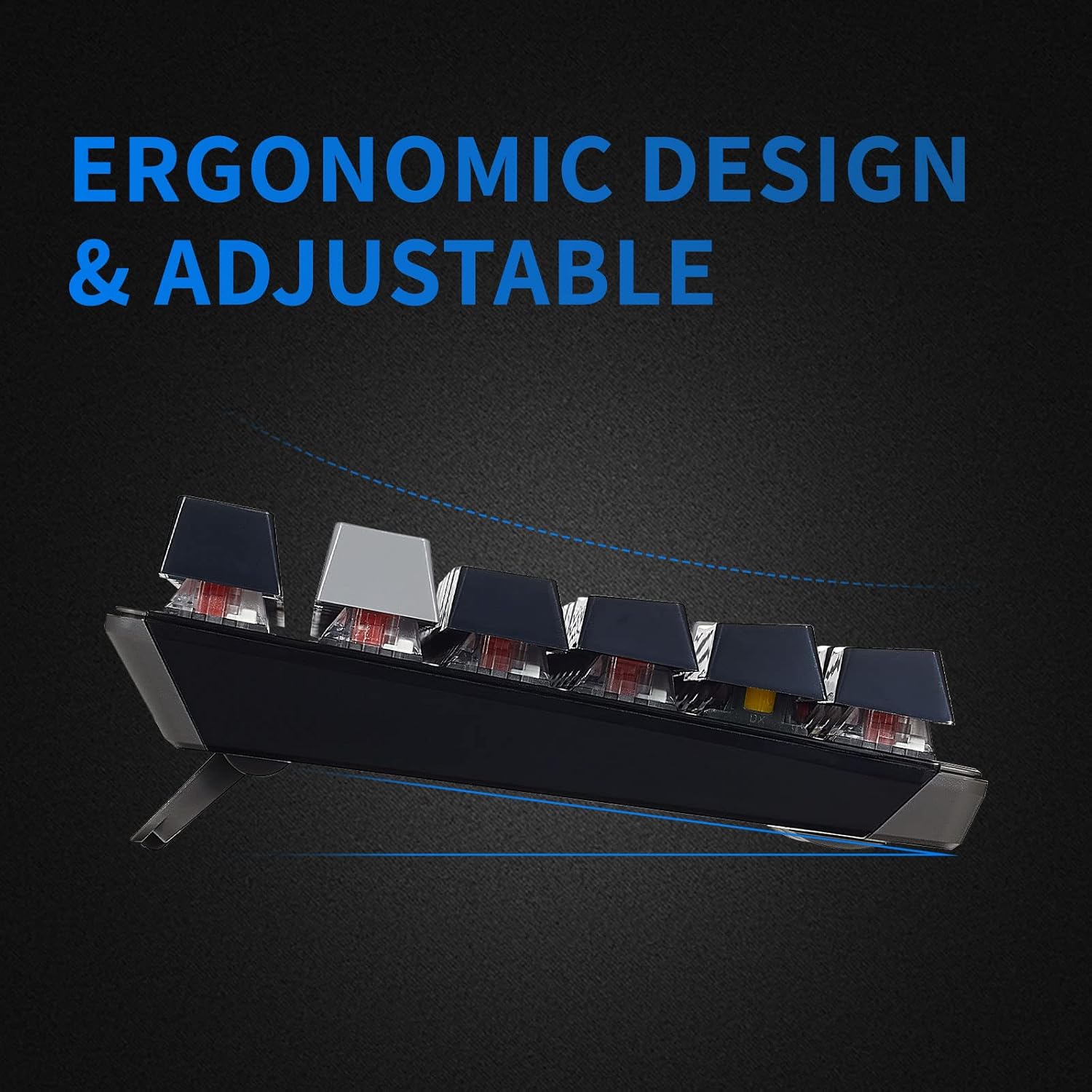
Image 3.1: The adjustable feet of the GK715 keyboard, allowing for ergonomic customization.

Image 3.2: The GK715 keyboard in a typical computer setup, demonstrating its wired connection and blue backlighting.
4. Kullanım Talimatları
4.1 Temel Kullanım
The Hexgears GK715 functions as a standard 104-key mechanical keyboard. Simply begin typing after connecting it to your PC. The indicator lights (Caps Lock, Num Lock, Scroll Lock) will illuminate to show their active status.
4.2 Arka Işık Kontrolü
The keyboard features blue backlighting. Specific key combinations (often involving the 'Fn' key) are used to adjust brightness or switch between lighting modes. Refer to the keycap legends for specific function key assignments related to lighting.
4.3 Sıcak Değiştirilebilir Anahtarlar
The GK715 supports hot-swappable Kailh Box switches, allowing you to change switches without soldering. Use the included keycap puller and switch puller tools for this process.
- Tuş kapağı sökme aparatını kullanarak istediğiniz tuş kapağını nazikçe çıkarın.
- Anahtar sökme aletini kullanarak anahtarı dikkatlice kavrayın ve devre kartından çıkarın.
- Yeni anahtarın pimlerini PCB üzerindeki deliklerle hizalayın ve yerine oturana kadar sıkıca bastırın.
- Tuş başlığını değiştirin.
Video 4.1: Demonstration of hot-swapping Kailh Box switches on the Hexgears GK715 keyboard, including keycap and switch removal and installation.
Video 4.2: Bittiview of the GK715 Black Grey keyboard, showcasing its design, backlighting, and typing experience.
5. Bakım
5.1 Temizlik
To clean the keyboard, disconnect it from your computer. Use a soft, dry cloth to wipe down the keycaps and chassis. For deeper cleaning, you may remove keycaps using a keycap puller and clean underneath with compressed air or a small brush. Avoid using harsh chemicals or abrasive materials.
5.2 Su Geçirmezlik Özelliği
The GK715 is designed with waterproof features to protect against accidental spills. While it offers protection, it is not recommended to submerge the keyboard in liquid. In case of a spill, disconnect the keyboard immediately, wipe off any liquid, and allow it to air dry completely before reconnecting.
6. Sorun Giderme
- Klavye Yanıt Vermiyor:
- USB kablosunun hem klavyeye hem de bilgisayara güvenli bir şekilde bağlandığından emin olun.
- Klavyeyi farklı bir USB portuna takmayı deneyin.
- Bilgisayarınızı yeniden başlatın.
- Backlight Not Working/Dim:
- Check if the backlight is turned off or set to the lowest brightness level using the designated function keys (e.g., Fn + arrow keys or other indicated keys).
- Klavyenin USB portundan yeterli güç aldığından emin olun.
- Tuşlar Kayıt Olmuyor:
- If individual keys are not working, ensure the switch underneath is properly seated. If you have hot-swapped switches, try re-seating or replacing the affected switch.
- Clean any debris that might be under the keycap or switch.
- Connection Issues After Sleep Mode:
- If the keyboard experiences connection issues after the computer enters sleep mode, try unplugging and re-plugging the USB cable.
- Ensure your computer's USB power management settings are not set to turn off USB devices to save power.
7. Özellikler
| Özellik | Detay |
|---|---|
| Marka | Hexgears |
| Model Adı | GK715 |
| Bağlantı Teknolojisi | USB (Kablolu Elektrik) |
| Uyumlu Cihazlar | PC |
| Anahtar Sayısı | 104 |
| Anahtar Türü | Kailh BOX |
| Özel Özellik | Waterproof, Hot-Swappable |
| Ürün Boyutları (U x G x Y) | 17.2" x 5.08" x 1.42" |
| El Yönelimi | İki elini de kullanabilen |

Resim 7.1: Üzeriview of various Kailh BOX switch types, highlighting their tactile and linear characteristics.
8. Garanti ve Destek
For warranty information and technical support, please refer to the official Hexgears webSite üzerinden satın alabilir veya doğrudan müşteri hizmetleriyle iletişime geçebilirsiniz. Satın alma fişinizi, garanti talepleriniz için satın alma belgesi olarak saklayın.