
1. Giriş
Welcome to the user manual for your Havit Gaming Mouse MS1032. This document provides essential information for setting up, operating, maintaining, and troubleshooting your device. Please read it carefully to ensure optimal performance and longevity of your mouse.
The Havit MS1032 is a gaming mouse featuring six adjustable DPI settings, a comfortable ergonomic design, and a non-slip surface. It is engineered for smooth and quiet operation, aiming to reduce fatigue during extended use.
2. Kurulum
2.1 Paket İçeriği
- Havit Gaming Mouse MS1032
- Kullanıcı Kılavuzu
2.2 Sistem Gereksinimleri
- Operating System: Windows XP, Windows 7, Linux
- Mevcut USB portu
2.3 Fareyi Bağlama
- Unpack the Havit Gaming Mouse MS1032 from its packaging.
- Bilgisayarınızda kullanılabilir bir USB bağlantı noktası bulun.
- Farenin USB bağlantısını USB portuna takın.
- İşletim sisteminiz gerekli sürücüleri otomatik olarak algılayıp yüklemelidir. Bu işlem birkaç dakika sürebilir.
- Kurulum tamamlandıktan sonra fare kullanıma hazırdır.
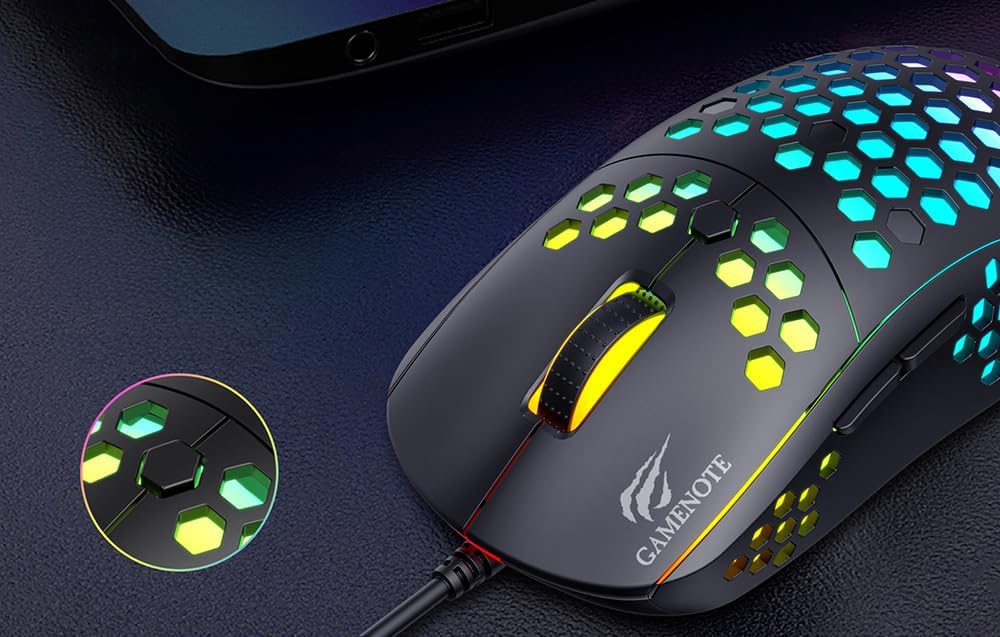
Figure 1: Havit MS1032 Gaming Mouse connected via USB.
3. Kullanım Talimatları
3.1 Temel Fonksiyonlar
- Sol tık: Birincil eylem, seçim, aktivasyon.
- Sağ tık: Opens context menus, performs secondary actions.
- Kaydırma tekerleği: Scrolls up/down documents or web Sayfalar. Orta tıklama işlevi için de basılabilir.
- Yan Düğmeler: Genellikle ileri/geri gezinme için kullanılır web tarayıcılar veya oyunlardaki özel işlevler.
3.2 DPI Ayarı
The Havit MS1032 features six adjustable DPI (Dots Per Inch) settings, allowing you to change the mouse sensitivity on the fly. This is useful for adapting to different tasks, such as precise aiming in games or fast navigation across multiple monitors.
To adjust the DPI, locate the DPI button, typically positioned behind the scroll wheel. Press this button to cycle through the available DPI settings. The LED lighting on the mouse may change to indicate the current DPI level, providing visual feedback for your selection.
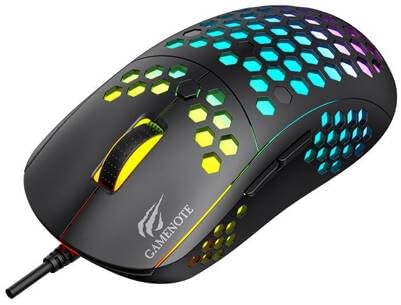
Figure 2: Location of the DPI button (behind the scroll wheel).
4. Bakım
4.1 Temizlik
En iyi performansı ve görünümünü korumak için farenizi düzenli olarak temizleyin:
- Temizlemeden önce fareyi bilgisayarınızdan ayırın.
- Yumuşak, tiftiksiz bir bez kullanın ve hafifçe kurulayın.ampSu veya hafif, aşındırıcı olmayan bir temizleme solüsyonuyla temizleyin.
- Gently wipe the surface of the mouse.
- For crevices and the optical sensor, use a cotton swab or compressed air to remove dust and debris.
- Avoid using harsh chemicals, abrasive cleaners, or excessive moisture, as these can damage the mouse's finish or internal components.
4.2 Depolama
When not in use, store the mouse in a clean, dry environment away from direct sunlight and extreme temperatures to prevent damage.
4.3 Genel Bakım
- Fareyi düşürmekten veya sert darbelere maruz bırakmaktan kaçının.
- Do not attempt to disassemble the mouse, as this will void the warranty and may cause irreparable damage.
- Keep the mouse away from liquids to prevent electrical damage.
5. Sorun Giderme
If you encounter issues with your Havit Gaming Mouse MS1032, please refer to the following common solutions:
5.1 Fare Yanıt Vermiyor
- USB Bağlantısını Kontrol Edin: USB kablosunun bilgisayarınızdaki çalışan bir USB bağlantı noktasına güvenli bir şekilde takılı olduğundan emin olun. Farklı bir USB bağlantı noktası deneyin.
- Bilgisayarı yeniden başlat: Sometimes a simple computer restart can resolve connectivity issues.
- Başka Bir Bilgisayarda Test Edin: Mümkünse, sorunun fareden mi yoksa bilgisayarınızın ayarlarından mı kaynaklandığını belirlemek için fareyi başka bir bilgisayarda test edin.
5.2 Cursor Movement is Erratic or Jumpy
- Sensörü Temizleyin: Farenin altındaki optik sensörün temiz ve toz veya kirden arındırılmış olduğundan emin olun.
- Yüzeyi Kontrol Edin: Fareyi temiz, yansıtıcı olmayan ve düzgün bir yüzeyde (örneğin, fare altlığı) kullanın. Cam veya çok yansıtıcı yüzeylerden kaçının.
- DPI ayarını yapın: If the cursor is too fast or too slow, adjust the DPI setting using the DPI button.
5.3 Düğmeler Çalışmıyor
- Engelleri Kontrol Edin: Düğmelerin altına herhangi bir yabancı madde sıkışmadığından emin olun.
- Yazılım Çakışması: Özel fare yazılımınız yüklüyse, sorunun çözülüp çözülmediğini görmek için geçici olarak kaldırmayı deneyin.
5.4 LED Işıklar Çalışmıyor
- Bağlantıyı kontrol et: Farenin bilgisayara doğru şekilde bağlı olduğundan emin olun.
- Güç Döngüsü: Disconnect and reconnect the mouse to reset its power.
6. Özellikler

Figure 3: Havit MS1032 Gaming Mouse design overview.
| Özellik | Detay |
|---|---|
| Örnek | MS1032 |
| Marka | Havıt |
| Boyutlar | 15x8x5.2 cm |
| Ağırlık | 200 gr |
| DPI Ayarları | 6 ayarlanabilir seviye |
| İşletim Sistemleri | Linux, Windows 7, Windows XP |
| Bağlantı | Kablolu USB |
| Piller Gerekli | HAYIR |
7. Garanti ve Destek
For detailed warranty information and technical support, please refer to the official Havit website or contact your local retailer where the product was purchased. It is recommended to keep your purchase receipt as proof of purchase for any warranty claims.
Üretici: Havıt
Model Numarası: MS1032