
1. Giriş
The PikDik Mini Portable Photo Printer PD-Q2 is a compact thermal printer designed for on-the-go printing. It connects via Bluetooth to compatible Android and iOS devices, allowing users to print photos, labels, lists, and more without the need for ink cartridges. This manual provides essential information for setting up, operating, maintaining, and troubleshooting your PD-Q2 printer.
2. Güvenlik Bilgileri
- Yazıcıyı suya veya aşırı neme maruz bırakmayın.
- Avoid extreme temperatures. Operate and store the printer within recommended environmental conditions.
- Yalnızca ürünle birlikte verilen şarj kablosunu ve önerilen güç kaynaklarını kullanın.
- Çocukların erişemeyeceği yerde saklayınız.
- Yazıcıyı kendiniz sökmeye veya onarmaya çalışmayın. Yardım için müşteri desteğiyle iletişime geçin.
3. Paket İçeriği
Lütfen paketi aşağıdaki öğeler açısından kontrol edin:
- PikDik Mini Portable Photo Printer PD-Q2
- USB Type-C Şarj Kablosu
- Roll of Thermal Photo Paper
- Kullanıcı Kılavuzu
4. Ürün Bittiview
The PD-Q2 printer features a compact design with a single power/function button and a paper output slot. It utilizes thermal printing technology, eliminating the need for ink. The device is powered by a built-in rechargeable lithium battery.
5. Kurulum Kılavuzu
5.1 Yazıcıyı Şarj Etme
Before first use, fully charge the printer. Connect the provided USB Type-C cable to the printer's charging port and a compatible USB power adapter. The LED indicator will show charging status.
5.2 Termal Kağıdın Yüklenmesi
- Yazıcının kağıt bölmesinin kapağını açın.
- Insert a new roll of thermal paper, ensuring the printing side faces the print head.
- Pull a small length of paper out of the slot and close the cover securely.
5.3 Uygulama Kurulumu ve Bluetooth Bağlantısı
The PikDik PD-Q2 printer requires the "Meta Print" application for operation. Follow these steps to connect your device:
- Yazıcıyı açın: Gösterge ışığı yanana kadar güç düğmesini basılı tutun.
- Download and Install the "Meta Print" APP: Arama "Meta Print" on your smartphone's app store (Google Play for Android or App Store for iOS) and install it.
- Bluetooth'u etkinleştir: On your phone or tablet, go to your device's settings and ensure Bluetooth is turned on.
- Connect in the APP: Open the "Meta Print" app. The app will guide you to link the printer via Bluetooth. Select the PD-Q2 from the list of available devices.
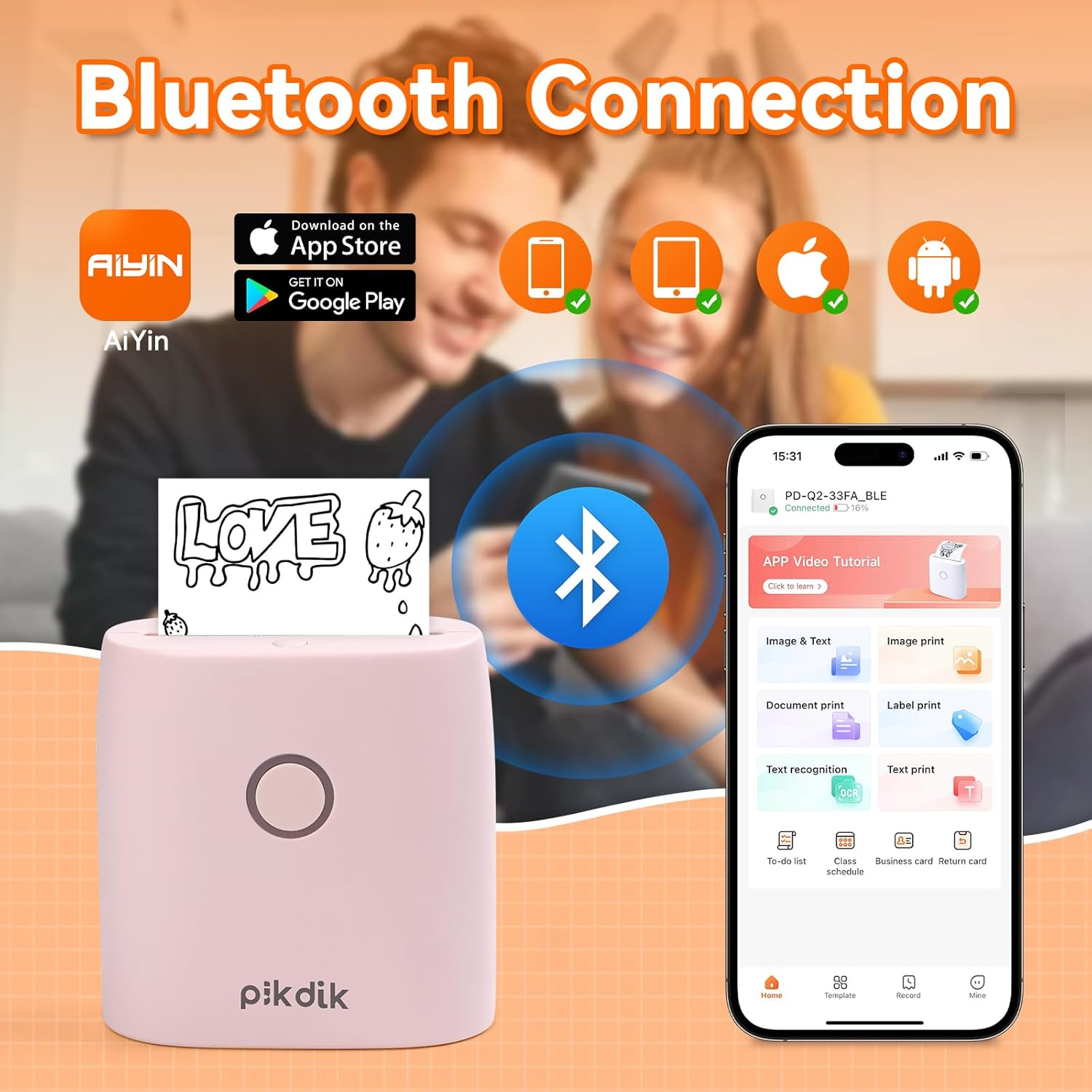
Image: The printer connects to your smartphone via Bluetooth using the Meta Print app, available on both Android and iOS.
6. Kullanım Talimatları
6.1 Printing Content
Once connected to the "Meta Print" app, you can select various content types for printing:
- Image & Text: Print photos, graphics, or combine them with text.
- Belge Yazdır: Print documents or notes.
- Label Print: Create and print custom labels.
- Metin Tanıma: Convert images of text into editable text for printing.
- Şablonlar: Utilize pre-designed templates for to-do lists, business cards, emojis, and more.
After selecting and editing your content within the app, tap the print button to initiate printing. The printer will output the thermal paper with your printed content.

Image: The printer is suitable for various applications such as journaling, scrapbooking, printing shopping lists, and notes.
6.2 Print Quality and Limitations
The PD-Q2 printer offers a 300 DPI resolution for clear and detailed black and white prints. As a thermal printer, it does not support color printing.
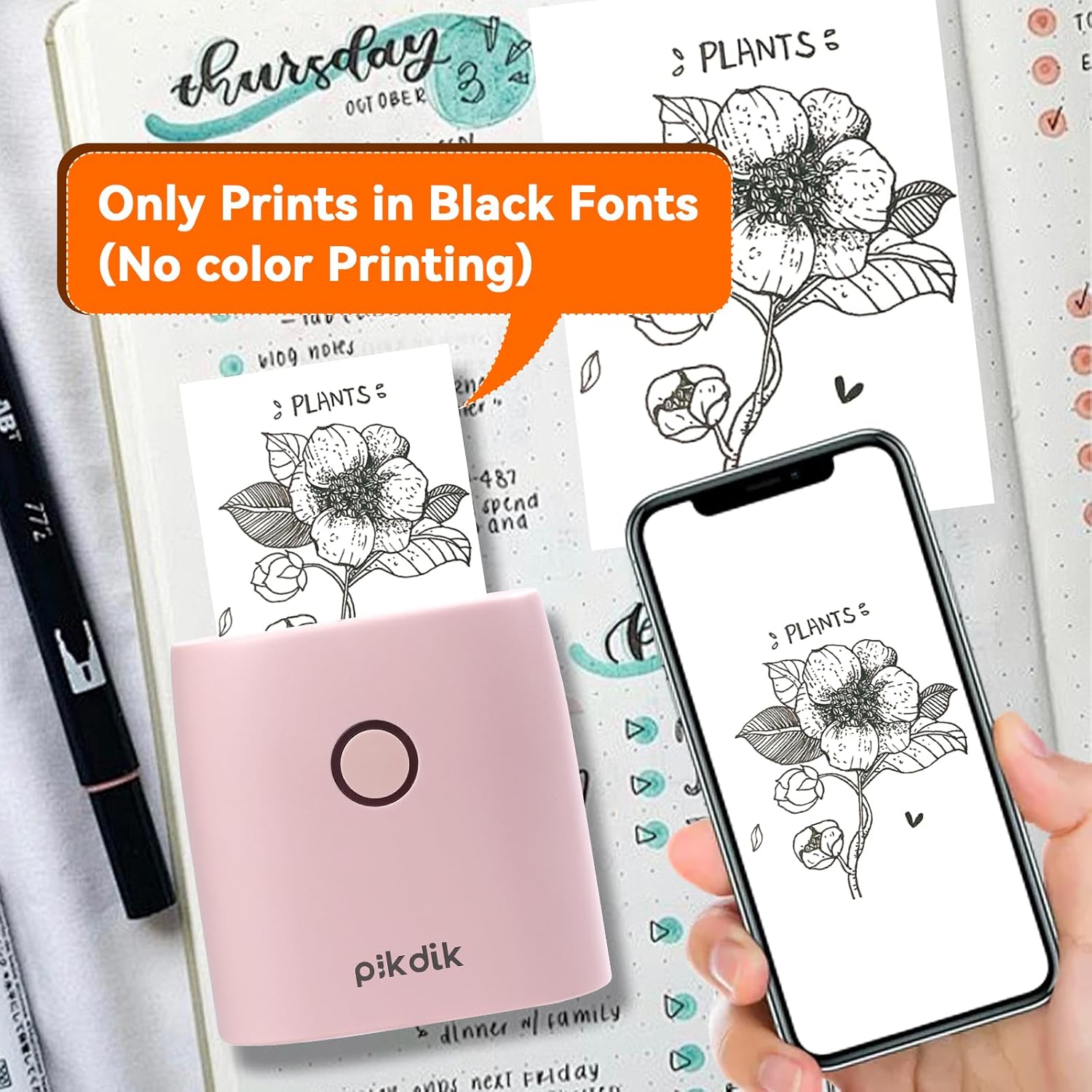
Image: The printer produces prints exclusively in black and white, as shown with a plant illustration.

Image: The 300 DPI resolution of the Q2 printer provides enhanced clarity and detail in prints compared to lower resolution alternatives.
7. Bakım
7.1 Yazıcıyı Temizleme
En iyi baskı kalitesini korumak için baskı kafasını düzenli olarak temizleyin. Yumuşak, tüy bırakmayan bir bez kullanarak hafifçe silin.ampened with isopropyl alcohol. Gently wipe the print head surface. Ensure the printer is turned off and completely dry before use.
7.2 Termal Kağıdın Değiştirilmesi
When the paper roll is depleted, replace it by following the steps in Section 5.2. Use only thermal paper compatible with the PD-Q2 printer to ensure proper function and print quality.
8. Sorun Giderme
| Sorun | Olası Neden | Çözüm |
|---|---|---|
| Yazıcı açılmıyor | Düşük pil; Güç düğmesine doğru basılmamış | Yazıcıyı şarj edin; güç düğmesini birkaç saniye basılı tutun. |
| Bluetooth üzerinden bağlanılamıyor | Bluetooth off on phone; Printer not in pairing mode; App issue | Ensure phone Bluetooth is on; Restart printer and app; Re-pair device in app. |
| Poor print quality (faint, pixelated) | Low battery; Print head dirty; Incorrect paper type; Image resolution too low | Charge printer; Clean print head (Section 7.1); Use correct thermal paper; Use higher resolution images. |
| Kağıt sıkışması | Paper not loaded correctly; Foreign object in paper path | Open cover, remove jammed paper, reload correctly; Check for obstructions. |
| Yazıcı yanıt vermiyor | Sistem hatası | Perform a soft reset by turning the printer off and on again. If issue persists, contact support. |
9. Özellikler
| Özellik | Detay |
|---|---|
| Örnek | Q2 |
| Boyutlar (D x G x Y) | 4.1 x 8.4 x 8.4 cm (1.6 x 3.3 x 3.3 inç) |
| Ağırlık | 0.57 Pound (yaklaşık 258.55 g) |
| Baskı Teknolojisi | Termal |
| Baskı Çözünürlüğü | 300 DPI (Monochrome) |
| Bağlantı | Bluetooth |
| Uyumlu Cihazlar | Akıllı Telefonlar, Tabletler (Android, iOS) |
| Maksimum Medya Boyutu | 2 inç |
| Güç Kaynağı | Built-in Lithium Polymer Battery (Rechargeable via USB Type-C) |
| Uygulama Adı | Meta Print |
10. Garanti ve Destek
For warranty information and technical support, please refer to the warranty card included with your product or contact PikDik customer service directly. Keep your purchase receipt as proof of purchase.