
1. Giriş
The Ezcap 328 HD60 Streaming Video Switcher EPL-890HVC is a versatile device designed for multi-camera video production and live streaming. It features four HDMI inputs, allowing seamless switching between various video sources, and supports 1080P capture. This manual provides detailed instructions for the proper setup, operation, and maintenance of your device.
2. Ürün Bittiview
The Ezcap 328 HD60 Streaming Video Switcher integrates multiple video inputs into a single output, ideal for live events, presentations, and online broadcasts. Its intuitive control panel allows for easy source selection and audio management.

Şekil 2.1: Ön view of the Ezcap 328 HD60 Streaming Video Switcher, showing the control panel and input selection buttons.
3. Kontroller ve Bağlantılar
Familiarize yourself with the various controls and connection ports on your Ezcap 328 switcher.

Figure 3.1: Detailed diagram of the switcher's front panel controls and rear connection ports.
Ön Panel Kontrolleri:
- Microphone Control Buttons: ON/OFF and volume up/down for microphone input.
- Line Input Control Buttons: ON/OFF and volume up/down for line audio input.
- HDMI Audio Control Buttons: ON/OFF and volume up/down for each of the four HDMI audio inputs.
- HDMI Video Control Buttons (1-4): Selects the active HDMI video input.
- HDMI Output Control Buttons: Controls the HDMI program output.
- USB Output Control Buttons: Manages the USB output, including auto-switching intervals (10s, 20s, 30s).
- STILL Button: Displays a still image (if configured).
- BLACK Button: Displays a black screen.
Arka Panel Bağlantıları:

Figure 3.2: Rear panel connections (left side).
- DC5V: Güç giriş portu. Verilen güç adaptörünü buraya bağlayın.
- PC (USB-C): Connects to a computer for USB video capture and streaming.
- HDMI ÇIKIŞI: HDMI program output for connecting to a monitor or display.
- HDMI GİRİŞİ 4: HDMI input port for video source 4.

Figure 3.3: Rear panel connections (right side).
- HDMI GİRİŞİ 1-3: HDMI input ports for video sources 1, 2, and 3.
- LINE IN HEADSET: 3.5mm audio input for headset or external audio source.
4. Kurulum
Follow these steps to set up your Ezcap 328 HD60 Streaming Video Switcher:
- Video Kaynaklarını Bağlayın: Connect up to four HDMI video sources (e.g., cameras, gaming consoles, laptops) to the HDMI IN 1-4 ports on the rear panel.
- Ses Kaynaklarını Bağlayın: If using external audio, connect a microphone to the MIC input or a line-level audio device to the LINE IN HEADSET port.
- Connect Output Display: Connect an HDMI monitor or TV to the HDMI OUT port to view the program output.
- Connect to Computer (for Streaming/Recording): Connect the PC (USB-C) port to your computer using a USB-C cable. The switcher will be recognized as a webcam/capture device.
- Güç Açık: Connect the provided DC5V power adapter to the DC5V port and plug it into a power outlet. The device will power on automatically.
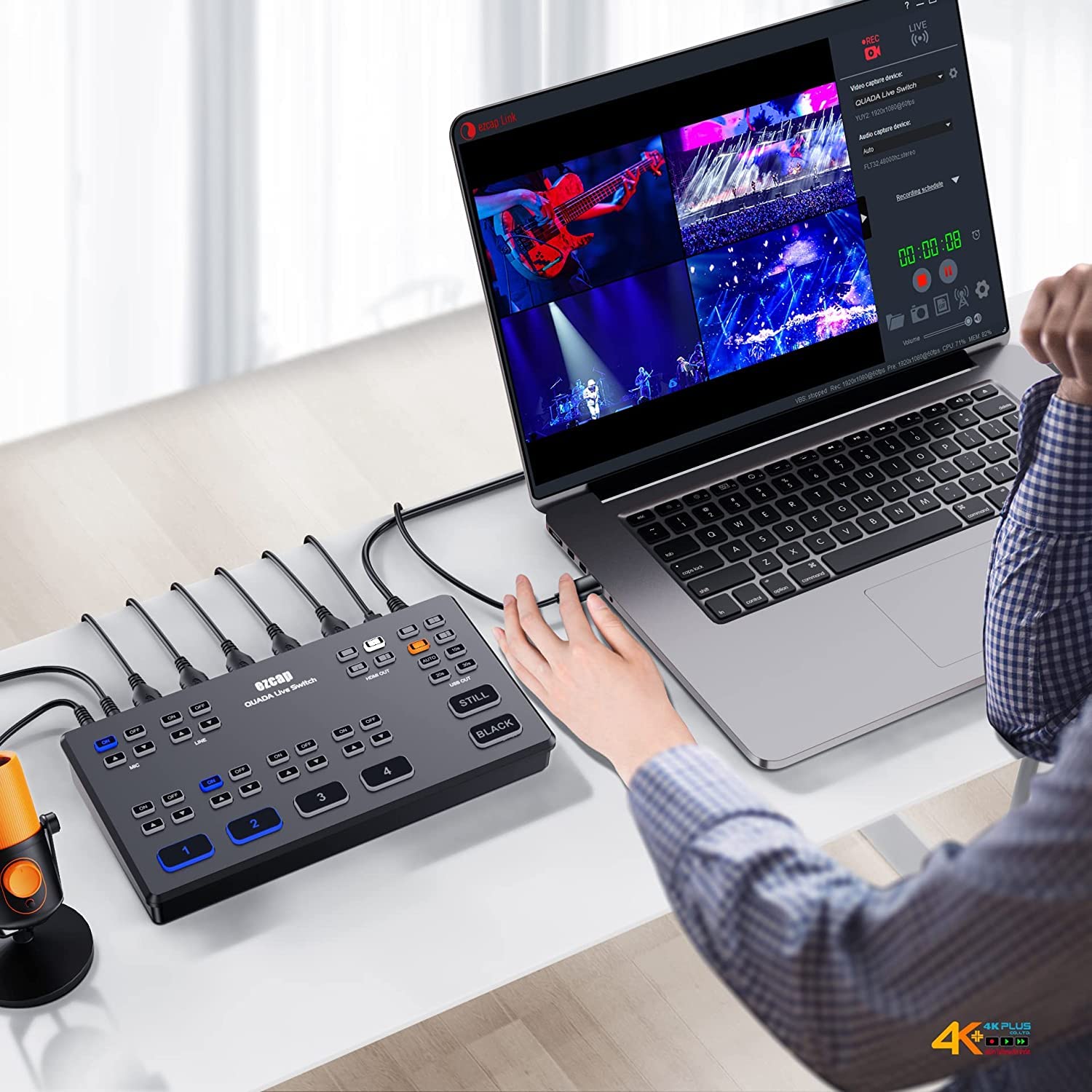
Şekil 4.1: Ör.ample setup with the switcher connected to a laptop for streaming or recording.
5. Kullanım Talimatları
Once set up, operate the switcher using the front panel controls:
- Selecting Video Inputs: Press the numbered buttons (1, 2, 3, 4) on the front panel to switch between the corresponding HDMI video sources. The selected input will be highlighted.
- Ses Kontrolü: Use the MIC and LINE ON/OFF buttons to enable or disable audio inputs. Adjust volume levels using the up/down arrow buttons next to each audio source. For HDMI audio, use the dedicated ON/OFF and volume controls for each HDMI input.
- USB Output Modes: The USB OUT section allows you to control the output sent to your computer. Use the 'AUTO' button for automatic switching between inputs at set intervals (10s, 20s, 30s).
- Özel Fonksiyonlar:
- Basmak HALA to display a pre-configured still image.
- Basmak SİYAH to display a black screen.
- İzleme Çıktısı: The HDMI OUT port provides a program feed to your external display, showing the currently selected video source.

Figure 5.1: Operational setup showing a user interacting with the switcher, camera, and laptop.
6. Bakım
To ensure the longevity and optimal performance of your Ezcap 328 HD60 Streaming Video Switcher, follow these maintenance guidelines:
- Temizlik: Cihazın dışını temizlemek için yumuşak ve kuru bir bez kullanın. Sıvı temizleyiciler veya aşındırıcı malzemeler kullanmaktan kaçının.
- Havalandırma: Aşırı ısınmayı önlemek için cihazın iyi havalandırılan bir alana yerleştirildiğinden emin olun. Havalandırma açıklıklarını kapatmayın.
- Depolamak: When not in use for extended periods, store the switcher in a cool, dry place away from direct sunlight and extreme temperatures.
- Kablo yönetimi: Keep cables organized and free from kinks or excessive bending to prevent damage to connectors and wires.
7. Sorun Giderme
If you encounter issues with your Ezcap 328 HD60 Streaming Video Switcher, refer to the following common problems and solutions:
- Video Çıkışı Yok:
- Tüm HDMI kablo bağlantılarının sağlam bir şekilde takılı olduğundan emin olun.
- Verify that the selected input on the switcher matches the active video source.
- Ensure the output display is correctly connected and set to the correct HDMI input.
- Confirm that video sources are powered on and outputting a signal.
- Ses Yok:
- Check audio cable connections (MIC, LINE IN HEADSET).
- Ensure the corresponding audio ON/OFF buttons on the front panel are enabled.
- Adjust volume levels using the up/down arrow buttons.
- Verify audio settings on your computer or streaming software if using USB output.
- Bilgisayar Aygıtı Tanımıyor:
- Ensure the USB-C cable is securely connected between the switcher's PC port and your computer.
- Bilgisayarınızda farklı bir USB bağlantı noktası deneyin.
- Restart your computer and the switcher.
- Check your operating system's device manager to see if the device is listed.
- Kesintili Sinyal:
- Ensure all cables are of good quality and properly seated.
- Avoid excessive cable lengths, especially for HDMI.
- Diğer cihazlardan kaynaklanabilecek olası elektromanyetik girişimleri kontrol edin.
8. Özellikler
| Özellik | Şartname |
|---|---|
| Marka | ezap |
| Örnek | EPL-890HVC |
| Model Adı | ezcap328 video game capture card |
| Ürün Boyutları | 12x3x6 cm |
| Ürün Ağırlığı | 250 gr |
| İşletim Sistemi Uyumluluğu | Mac OS, Windows |
| Uyumlu Cihazlar | Camera, Gaming Console, Laptop, Personal Computer |
| Cable/Wire Type | HDMI, USB |
| Port Sayısı | 4 (HDMI Inputs) |
| Bağlayıcı Türü | HDMI |
9. Garanti ve Destek
This product comes with a standard manufacturer's warranty. Please refer to the warranty card included in your product packaging for specific terms and conditions. For technical support, troubleshooting assistance, or warranty claims, please contact your retailer or the official ezcap support channels.
Garanti kapsamında satın alma belgenizi satın alma belgeniz olarak saklayın.