
1. Giriş
This manual provides detailed instructions for the setup, operation, maintenance, and troubleshooting of your HP KE203 300 DPI Direct Thermal Shipping Label Printer. This printer is designed for efficient and high-quality label printing for various applications, including shipping, barcodes, and product labels. It utilizes direct thermal technology, eliminating the need for ink or toner cartridges.

The HP KE203 printer features a 5 inches per second (ips) printing speed and 300 dots per inch (dpi) resolution for clear, fast label output.
2. Kutuda Neler Var?
Verify that all items are present in the packaging before proceeding with setup:
- HP KE203 Label Printer
- Güç Kablosu
- AC Adaptörü
- USB kablosu
- Hızlı Başlangıç Kılavuzu
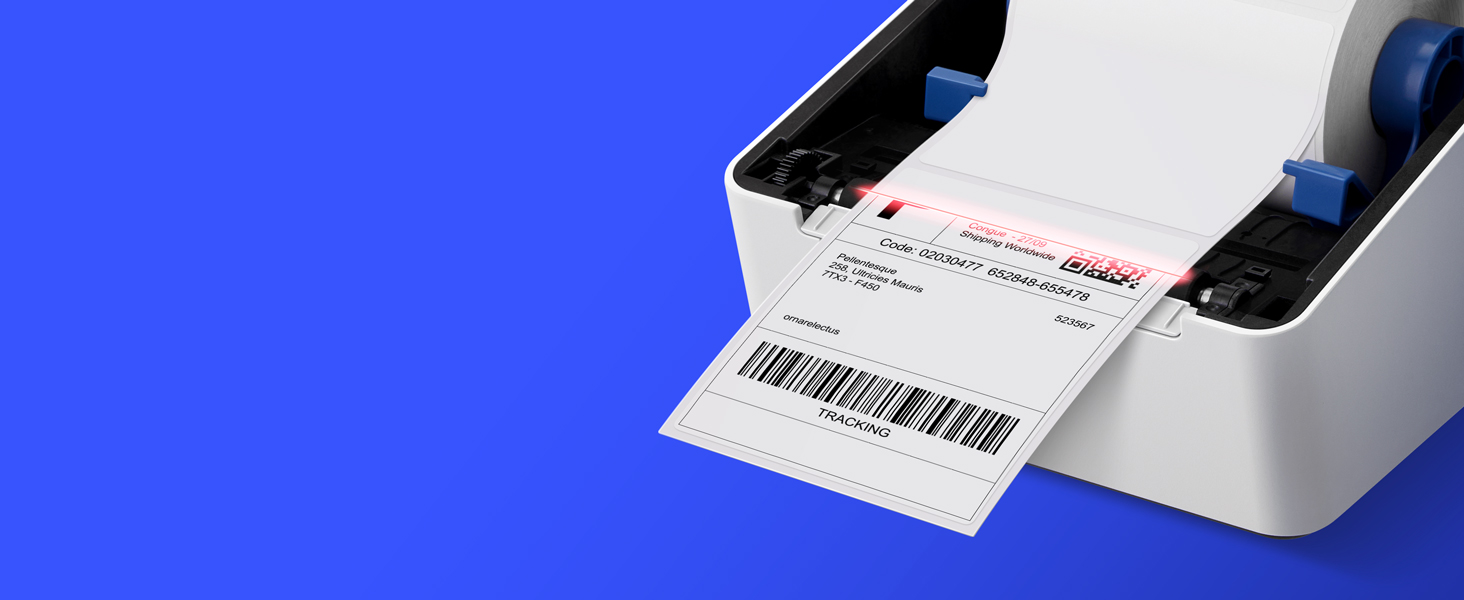
Image showing the HP KE203 printer and its included accessories: power cord, AC adapter, USB cable, and quick start guide.
3. Kurulum
Follow these steps to set up your HP KE203 label printer:
- Gücü bağlayın: Connect the AC adapter to the printer and then plug the power cord into a power outlet.
- Bilgisayara Bağlan: Yazıcıdan gelen USB kablosunu bilgisayarınıza bağlayın.
- Etiketleri Yükle: Open the printer cover and position the label roll properly within the adjustable media holder guides. Ensure the labels feed smoothly.
- Sürücüleri Yükle: Download the appropriate drivers for your operating system (Windows or Mac) from the official HP Work Solutions website. Follow the on-screen instructions to complete the driver installation. The printer should be automatically detected if connected via USB.
- Test Baskısı: After driver installation, go to your computer's printer settings, select the HP KE203, and perform a test print to ensure proper functionality.

Ensure all power components are securely connected.

Sağlanan USB kablosunu kullanarak yazıcıyı bilgisayarınıza bağlayın.

Properly load the label roll and adjust the guides to prevent jams.

Download and install the printer drivers from the official HP webalan.
Kurulum Video Kılavuzu
This video provides a visual guide on how to set up your HP Label Printer, including connecting cables, loading labels, and installing drivers.
4. Kullanım Talimatları
The HP KE203 printer is designed for ease of use. Once set up, you can print labels directly from your computer using various applications and platforms.
Etiket Baskı
- Yazıcının açık ve bilgisayarınıza bağlı olduğundan emin olun.
- Yazdırmak istediğiniz belgeyi veya uygulamayı açın (örneğin, kargo yazılımı, kelime işlemci).
- Select the print option and choose the HP KE203 printer from the list of available printers.
- Adjust print settings as needed, such as label size (e.g., 4x6 inches) and orientation.
- Yazdırma işlemini başlatın.

The printer seamlessly integrates with your computer for direct label printing.
Compatible Platforms and Label Types
This printer is compatible with various shipping platforms and can print different types of labels up to 4 inches in width.
- Shipping Labels: Ideal for major carriers like Amazon, UPS, FedEx, USPS, DHL, and platforms such as Shopify, Etsy, eBay, and ShipStation.
- Barcode Labels: Print clear and scannable barcodes.
- Ürün Etiketleri: Create custom labels for products.
- Address Labels: Generate address stickers for mail.

The HP KE203 is compatible with all major shipping platforms.
5. Bakım
Düzenli bakım, yazıcınızın en iyi performansını ve uzun ömrünü sağlar.
Yazdırma Kafasını Temizleme
- Temizlemeden önce yazıcıyı kapatın ve fişini çekin.
- Yazıcının kapağını açın.
- Baskı kafasını tiftiksiz bir bezle hafifçe silin.ampİzopropil alkol ile yıkandı.
- Yazıcı kafasının tamamen kurumasını bekleyin, ardından kapağı kapatın ve yazıcıyı çalıştırın.
Genel Bakım
- Yazıcıyı temiz ve tozsuz bir ortamda saklayın.
- Yazıcı kafasına zarar gelmemesi için yalnızca yüksek kaliteli termal etiketler kullanın.
- Yazıcıyı aşırı sıcaklıklara veya doğrudan güneş ışığına maruz bırakmaktan kaçının.
6. Sorun Giderme
Aşağıda sık karşılaşılan sorunlar ve çözümleri yer almaktadır:
| Sorun | Olası Neden | Çözüm |
|---|---|---|
| Yazıcı yanıt vermiyor | Loose cable connection, printer off, driver issue. | Check power and USB connections. Ensure printer is on. Reinstall drivers if necessary. |
| Düşük baskı kalitesi | Dirty print head, incorrect label type, print settings. | Clean the print head. Use recommended thermal labels. Adjust print density or turn off dithering in printer settings. |
| Etiketler doğru şekilde beslenmiyor | Improper label loading, media guides not adjusted. | Ensure labels are loaded correctly and media guides are snug against the roll. |
| Yazıcı bilgisayar tarafından algılanmadı. | USB kablosunda sorun, sürücünün yüklenmemiş veya bozuk olması. | Farklı bir USB bağlantı noktası veya kablo deneyin. Yazıcı sürücülerini yeniden yükleyin. |
7. Özellikler
| Özellik | Detay |
|---|---|
| Marka | HP |
| Model Numarası | HPKE203 |
| Bağlantı Teknolojisi | USB |
| Baskı Teknolojisi | Doğrudan Termal |
| Yazıcı Çıktısı | Tek renkli |
| Maksimum Baskı Hızı (Siyah Beyaz) | 5 ips (50 ppm) |
| Çözünürlük | 300 x 300 DPI |
| Maksimum Medya Boyutu | 4 x 6 inç |
| Ürün Boyutları (D x G x Y) | 8.2"D x 7.29"G x 6.63"Y |
| Ürün Ağırlığı | 1340 Gram |
| Güç Tüketimi | 60 Watt |
| Uyumlu Cihazlar | PC (Windows), Mac |
8. Garanti ve Destek
The HP KE203 Direct Thermal Shipping Label Printer comes with a 2-year limited warranty. For technical support, driver downloads, and further assistance, please visit the official HP Work Solutions webWeb sitesini ziyaret edin veya HP müşteri hizmetleriyle iletişime geçin.
For the most up-to-date support information, please refer to the Quick Start Guide included with your product or visit the HP support portal online.