
SSK SC211
SSK SC211 11-in-1 USB-C Laptop Docking Station User Manual
Model: SC211 | Brand: SSK
1. Giriş
The SSK SC211 11-in-1 USB-C Laptop Docking Station is a versatile multiport adapter designed to expand the connectivity of your USB-C enabled laptop, tablet, or smartphone. It integrates multiple essential ports into a single compact device, enhancing productivity and simplifying your workspace.
2. Ürün Özellikleri
This docking station provides 11 ports for comprehensive connectivity:
- 2 x HDMI Bağlantı Noktası: Supports 4K video output. HDMI1 supports up to 4K@60Hz, and HDMI2 supports up to 4K@30Hz.
- 1 x VGA Bağlantı Noktası: Supports video output up to 1920x1080@60Hz, especially when used in dual or triple display configurations.
- 1 x Ethernet/RJ-45 Port: Provides stable wired network connectivity with 1000Mbps Gigabit speed.
- 2 adet USB 3.0 bağlantı noktası: Offers high-speed data transfer rates of up to 5Gbps.
- 1 adet USB 2.0 bağlantı noktası: Ideal for connecting wireless mouse and keyboard receivers, minimizing interference.
- 1 x 3.5mm Audio Port: Supports both microphone input and audio output.
- 1 x USB-C PD3.0 Charging Port: Delivers up to 100W Power Delivery for fast charging of compatible Type-C devices.
- 1 x SD Kart Okuyucu: For standard SD cards, with data transfer speeds up to 80MB/s.
- 1 x TF Card Reader (Micro SD): For Micro SD cards, with data transfer speeds up to 80MB/s. Both SD and TF card slots can be used simultaneously.

Şekil 1: Üzeriview of the SSK SC211 11-in-1 USB-C Docking Station with all ports clearly labeled, including PD 3.0, USB 2.0, HDMI1 (4K@60Hz), HDMI2 (4K@30Hz), RJ45 Ethernet, SD/TF Card, 2x USB 3.0, 3.5mm Audio, and VGA (1080P@60Hz).
3. Kurulum Kılavuzu
- Ana Bilgisayara Bağlan: Plug the integrated USB-C cable from the docking station into the USB-C port of your laptop, tablet, or smartphone. Ensure your device's USB-C port supports "Display Port Alternate Mode" for video output functionality.
- Güç Bağlantısı (İsteğe bağlı ancak önerilir): For stable performance and charging, connect your device's original power adapter or a compatible USB-C PD charger (up to 100W) to the docking station's USB-C PD port.
- Harici Ekranları Bağlayın:
- For HDMI displays, connect HDMI cables from your monitors to the HDMI1 and/or HDMI2 ports on the docking station.
- VGA ekranlar için monitörünüzden gelen VGA kablosunu yerleştirme istasyonundaki VGA bağlantı noktasına bağlayın.
- Çevre Birimlerini Bağlayın:
- Plug USB devices (e.g., external hard drives, flash drives) into the USB 3.0 ports.
- Connect wireless mouse/keyboard receivers to the USB 2.0 port.
- Insert SD or TF cards into the respective card reader slots.
- For wired internet, connect an Ethernet cable to the RJ-45 port.
- Connect headphones or speakers to the 3.5mm audio port.
- Driver Installation (Mac OS Specific): For Mac OS, due to its MST (Multi-Stream Transport) display limitations, installing DisplayLink drivers may be required to achieve extended display functionality across multiple distinct displays. Refer to the DisplayLink website for the latest drivers and installation instructions. For Windows, it is generally plug-and-play.
Video 1: A demonstration of connecting a docking station to a laptop and external monitors, showcasing its multi-display capabilities and various port connections.
4. Kullanım Talimatları
4.1 Görüntü Modları
The docking station supports various display configurations depending on your operating system:
- For Windows 10/11 OS:
- Mirror Mode (A-AAA): All connected displays (laptop screen, HDMI1, HDMI2, VGA) show the same content.
- Extend Mode (A-BBB): The laptop screen and external monitors display different content, extending your desktop workspace. This supports up to three different screens (laptop + 2 external monitors via HDMI + VGA).
- Extend Mode (A-BCD): Similar to A-BBB, allowing for distinct content across multiple displays.
- Mac OS için:
Due to Mac OS limitations (lack of MST support), the docking station primarily supports extending one monitor, with other external monitors mirroring that extended display. All three screens will display the same picture when VGA is connected alongside HDMI displays.
- Extend Mode (A-AAA or A-BBB): The docking station supports extending one monitor. Any additional external monitors will mirror the content of the first extended monitor.
- Ayna Modu: All connected displays show the same content.
Note on VGA: When the VGA port is connected, the maximum resolution for each monitor will be limited to 1920x1080@60Hz.
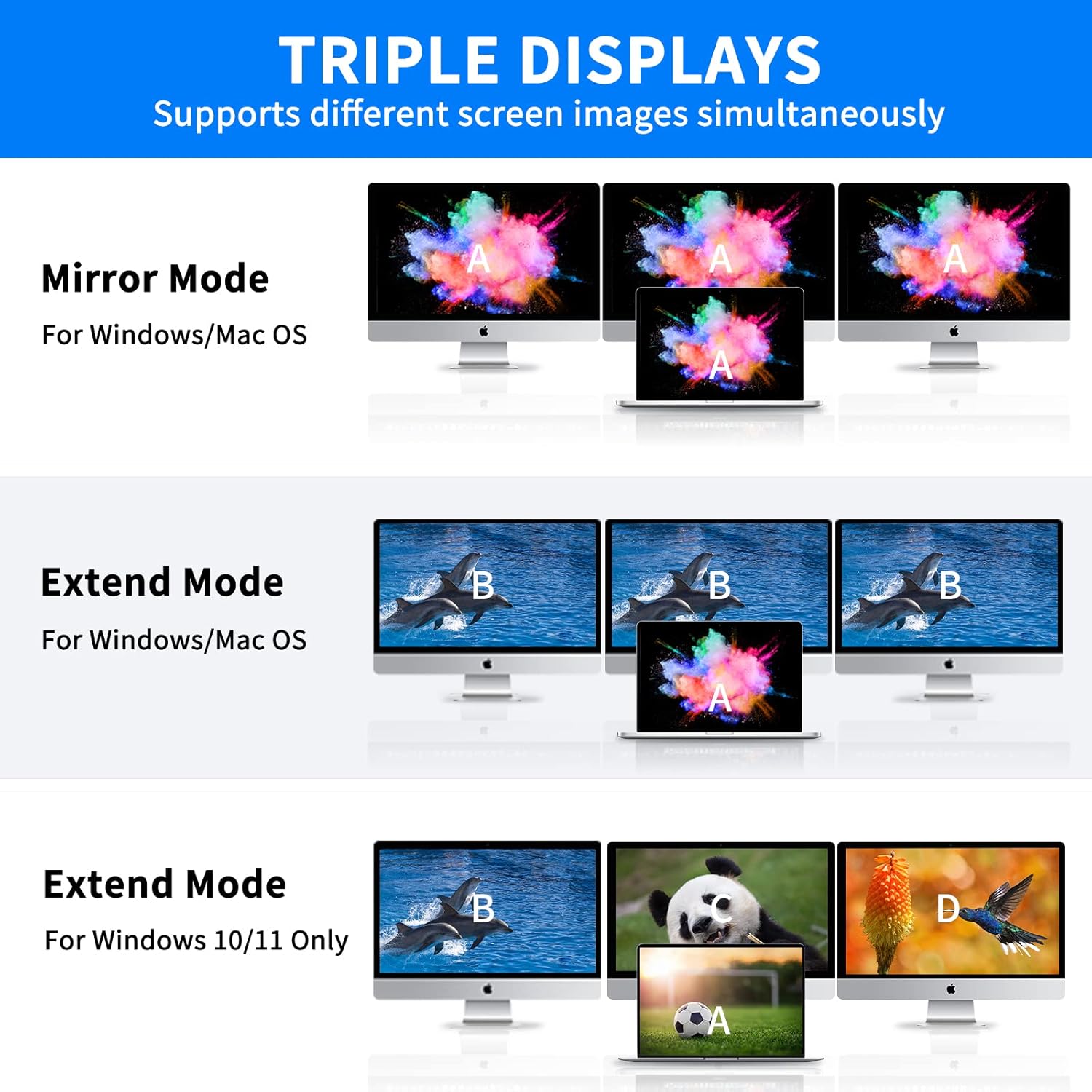
Figure 2: Visual representation of Mirror Mode and Extend Mode for both Windows and Mac OS, illustrating how screens are duplicated or extended.
4.2 Veri Aktarımı
Utilize the USB 3.0 ports for rapid data transfer with compatible devices. The SD and TF card readers also offer fast data access for memory cards.
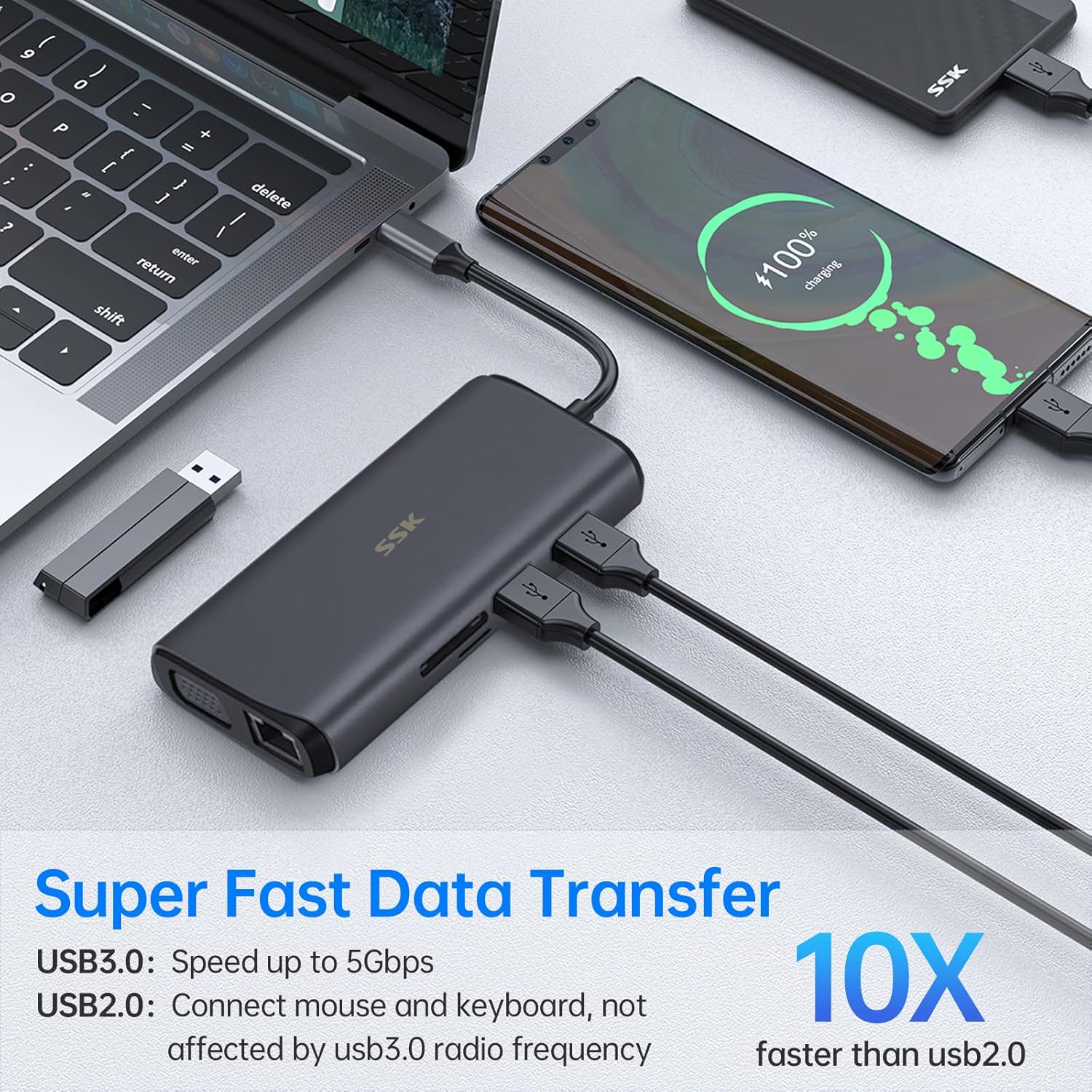
Figure 3: Illustration of the docking station facilitating super-fast data transfer via USB 3.0 ports and SD/TF card readers, connected to a laptop.
4.3 Güç Dağıtımı
The 100W PD3.0 port allows you to charge your Type-C laptop or other compatible devices while using the docking station. This port is for power input only and does not support data transfer.

Figure 4: The docking station connected to a laptop and a power adapter, demonstrating its PD3.0 Power Delivery feature for fast charging.
5. Uyumluluk
The SSK SC211 docking station is compatible with a wide range of devices and operating systems that feature a USB-C port supporting "Display Port Alternate Mode" for video output. This includes, but is not limited to:
- Dizüstü bilgisayarlar: MacBook Pro (2017-2020), MacBook Air (2018-2020), Dell XPS 13/15, Lenovo Yoga 720/910/920/930, Microsoft Surface Book 2/Surface Go/Surface Laptop 3, Dell Latitude 13 7000/E7370, and other USB-C enabled laptops.
- Tablets & Smartphones: Devices with a full-featured USB-C port.
- İşletim Sistemleri: Windows 10/11, Mac OS, Chrome OS, Linux, Android.
Önemli: To enable HDMI and VGA functions, your laptop or phone's USB-C port must support "Display Port Alternate Mode" video output.

Figure 5: The SSK SC211 docking station shown with logos of compatible operating systems, highlighting its broad compatibility.
6. Teknik Özellikler
| Özellik | Şartname |
|---|---|
| Model Numarası | SC211 |
| Boyutlar | 5 x 3 x 1 inç |
| Ağırlık | 5.1 ons |
| HDMI 1 Çıkışı | 4K@60Hz'e kadar |
| HDMI 2 Çıkışı | 4K@30Hz'e kadar |
| VGA Çıkışı | 1920x1080@60Hz'e kadar |
| USB 3.0 Bağlantı Noktaları | 2 ports, 5Gbps data transfer |
| USB 2.0 Bağlantı Noktası | 1 port, for low-bandwidth peripherals |
| USB-C PD Bağlantı Noktası | Up to 100W Power Delivery (input only) |
| Ethernet Bağlantı Noktası | 1000Mbps Gigabit RJ-45 |
| Kart Okuyucular | SD and TF (Micro SD), up to 80MB/s, simultaneous use |
| ses Limanı | 3.5mm (Mic and Audio) |
| Malzeme | Alüminyum alaşımı casing |
7. Sorun Giderme
- Görüntü Çıkışı Yok:
- Ensure your host device's USB-C port supports "Display Port Alternate Mode."
- Tüm kablo bağlantılarını kontrol edin (USB-C'den ana bilgisayara, HDMI/VGA'dan monitörlere).
- Verify monitor input sources are correctly selected.
- For Mac OS, ensure DisplayLink drivers are installed if using extended mode for multiple distinct displays.
- Ana cihazınızı yeniden başlatmayı deneyin.
- Aralıklı Bağlantı:
- Ensure the docking station is receiving adequate power, especially when multiple power-hungry devices are connected. Connect a PD charger to the docking station.
- Gevşek bağlantıları kontrol edin.
- Şarj istasyonunu güçlü elektromanyetik girişim kaynaklarının yakınına yerleştirmekten kaçının.
- Yavaş Veri Aktarımı:
- Ensure you are using USB 3.0 compatible devices and cables for the USB 3.0 ports.
- Ana cihazınızın USB-C bağlantı noktasının USB 3.0 veya daha yüksek hızları desteklediğinden emin olun.
- Şarj Sorunları:
- Confirm your USB-C PD charger and cable are compatible and capable of delivering sufficient wattage (e.g., 100W).
- Ensure the charger is connected to the docking station's dedicated PD port.
- Ethernet Çalışmıyor:
- Check the Ethernet cable connection to both the router/modem and the docking station.
- Ana cihazınızdaki ağ ayarlarını doğrulayın.
- Ensure network drivers are up to date.
8. Bakım ve Onarım
- Yerleştirme istasyonunu sudan, ateşten ve aşındırıcı sıvılardan uzak tutun.
- Cihazı düşürmekten veya güçlü darbelere maruz bırakmaktan kaçının.
- Cihazı kendiniz sökmeye veya onarmaya çalışmayın. Sorun yaşarsanız müşteri desteğiyle iletişime geçin.
- Cihazı yumuşak ve kuru bir bezle temizleyin. Sert kimyasallar veya aşındırıcı malzemeler kullanmayın.
- Kullanmadığınız zaman serin ve kuru bir yerde saklayınız.
9. Garanti ve Destek
SSK products come with a standard manufacturer's warranty. For detailed warranty information, technical support, or service inquiries, please refer to the official SSK webLütfen web sitelerini ziyaret edin veya müşteri hizmetleri departmanıyla iletişime geçin. Garanti talepleri için satın alma belgenizi saklayın.
Ask a question about this manual
Ask about setup, troubleshooting, compatibility, parts, safety, or missing instructions. Manuals+ will review the question and use this page’s manual context to help answer it.