
DUODUOGO S7
DUODUOGO 5G WiFi Android 11 Tablet S7 User Manual
Modeli: S7
Marka: DUODUOGO
1. Giriş
This user manual provides comprehensive instructions for the DUODUOGO 5G WiFi Android 11 Tablet S7. It covers product features, setup, operation, maintenance, and troubleshooting to ensure optimal use of your device. Please read this manual thoroughly before using the tablet.
2. Kutuda Neler Var?
- DUODUOGO 5G WiFi Android 11 Tablet (10.4 Inch)
- Ayrılabilir Klavye
- USB C Tipi Kablo
- Güç Adaptörü
- Kullanım Kılavuzu (bu belge)
3. Ürün Bittiview
The DUODUOGO S7 tablet features a 10.4-inch touchscreen display, powered by Android 11, and includes a detachable keyboard for enhanced productivity. It supports dual-band Wi-Fi (2.4G and 5G) and offers ample storage with 4GB RAM and 64GB internal storage, expandable up to 256GB.

Image: The DUODUOGO S7 tablet in blue, shown with its detachable keyboard and a hand interacting with the touchpad. The tablet screen displays "Android 11". A smaller inset image shows the tablet from the rear with its kickstand extended.
Temel Özellikler:
- İşletim Sistemi: Android 11
- Görüntülemek: 10.4-inch IPS Touchscreen (1280 x 800 resolution)
- Hafıza: 4GB RAM
- Depolamak: 64GB ROM (expandable up to 256GB)
- Kameralar: Rear 8MP, Front 5MP
- Bağlantı: Dual WiFi (2.4G/5G), Bluetooth, OTG, Type-C
- Pil: 6500mAh

Image: A stylized depiction of the Android 11 system, with a robotic hand reaching out from a tablet screen towards a small Android mascot holding the number 11. Text reads "Android 11 System" and "Visit your favorite apps, music, movies, books, etc".
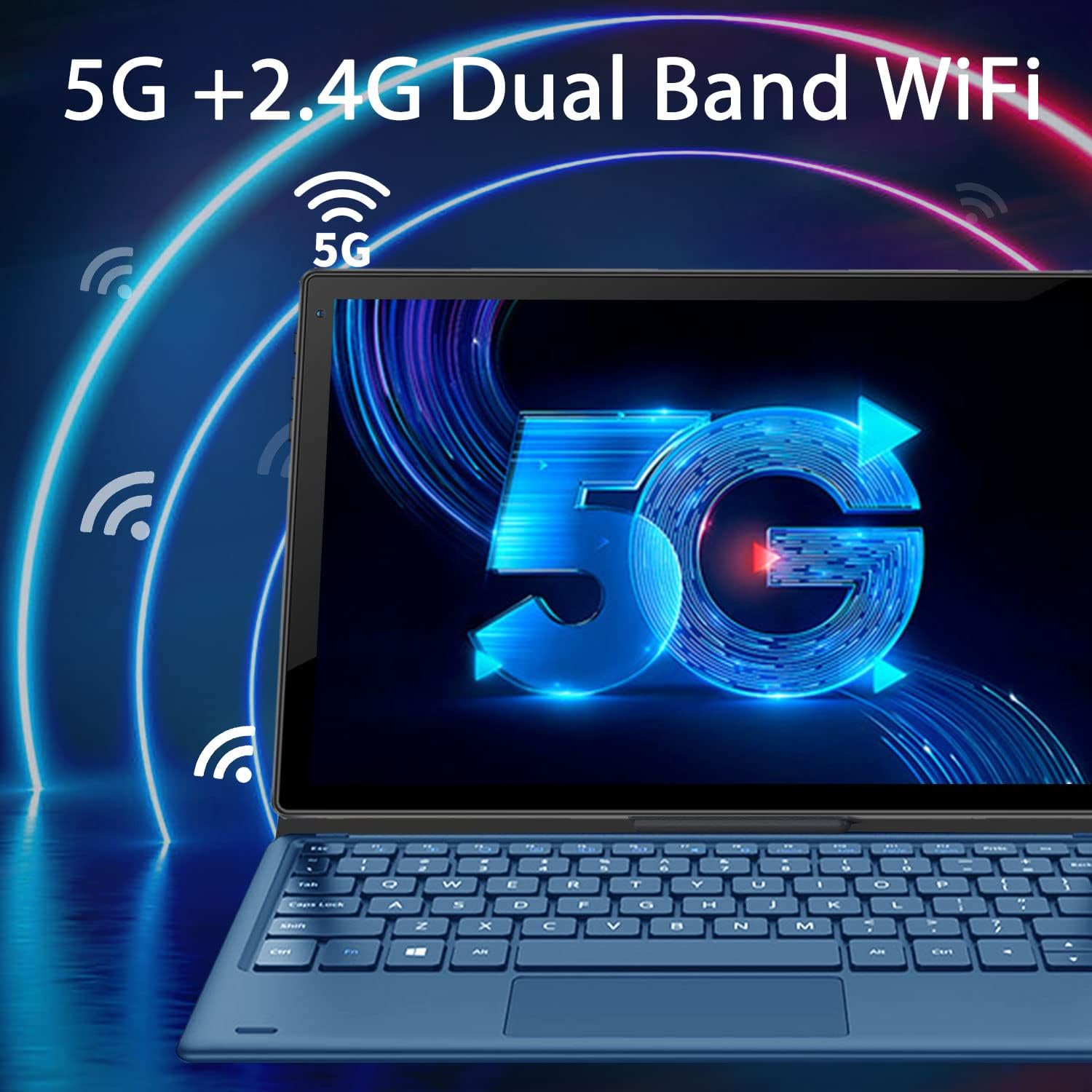
Image: The tablet screen displaying a large "5G" logo with Wi-Fi signals emanating from it, indicating dual-band 5G and 2.4G Wi-Fi connectivity. Text reads "5G + 2.4G Dual Band WiFi".

Image: Three tablets shown from the back, with the middle tablet displaying a photo gallery. Icons and text indicate "Large Capacity Battery", "4GB RAM", "64GB ROM", and "256GB Expand".
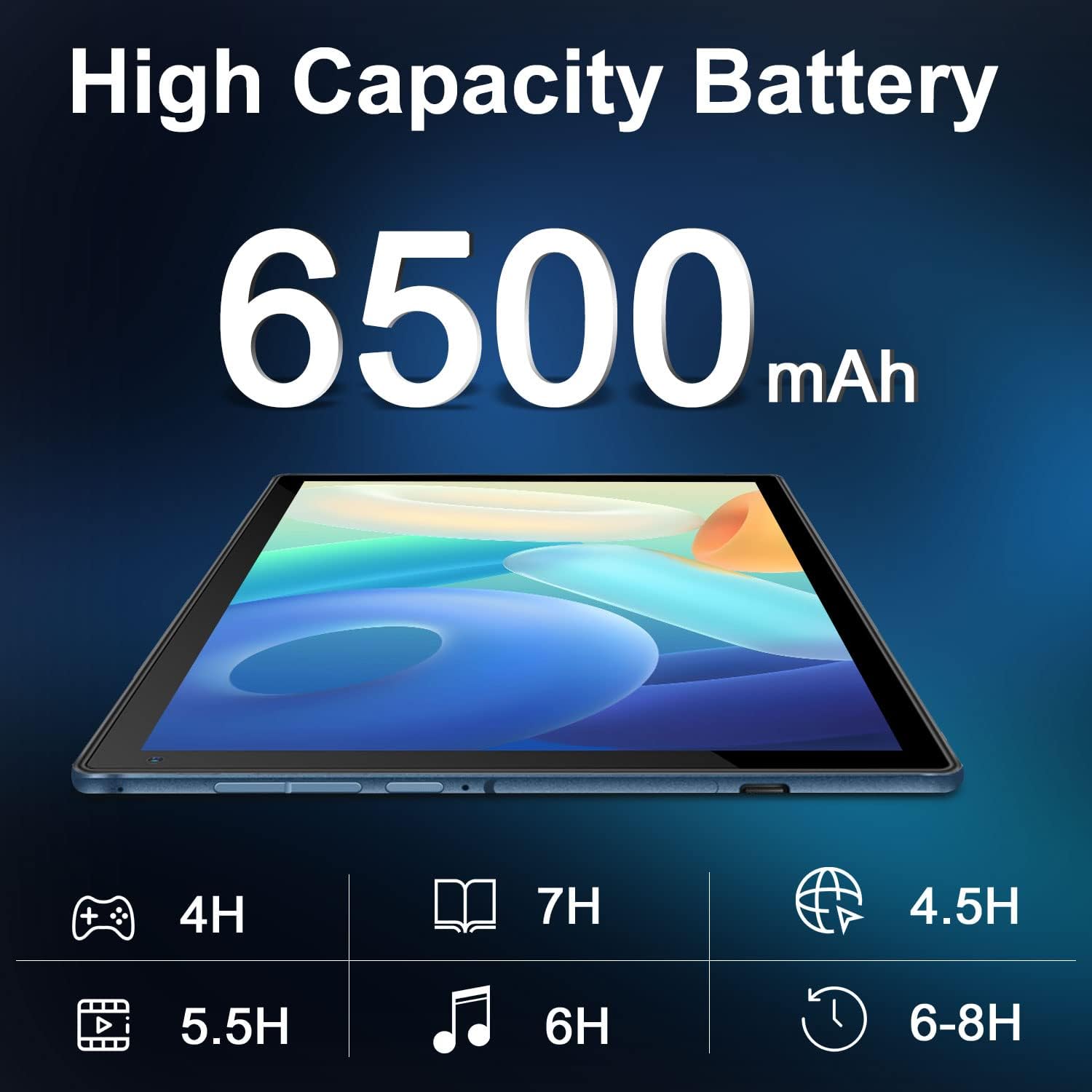
Image: A tablet lying flat, with a large "6500mAh" text overlay, indicating its high capacity battery. Below are icons and estimated usage times for various activities like gaming, reading, video playback, music, web browsing, and general use.

Image: A collage showing the tablet's camera capabilities (people on a beach, family on a boat) and its 10.4-inch IPS display quality (a surfer on a wave). Text highlights "Front 5MP Rear 8MP" and "10.4" IPS Display".

Image: A four-panel collage demonstrating different usage modes: a person using the tablet with keyboard, a child and adult using the tablet with a stand, and a child interacting with a learning app on the tablet. Text reads "Enjoy Different Mode".
4. Kurulum
4.1 Tableti Şarj Etme
Before first use, fully charge the tablet. Connect the USB Type-C cable to the tablet's charging port and the other end to the power adapter. Plug the adapter into a wall outlet. The charging indicator will show the charging status. A full charge typically takes 3-4 hours.
4.2 Güç Açma/Kapatma
- Açmak İçin: Press and hold the Power button (usually located on the side or top edge) for a few seconds until the DUODUOGO logo appears on the screen.
- Kapatmak İçin: Press and hold the Power button until a power-off menu appears. Select "Power off" or "Shut down".
- Yeniden başlatmak: Kapatma menüsünden "Yeniden Başlat" seçeneğini seçin.
4.3 İlk Kurulum Sihirbazı
İlk açılışta, Android 11 kurulum sihirbazı sizi temel yapılandırmalar boyunca yönlendirecektir:
- Tercih ettiğiniz dili seçin.
- Bir Wi-Fi ağına bağlanın.
- Sign in with your Google account or create a new one. This is necessary to download apps from Google Play Store.
- Ekran kilidini ayarlayın (PIN, desen, parola).
- Review ve Google hizmet şartlarını kabul edin.
4.4 Attaching the Keyboard
The detachable keyboard connects magnetically to the tablet. Align the magnetic connector on the keyboard with the corresponding pins on the tablet's bottom edge. The keyboard will snap into place and connect automatically. No separate pairing is required.
5. Kullanım Talimatları
5.1 Android 11'te Gezinme
- Ana Ekran: Farklı ana ekranlara erişmek için sola veya sağa kaydırın.
- Uygulama Çekmecesi: için ekranın altından yukarı doğru kaydırın. view tüm yüklü uygulamalar.
- Bildirimler ve Hızlı Ayarlar: Swipe down from the top of the screen to access notifications and quick settings toggles (Wi-Fi, Bluetooth, Brightness, etc.).
- Çoklu görev: Swipe up from the bottom and hold, then release to see recent apps. Tap an app to switch, or swipe it away to close.
5.2 Wi-Fi Bağlantısı
Bir Wi-Fi ağına bağlanmak için:
- Git Ayarlar > Ağ ve internet > Wifi.
- Wi-Fi'yi aç/kapat On.
- İstediğiniz ağı listeden seçin.
- İstendiğinde şifreyi girin ve ardından dokunun Bağlamak.
5.3 Kameraların Kullanımı
The tablet features a 5MP front camera and an 8MP rear camera.
- Açın Kamera Uygulamayı ana ekrandan veya uygulama çekmecesinden açın.
- Ön ve arka kameralar arasında geçiş yapmak için kamera değiştirme simgesine dokunun.
- Fotoğraf çekmek veya video kaydını başlatmak/durdurmak için deklanşöre dokunun.
5.4 Depolama Yönetimi
The tablet comes with 64GB of internal storage. You can expand this using a microSD card (up to 256GB).
- Inserting a MicroSD Card: Locate the microSD card slot (usually on the side of the tablet). Gently insert the card until it clicks into place.
- Depolama Yönetimi: Git Ayarlar > Depolamak ile view depolama kullanımını ve yönetimini files.
6. Bakım
- Temizlik: Tablet ekranını ve gövdesini temizlemek için yumuşak, tüy bırakmayan bir bez kullanın. Cihaz üzerinde doğrudan sıvı temizleyiciler veya aerosoller kullanmayın.
- Pil Bakım: Aşırı sıcaklıklardan kaçının. Pilin sık sık tamamen boşalmasına izin vermeyin. Uzun süreli saklama için pili yaklaşık %50'ye kadar şarj edin.
- Yazılım Güncellemeleri: Sistem güncellemelerini düzenli olarak kontrol edin. Ayarlar > Sistem > Sistem güncellemesi En iyi performansı ve güvenliği sağlamak için.
- Koruma: Use the provided keyboard case to protect the tablet from scratches and minor impacts.
7. Sorun Giderme
7.1 Tablet Açılmıyor
- Tabletin yeterince şarj olduğundan emin olun. En az 30 dakika şarj cihazına bağlayın.
- Yeniden başlatmayı zorlamak için Güç düğmesini 10-15 saniye basılı tutun.
7.2 Wi-Fi Bağlantı Sorunları
- Check if Wi-Fi is enabled in Quick Settings or Network & internet settings.
- Wi-Fi yönlendiricinizi yeniden başlatın.
- Tablet ayarlarından ağı unut seçeneğini seçip tekrar bağlanın.
- Wi-Fi sinyalinin kapsama alanında olduğunuzdan emin olun.
7.3 Klavye Yanıt Vermiyor
- Ensure the keyboard is properly aligned and connected to the magnetic pins on the tablet.
- Gently clean the magnetic pins on both the tablet and keyboard to ensure good contact.
- Tableti yeniden başlatın.
7.4 Uygulamaların Çökmesi veya Donması
- Uygulamayı kapatıp tekrar açın.
- Uygulamanın önbelleğini ve verilerini temizle Ayarlar > Uygulamalar ve bildirimler > [Uygulama Adı] > Depolama ve önbellek.
- Ensure the app is updated to its latest version from Google Play Store.
- Tableti yeniden başlatın.
8. Özellikler
| Özellik | Şartname |
|---|---|
| Marka | DUODUOGO |
| Model Numarası | S7 |
| İşletim Sistemi | Android 11 |
| Ekran Boyutu | 10.4 inç |
| Ekran Çözünürlüğü | 1280x800 |
| Veri deposu | 4 GB |
| Dahili Depolama | 64 GB |
| Genişletilebilir Depolama | 256 GB'a kadar (MicroSD) |
| Arka Kamera | 8 MP |
| Ön Kamera | 5 MP |
| Pil Kapasitesi | 6500 mAh |
| Bağlantı | Dual WiFi (2.4G/5G), Bluetooth, OTG, Type-C |
| Ürün Boyutları (UxGxY) | 9.5 x 6.4 x 0.35 inç |
9. Garanti ve Destek
DUODUOGO provides comprehensive support for its products. For any issues or inquiries regarding your DUODUOGO S7 Tablet, please refer to the following:
- Garanti: The product comes with a one-month free replacement policy and 365 days of free repair in case of non-human damage.
- Müşteri Desteği: If you encounter any problems using your DUODUOGO device, you can contact us through Amazon. Our support team aims to reply to your message and resolve your problem within 12 hours until you are satisfied.
- Software & Apps: The DUODUOGO Device is GMS certified, allowing you to download applications directly from Google Play Store.
Ask a question about this manual
Ask about setup, troubleshooting, compatibility, parts, safety, or missing instructions. Manuals+ will review the question and use this page’s manual context to help answer it.