
1. Giriş
The Wyze AX3000 Dual-Band Wi-Fi 6 Mesh Router System provides fast, whole-home Wi-Fi coverage. This system utilizes Wi-Fi 6 technology for gigabit speeds and mesh networking to eliminate dead spots and expand coverage seamlessly throughout your home. It supports a high number of connected devices without compromising speed.
The Wyze Mesh Router system is designed to replace traditional routers and extenders, offering a unified network experience. Management of the network, including parental controls and device prioritization, is performed through the Wyze app.

Image: The Wyze Mesh Router system ensures comprehensive Wi-Fi coverage throughout your home, eliminating dead zones.
2. Paket İçeriği
Paketinizde tüm öğelerin mevcut olduğundan emin olun:
- 2 x Wyze Mesh Routers
- Hızlı Başlangıç Kılavuzu
- 1 x 3-foot Ethernet Cable
- 2 x Power Adapters (12V 1A)
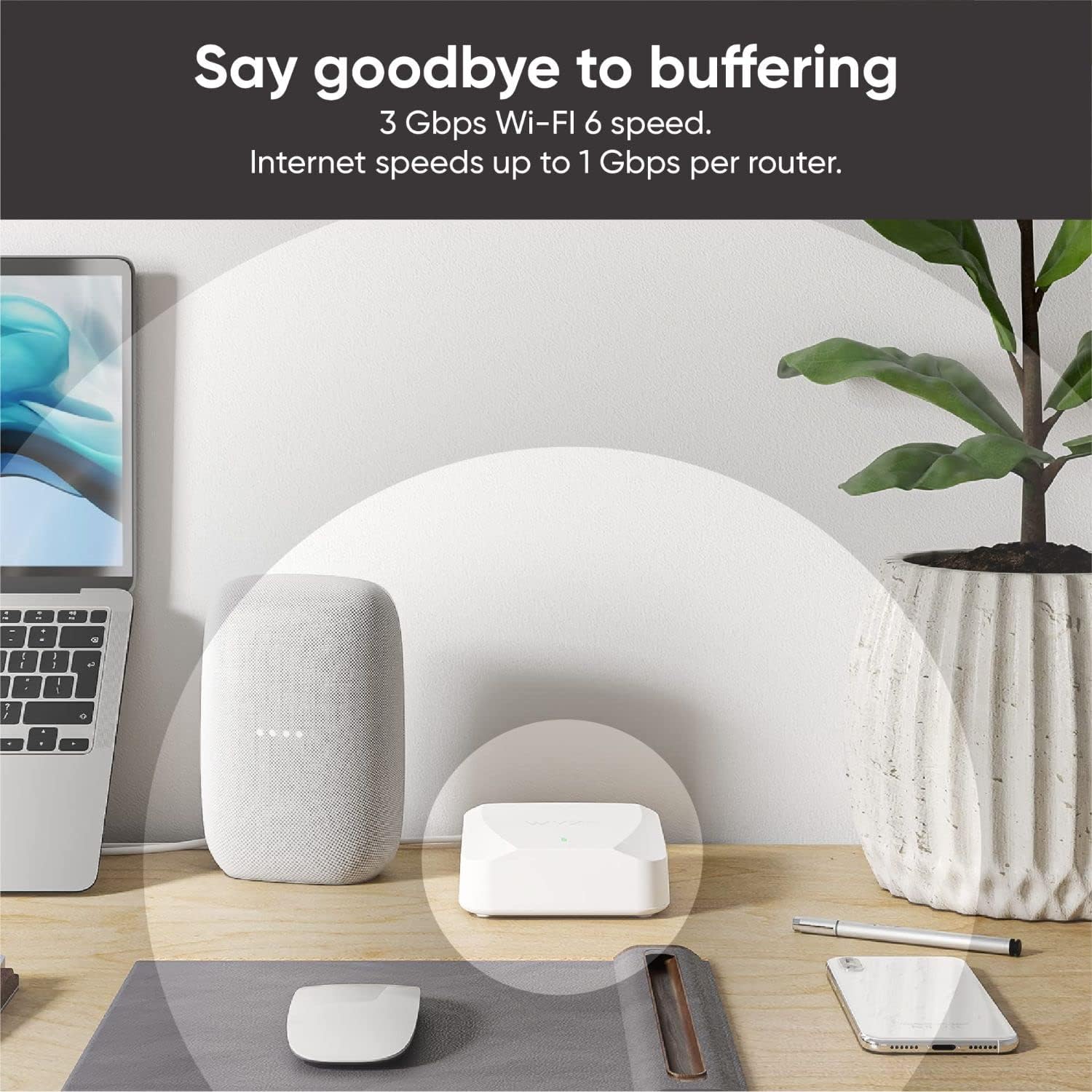
Image: Contents of the Wyze Mesh Router 2-pack, including two routers, power adapters, and an Ethernet cable.
3. Kurulum Kılavuzu
Setting up your Wyze Mesh Router system is a straightforward process guided by the Wyze app. Follow these steps for initial installation:
- Wyze Uygulamasını İndirin: Arama "Wyze" in your mobile device's app store (iOS or Android) and download the official Wyze app.
- Oluştur veya Giriş Yap: Open the app and create a new Wyze account or log in with your existing credentials.
- Connect the First Router:
- Connect one end of the provided Ethernet cable to the WAN port of your primary Wyze Mesh Router.
- Ethernet kablosunun diğer ucunu modeminizin LAN portuna bağlayın.
- Plug the power adapter into the primary router and then into a power outlet. Wait for the router to power on.
- Uygulama İçi Talimatları İzleyin: In the Wyze app, select "Add a new device" and choose the Wyze Mesh Router. The app will guide you through connecting to the router via Bluetooth and configuring your new Wi-Fi network name (SSID) and password.
- Position Additional Routers: The app will assist you in placing additional Wyze Mesh Routers to optimize coverage. Place them strategically to extend the Wi-Fi signal without creating dead spots. Ensure each router is within range of another router or the primary router for optimal mesh performance.
- Cihazları Bağlayın: Once the mesh network is established, connect your devices (laptops, tablets, smart home devices) to the new Wi-Fi network using the SSID and password you created.

Image: The Wyze app provides step-by-step instructions for a simple, plug-and-play installation of the mesh router system.
Note on Wired Backhaul: Each Wyze Mesh Router includes two 1 Gbps Ethernet ports. These ports support wired backhaul, allowing you to connect routers via Ethernet cables for a more stable and faster connection between mesh nodes, especially useful for larger homes or areas with interference.

Image: Wyze Mesh Routers featuring two Ethernet ports each, supporting wired backhaul for enhanced network performance.
4. Operasyon
The Wyze Mesh Router system is designed for seamless operation, providing a unified Wi-Fi network throughout your home. All network management is handled through the Wyze app.
4.1 Wyze App Control Center
The Wyze app serves as the central control hub for your mesh network. From the app, you can:
- Monitor Network Status: View the status of all connected routers and devices.
- Koşu Hızı Testleri: Check your internet speed directly from the app.
- Ebeveyn Kontrolleri: Set up and manage parental controls to restrict internet access for specific devices or users.
- Cihazlara Öncelik Verin: Assign priority to certain devices for critical tasks like gaming or video conferencing.
- Group Devices: Organize devices by rooms or floors and manage their connectivity.
- Misafir ağı: Create a separate guest Wi-Fi network for visitors.

Image: The Wyze Mesh Router supports over 50 devices per router, ensuring stable connections for a smart home environment.
4.2 Kesintisiz Dolaşım
With mesh technology, your devices automatically connect to the strongest Wi-Fi signal as you move throughout your home. This ensures uninterrupted connectivity for activities like video calls and streaming.
5. Bakım
Proper maintenance ensures the longevity and optimal performance of your Wyze Mesh Router system.
- Donanım Yazılımı Güncellemeleri: Regularly check for and install firmware updates through the Wyze app. Updates often include performance improvements, new features, and security enhancements.
- Havalandırma: Ensure your routers are placed in well-ventilated areas. Avoid placing them in enclosed spaces or stacking them with other electronics, as this can lead to overheating and affect performance. The devices can generate significant heat during operation.
- Temizlik: Periodically clean the exterior of the routers with a soft, dry cloth to prevent dust buildup, which can impede airflow.
- Güç Döngüsü: If you experience minor network issues, try power cycling your routers by unplugging them from the power outlet for 30 seconds and then plugging them back in.

Image: A Wyze Mesh Router positioned on an open shelf, demonstrating proper placement for adequate ventilation.
6. Sorun Giderme
If you encounter issues with your Wyze Mesh Router system, refer to the following common troubleshooting steps:
- İnternet bağlantısı yok:
- Modeminizin düzgün çalışıp çalışmadığını kontrol edin.
- Tüm Ethernet kablolarının güvenli bir şekilde bağlı olduğundan emin olun.
- Power cycle both your modem and all Wyze Mesh Routers.
- Spotty Wi-Fi Coverage or Dead Spots:
- Review the placement of your mesh routers using the Wyze app's placement guide. You may need to move a router closer to the primary unit or another mesh node.
- Ensure there are no major obstructions (thick walls, large metal objects) between routers.
- Consider using wired backhaul if possible, especially for routers further apart.
- Devices Disconnecting Frequently:
- Yönlendiricinizin yazılım sürümünün güncel olduğundan emin olun.
- Diğer elektronik cihazlardan kaynaklanan paraziti kontrol edin.
- Try restarting the affected device and the mesh router it connects to.
- Router Running Hot:
- This is a known characteristic. Ensure the router is in a well-ventilated area and not enclosed.
- Havalandırma açıklıklarını kapatmayın.
- If excessive heat causes performance issues, consider elevating the router slightly to improve airflow underneath.
- Wyze Uygulama Sorunları:
- Uygulamanızın en son sürüme güncellendiğinden emin olun.
- Sorun devam ederse uygulamanın önbelleğini temizleyin veya uygulamayı yeniden yükleyin.
- Verify your phone's Bluetooth is enabled during initial setup or when prompted by the app.
For further assistance, refer to the Wyze support resources mentioned in the Support & Warranty section.
7. Özellikler
| Özellik | Detay |
|---|---|
| Marka | WYZE |
| Model Numarası | WF6DBMRS |
| Kablosuz Tip | 802.11ax (Wi-Fi 6) |
| Frekans Bant Sınıfı | Çift Bant |
| Coverage (per router) | 1500 ft²'ye kadar. |
| Max Devices (per router) | 50+ |
| Ethernet Bağlantı Noktaları | 2 x 1 Gbps ports per router (supports wired backhaul) |
| İşletim Sistemi | ZyNOS |
| İşlemci | Qualcomm ARM Cortex A53 Dual-Core 1 GHz |
| Flaş Bellek | 128 MB |
| Veri deposu | 512 MB |
| Boyutlar (UxGxY) | 6.54 x 5.28 x 4.88 inç |
| Ürün Ağırlığı | 1.87 pound |
| Renk | Beyaz |
| Bağlantı Teknolojisi | Ethernet, Wi-Fi |

Image: Key features and specifications of the Wyze AX3000 Dual-Band Wi-Fi 6 Mesh Router.

Image: Detailed internal specifications including CPU, memory, and antenna features.
8. Destek ve Garanti
For technical support, warranty information, or to access additional resources, please visit the official Wyze support websitesine gidin veya müşteri hizmetleriyle iletişime geçin.
- Çevrimiçi destek: Ziyaret etmek wyze.com/support Sıkça sorulan sorular, sorun giderme kılavuzları ve topluluk forumları için.
- Wyze App: The Wyze app often provides direct access to support articles and contact options.
- Garanti: Information regarding the product warranty period and terms can typically be found on the Wyze official website or within the product packaging. Keep your proof of purchase for warranty claims.
- Güvenlik: The Wyze Mesh Router is equipped with Firedome, an advanced security software designed to protect connected devices from security threats.