
1. Giriş
This manual provides detailed instructions for the installation, operation, maintenance, and troubleshooting of your Everycom EC-901 Thermal POS Receipt Printer. Please read this manual thoroughly before using the printer to ensure proper functionality and longevity.

Şekil 1: Everycom EC-901 Thermal POS Receipt Printer. This image displays the compact design of the printer with a sample receipt emerging from the top.
Temel Özellikler:
- Hızlı Baskı Hızı: Up to 160mm per second for efficient receipt generation.
- Kolay Kağıt Yükleme: Drop-in paper loading mechanism for quick and simple media changes.
- Kompakt Tasarım: Integrated power supply for a clean and space-saving workstation.
- Variable Paper Width: Supports both 58mm and 80mm thermal paper rolls.
- Built-In Buzzer: Provides audible notifications for various printer statuses.
- Auto Cutter: Automatically cuts receipts after printing for convenience.
- Bağlantı: USB and LAN interfaces for versatile integration.
2. Kurulum ve Kurulum
2.1 Ambalajdan Çıkarma ve İçerik Doğrulama
Carefully unpack the printer and verify that all components are present. The package should contain:
- Everycom EC-901 Thermal POS Receipt Printer
- Roll paper × 1 (for initial testing)
- CD-ROM (containing drivers, utility software, and digital manuals)
- Kağıt Rehberi
- Paper Bearing
- USB kablosu
- Güç Adaptörü Kablosu
2.2 Yazıcıyı Bağlama
- Güç Bağlantısı: Connect the power adapter cable to the printer's power port and then to a suitable power outlet.
- Veri bağlantısı:
- USB Arayüzü: Connect the provided USB cable from the printer's USB port to an available USB port on your computer or POS system.
- LAN Arayüzü: For network printing, connect an Ethernet cable from the printer's LAN port to your network router or switch.
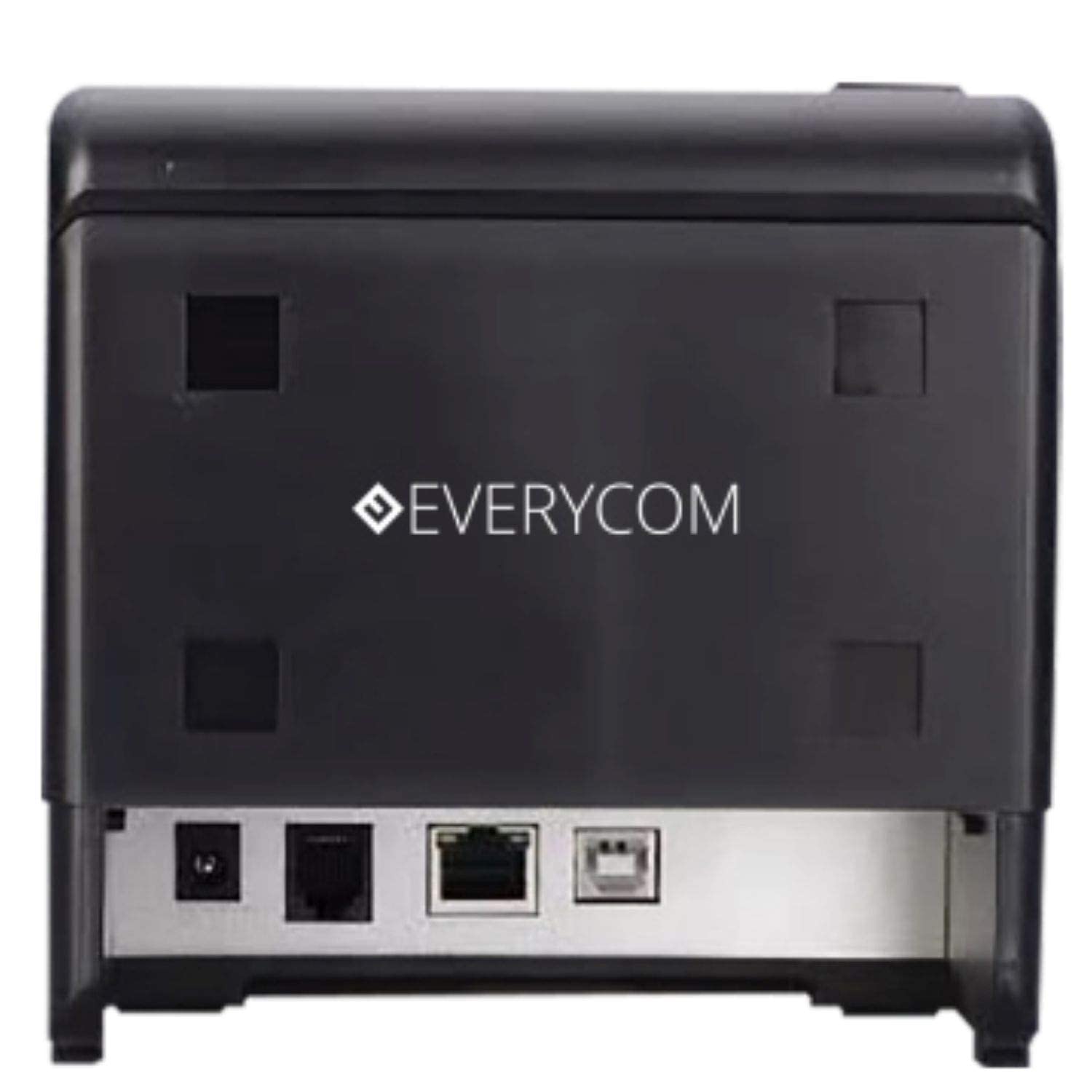
Şekil 2: Arka view of the Everycom EC-901 printer. This image highlights the various connectivity ports including USB, LAN, and the power input.
2.3 Termal Kağıdın Yüklenmesi
The EC-901 printer features a convenient drop-in paper loading system.
- Yazıcının kapalı veya bekleme modunda olduğundan emin olun.
- Press the cover open button (usually located on the side or front) to open the top cover of the printer.
- Insert the thermal paper roll into the paper compartment with the printing side facing the print head. Ensure the roll is seated correctly and feeds smoothly.
- Kesicinin yanından az miktarda kağıt çekin.
- Close the top cover firmly until it latches securely. The printer will automatically feed the paper to the correct position.

Şekil 3: Everycom EC-901 printer with the top cover open. This image illustrates the internal compartment where the thermal paper roll is loaded.
2.4 Sürücü Kurulumu
Insert the provided CD-ROM into your computer's optical drive and follow the on-screen instructions to install the printer drivers and utility software. Alternatively, drivers can be downloaded from the Everycom official webalan.
3. Yazıcının Çalıştırılması
3.1 Açma/Kapatma
To power on the printer, press the power switch located on the front or side of the unit. The power indicator light will illuminate. To power off, press the switch again.
3.2 Fiş Yazdırma
Once the printer is connected and drivers are installed, you can print receipts from your POS software or application. The printer supports fast printing at up to 160mm per second.
3.3 Otomatik Kesme Fonksiyonu
The EC-901 is equipped with an auto cutter that automatically cuts the receipt paper after each print job, ensuring clean and professional-looking receipts.
3.4 Buzzer Notifications
The built-in buzzer provides audible alerts for various printer statuses, such as paper out, cover open, or error conditions. Refer to the utility software for configuring buzzer settings.
3.5 Düşük Gürültülü Çalışma
Thermal printers generally operate with reduced noise levels, making the EC-901 suitable for various work environments where quiet operation is desired. The printer uses heat for printing, eliminating the need for ink cartridges and contributing to lower operating noise.
4. Bakım
Regular maintenance ensures optimal performance and extends the lifespan of your Everycom EC-901 printer.
4.1 Baskı Kafasının Temizlenmesi
The thermal print head should be cleaned periodically to maintain print quality. Use a soft, lint-free cloth dampened with isopropyl alcohol. Gently wipe the print head surface. Ensure the printer is powered off and cooled down before cleaning.
4.2 Baskı Merdanesinin Temizlenmesi
The platen roller can accumulate paper dust. Clean it with a soft cloth dampened with isopropyl alcohol. Rotate the roller manually to clean its entire surface.
4.3 Dış Temizlik
Yazıcının dış yüzeyini yumuşak, kuru bir bezle silin. Sert kimyasallar veya aşındırıcı temizleyiciler kullanmaktan kaçının.
5. Sorun Giderme
If you encounter issues with your printer, refer to the following common troubleshooting steps:
- Güç Yok: Güç kablosunun hem yazıcıya hem de elektrik prizine güvenli bir şekilde bağlı olduğundan emin olun. Güç düğmesinin 'Açık' konumda olup olmadığını kontrol edin.
- Yazdırma Çıktısı Yok:
- Verify that the paper roll is loaded correctly and there is sufficient paper.
- Check the data cable connection (USB or LAN) to your computer/POS system.
- Ensure the printer drivers are correctly installed and the printer is selected as the default printer in your software.
- Check for any error indicator lights or buzzer sounds.
- Kötü Baskı Kalitesi:
- Bakım bölümünde açıklandığı gibi yazıcı kafasını temizleyin.
- Yüksek kaliteli termal kağıt kullandığınızdan emin olun.
- Adjust print density settings through the printer driver if available.
- Kağıt Sıkışmaları:
- Open the top cover and carefully remove any jammed paper.
- Ensure the paper roll is installed correctly and not too tight or loose.
- Clean the paper path and platen roller.
For persistent issues, please contact Everycom customer support.
6. Özellikler
The following table details the technical specifications of the Everycom EC-901 Thermal POS Receipt Printer:
| Özellik | Şartname |
|---|---|
| Örnek | EC-901 |
| Baskı Teknolojisi | Termal Hat Baskısı |
| Baskı Hızı | 160 mm/saniyeye kadar |
| Baskı Çözünürlüğü | 203 x 203 DPI |
| Kağıt Genişliği | 80mm (3 inches), supports 58mm |
| Arayüz | USB, LAN |
| Otomatik Kesici | Evet |
| Ürün Boyutları | 19.8D x 14.8G x 14.8Y Santimetre |
| Ürün Ağırlığı | 1.8 Kilogram |
| Dahil Bileşenler | Printer, 1 Roll Paper, CD-ROM, Paper Guide, Paper Bearing, USB Cable, Power Adapter Cable |
7. Garanti ve Destek
7.1 Garanti Bilgileri
The Everycom EC-901 Thermal POS Receipt Printer comes with a 1 yıllık garanti from the date of purchase. Please retain your purchase receipt as proof of warranty. The warranty covers manufacturing defects under normal use conditions. It does not cover damage caused by misuse, accidents, unauthorized repairs, or consumables.
7.2 Müşteri Desteği
For technical assistance, warranty claims, or any product-related inquiries, please contact Everycom Customer Care:
- Ücretsiz Numara: 1800 121 4480
- Çalışma Saatleri: Pazartesi - Cumartesi, 10:00 - 6:30 (Resmi tatiller hariç)

Şekil 4: Everycom Customer Service details. This image provides the toll-free number and working hours for customer support.