
giriiş
The HyperGear HyperStream 1080P Webcam provides high-definition video and clear audio for various applications, including online meetings, classes, and streaming. This manual provides instructions for setup, operation, maintenance, and troubleshooting to ensure optimal performance of your webkam.
Paket İçeriği
Lütfen paketinizde tüm öğelerin mevcut olduğundan emin olun:
- HyperGear HyperStream 1080P Webkam
- USB kablosu
- Dahili Mikrofon
Ürün Bittiview
The HyperGear HyperStream 1080P Webcam is designed for ease of use and high-quality performance. Key features include:
- Crystal-Clear 1080P HD Resolution: Delivers sharp and vibrant visuals.
- Built-in Noise Reduction Microphone: Captures clear audio by reducing background sounds.
- Tak ve Çalıştır USB Bağlantısı: Requires no additional software or drivers for quick setup.
- Wide-Angle 110° Lens: Geniş bir yelpazeyi kapsar view, suitable for group interactions.
- Auto-White Balance: Automatically adjusts to various lighting conditions for optimal image quality.
- Ayarlanabilir Klipsli Montaj: Securely attaches to monitors or laptops, and can also be positioned as a standalone unit.
Kurulum Talimatları
Follow these steps to set up your HyperGear HyperStream 1080P Webkam:
- Paketi açın Webkam: Dikkatlice çıkarın webcam and its USB cable from the packaging.

Image: The HyperGear HyperStream 1080P Webcam is designed for instant plug-and-play setup without requiring additional drivers. Simply connect the USB cable to your computer.
- Binmek Webkam:
- Monitör/Dizüstü Bilgisayarda: Open the adjustable clip and place it securely on top of your monitor or laptop screen. Adjust the angle to ensure the webKamera sabit ve size dönük.
- Masada: Fold the clip to form a stable stand and place the webcam on a flat surface, such as your desk.

Resim: webcam features an adjustable mount that allows it to be clamped onto any screen or display, or positioned as a standalone unit on your desk. It offers 180-degree rotation for flexible positioning.
- Cihazınıza Bağlanın: USB kablosunu şuradan takın: webcam into an available USB port on your computer (PC, Mac) or Xbox console. The webcam is plug-and-play, so no additional drivers are typically required.
- Bağlantıyı Doğrulayın: Your operating system should automatically detect the webcam. You can verify its connection in your device settings or within your preferred video conferencing/streaming application.
Kullanım Talimatları
Once connected, the HyperGear HyperStream 1080P WebKamera çeşitli uygulamalarla kullanıma hazır.
Sistem Uyumluluğu
The webcam is compatible with multiple operating systems and platforms:
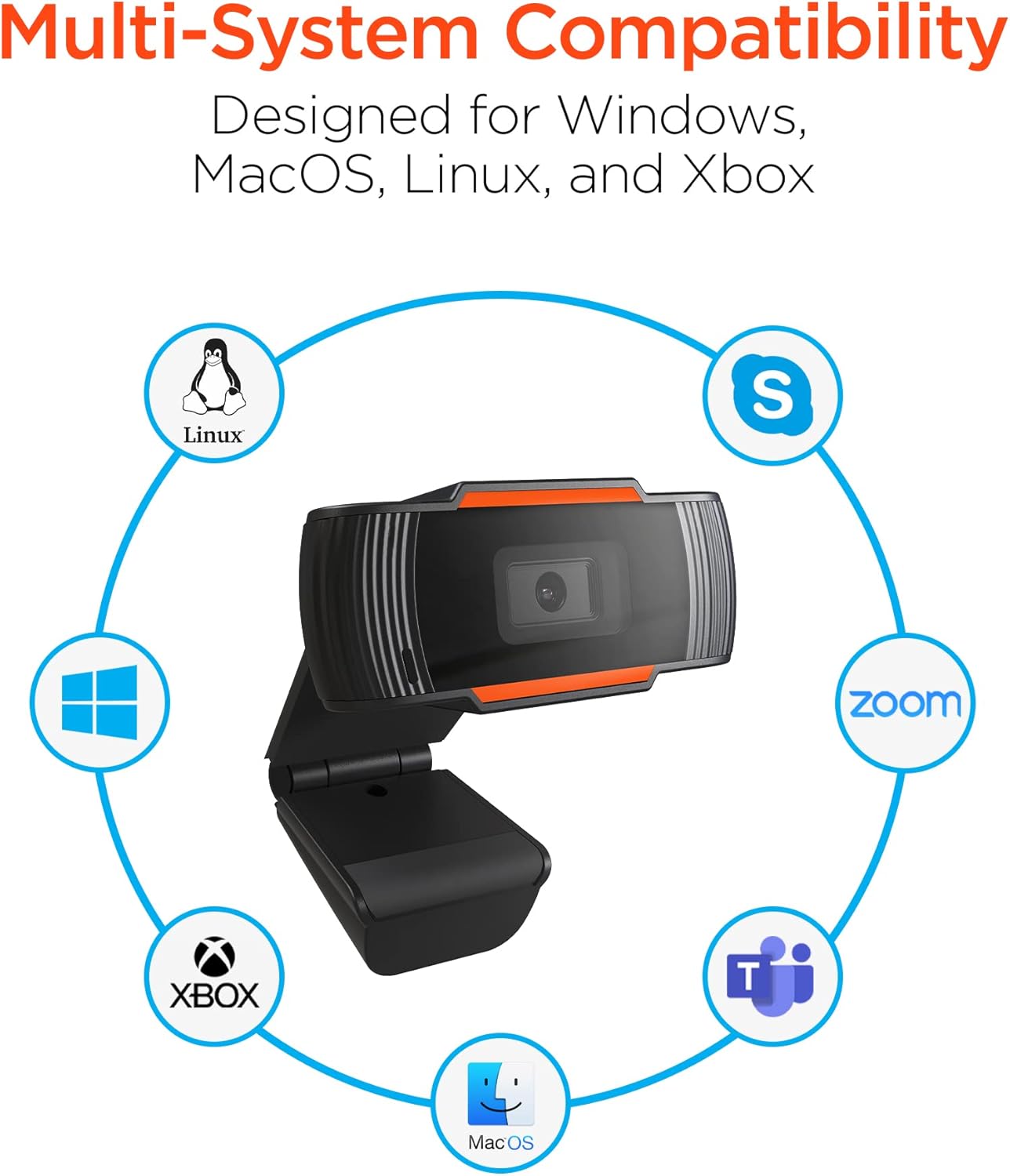
Image: The HyperGear HyperStream 1080P Webcam offers multi-system compatibility, designed for use with Windows, MacOS, Linux, and Xbox, as well as popular communication platforms like Skype, Zoom, and Microsoft Teams.
- Pencereler
- macOS
- Linux
- Xbox
- Compatible with popular video conferencing software (e.g., Skype, Zoom, Microsoft Teams).
Kullanımı Webkam
- Seçin Webkam: In your video conferencing or streaming application, navigate to the video and audio settings. Select "HyperGear HyperStream 1080P Webcam" as your video input device and its integrated microphone as your audio input device.
- Adjust Position and Angle: Sağlamak webcam is positioned to capture your desired view. The 110° wide-angle lens is ideal for capturing multiple participants or a broader background.

Image: The 110° ultra wide-angle lens ensures that your entire team and presentations fit within the frame, making it suitable for group meetings and collaborative environments.
- Benefit from Auto-White Balance and Fixed Focus: The webcam automatically adjusts for optimal lighting and maintains a sharp focus on subjects within its field of view, eliminating the need for manual adjustments.

Resim: webcam features fixed focus and auto-white balance (AWB) to automatically adjust to various lighting conditions (like daylight or fluorescent), ensuring clear and sharp visuals without manual intervention.
- Utilize Noise Reduction Microphone: The built-in microphone actively reduces ambient noise, ensuring your voice is clear and easily understood during calls.

Image: The integrated noise reduction microphone minimizes unwanted background noise and distortions, ensuring clear audio during your video calls and streams.
Bakım
Ürününüzün uzun ömürlü olmasını ve optimum performans göstermesini sağlamak için webKamera için şu bakım yönergelerini izleyin:
- Temizlik: Gently wipe the lens with a soft, lint-free cloth. Avoid using harsh chemicals or abrasive materials that could scratch the lens or damage the casing.
- Depolamak: Kullanılmadığı zaman, saklayın webKamerayı temiz, kuru bir yerde, aşırı sıcaklıklardan ve doğrudan güneş ışığından uzakta saklayın.
- İşleme: düşürmekten kaçının webcam or subjecting it to strong impacts, which could damage internal components.
Sorun giderme
If you encounter issues with your HyperGear HyperStream 1080P WebLütfen aşağıdaki sorun giderme adımlarını deneyin:
- Webkamera Algılanamadı:
- USB kablosunun hem USB hem de USB portuna güvenli bir şekilde takıldığından emin olun. webcam and your computer's USB port.
- Fişini takmayı deneyin webfarklı bir USB bağlantı noktasına takın.
- Bilgisayarınızı yeniden başlatın.
- Check your operating system's device manager (Windows) or System Information (macOS) to see if the webkamera listelenmiştir.
- Video Çıkışı Yok:
- Şunu doğrulayın: webcam is selected as the video input device in your application's settings.
- Başka hiçbir uygulamanın şu anda kullanmadığından emin olun webcam, as some systems only allow one application to access it at a time.
- Lensin önünü kapatan herhangi bir fiziksel engel olup olmadığını kontrol edin.
- No Audio Input (Microphone):
- Şunu onaylayın: webcam's microphone is selected as the audio input device in your application's settings and your system's sound settings.
- Check that the microphone is not muted in your application or system settings.
- Ensure your system's privacy settings allow applications to access the microphone.
- Kötü Video Kalitesi:
- Ensure you have adequate lighting in your environment. While the webcam has auto-white balance, sufficient ambient light is crucial for best results.
- Temizle webcam lens if it appears smudged or dirty.
- Check your internet connection speed if streaming or video conferencing, as a slow connection can affect video quality.
Özellikler
| Özellik | Detay |
|---|---|
| Marka | Hiper Dişli |
| Model Adı | HyperStream Portable 1080P |
| Video Yakalama Çözünürlüğü | 1080p |
| Bağlantı Teknolojisi | USB |
| Renk | siyah |
| Özel Özellik | Ayarlanabilir |
| Kamera Tipi | Webkam |
| İşletim Sistemi | Windows, macOS |
| Lens Türü | Geniş Açı |
| Odak Türü | Sabit Odak |
| Görüntü En Boy Oranı | 16:9 |
| Pozlama Kontrol Türü | Otomatik |
| Etkili Video Çözünürlüğü | 1920 Piksel |
| Uyumlu Cihazlar | Kişisel Bilgisayar |
| Dahili Medya | Microphone, USB Cable |
| Ürün Ağırlığı | 4.72 Ons |
| UPC | 633755155390 |
| ASIN | B09S51KSC4 |
Garanti ve Destek
For warranty information and customer support, please refer to the documentation included with your purchase or visit the official HyperGear webalan.
Ayrıca ziyaret edebilirsiniz HyperGear Mağazası Amazon'da Daha fazla ürün bilgisi ve destek kaynakları için.