
1. Giriş
Thank you for choosing the ACT AC5105 Wireless Optical Mouse. This device is designed for comfortable and efficient use at home, in the office, or while traveling. It features a compact Nano USB receiver and an intelligent power-saving mode to extend battery life. This manual provides detailed instructions for setup, operation, and maintenance of your new wireless mouse.
2. Paket İçeriği
- ACT AC5105 Wireless Optical Mouse
- Nano USB Alıcı
- 1x AA Pil (dahil)
3. Kurulum Kılavuzu
- Pili takın:
Open the battery compartment cover located on the underside of the mouse. Insert the included AA battery, ensuring correct polarity (+/-). Close the battery compartment cover securely.

Figure 3.1: Battery and Nano Receiver Storage
This image illustrates the underside of the mouse with the battery compartment open, showing where to insert the AA battery and store the Nano USB receiver. The on/off switch is also visible.
- Connect the Nano USB Receiver:
Remove the Nano USB receiver from its storage slot inside the battery compartment. Plug the receiver into an available USB-A port on your computer. Your operating system will automatically detect and install the necessary drivers.
- Fareyi Açın:
Locate the On/Off switch on the underside of the mouse and slide it to the "ON" position. The mouse is now ready for use.
4. Kullanım Talimatları
4.1 Temel Fonksiyonlar
- Sol tık: Primary function, typically for selecting items or opening links.
- Sağ tık: İkincil işlev, genellikle bağlam menülerini açmak içindir.
- Kaydırma tekerleği: Belgeler arasında yukarı veya aşağı kaydırın ve web Sayfalar. Orta tıklama işlevi için fare tekerleğine de basılabilir.

Figure 4.1: Mouse Features Overview
This diagram highlights key features such as silent click buttons, the scroll wheel, the USB-A wireless receiver, the 1600 DPI optical sensor, and the use of recycled materials in its construction.
4.2 DPI Ayarı
The ACT AC5105 mouse features an adjustable DPI (Dots Per Inch) setting, allowing you to change the cursor speed and sensitivity. You can cycle through 800, 1200, and 1600 DPI settings by pressing the DPI switch button located behind the scroll wheel.
- 800DPI: Slower cursor movement, suitable for precise tasks.
- 1200DPI: Standard cursor movement, suitable for general use.
- 1600DPI: Daha hızlı imleç hareketi, büyük ekranlarda hızlı gezinme için uygundur.
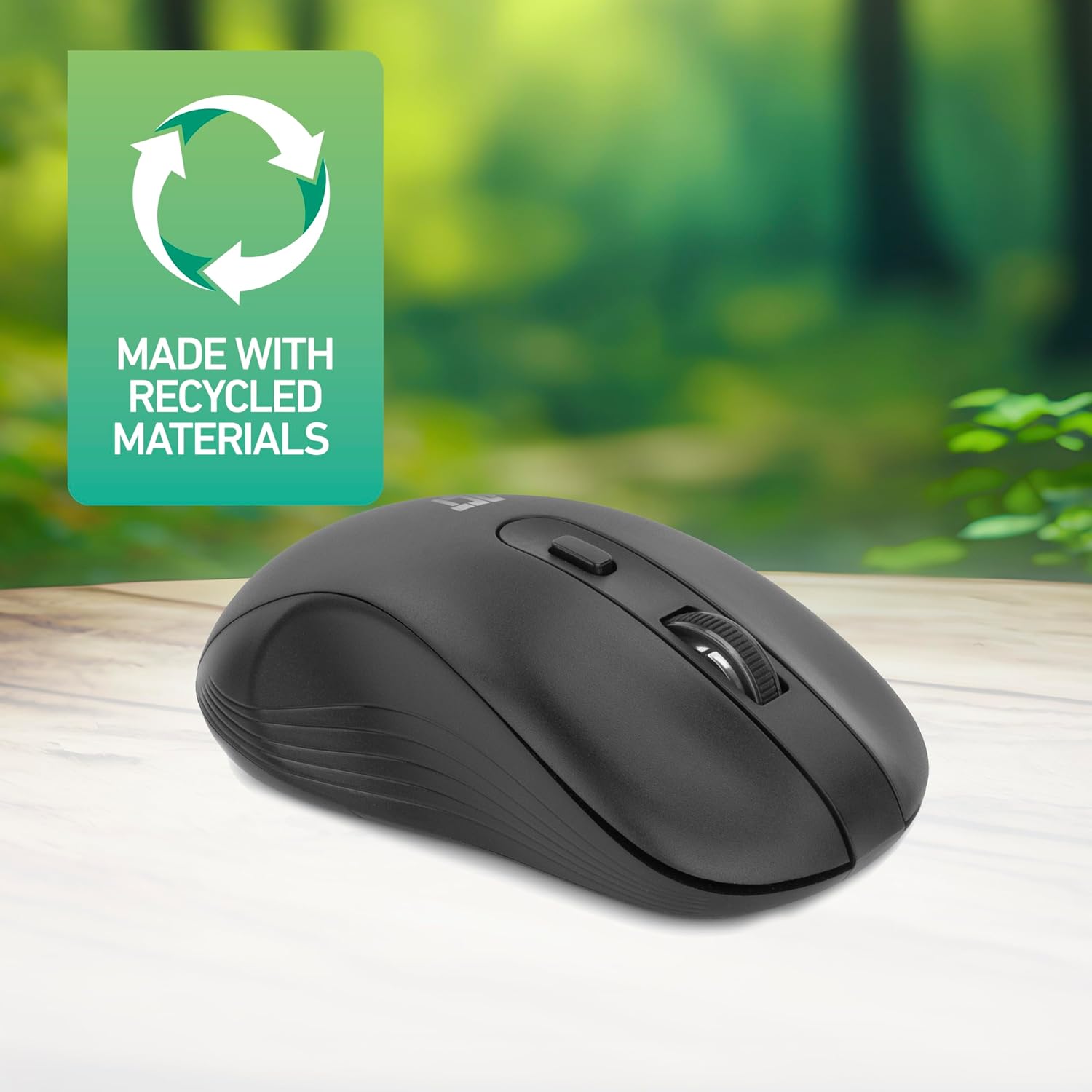
Figure 4.2: DPI Switch Location
This image shows the mouse in use on a desk, highlighting the DPI switch button for adjusting sensitivity between 800, 1200, and 1600 DPI.
4.3 Güç Tasarruf Modu
The mouse is equipped with an intelligent power-saving feature. If the mouse is inactive for a period, it will automatically enter standby mode to conserve battery power. To wake the mouse, simply move it or click any button.
For extended periods of non-use, it is recommended to switch the mouse off using the On/Off switch on the underside of the device.
5. Bakım
- Temizlik: Fareyi temizlemek için yumuşak, kuru bir bez kullanın. Sert kimyasallar veya aşındırıcı malzemeler kullanmaktan kaçının.
- Pil Değişimi: When the mouse performance degrades or it stops responding, replace the AA battery with a new one. Follow the steps in Section 3.1.
- Depolamak: When not in use, especially during travel, you can store the Nano USB receiver inside the mouse's battery compartment to prevent loss.
6. Sorun Giderme
| Sorun | Çözüm |
|---|---|
| Fare yanıt vermiyor |
|
| İmleç hareketi düzensiz veya yavaş |
|
| Kablosuz bağlantı sorunları |
|
7. Özellikler
| Özellik | Detay |
|---|---|
| Model Numarası | AC5105 |
| Bağlantı Teknolojisi | 2.4GHz Radio Frequency Wireless |
| kablosuz Menzil | 10 metreye kadar |
| Hareket Algılama Teknolojisi | Optik |
| DPI Ayarları | 800 / 1200 / 1600 DPI (Ayarlanabilir) |
| Düğme Sayısı | 4 (Left, Right, Scroll Wheel Click, DPI Switch) |
| El Yönelimi | Çok yönlü (Hem sol hem de sağ elini kullanan kullanıcılar için uygundur) |
| Güç Kaynağı | 1x AA Pil |
| Ürün Boyutları (U x G x Y) | 10.5x6.5x3.5 cm |
| Ağırlık | 60 gr |
| Uyumlu Cihazlar | PC |
| İşletim Sistemi | ChromeOS, Linux Mint 22 (minimum required version) |
| Özel Özellikler | Wireless, Intelligent Power Saving, Silent Click |

Şekil 7.1: Fare Boyutları
This image provides a top-down and side view of the mouse, clearly indicating its physical dimensions: 105mm in length, 65mm in width, and 35mm in height.
8. Garanti ve Destek
ACT products are manufactured to high quality standards. This product comes with a 2-year warranty from the date of purchase against defects in materials and workmanship.
For technical support, warranty claims, or further assistance, please refer to the official ACT websiteyi ziyaret edin veya yerel perakendecinizle iletişime geçin.
Lütfen garanti amaçlı satın alma belgenizi saklayın.