
myGEKOgear Orbit 500
myGEKOgear Orbit 500 Dash Cam User Manual
Model: Orbit 500
giriiş
The myGEKOgear Orbit 500 is a high-performance Full HD 1080p Wi-Fi Dash Cam designed to capture clear footage of your drives and provide crucial evidence in the event of an incident. This manual provides comprehensive instructions for setting up, operating, maintaining, and troubleshooting your Orbit 500 Dash Cam.
Temel özellikler şunlardır:
- Full HD 1080p Kayıt: Captures clear, high-definition video.
- 120° Alanı View: Provides a wide perspective of the road.
- Wi-Fi Bağlantısı: Allows instant file sharing, live view, and playback via a dedicated mobile application.
- G-Sensörü: Videoyu otomatik olarak kilitler files upon detecting sudden impacts or braking, preventing overwriting.
- 24/7 Surveillance: Utilizes the included OBD II power cable for continuous monitoring of your parked vehicle.
- MicroSD Kart Desteği: Supports up to 32GB storage, with an 8GB microSD card included.
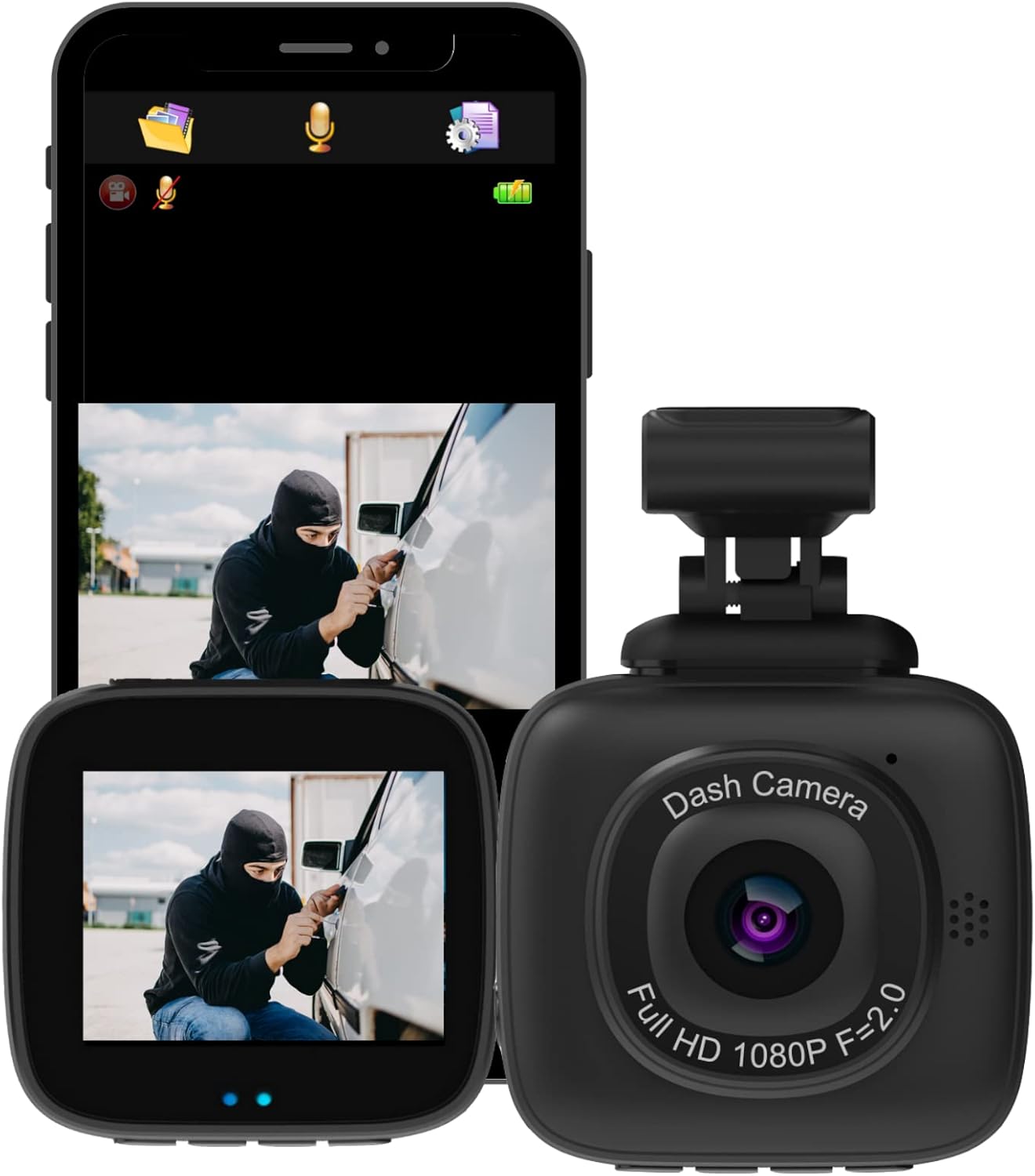
Image: The myGEKOgear Orbit 500 Dash Cam shown alongside a smartphone displaying its app interface, illustrating live view Ve file yönetim yetenekleri.

Resim: Bir overview diagram highlighting the Orbit 500's main features: 1080p Full HD, OBD II power cable, Wi-Fi, G-Sensor, and 32GB MicroSD support.
Kurulum ve Yükleme
1. Kutuda Neler Var?
Başlamadan önce tüm bileşenlerin mevcut olduğundan emin olun:
- Orbit 500 Vehicle Camera
- Yapışkan Montaj
- Power Cable (standard 12V car charger)
- OBD II Power Cable (for 24/7 surveillance)
- 8GB MicroSD Kart
2. MicroSD Kartın Takılması
Locate the microSD card slot on the side of the Orbit 500. Gently insert the included 8GB microSD card until it clicks into place. Ensure the card is inserted correctly to avoid damage. It is recommended to format the card within the dash cam settings before first use.

Image: A close-up of the Orbit 500 dash cam next to an 8GB MicroSD card, illustrating the card's small size and its role in data storage.
3. Dash Cam'in Montajı
Ön camınızda görüşünüzü engellemeyecek bir yer seçin. view Yolun arkasında. Genellikle bu, arka taraftadır.view mirror. Clean the area thoroughly before applying the adhesive mount. Attach the Orbit 500 to the adhesive mount, ensuring it is securely fastened and the lens has a clear view Önümüzdeki yolun.

Image: The myGEKOgear brand logo.
4. Güç Bağlantısı
The Orbit 500 can be powered in two ways:
- Standard Power Cable: Connect the standard power cable to your vehicle's 12V power outlet (cigarette lighter socket). Route the cable neatly to avoid interference with driving.
- OBD II Power Cable (for 24/7 Surveillance): For continuous recording even when your vehicle is parked, connect the OBD II power cable to your vehicle's OBD II port. This port is usually located under the dashboard on the driver's side. The Orbit 500 is designed with low voltage battery protection, automatically shutting off if your car battery falls below 11.6 volts to prevent complete drainage.

Image: The Orbit 500 dash cam installed in a car, with the OBD II power cable connected, illustrating its 24-hour parking monitoring capability.
5. Wi-Fi Connectivity and App Setup
The Orbit 500 features Wi-Fi connectivity for easy access to your footage via a smartphone or tablet app. Download the official myGEKOgear app from your device's app store (iOS App Store or Google Play Store).
- Turn on the Orbit 500.
- On your smartphone/tablet, go to Wi-Fi settings and connect to the Orbit 500's Wi-Fi network (SSID and password can be found on the device or in the manual's quick start guide).
- Open the myGEKOgear app. You can now view canlı footage, kaydedilmiş videoları oynatın ve indirin files directly to your device.

Image: A smartphone screen showing the myGEKOgear app interface with video files, positioned in front of a city street, emphasizing Wi-Fi support for instant file Paylaşım.
Kullanım Talimatları
1. Otomatik Kayıt
Once powered on, the Orbit 500 will automatically begin loop recording. This means it records video in segments (e.g., 1, 3, or 5 minutes) and, once the microSD card is full, it will automatically overwrite the oldest files. This ensures continuous recording without manual intervention.
2. G-Sensor for Emergency File Tasarruf
The built-in G-Sensor detects sudden acceleration, braking, or impacts. When such an event occurs, the current video segment is automatically locked and saved to a protected folder on the microSD card. These locked files will not be overwritten by loop recording, preserving critical evidence. You can adjust the G-Sensor sensitivity in the device settings.

Image: A scene depicting a damaged car, with text highlighting the G-sensor's function in saving emergency files for insurance purposes during impacts or drastic braking.
3. Parking Monitor (24/7 Surveillance)
When connected via the OBD II power cable, the Orbit 500 provides 24/7 surveillance. In parking mode, the dash cam will detect motion or impact and automatically begin recording. This feature is designed to monitor your vehicle even when you are away, providing security against vandalism or theft attempts.
4. Mobil Uygulamayı Kullanma
The myGEKOgear app is your primary interface for managing the Orbit 500's recordings and settings:
- Canlı View: See what your dash cam is recording in real-time.
- Playback: Browse and play back recorded video files directly on your smartphone/tablet.
- İndirmek: Select and download important video clips to your device's local storage.
- Ayarlar: Adjust various dash cam settings, including video resolution, loop recording duration, G-Sensor sensitivity, and more.
Bakım
1. MicroSD Kart Yönetimi
Regularly format your microSD card (at least once a month) to ensure optimal performance and prevent data corruption. This can usually be done through the dash cam's menu settings or via the mobile app. Back up any important files before formatting, as it will erase all data on the card.
The Orbit 500 supports microSD cards up to 32GB. Using a high-quality, high-speed (Class 10 or higher) microSD card is recommended for reliable recording.
2. Cihazın Temizlenmesi
Wipe the dash cam lens periodically with a soft, lint-free cloth to ensure clear video quality. Avoid using abrasive cleaners or solvents. Keep the device free from dust and debris.
3. Ürün Yazılımı Güncellemeleri
Check the myGEKOgear official website or the mobile app periodically for any available firmware updates. Firmware updates can improve performance, add new features, or fix bugs. Follow the instructions provided with the firmware update carefully.
Sorun giderme
| Sorun | Olası Neden | Çözüm |
|---|---|---|
| Araç kamerası açılmıyor. | No power supply; faulty cable; vehicle power outlet issue. | Check power cable connection. Ensure vehicle's 12V outlet or OBD II port is functional. Try a different power source if available. |
| Kayıt duruyor veya donuyor. | MicroSD card full or corrupted; slow microSD card; firmware issue. | Format the microSD card. Use a high-speed (Class 10 or U1/U3) microSD card. Check for firmware updates. |
| Wi-Fi bağlantı sorunları. | Incorrect Wi-Fi password; too far from device; app issue. | Ensure correct Wi-Fi password. Stay within close proximity to the dash cam. Restart the app and the dash cam. |
| Video kalitesi düşük/bulanık. | Kirli lens; lensin üzerinde hala koruyucu film var; yanlış çözünürlük ayarı. | Clean the lens with a soft cloth. Remove any protective film. Ensure video resolution is set to 1080p in settings. |
| Dash cam drains car battery (when using OBD II). | Vehicle battery health; prolonged parking surveillance in low-power vehicle. | While the Orbit 500 has low voltage protection, prolonged use in parking mode with a weak car battery can still cause issues. Ensure your car battery is in good health. If issues persist, consider using the standard power cable for daily driving and only use OBD II for specific surveillance needs. |
| Cannot recirculate video recording (old files not overwritten). | MicroSD card error; too many locked files; card not formatted. | Ensure the microSD card is formatted regularly. Check if the G-Sensor sensitivity is too high, leading to too many locked files. Manually delete old locked fileKartı biçimlendirin veya ayarlayın. |
Ürün Özellikleri
- Model Adı:
- Orbit 500 Vehicle Camera
- Video Yakalama Çözünürlüğü:
- 1080p Full HD
- Alanı View:
- 120 Derece
- Bağlantı Teknolojisi:
- Wifi
- Özel Özellikler:
- 24/7 Recording, Mobile App, G-Sensor
- Depolama Desteği:
- Up to 32GB MicroSD (8GB included)
- Güç Kaynağı:
- 1 Lithium Ion battery (included), 12V Car Power Cable, OBD II Power Cable
- Ürün Ölçüleri:
- 5 x 2 x 5 inç
- Ürün Ağırlığı:
- 9.5 ons
- Renk:
- Siyah
- Montaj Tipi:
- Yapışkan Montaj
- Dahil Bileşenler:
- Orbit 500 Vehicle Camera, Adhesive Mount, Power Cable, 8GB MicroSD
Garanti ve Destek
For detailed warranty information, please refer to the warranty card included with your product or visit the official myGEKOgear webSite. Garanti şartları ve koşulları bölgeye ve perakendeciye göre değişiklik gösterebilir.
For technical support, troubleshooting assistance beyond this manual, or to inquire about replacement parts, please contact myGEKOgear customer service through their official webSite üzerinden veya satın alma işlemini gerçekleştirdiğiniz sırada verilen iletişim bilgileri aracılığıyla iletişime geçebilirsiniz.
Ayrıca ziyaret edebilirsiniz myGEKOgear Store on Amazon Daha fazla ürün bilgisi ve destek kaynakları için.
Ask a question about this manual
Ask about setup, troubleshooting, compatibility, parts, safety, or missing instructions. Manuals+ will review the question and use this page’s manual context to help answer it.