
giriiş
This manual provides comprehensive instructions for the setup, operation, and maintenance of your POLONO PL60 Thermal Label Printer. Please read this guide thoroughly before using the printer to ensure optimal performance and longevity.
Paket İçeriği
Aşağıda listelenen tüm öğelerin paketinizde bulunduğunu doğrulayın:
- 1 Grey POLONO PL60 Thermal Label Printer
- 1 Güç Kablosu
- 1 USB Kablosu
- 1 U Disk (containing printer driver, installation guide, setup guide, and user manual)
- 1 Hızlı Başlangıç Kılavuzu
- 10pcs 4"x6" Labels (sampTHE)

Image: All components included in the POLONO PL60 printer package, including the printer, cables, U disk, quick start guide, and sampetiketler.
Kurulum Talimatları
- Connect Power and USB Cable: Connect the power cord to the printer and a power outlet. Connect the USB cable from the printer to your computer (Windows or Mac).

Image: Step 1 of setup, showing the power and USB cables being connected to the printer.
- Sürücüyü kur: Insert the included U Disk into your computer. Install the printer driver. Alternatively, download the latest driver from the official POLONO website. The printer is compatible with Windows and Mac operating systems. Note: This printer does not support Bluetooth or Chromebook.

Image: The POLONO PL60 printer connected to a laptop, indicating compatibility with Mac and Windows systems.
- Etiketleri Yükle: Open the printer cover. Place the thermal labels into the label compartment, ensuring the print side faces up. Adjust the label guides to fit the label width snugly. Close the cover.

Image: Step 3 of setup, demonstrating how to load labels into the printer's compartment.
- Automatic Label Alignment: After loading labels and closing the cover, press the feed button on the printer. The printer will automatically detect the label size and align the labels for printing.

Image: The POLONO PL60 printer with labels loaded, showing the automatic label detection feature.
Kullanım Talimatları
Etiket Baskı
The POLONO PL60 printer uses advanced thermal direct technology, eliminating the need for ink or toner. It supports label widths from 1.57 inches (40 mm) to 4.65 inches (118 mm).
- Belgenizi Hazırlayın: Ensure your label design or shipping label is correctly formatted for a 4x6 inch label (or other supported sizes).
- Yazıcı Seçin: In your computer's print dialog, select "POLONO PL60" as your printer.
- Yazdırma Ayarları: Adjust print settings as needed. For optimal print quality, you may need to adjust the print density/darkness and speed in the printer preferences. Slower speeds generally result in better print quality.
- Yazdırmayı Başlat: Click "Print" to send the label to the printer. The printer can achieve speeds of 150mm/s, printing approximately 72 labels per minute.

Image: The POLONO PL60 printer printing a label, highlighting its high efficiency and print quality.
Adjusting Print Darkness and Speed (Windows ExampTHE)
To customize print quality, follow these steps:
- Go to your computer's Ayarlar > Yazıcılar ve Tarayıcılar.
- Seçin POLONO Label Printer ve tıkla Üstesinden gelmek.
- Git Yazıcı Tercihleri.
- İçinde Gelişmiş Ayarlar pencereye tıklayın Hız ve seç Customize Print Speed. Adjust the slider to a slower speed for better print quality.
- Similarly, adjust Karanlık settings to achieve desired label contrast.
Video: Instructions on how to adjust the print darkness settings for the POLONO PL60 printer.
Desteklenen Etiket Boyutları
The printer supports various label sizes, including:
- 4"x6"
- 3"x2"
- 3"x1"
- 2"x1"
- 2-5/16" x 4"
- 2.25"x1.25"
- 2-inch round labels
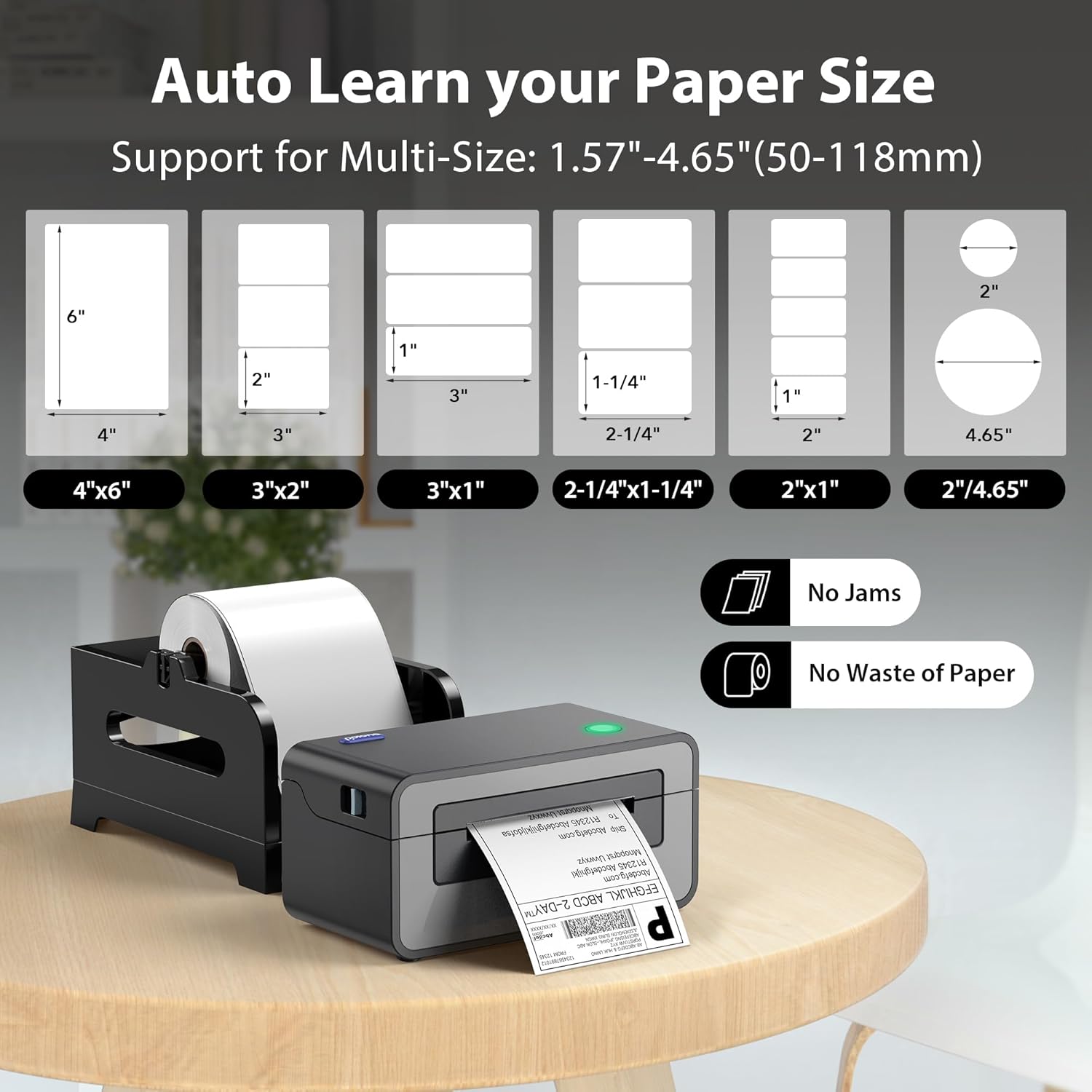
Image: Visual representation of different label sizes that the POLONO PL60 printer can automatically detect and print.
Bakım
The POLONO PL60 is a thermal direct printer, meaning it does not require ink cartridges or toner. This simplifies maintenance significantly.
- Yazdırma Kafasını Temizleme: Periodically clean the print head with an alcohol wipe to ensure clear print quality. Refer to the detailed user manual on the U Disk for specific cleaning instructions.
- Genel Temizlik: Keep the printer free from dust and debris. Use a soft, dry cloth to wipe the exterior.
Sorun giderme
Yaygın Sorunlar ve Çözümleri
- Printer Not Responding / Not Printing:
- Ensure the power cord and USB cable are securely connected.
- Verify the printer is turned on (indicated by the LED light).
- Check if the correct printer driver is installed and updated.
- For Mac users experiencing issues, try uninstalling the driver, deleting the printer from your computer settings, then reinstalling the driver from the provided U Disk and re-adding the printer.
- Faded or Poor Print Quality:
- Adjust the print darkness setting in your printer preferences (refer to "Adjusting Print Darkness and Speed" section).
- Yüksek kaliteli termal etiketler kullandığınızdan emin olun.
- Bakım bölümünde açıklandığı gibi yazıcı kafasını temizleyin.
- Labels Not Feeding Correctly / "Out of Labels" Error:
- Ensure labels are loaded correctly with the print side up.
- Adjust the label guides to fit the label width.
- Press the feed button to allow the printer to automatically detect and align the labels.
Özellikler
| Özellik | Detay |
|---|---|
| Marka | POLONO |
| Model Adı | PL60 |
| Bağlantı Teknolojisi | USB |
| Baskı Teknolojisi | Termal |
| Renk | Gri |
| Yazıcı Çıktısı | Tek renkli |
| Maksimum Baskı Hızı (Siyah Beyaz) | 150mm/s (72 labels/minute) |
| Ürün Ağırlığı | 1.9 Kilogram |
| Ürün Boyutları (D x G x Y) | 11.5" x 6" x 6" |
| Çözünürlük | 203 x 203 DPI |
| Maksimum Medya Boyutu | 4 x 6 inç |
| Desteklenen Kağıt Boyutları | 4"x6", 3"x2", 3"x1", 2"x1", 2.25"x1.25", 2-5/16" x 4", 2" Circle Inches |
| Uyumlu Cihazlar | Laptops, Mac, PC, Windows |
Garanti ve Destek
The POLONO PL60 Thermal Label Printer comes with a 1 yıllık üretici sınırlı garantisi.
For further assistance, detailed user manuals, and driver downloads, please refer to the included U Disk or visit the official POLONO webalan.
Ayrıca şuraya da erişebilirsiniz: Kullanım Kılavuzu (PDF) Ek bilgi için.