
giriiş
This manual provides comprehensive instructions for the Vivitar Podcast and Social Media Microphone MIC918. This high-quality condenser microphone is designed for clear audio capture for various applications, including podcasting, live streaming, gaming, voice-overs, and vocal recording. It features a simple plug-and-play USB connection, integrated volume control, and a stable tripod stand for optimal positioning.
Güvenlik Bilgileri
- Mikrofonu suya veya aşırı neme maruz bırakmayın.
- Aşırı sıcaklıklardan ve doğrudan güneş ışığından kaçının.
- Mikrofonu sökmeye veya üzerinde değişiklik yapmaya çalışmayın. Bu, garantiyi geçersiz kılacaktır.
- Mikrofonu güçlü manyetik alanlardan uzak tutun.
- Temizlik için sadece yumuşak, kuru bir bez kullanın.
Ürün Bittiview
Paket İçeriği
- Vivitar MIC918 Microphone Unit
- tripod Standı
- Integrated USB Connection Cable
Mikrofon Bileşenleri
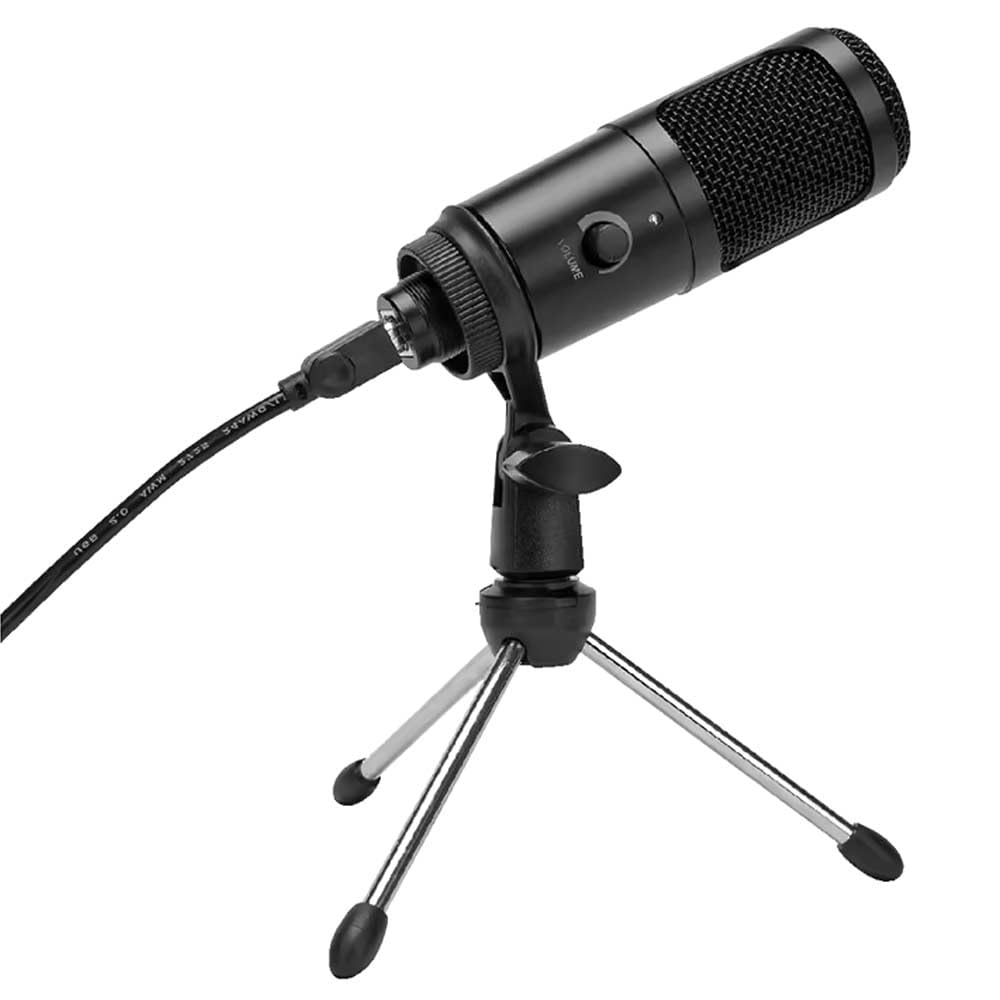
Şekil 1: Vivitar MIC918 Microphone unit attached to its tripod stand, showing the integrated USB cable.

Şekil 2: Taraf view of the Vivitar MIC918 Microphone, highlighting the volume control knob and the Vivitar brand logo.
The microphone unit features a durable metal construction. The front side includes a volume control knob for easy audio level adjustments. The microphone is designed with a unidirectional polar pattern to focus on sound directly in front of it, reducing background noise.
Kurmak
Mikrofonu Bağlama
- Standı Birleştirin: If not already assembled, unfold the tripod stand and ensure it is stable on a flat surface. Securely attach the microphone unit to the stand's mounting point. The rotating shaft ring allows for angle adjustment.
- Cihaza Bağlan: Plug the integrated USB cable from the microphone into an available USB port on your computer, laptop, or compatible gaming console.
- Tak ve Çalıştır: The Vivitar MIC918 is a plug-and-play device. Your operating system (Windows, macOS, etc.) should automatically detect and install the necessary drivers. No additional software installation is typically required.
- Giriş Aygıtı Olarak Seçin: After connecting, navigate to your device's sound settings or the audio settings within your recording/streaming software. Select the "Vivitar MIC918" or similar USB audio device as your primary input (microphone) device.
İşletim
Sesi Ayarlama
The microphone features a built-in volume control knob located on its side (refer to Figure 2). Rotate this knob clockwise to increase the microphone's input sensitivity (volume) and counter-clockwise to decrease it. Adjust this to achieve the desired recording level without distortion.
Mikrofonun Konumlandırılması
For optimal audio capture, position the microphone directly in front of the sound source (e.g., your mouth for speaking or singing). The tilting tripod stand allows you to adjust the microphone's angle to best suit your needs. Due to its unidirectional polar pattern, the microphone is most sensitive to sounds coming from the front and less sensitive to sounds from the sides or rear, helping to minimize ambient noise.
Bakım
- Temizlik: Use a soft, dry, lint-free cloth to wipe the microphone's exterior. Do not use liquid cleaners, aerosols, or solvents.
- Depolamak: When not in use, store the microphone in a clean, dry place, away from dust and extreme temperatures.
- İşleme: Mikrofonu dikkatli kullanın. Düşürmekten veya sert darbelere maruz bırakmaktan kaçının.
Sorun giderme
| Sorun | Olası Neden | Çözüm |
|---|---|---|
| Mikrofondan ses çıkışı yok. | Mikrofon düzgün bağlanmamış. Yanlış giriş aygıtı seçildi. Mikrofon sesi çok düşük. | Ensure USB cable is securely plugged into both the microphone and the device. Verify that "Vivitar MIC918" is selected as the input device in your system's sound settings or recording software. Increase the volume using the knob on the microphone and check system input levels. |
| Poor sound quality (e.g., muffled, too quiet, background noise). | Mikrofonun konumu yanlış. Ortam gürültüsü yüksek. Input level too high or too low. | Position the microphone closer to the sound source and ensure it's facing directly towards it. Daha sessiz bir ortamda kayıt yapın. Adjust the microphone's volume knob and system input levels to an optimal range, avoiding clipping or being too faint. |
| Bilgisayar mikrofonu tanımıyor. | USB bağlantı noktası veya kablosu arızalı. System driver issue. | Mikrofonu bilgisayarınızdaki farklı bir USB bağlantı noktasına bağlamayı deneyin. Restart your computer. If the issue persists, check your operating system's device manager for any driver conflicts or updates. |
Özellikler
| Özellik | Şartname |
|---|---|
| Marka | Vivitar |
| Model Numarası | MIC918 |
| Bağlantı | USB (Tak ve Çalıştır) |
| Mikrofon Türü | Kondansatör |
| Kutup Deseni | Tek yönlü |
| Sinyal-Gürültü Oranı | 78 dB |
| Muhafaza Malzemesi | Metal |
| Ürün Ağırlığı | 0.95 Pound (yaklaşık 0.43 kg) |
| Ürün Boyutları (U x G x Y) | 8.86 x 5.36 x 2.49 inç (yaklaşık 22.5 x 13.6 x 6.3 cm) |
| Güç Kaynağı | Kablolu Elektrikli (USB aracılığıyla) |
| Uyumlu Cihazlar | Computers, Laptops, Gaming Consoles |
Garanti Bilgileri
The Vivitar Podcast and Social Media Microphone MIC918 comes with a 3-Year USA Warranty. For specific terms, conditions, and to register your product, please refer to the official Vivitar webSiteyi ziyaret edin veya doğrudan müşteri hizmetleriyle iletişime geçin. Satın alma belgenizi garanti talepleriniz için saklayın.
Müşteri Desteği
For further assistance, technical support, or inquiries regarding your Vivitar MIC918 microphone, please visit the official Vivitar website or contact their customer service department. Contact information can typically be found on the Vivitar webSitenin 'Destek' veya 'Bize Ulaşın' bölümlerine bakabilirsiniz.