
giriiş
This manual provides detailed instructions for the setup, operation, and maintenance of your FANGOR 15.6" Portable Monitor, model DH112222. Please read this manual thoroughly before using the product to ensure proper functionality and to prevent damage.
The FANGOR DH112222 is a versatile 15.6-inch Full HD 1080P IPS display designed for various applications, including extending laptop screens, gaming, and multimedia consumption. It features USB Type-C and HDMI connectivity, built-in speakers, and a smart cover for portability and protection.
Paket İçeriği
Lütfen kutuyu açarken paket içeriğini kontrol edin. Eksik veya hasarlı bir ürün varsa, müşteri hizmetleriyle iletişime geçin.
- FANGOR 15.6" Portable Monitor (DH112222)
- Smart Cover / Stand
- USB-C to USB-C Cable (for power and video/data)
- HDMI to Mini HDMI Cable (for video)
- USB-A - USB-C Kablosu (güç için)
- Güç Adaptörü (dahilse)
- Kullanım Kılavuzu (bu belge)
Ürün Bittiview
Familiarize yourself with the monitor's components and ports.
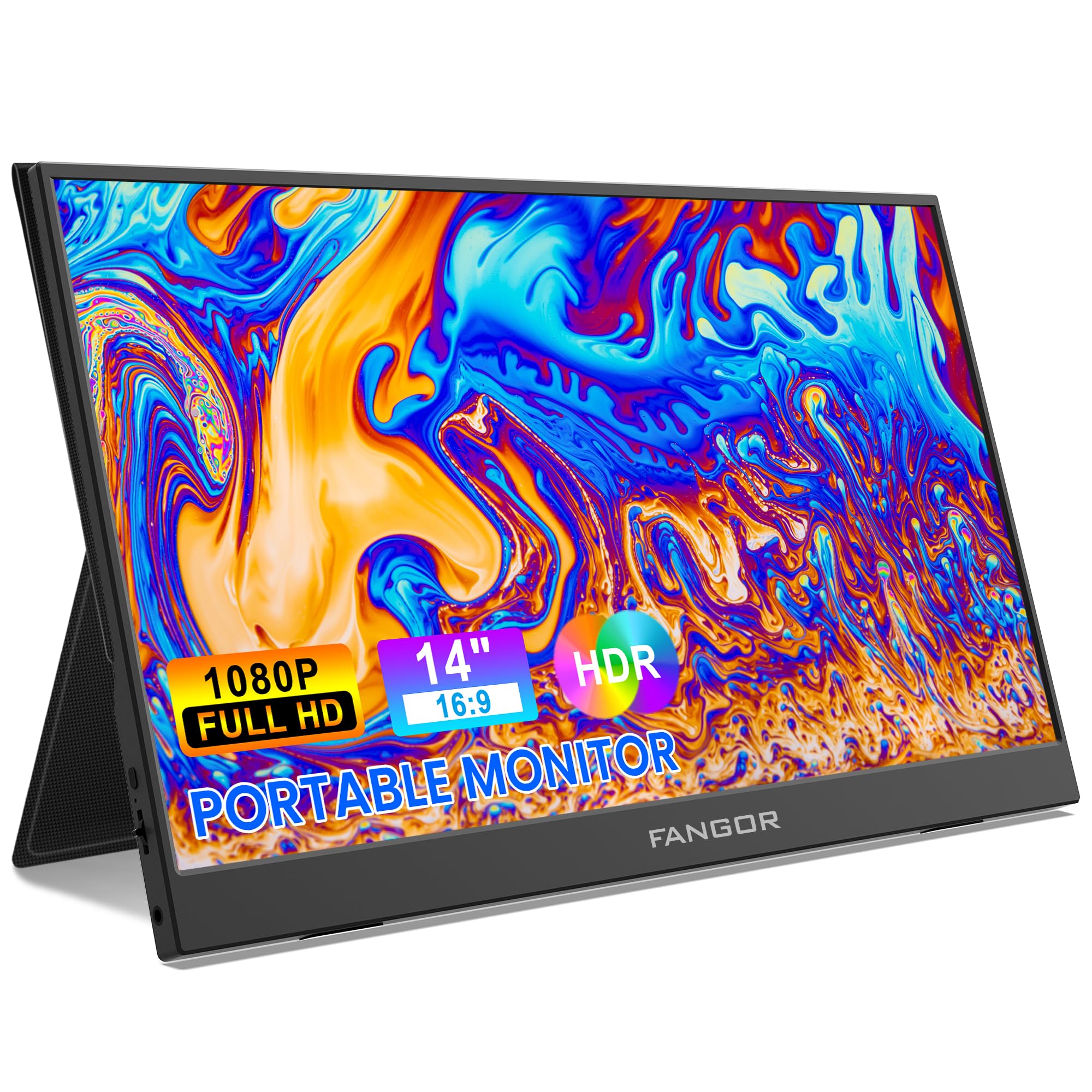
Image: FANGOR 15.6" Portable Monitor DH112222. This image displays the monitor with its smart cover, showcasing its slim profile ve ekran.
Bağlantı Noktaları ve Düğmeler:
- USB-C Port (Full-featured): For power, video, and data transmission from compatible devices.
- Küçük HDMI Bağlantı Noktası: For video input from devices using an HDMI cable.
- 3.5 mm Ses Jakı: Harici kulaklık veya hoparlör bağlamak için.
- Power Button / OSD Menu Button: Press and hold to power on/off. Press to access the On-Screen Display (OSD) menu.
- Volume / Navigation Buttons: Used to adjust volume or navigate through the OSD menu.
- Dahili Hoparlörler: Located on the sides or rear of the monitor.
Note: A visual diagram showing the exact location of each port and button would typically be included here.
Kurulum Talimatları
1. Setting up the Smart Cover:
- Unfold the smart cover to form a triangular stand.
- Place the monitor into the grooves of the stand to achieve the desired viewaçı.
Note: An illustration demonstrating how to fold the smart cover into a stand would be beneficial here.
2. Connecting to a Power Source:
The monitor requires power to operate. It can be powered via USB-C.
- Connect one end of the USB-C to USB-C cable to the monitor's full-featured USB-C port.
- Connect the other end to a power adapter (5V/3A or higher recommended) or a compatible device's USB-C port that supports power delivery.
- Alternatively, use the USB-A to USB-C cable with a power adapter.
Note: A diagram showing power connection options would be helpful.
Kullanım Talimatları
Cihazlara Bağlanma:
The FANGOR DH112222 supports various devices via USB-C and HDMI.
1. Connecting to a Laptop/PC (USB-C):
For laptops/PCs with a full-featured USB-C port (supporting DisplayPort Alternate Mode and Power Delivery):
- Connect one end of the USB-C to USB-C cable to the monitor's full-featured USB-C port.
- Connect the other end to the laptop's full-featured USB-C port.
- The monitor should automatically detect the signal and display the screen. If not, ensure the laptop's display settings are configured for an external monitor (e.g., Extend, Duplicate).
Note: Some laptops may require an external power source for the monitor if their USB-C port does not provide sufficient power.
2. Connecting to a Laptop/PC (HDMI):
For laptops/PCs with an HDMI port:
- Connect one end of the HDMI to Mini HDMI cable to the monitor's Mini HDMI port.
- Connect the other end (HDMI) to the laptop's HDMI port.
- Ensure the monitor is powered via its USB-C port (using a USB-A to USB-C cable connected to a power adapter or a USB-C to USB-C cable connected to a power source).
- The monitor should automatically detect the signal. Adjust display settings on your PC if necessary.
3. Connecting to Gaming Consoles (PS4, Xbox, Switch):
Use the HDMI to Mini HDMI cable for video and a USB-C cable for power.
- Connect the monitor to a power source via USB-C.
- Connect the HDMI to Mini HDMI cable from the console's HDMI output to the monitor's Mini HDMI input.
- Power on the console and the monitor.
4. Connecting to Smartphones (USB-C):
For smartphones with a full-featured USB-C port (supporting DisplayPort Alternate Mode and Power Delivery):
- Connect one end of the USB-C to USB-C cable to the monitor's full-featured USB-C port.
- Connect the other end to the smartphone's USB-C port.
- The monitor will display the phone's screen. Some phones may offer a desktop mode.
Note: Not all smartphones support video output via USB-C. Check your phone's specifications.
Ekran Görüntüsü (OSD) Menüsü:
OSD menüsü, çeşitli ekran ayarlarını yapmanıza olanak tanır.
- Press the Power/OSD button to open the OSD menu.
- Use the Volume/Navigation buttons to move up/down or left/right through the menu options.
- Press the Power/OSD button again to select an option or confirm a setting.
- OSD menüsünden çıkmak için 'Çıkış' seçeneğine gidin veya menünün zaman aşımına uğramasını bekleyin.
Common OSD Menu Options: Brightness, Contrast, Color Temperature, Aspect Ratio, Input Source, Volume.
Bakım
- Ekranın Temizlenmesi: Yumuşak, tiftiksiz bir bez kullanın ve hafifçe kurulayın.ampSu veya aşındırıcı olmayan bir ekran temizleyici ile temizleyin. Sıvıyı doğrudan ekrana püskürtmeyin.
- C'yi Temizlemeasing: Use a soft, dry cloth. Avoid harsh chemicals or abrasive materials.
- Depolamak: When not in use, store the monitor in its smart cover to protect the screen from scratches and dust. Avoid extreme temperatures and humidity.
- İşleme: Monitörü daima kenarlarından tutun. Ekrana baskı uygulamaktan kaçının.
Sorun giderme
| Sorun | Olası Çözüm |
|---|---|
| Sinyal yok / Siyah ekran |
|
| Hoparlörlerden ses gelmiyor |
|
| Screen flickering or unstable image |
|
| Monitör açılmıyor |
|
Özellikler
| Özellik | Detay |
|---|---|
| Model Numarası | DH112222 |
| Ekran Boyutu | 15.6 inç |
| Çözünürlük | FHD 1080p (1920 x 1080) |
| Görüntü Türü | LCD, IPS |
| En Boy Oranı | 16:9 |
| Yenileme Hızı | 60 Hz |
| Kontrast Oranı | 1000:1 |
| ViewAçı | 160 Derece |
| Screen Finish | Parlak |
| Bağlantı | HDMI, USB-C (full-featured), Mini HDMI |
| Ses | Built-In Speakers, 3.5mm Audio Jack |
| Ürün Boyutları | 38x28.5x45 cm |
| Ürün Ağırlığı | 612.35 g (1.35 Pound) |
| Uyumlu Cihazlar | Laptop, PC, Smartphone, XBOX, Switch, PS4 |
Güvenlik Bilgileri
- Yangın veya elektrik çarpması tehlikesini önlemek için monitörü yağmura veya neme maruz bırakmayın.
- Monitörü açmayınasing. Tüm bakımları yetkili servis personeline yaptırın.
- Monitörü ısı kaynaklarının yakınına veya doğrudan güneş ışığına maruz bırakmayın.
- Yalnızca üretici tarafından sağlanan veya önerilen güç adaptörünü ve kabloları kullanın.
- Monitörü güçlü manyetik alanlardan uzak tutun.
Garanti ve Destek
For warranty information and technical support, please refer to the warranty card included with your product or visit the official FANGOR webSite. Satın alma fişinizi, garanti talepleriniz için satın alma belgeniz olarak saklayın.
For further assistance, contact FANGOR customer support through their official channels.