Apevia Genesis Pro G-PRO-BK Mid Tower Gaming Case Instruction Manual
Model: G-PRO-BK | Brand: Apevia
giriiş
This manual provides detailed instructions for the installation, operation, and maintenance of your Apevia Genesis Pro G-PRO-BK Mid Tower Gaming Case. This case is designed to accommodate various PC components, offering excellent airflow and customizable RGB lighting. Please read these instructions carefully before beginning assembly to ensure proper setup and functionality.
1. Kurulum ve Kurulum
1.1 Ambalajın Açılması ve Hazırlanması
Carefully remove the case from its packaging. Place it on a stable, flat surface. Identify all included accessories, such as screws, standoffs, and cable ties.
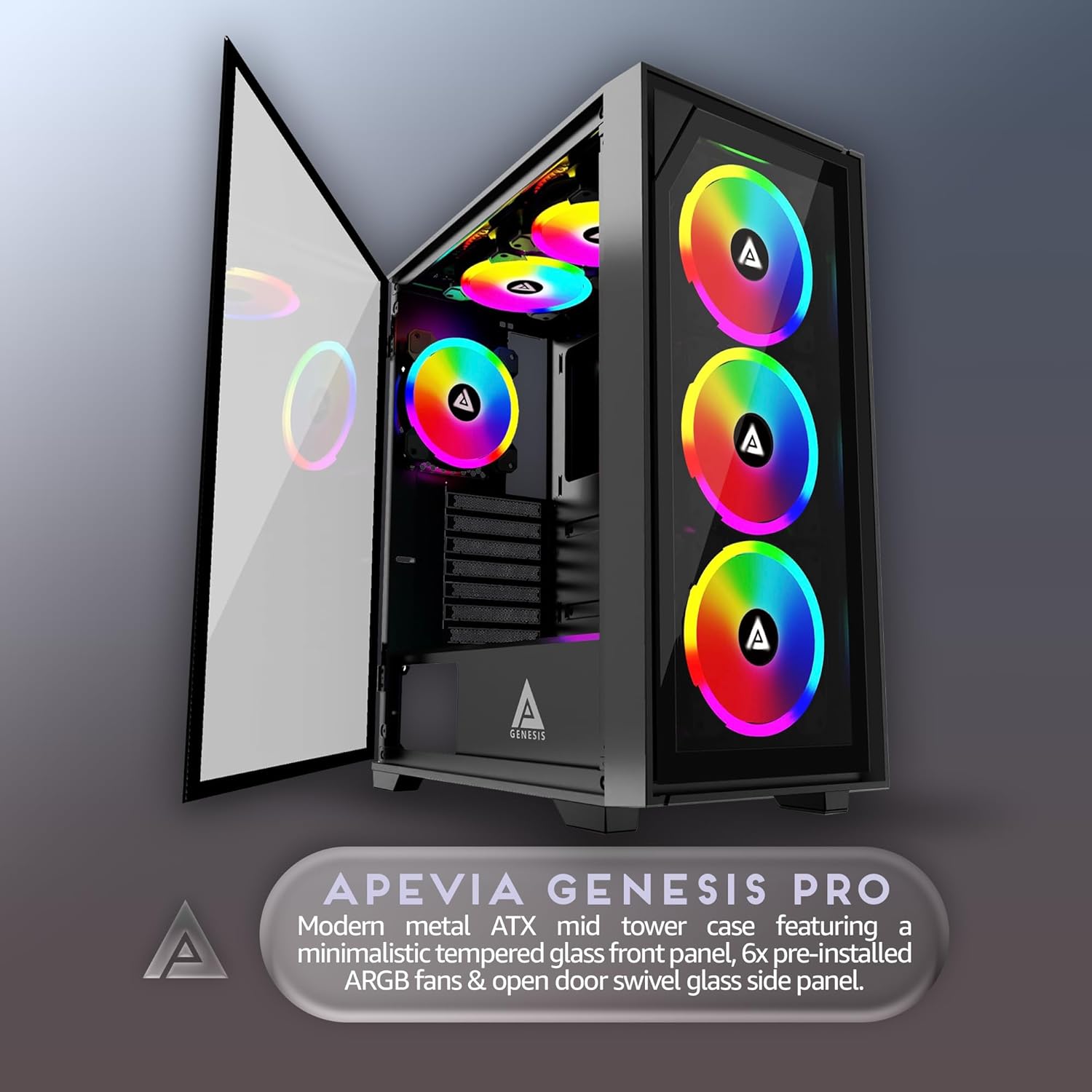
Figure 1: Apevia Genesis Pro G-PRO-BK with side panel open.
The case features two tempered glass panels: one on the left side and one on the front. The left side panel is typically secured with thumbscrews at the rear, while the front panel may be magnetically attached or secured with clips. Exercise caution when handling glass panels to prevent damage.
1.2 Anakart Kurulumu
Install the necessary standoffs for your motherboard form factor (ATX, Micro-ATX, or Mini-ITX). The case supports standard ATX, Micro-ATX, and Mini-ITX motherboards.
Giriş/çıkış koruma kalkanını kasanın arka açıklığına yerleştirin.
Carefully align your motherboard with the standoffs and I/O shield, then secure it with screws.
1.3 Güç Kaynağı Kurulumu
The power supply mounts at the top of the case. Secure your power supply unit (PSU) into the designated bay using the provided screws.
1.4 Depolama Sürücüsü Kurulumu
The case supports up to two 3.5-inch hard drives and two 2.5-inch solid-state drives (SSDs). Locate the drive bays and secure your storage devices using the appropriate screws.
Figure 2: Internal layout with drive bay locations and cable management options.
1.5 Grafik Kartı (GPU) Kurulumu
Install your graphics card into the appropriate PCIe slot on your motherboard. The case supports video cards up to 350mm in length. Secure the GPU with the expansion slot screws.
1.6 Cooling System Installation (Fans & Radiators)
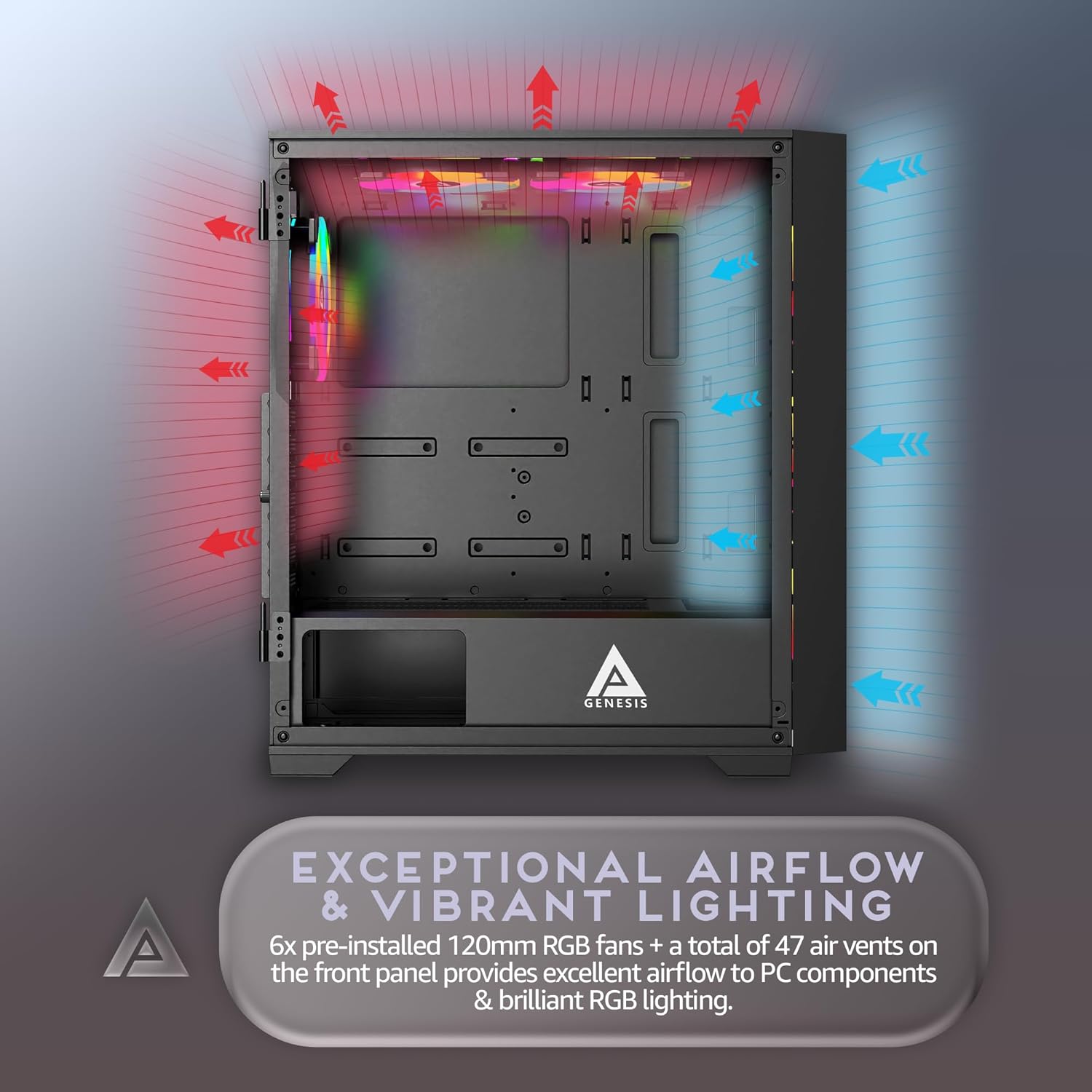
The Genesis Pro G-PRO-BK comes with six pre-installed 120mm RGB fans. It supports up to six 120mm fans in total and up to 240mm radiators in the top and front positions. CPU coolers up to 160mm in height are supported.
Figure 3: Airflow diagram for optimal cooling.
Ensure all fans are connected to the fan hub or motherboard headers for power and RGB control.
1.7 Kablo Yönetimi
Kabloları düzgün bir şekilde yönetmek için anakart tepsisinin arkasındaki kablo yönlendirme kesiklerini ve bağlama noktalarını kullanın. Bu, hava akışını ve estetiği iyileştirir.
Video 1: Bir overview of a similar Apevia case, demonstrating internal layout and build considerations. This video provides visual guidance for component placement and cable routing.
2. Kullanım Talimatları
2.1 Açma
After all components are installed and connected, ensure the power supply switch is in the 'ON' position. Press the power button located on the top I/O panel to start your system.
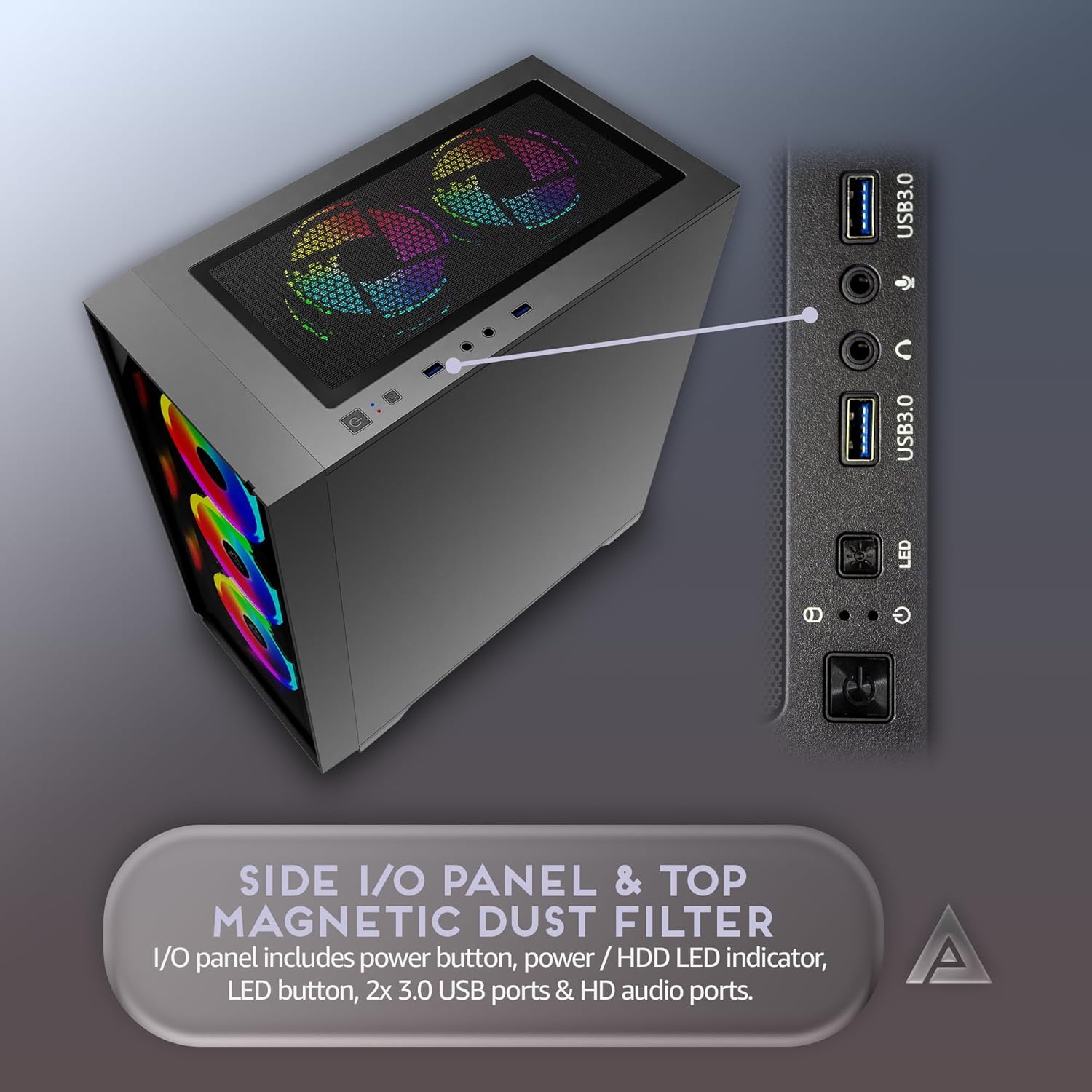
Figure 4: Top I/O panel with power and control buttons.
2.2 RGB Aydınlatma Kontrolü
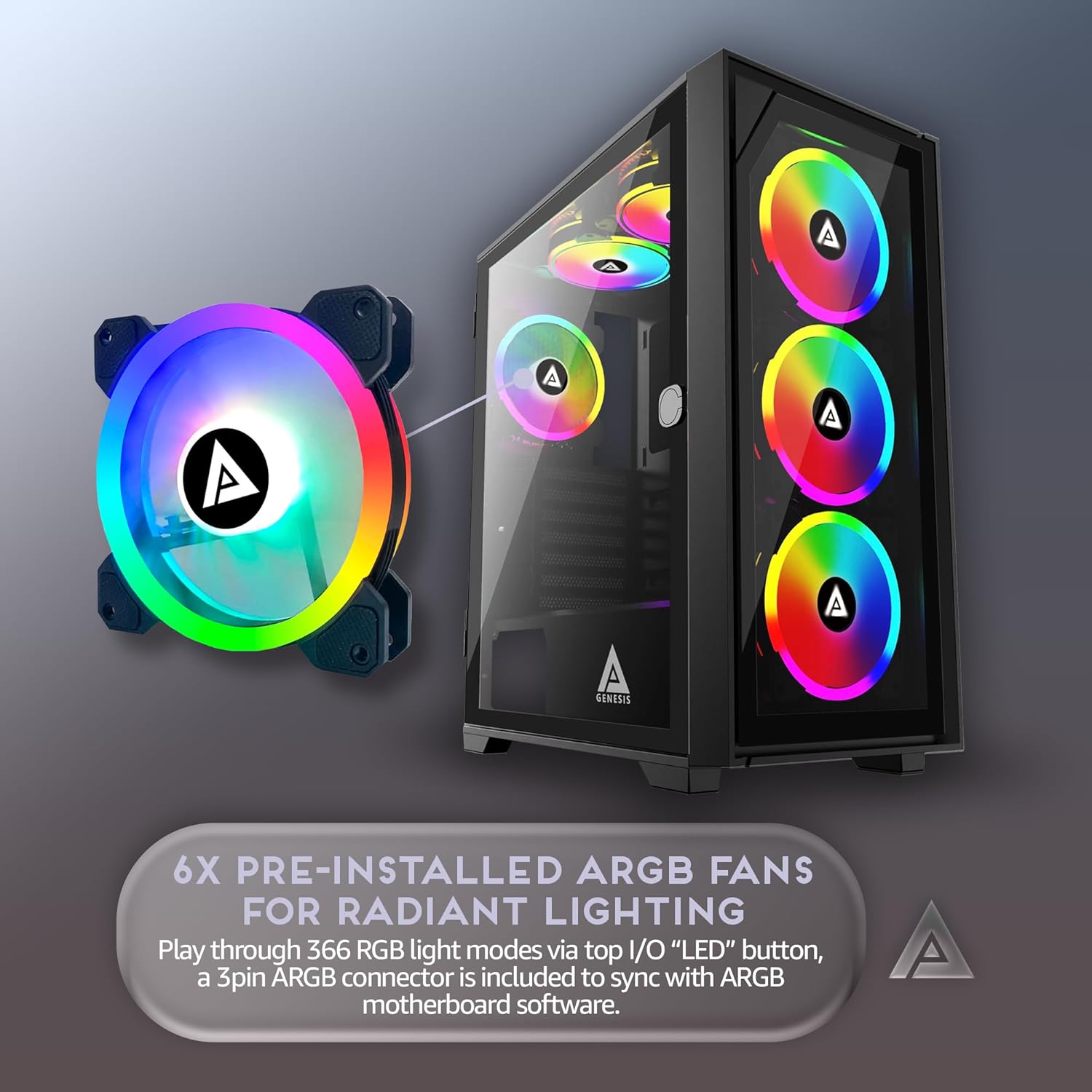
The pre-installed RGB fans can be controlled via the "LED" button on the top I/O panel. This button cycles through 16 lighting modes, offering 30 total play-through options including RGB, Breathing, Single Color, and Light Off. The fans are proprietary to this case.
Figure 5: Detail of an RGB fan, showcasing its lighting capabilities.
3. Bakım
3.1 Toz Filtrelerinin Temizlenmesi
The case includes a magnetic dust filter on the top panel. Regularly remove and clean this filter to maintain optimal airflow and prevent dust buildup inside the system. Gently wash with water and mild soap, then allow to air dry completely before reattaching.
Figure 6: Top panel with magnetic dust filter.
3.2 Genel Temizlik
Use a soft, dry cloth to wipe down the exterior of the case. For tempered glass panels, use a glass cleaner and a microfiber cloth. Avoid abrasive cleaners or solvents that could damage the finish.
4. Sorun Giderme
4.1 Sistem Açılmıyor
Ensure the power supply is properly connected to the wall outlet and the PSU switch is 'ON'.
Verify all power cables (24-pin ATX, CPU, GPU, etc.) are securely connected to the motherboard and components.
Ön paneldeki bağlantı noktalarının anakarta olan bağlantılarını kontrol edin (Güç Anahtarı, Sıfırlama Anahtarı).
4.2 RGB Fans Not Lighting Up or Functioning
Confirm that the fan hub (if used) is receiving power and is correctly connected to the motherboard or power supply.
Ensure all fan RGB cables are properly connected to the fan hub or motherboard RGB headers.
Press the "LED" button on the top I/O panel to cycle through lighting modes.
4.3 Aşırı Isınma Sorunları
Verify that all case fans are spinning correctly and are oriented for optimal airflow (intake/exhaust).
Clean all dust filters and internal components to remove any dust buildup.
Ensure CPU cooler and GPU fans are functioning properly.
5. Özellikler
Özellik
Detay
Model Adı
G-PRO-BK
Dava Türü
Orta kule
Renk
Siyah Çerçeve
Malzeme
Metal, Temperli Cam
Anakart Uyumluluğu
ATX, Mikro ATX, Mini ITX
Genişleme Yuvaları
7
Maksimum GPU Uzunluğu
350mm
Maksimum CPU Soğutucu Yüksekliği
160mm
Önceden yüklenmiş Fanlar
6 x 120mm RGB Fans
Radyatör Desteği
240 mm'ye kadar (Üst ve Ön)
Sürücü bölmeleri
2 x 3.5" HDD, 2 x 2.5" SSD
Ön G / Ç Bağlantı Noktaları
1 x USB 3.0, 2 x USB 2.0, HD Audio, Power, Reset, LED Control
Ürün Ağırlığı
16 Pound
Figure 7: Internal dimensions and component compatibility.
6. Garanti ve Destek
For warranty information and technical support, please refer to the official Apevia webSite üzerinden satın alabilir veya doğrudan müşteri hizmetleriyle iletişime geçebilirsiniz. Satın alma belgenizi garanti talepleriniz için saklayın.
Apevia is a U.S. based computer hardware brand delivering reliable, performance-driven PC components. Specializing in PC cases, power supplies, and cooling solutions, Apevia brings modern design, efficiency, and affordability for gamers, creators, and builders.
Ask a question about this manual
Ask about setup, troubleshooting, compatibility, parts, safety, or missing instructions. Manuals+ will review the question and use this page’s manual context to help answer it.