
MERCUSYS MR50G
Mercusys MR50G AC1900 Dual-Band Wi-Fi 5 Router User Manual
Model: MR50G
giriiş
This manual provides comprehensive instructions for setting up, operating, maintaining, and troubleshooting your Mercusys MR50G AC1900 Dual-Band Wi-Fi 5 Router. The MR50G is designed to deliver high-speed wireless connectivity with AC1900 speeds, Gigabit Ethernet ports, and advanced features like MU-MIMO and Beamforming.

Resim: Ön view of the Mercusys MR50G router, illustrating its dual-band capabilities with 5GHz (1300 Mbps) and 2.4GHz (600 Mbps) speeds.
Kurulum Kılavuzu
1. Paket İçeriği
Paketinizin aşağıdaki öğeleri içerdiğini doğrulayın:
- Mercusys MR50G AC1900 Dual-Band Wi-Fi 5 Router
- Güç Adaptörü
- Ethernet kablosu
- Quick Installation Guide (User Guide)
2. Fiziksel Bağlantı
Yönlendiricinizi bağlamak için şu adımları izleyin:
- Kapat: Modem ve varsa yönlendiricinizin güç bağlantısını kesin.
- Modemi yönlendiriciye bağlayın: Connect one end of the provided Ethernet cable to the WAN port (usually blue) on your MR50G router and the other end to your modem's Ethernet port.
- Cihazları Bağlayın (İsteğe Bağlı): For wired connections, connect your computer or other devices to the LAN ports (yellow) on the MR50G router using Ethernet cables.
- Güç Açık: Connect the power adapter to the router's power port and plug it into a power outlet. Power on your modem, then power on the MR50G router.
- Göstergeleri bekleyin: Wait for the router's LED indicators to stabilize. The Power LED should be solid green.
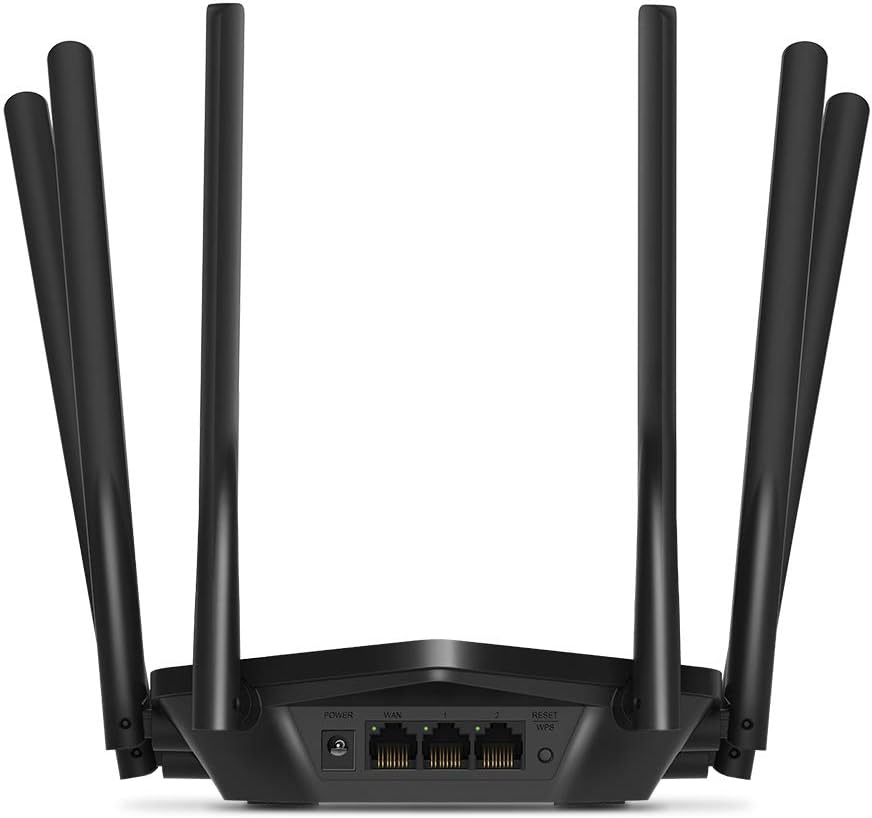
Resim: Arka view of the Mercusys MR50G router, illustrating the power input, WAN port (blue), and three LAN ports (yellow) for wired connections, along with the Reset/WPS button.
3. İlk Yapılandırma
Yönlendiricinizi ilk kez yapılandırmak için:
- Wi-Fi'ye bağlanın: Connect your computer or mobile device to the router's default Wi-Fi network (SSID and password are typically printed on a label on the bottom of the router).
- Erişim Web Arayüz: Bir tane aç web tarayıcı ve tür
mwlogin.netor192.168.1.1adres çubuğuna. - Giriş Şifresi Oluştur: Follow the on-screen instructions to create a login password for the router's management page.
- Follow Quick Setup: The Quick Setup wizard will guide you through basic internet and wireless settings.
Kullanım Talimatları
1. Temel Wi-Fi Ayarları
Giriş yaptıktan sonra web arayüz:
- Ağ Adı (SSID): Navigate to the Wireless settings to change your Wi-Fi network names (SSIDs) for both 2.4 GHz and 5 GHz bands.
- Şifre: Set a strong, unique password for your Wi-Fi networks. The MR50G supports WPA3 for enhanced security.
- Güvenlik Türü It is recommended to use WPA2-PSK/WPA3-Personal for optimal security.
2. Çift Bant Çalışması
The MR50G operates on two frequency bands:
- 2.4 GHz: Daha geniş kapsama alanı ve duvarlardan daha iyi geçiş imkanı sağlayan bu ürün, genel internet kullanımı ve eski cihazlar için uygundur.
- 5 GHz: Offers faster speeds and less interference, ideal for bandwidth-intensive activities like 4K streaming and online gaming, but with a shorter range.
You can configure separate SSIDs for each band or use Smart Connect to combine them into a single SSID, allowing the router to automatically assign devices to the optimal band.
3. Erişim Noktası Modu
To use the MR50G as an Access Point (AP) to extend an existing wired network:
- Bağlamak: Connect an Ethernet cable from your existing router's LAN port to one of the MR50G's LAN ports (not the WAN port).
- Yapılandır: Log into the MR50G's web interface, navigate to the Operation Mode settings, and select "Access Point Mode". Follow the prompts to complete the setup.
4. Gelişmiş Özellikler
- MÜ-MIMO: Multi-User, Multiple-Input, Multiple-Output technology allows the router to communicate with multiple devices simultaneously, improving network efficiency.
- Hüzmeleme: Wi-Fi sinyallerini bağlı cihazlara doğru odaklayarak sinyal gücünü ve menzilini artırır.
- VPN Desteği: The router supports VPN functionality, allowing for secure remote access or connection to VPN services. Refer to the router's web interface for specific VPN client/server configurations.
- Ebeveyn Kontrolleri: Belirli cihazlar veya kullanıcılar için internet erişimini yönetin ve kısıtlayın.
- Misafir ağı: Misafirleriniz için ayrı bir Wi-Fi ağı oluşturarak ana ağınızı güvenli tutun.
Bakım
1. Ürün Yazılımı Güncellemeleri
Regularly check for and install firmware updates to ensure optimal performance, security, and access to new features. Firmware updates can typically be found in the router's web interface under System Tools or Advanced settings.
2. Yönlendiriciyi Sıfırlama
If you encounter persistent issues or forget your login password, you may need to reset the router to its factory default settings:
- With the router powered on, press and hold the Reset/WPS button on the back panel for approximately 5-10 seconds until the LED indicators flash.
- Release the button and wait for the router to restart. All settings will be restored to factory defaults.
3. Optimum Yerleştirme
For the best Wi-Fi coverage and performance:
- Place the router in a central location in your home or office.
- Kalın duvarlar, metal nesneler veya Wi-Fi sinyallerini engelleyebilecek büyük ev aletleri (mikrodalga fırınlar, buzdolapları) gibi engellerin yakınına yerleştirmekten kaçının.
- Mümkünse yönlendiriciyi yükseltin, çünkü Wi-Fi sinyalleri aşağı doğru yayılma eğilimindedir.

Image: Mercusys MR50G router positioned on a table, demonstrating a typical placement for optimal signal distribution within a living space.
Sorun giderme
1. İnternet Erişimi Yok
- Bağlantıları Kontrol Edin: Tüm Ethernet kablolarının doğru portlara (WAN'dan modeme, LAN'dan cihazlara) güvenli bir şekilde bağlı olduğundan emin olun.
- Cihazları Yeniden Başlatın: Önce modeminizi, sonra yönlendiricinizi ve ardından bağlı cihazlarınızı kapatıp açın.
- WAN LED'ini kontrol edin: Verify that the WAN LED on the router is lit, indicating a connection to the modem.
- İnternet Servis Sağlayıcısı Durumu: Hiçbir hizmetin mevcut olmadığını onaylamak için İnternet Servis Sağlayıcınız (İSS) ile iletişime geçin.tagBölgenizde.
2. Yavaş Wi-Fi Hızları
- Yönlendirici Yerleşimi: Ensure the router is placed optimally (refer to "Optimal Placement" section).
- Parazit yapmak: Move the router away from other electronic devices that may cause interference.
- Bant Seçimi: For speed-critical applications, ensure your device is connected to the 5 GHz band.
- Kanal Optimizasyonu: In the router's web interface, try changing the Wi-Fi channel for both 2.4 GHz and 5 GHz bands to a less congested one.
- Yazılım: Yönlendiricinizin yazılımının güncel olduğundan emin olun.
3. Cannot Access Router Management Page
- IP Adresi: Ensure you are using the correct address (
mwlogin.netor192.168.1.1). - Kablolu Bağlantı: Try accessing the page from a computer connected directly to the router via an Ethernet cable.
- Tarayıcı önbelleğini temizle: Temizle web Tarayıcınızın önbelleğini ve çerezlerini temizleyin veya farklı bir tarayıcı deneyin.
- Güvenlik Duvarı/Antivirüs: Bilgisayarınızda erişimi engelleyebilecek herhangi bir güvenlik duvarı veya antivirüs yazılımını geçici olarak devre dışı bırakın.
- Yönlendiriciyi Sıfırla: If all else fails, perform a factory reset (refer to "Resetting the Router" section).
Özellikler
| Örnek | MR50G (EU) |
| Kablosuz Standartları | IEEE 802.11a / b / g / n / ac |
| Sıklık | 2.4 GHz ve 5 GHz (Çift Bant) |
| Veri Oranı | AC1900 (2.4 GHz'de 600 Mbps, 5 GHz'de 1300 Mbps) |
| Ethernet Bağlantı Noktaları | 1 adet Gigabit WAN bağlantı noktası, 3 adet Gigabit LAN bağlantı noktası |
| Antenler | 6x Fixed Omni-Directional Antennas |
| Güvenlik | WPA-PSK / WPA2-PSK / WPA3-Personal |
| Boyutlar (G x D x Y) | 15.72x17.56x4.5 cm |
| Ağırlık | 450 gr |
| Özel Özellikler | MU-MIMO, Beamforming, Access Point Mode, VPN Support, Parental Controls, Guest Network |
| Güç Girişi | 100-240V ~ 50/60Hz |
Garanti ve Destek
Mercusys products come with a limited warranty. For detailed warranty information, please refer to the warranty card included with your product or visit the official Mercusys webalan.
For technical support, firmware updates, and additional resources, please visit the Mercusys support website. You can typically find contact information and FAQs there.
Official Mercusys Webalan: www.mercusys.com
Ask a question about this manual
Ask about setup, troubleshooting, compatibility, parts, safety, or missing instructions. Manuals+ will review the question and use this page’s manual context to help answer it.