
1. Giriş
Thank you for choosing the Gembird MUS-6B-01 Optical USB Mouse. This manual provides essential information for setting up, operating, maintaining, and troubleshooting your new mouse. Please read these instructions carefully to ensure optimal performance and longevity of your device.

Image: The official Gembird brand logo, featuring the company name in a stylized font with a geometric design.
2. Ürün Bittiview
The Gembird MUS-6B-01 is a reliable 6-button optical USB mouse designed for comfortable and precise navigation. Its ambidextrous design makes it suitable for both left and right-handed users.
Temel Özellikler:
- Optik Takip: Provides smooth and accurate cursor control.
- 6 Düğme: Includes standard left/right click, scroll wheel, DPI adjustment, and two side buttons for enhanced functionality.
- USB Bağlantısı: Simple plug-and-play connection to your computer.
- Çok Yönlü Tasarım: Comfortable for both left and right-handed users.
Bileşenler:
- Sol Tıklama Düğmesi
- Sağ Tıklama Düğmesi
- Scroll Wheel (also functions as a middle click button)
- DPI Ayar Düğmesi
- İleri Düğmesi (Yan)
- Geri Düğmesi (Yan)
- Optical Sensor (underside)
- USB Connector (at the end of the cable)
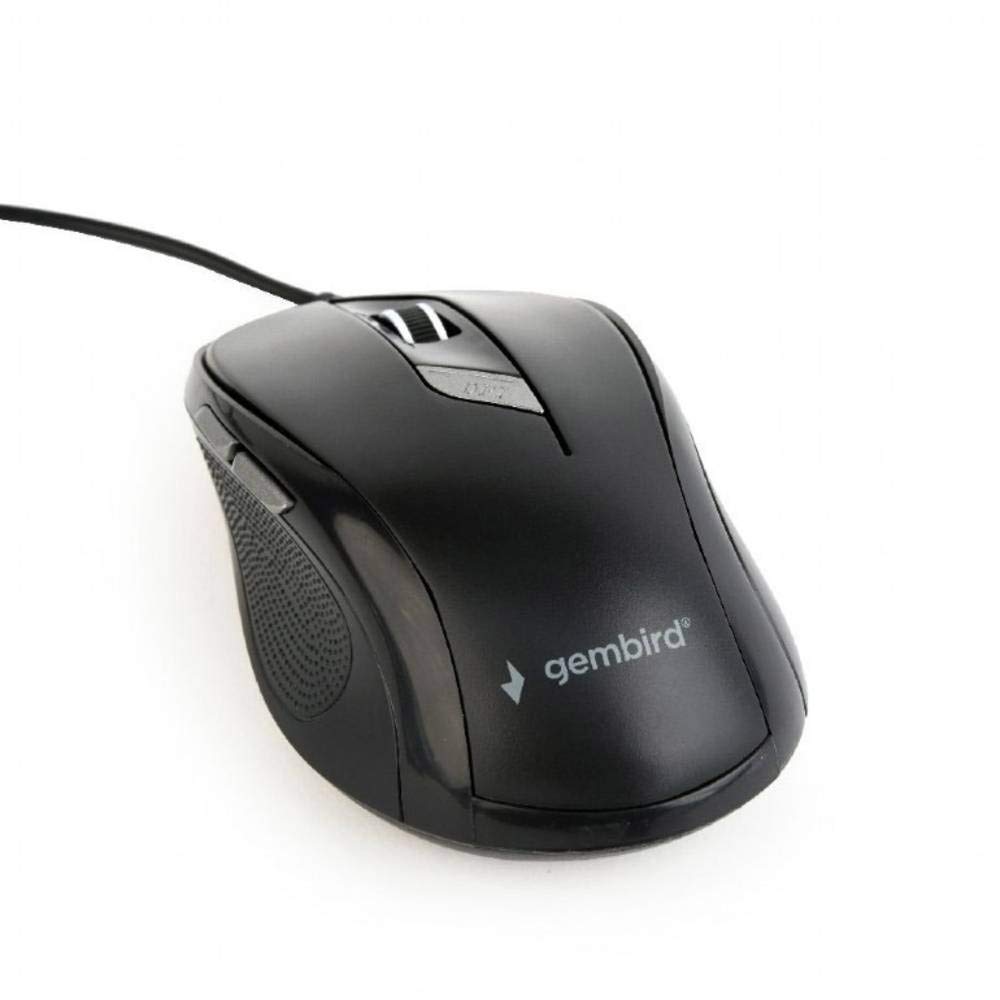
Resim: Yukarıdan aşağıya view of the Gembird MUS-6B-01 optical USB mouse. The mouse is black with a matte finish, featuring a scroll wheel, left and right click buttons, a DPI button, and two side buttons. A black USB cable extends from the front of the mouse.
3. Kurulum
Setting up your Gembird MUS-6B-01 mouse is a simple plug-and-play process.
Kurulum Adımları:
- Bilgisayarınızda kullanılabilir bir USB bağlantı noktası bulun.
- Plug the USB connector of the Gembird MUS-6B-01 mouse firmly into the USB port.
- Your operating system (Windows, Linux) will automatically detect and install the necessary drivers. This process may take a few moments.
- Sürücüler yüklendikten sonra fare kullanıma hazırdır.
Temel işlevler için genellikle ek yazılım kurulumuna gerek duyulmaz.
4. Kullanım Talimatları
Familiarize yourself with the functions of each button on your Gembird MUS-6B-01 mouse.
Temel Fonksiyonlar:
- Sol tık: Primary action, selecting items, opening files.
- Sağ tık: Bağlam menülerini açar ve ek seçenekler sunar.
- Kaydırma tekerleği: Belgeler arasında yukarı veya aşağı kaydırın ve web sayfalar.
- Orta Tıklama (Fare Tekerleğine Basma): Often used to open links in new tabs or for specific application functions.
Gelişmiş Fonksiyonlar:
- DPI Ayarlama Düğmesi: Located behind the scroll wheel, this button allows you to cycle through different sensitivity (DPI) settings. Press it to change the cursor speed to suit your preference.
- İleri Düğmesi (Yan): Genellikle ileriye doğru hareket eder. web tarayıcılar veya file kaşifler.
- Geri Düğmesi (Yan): Genellikle geriye doğru hareket eder. web tarayıcılar veya file kaşifler.
The functionality of the side buttons may vary depending on the application or operating system settings. Some operating systems allow customization of these buttons.
5. Bakım
Proper care will help extend the life of your Gembird MUS-6B-01 mouse.
Temizlik:
- Temizlemeden önce fareyi bilgisayarınızdan ayırın.
- Yumuşak, hafif sert bir bez kullanınamp, lint-free cloth to wipe the surface of the mouse.
- For stubborn dirt, a small amount of mild soap solution can be applied to the cloth (not directly to the mouse).
- Dokunmatik tekerleğin etrafını ve düğmelerin arasını temizlemek için pamuklu çubuk veya basınçlı hava kullanın.
- Ensure the optical sensor on the underside is clean and free of dust or debris.
- Sert kimyasallar, aşındırıcı temizleyiciler kullanmayın ve fareyi suya batırmayın.
Depolamak:
Uzun süre kullanılmadığı zamanlarda fareyi temiz, kuru bir ortamda, aşırı sıcaklıklardan ve doğrudan güneş ışığından uzakta saklayın.
6. Sorun Giderme
If you encounter issues with your Gembird MUS-6B-01 mouse, try the following troubleshooting steps:
| Sorun | Olası Çözüm |
|---|---|
| Fare yanıt vermiyor |
|
| Erratic or jumpy cursor movement |
|
| Düğmeler çalışmıyor |
|
7. Özellikler
Detailed technical specifications for the Gembird MUS-6B-01 Optical USB Mouse:
| Özellik | Şartname |
|---|---|
| Marka | Değerli taş kuşu |
| Model Adı | MUS-6B-01 |
| Bağlantı Teknolojisi | Kablolu (USB) |
| Hareket Algılama Teknolojisi | Optik |
| Düğme Miktarı | 6 |
| El Yönelimi | İki elini de kullanabilen |
| Uyumlu İşletim Sistemleri | Linux, Windows 7, Windows XP (ve daha yeni sürümleri) |
| Donanım Platformu | Kişisel Bilgisayar |
| Kablo Uzunluğu | 5.0 metre |
| Ürün Ağırlığı | 74 Gram |
| Malzeme | Plastik |
| Renk | Siyah |
| Piller Gerekli | HAYIR |
8. Güvenlik Bilgileri
Lütfen aşağıdaki güvenlik kurallarına uyun:
- Fareyi suya veya aşırı neme maruz bırakmayın.
- Fareyi düşürmekten veya sert darbelere maruz bırakmaktan kaçının.
- Fareyi kendiniz sökmeye veya onarmaya çalışmayın. Yetkili servis personeline başvurun.
- Cihazı aşırı sıcaklıklardan ve doğrudan güneş ışığından uzak tutun.
- Elektronik atıklarınızı yerel yönetmeliklere uygun şekilde sorumlu bir şekilde atın.
9. Garanti ve Destek
Gembird products are designed for reliability and performance. For specific warranty terms and conditions, please refer to the warranty card included with your product or visit the official Gembird website. For technical support or further assistance, please contact your retailer or the Gembird customer service department.