
1. Giriş
Welcome to the user manual for your Genius Manticore Gaming Keyboard. This guide provides essential information for setting up, operating, maintaining, and troubleshooting your new gaming keyboard. Please read these instructions carefully to ensure optimal performance and longevity of your device.
2. Ürün Bittiview
The Genius Manticore Gaming Keyboard is designed for an enhanced gaming experience, featuring a durable build and responsive keys. It connects via USB and is compatible with a wide range of devices. The keyboard includes 104 keys with a standard QWERTY layout, complemented by additional gaming-specific features.
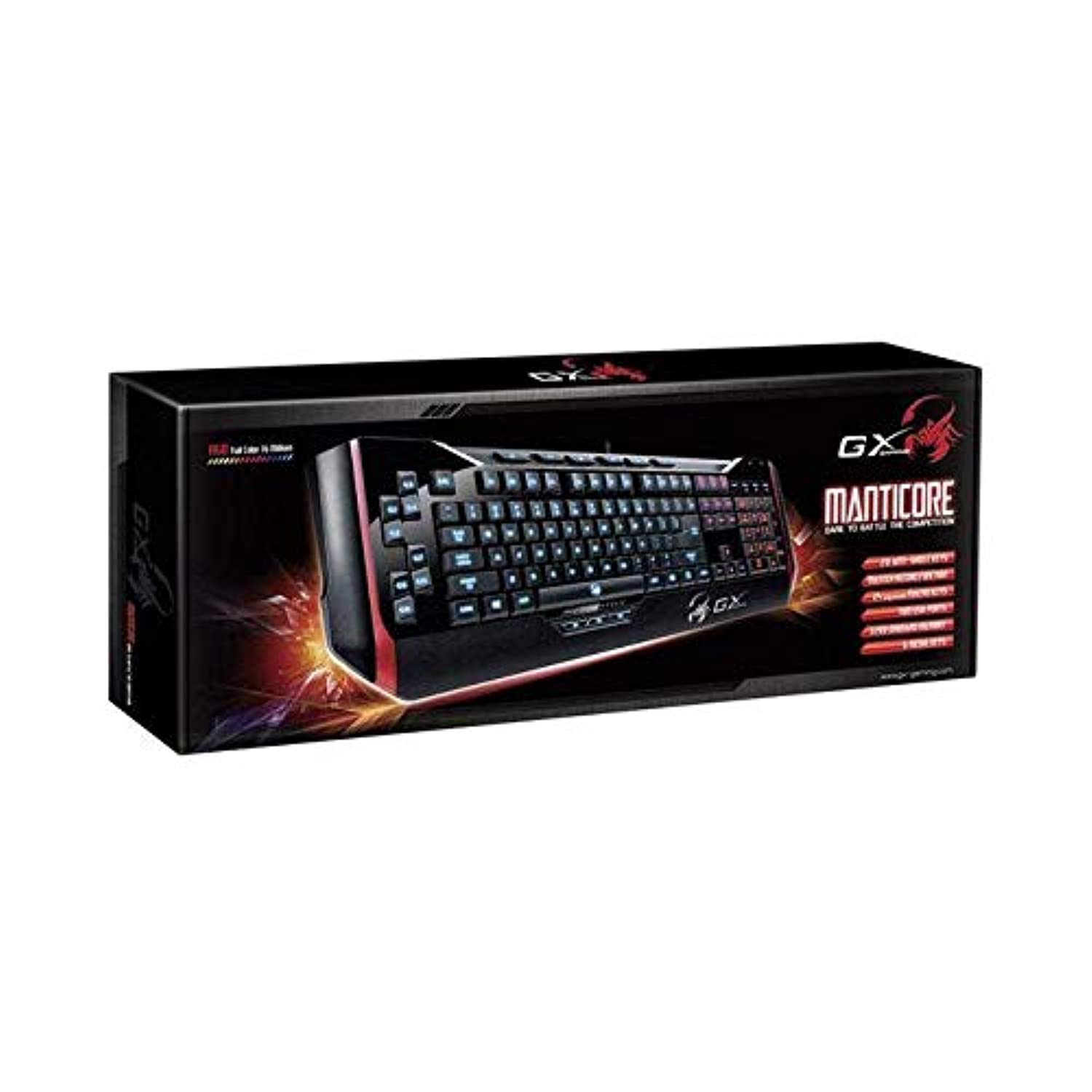
Şekil 1: Genius Manticore Gaming Keyboard. This image displays the Genius Manticore Gaming Keyboard, featuring a black body with red accents on the sides. The keys are illuminated, indicating its gaming functionality. The keyboard has a standard QWERTY layout with additional keys on the left side, likely for macros, and a numeric keypad on the right.
3. Kurulum
- Klavyeyi Paketinden Çıkarın: Carefully remove the Genius Manticore Gaming Keyboard from its packaging. Ensure all components are present.
- Cihazınıza Bağlanın: Locate an available USB port on your computer or compatible device. Insert the USB connector of the keyboard firmly into the USB port.
- Sürücü Kurulumu (gerekirse): For most modern operating systems, the keyboard will be recognized automatically, and standard drivers will be installed. If prompted, follow the on-screen instructions to complete any driver installation.
- Test İşlevselliği: Open a text editor or a web browser and test the keys to ensure they are responding correctly.
4. Kullanım Talimatları
The Genius Manticore Gaming Keyboard offers a standard QWERTY layout for general typing and dedicated features for gaming.
- Standart Temel Fonksiyonlar: All standard alphanumeric, symbol, and function keys operate as expected on a typical QWERTY keyboard.
- Oyun Özellikleri: The keyboard is designed for gaming. Specific gaming features, such as customizable backlighting or programmable macro keys (if available on your model), can typically be configured through dedicated software provided by Genius or through specific key combinations. Refer to the Genius website for any available software downloads or advanced feature guides.
- Güç Kaynağı: The keyboard is powered directly via the USB connection to your device. No external power supply or batteries are required.
5. Bakım
Doğru bakım, klavyenizin uzun ömürlü olmasını ve yüksek performans göstermesini sağlar.
- Temizlik: Klavye yüzeyini silmek için yumuşak ve kuru bir bez kullanın. Tuşlar arasındaki toz ve kalıntıları temizlemek için basınçlı hava kullanın. Sert kimyasallar veya aşındırıcı malzemeler kullanmaktan kaçının.
- Sıvıya Maruz Kalma: Bu klavye suya dayanıklı değil. Avoid spilling liquids on the keyboard, as this can cause permanent damage. If liquid exposure occurs, immediately disconnect the keyboard from your device and allow it to dry completely before attempting to use it again.
- Depolamak: Kullanılmadığı zamanlarda klavyeyi temiz, kuru bir ortamda, aşırı sıcaklıklardan ve doğrudan güneş ışığından uzakta saklayın.
6. Sorun Giderme
Klavyenizle ilgili sorunlarla karşılaşırsanız aşağıdaki çözümleri deneyin:
- Klavye Yanıt Vermiyor:
- USB kablosunun hem klavyeye hem de bilgisayara güvenli bir şekilde bağlandığından emin olun.
- Klavyeyi bilgisayarınızdaki farklı bir USB portuna bağlamayı deneyin.
- Sorunun klavyeden mi yoksa orijinal bilgisayardan mı kaynaklandığını belirlemek için klavyeyi başka bir bilgisayarda test edin.
- Bilgisayarınızı yeniden başlatın.
- Çalışmayan Belirli Tuşlar:
- Check for any physical obstructions under the non-functional keys.
- Klavyeyi Bakım bölümünde açıklandığı gibi temizleyin.
- Ensure no software conflicts are present (e.g., macro software interfering with standard key functions).
- Arka Aydınlatma Sorunları:
- If your model features adjustable backlighting, ensure it is not turned off or set to the lowest brightness level. Consult the Genius website for specific key combinations to control backlighting.
If these steps do not resolve the issue, please contact Genius customer support for further assistance.
7. Özellikler
| Özellik | Detay |
|---|---|
| Marka Adı | Dahi |
| Model Numarası | GE31310058108 |
| Uyumlu Cihazlar | Tüm |
| Bağlantı Teknolojisi | USB |
| Klavye Açıklaması | Oyun |
| Özel Özellikler | Oyun |
| Renk | Multi-color (Black and Red) |
| Stil | Modern |
| Malzeme | Çoklu Malzemeler |
| Tema | Oyunlar |
| Güç Kaynağı | USB güç |
| Anahtar Sayısı | 104 |
| Klavye Düzeni | QWERTY klavye |
| El Yönelimi | İki elini de kullanabilen |
| Düğme Miktarı | 104 |
| Su Direnç Seviyesi | Suya dayanıklı değil |
| Üretici | Dahi |
| ASIN | B07MQMXJS9 |
8. Garanti ve Destek
Your Genius Manticore Gaming Keyboard is covered by a standard manufacturer's warranty. For detailed information regarding warranty terms, registration, or to access technical support, please visit the official Genius webSite üzerinden veya müşteri hizmetleri departmanıyla iletişime geçin. Satın alma belgenizi saklayın.
Daha fazla yardım için şu adresi ziyaret edebilirsiniz: Genius Official Webalan.