
1. Giriş
This manual provides essential information for the installation, operation, and maintenance of your Itek Meshcore 36B Gaming Tower PC Case. Please read this manual thoroughly before beginning assembly to ensure proper setup and safe usage. Keep this manual for future reference.
Güvenlik Bilgileri
- Kurulum veya bakım işlemlerinden önce daima tüm bileşenlerin güç bağlantısını kesin.
- Kırılmayı önlemek için temperli cam panelleri özenle taşıyın.
- Avoid exposing the case to extreme temperatures or humidity.
- Küçük parçaları çocuklardan uzak tutun.
2. Paket İçeriği
Paketin tüm bileşenlerinin mevcut olduğunu doğrulayın:
- Itek Meshcore 36B PC Case
- 4 x 14cm ARGB Fans (3 pre-installed in front, 1 pre-installed in rear)
- ARGB Fan Hub
- Accessory box (screws, cable ties, standoffs, etc.)
- Kullanım Kılavuzu (bu belge)
3. Ürün Bittiview
The Itek Meshcore 36B is an ATX gaming tower designed for optimal airflow, ease of assembly, and modern aesthetics. It features a perforated mesh front panel, four pre-installed ARGB fans, and a tempered glass side panel.
Temel Özellikler
- Excellent Airflow: Full mesh front panel and four pre-installed ARGB fans (3 front, 1 rear) for efficient cooling.
- Temperli Cam Yan Panel: netlik sağlar view iç bileşenler ve RGB aydınlatma.
- Modern Bağlantı: Includes 2x USB 3.0 ports and 1x USB-C port on the front/side I/O panel.
- Düzenli İç Mekan: Separate compartment for the power supply unit (PSU) and storage drives (HDD/SSD) for clean cable management.
- Geniş Uyumluluk: Supports ATX motherboards, graphics cards up to 420mm, CPU coolers up to 174mm, and liquid cooling radiators up to 360mm.
Bileşen Tanımlaması

Şekil 3.1: Ön view of the Itek Meshcore 36B PC case, showcasing the mesh front panel and three 14cm ARGB fans.

Şekil 3.2: Açısal ön taraf view, highlighting the tempered glass panel and front I/O ports (USB 3.0, Type-C).

Şekil 3.3: Arka taraf view, illustrating the rear exhaust fan and expansion slots.

Şekil 3.4: İç mekan view from the tempered glass side, detailing the motherboard tray and component layout.
4. Kurulum ve Kurulum
Follow these steps for assembling your PC components within the Itek Meshcore 36B case.
4.1 Davanın Hazırlanması
- Kasayı düz ve sabit bir yüzeye yerleştirin.
- Carefully remove the tempered glass side panel by unscrewing the thumb screws at the rear and gently pulling the panel away. Set it aside on a soft, non-abrasive surface.
- Remove the solid metal side panel on the opposite side to access the cable management area.
4.2 Anakart Kurulumu
- G/Ç kalkanını (anakartınıza önceden takılı değilse) kasanın arka açıklığına takın.
- Align the motherboard with the standoffs in the case. Ensure the standoffs match your ATX motherboard's screw holes.
- Anakartı, verilen vidaları kullanarak sabitleyin. Aşırı sıkmayın.
4.3 Güç Kaynağı Ünitesi (PSU) Kurulumu
- Locate the PSU compartment at the bottom rear of the case.
- Slide the PSU into the compartment from the rear of the case, ensuring the fan faces downwards (if the case has a bottom vent) or upwards.
- PSU'yu kasanın arkasından vidalarla sabitleyin.
4.4 Depolama Sürücüsü Kurulumu (HDD/SSD)
The case features dedicated bays for 3.5" HDDs and 2.5" SSDs, typically located in the PSU shroud area or behind the motherboard tray.
- For 3.5" HDDs: Slide the drive into the designated drive cage and secure with screws.
- For 2.5" SSDs: Mount the SSD onto the designated brackets, usually found behind the motherboard tray, and secure with screws.
4.5 Grafik Kartı ve Genişletme Kartı Kurulumu
- Kasanın arka tarafındaki gerekli genişletme yuvası kapaklarını çıkarın.
- Ekran kartını veya diğer genişletme kartını anakart üzerindeki uygun PCIe yuvasına takın.
- Secure the card with the provided screw or latch mechanism.
4.6 Kablo Yönetimi
The Meshcore 36B offers 21mm of cable management space behind the motherboard tray.
- Route all necessary cables (PSU, data, front panel) through the cutouts in the motherboard tray.
- Use the included cable ties to bundle and secure cables, ensuring they do not obstruct airflow or interfere with side panel closure.
- Connect the front panel connectors (USB 3.0, USB-C, audio, power/reset switches, LED indicators) to the corresponding headers on your motherboard.
- Connect the ARGB fan hub to your motherboard's ARGB header (if available) for software control, or use the integrated controller for basic lighting effects. Ensure all fans are connected to the hub.
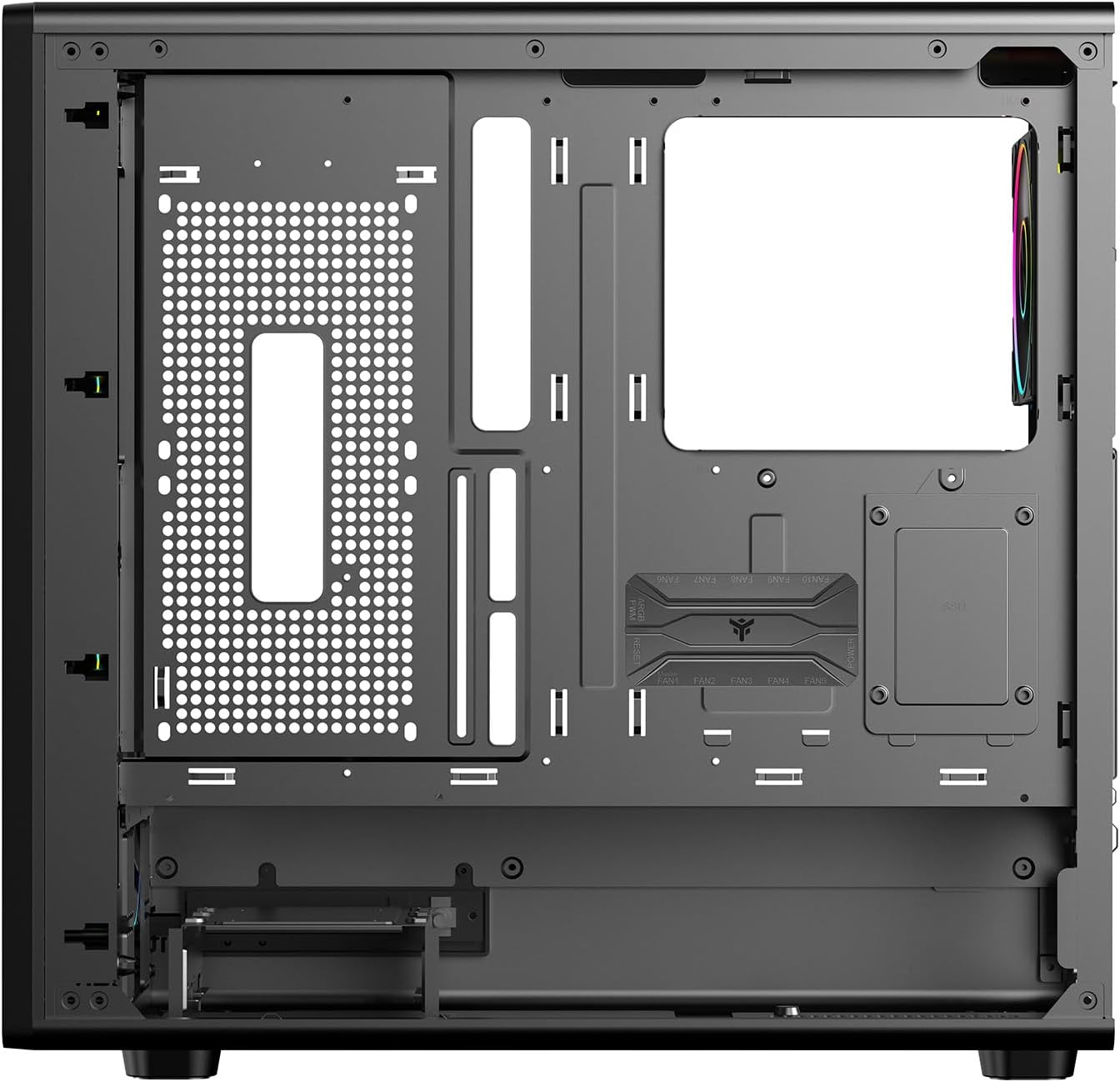
Şekil 4.1: İç mekan view from the backplate side, illustrating cable management options.
5. Kullanım Talimatları
5.1 Açma
- Once all components are installed and cables are connected, replace both side panels.
- Monitörünüzü, klavyenizi, farenizi ve diğer çevre birimlerinizi bağlayın.
- Güç kablosunu güç kaynağına ve duvardaki prize bağlayın.
- PSU'daki güç anahtarını 'AÇIK' konumuna getirin.
- Bilgisayarınızı başlatmak için kasanın ön panelindeki güç düğmesine basın.
5.2 Ön Panel Bağlantıları
The front/side I/O panel provides convenient access to:
- 2 adet USB 3.0 bağlantı noktası: Uyumlu cihazlarla yüksek hızlı veri aktarımı için.
- 1 adet USB-C bağlantı noktası: For modern USB Type-C devices.
- Ses Jakları: Kulaklıklar ve mikrofonlar için.
- Güç Düğmesi: Sistemi açmak/kapatmak için.
- Sıfırlama Düğmesi: Sistemi yeniden başlatmak için.
- LED Göstergeleri: For power and HDD activity.
5.3 ARGB Aydınlatma Kontrolü
The pre-installed ARGB fans are connected to an ARGB hub. Lighting can be controlled in two ways:
- Anakart Yazılım Kontrolü: If the ARGB hub is connected to a compatible 3-pin 5V ARGB header on your motherboard, you can use your motherboard's RGB software (e.g., ASUS Aura Sync, MSI Mystic Light, Gigabyte RGB Fusion) to synchronize and customize lighting effects.
- Entegre Kontrol Cihazı: If not connected to a motherboard ARGB header, the hub typically has a button (often labeled 'LED' or 'RGB') on the case's front I/O panel or directly on the hub itself to cycle through pre-set lighting modes and colors.
6. Bakım
Düzenli bakım, bilgisayar kasanızın optimum performans göstermesini ve uzun ömürlü olmasını sağlar.
6.1 Toz Filtresi Temizliği
The Meshcore 36B includes dust filters to prevent dust buildup inside the case. These filters should be cleaned periodically.
- Locate and remove the dust filters (typically on the top, front, and/or bottom of the case).
- Filtreleri basınçlı hava, yumuşak bir fırça kullanarak veya suyla durulayarak temizleyin (yeniden takmadan önce tamamen kuruduklarından emin olun).
- Toz filtrelerini yeniden takın.
6.2 Genel Temizlik
- Yumuşak bir d kullanınamp Dış yüzeyleri silmek için bir bez kullanın. Aşındırıcı temizleyicilerden kaçının.
- Temperli cam panel için, iz kalmaması için cam temizleyici ve mikrofiber bez kullanın.
- Periyodik olarak basınçlı hava kullanarak iç bileşenlerden ve fan kanatlarından tozu temizleyin.
7. Sorun Giderme
If you encounter issues with your PC case, refer to the following common problems and solutions.
7.1 Fanlar Dönmüyor / ARGB Yanmıyor
- Güç Bağlantılarını Kontrol Edin: Ensure all fans are properly connected to the ARGB hub, and the hub itself is receiving power from the PSU (usually via a SATA power connector).
- Check ARGB Signal: If using motherboard software control, verify the ARGB hub is connected to a 3-pin 5V ARGB header on the motherboard and that the software is correctly configured.
- Try Integrated Controller: If motherboard control fails, try using the physical button on the case or hub to cycle through lighting modes.
7.2 Ön Panel USB/Ses Bağlantı Noktaları Çalışmıyor
- Verify Motherboard Connections: Ensure the USB 3.0, USB-C, and audio headers from the front panel are securely connected to the correct pins on your motherboard. Refer to your motherboard manual for header locations.
- Sürücüleri kontrol edin: Ensure you have installed the latest chipset and audio drivers for your motherboard.
7.3 Sistem Aşırı Isınması
- Toz filtrelerini temizleyin: Toz filtrelerinin temiz olduğundan ve hava akışını engellemediğinden emin olun.
- Check Fan Orientation: Verify that fans are installed with correct airflow direction (front fans typically intake, rear/top fans exhaust).
- Improve Cable Management: Poor cable management can restrict airflow. Re-route cables for better air circulation.
8. Özellikler
| Özellik | Şartname |
|---|---|
| Marka | İtek |
| Model Adı | Itek Case MESHCORE 36B |
| Model Numarası | ITGCAMC36B |
| Dava Türü | Kule |
| Anakart Uyumluluğu | ATX |
| Malzeme | Metal, Plastik, Temperli Cam |
| Renk | Siyah |
| Soğutma Yöntemi | Hava |
| Önceden yüklenmiş Fanlar | 4 x 14cm ARGB Fans (3 Front, 1 Rear) |
| Ön G / Ç Bağlantı Noktaları | 2 x USB 3.0, 1 x USB-C |
| Maksimum GPU Uzunluğu | 420mm |
| Maksimum CPU Soğutucu Yüksekliği | 174mm |
| Sıvı Soğutma Desteği | 360mm'ye kadar |
| Kablo Yönetim Alanı | 21mm |
| Ek Özellikler | Dust Filter, Perforated Front, ARGB Lighting, Integrated Fan |
9. Garanti ve Destek
9.1 Ürün Garantisi
The Itek Meshcore 36B PC Case comes with a 24 ay garanti from the date of purchase. This warranty covers manufacturing defects and faulty components under normal use. It does not cover damage caused by misuse, accidents, unauthorized modifications, or improper installation.
9.2 Teknik Destek
For technical assistance, troubleshooting beyond this manual, or warranty claims, please contact Itek customer support through their official website or the retailer where the product was purchased. Please have your product model number (ITGCAMC36B) and proof of purchase ready when contacting support.