
Bytech BYTECH Wireless Optical Mouse
BYTECH Wireless Optical Mouse User Manual
Model: BYTECH Wireless Optical Mouse
giriiş
This manual provides detailed instructions for the setup, operation, maintenance, and troubleshooting of your BYTECH Wireless Optical Mouse. Please read this manual thoroughly before using the device to ensure optimal performance and longevity.
Ürün Bittiview
The BYTECH Wireless Optical Mouse is designed for comfortable and efficient navigation. It features a precise optical sensor, a scroll wheel, and a DPI adjustment button for customizable sensitivity. Its ergonomic design and wireless connectivity provide a clutter-free workspace.

Şekil 1: Yukarıdan aşağıya view of the BYTECH Wireless Optical Mouse. The mouse is black with a silver stripe along its sides. A scroll wheel and a DPI button are visible on the top surface.
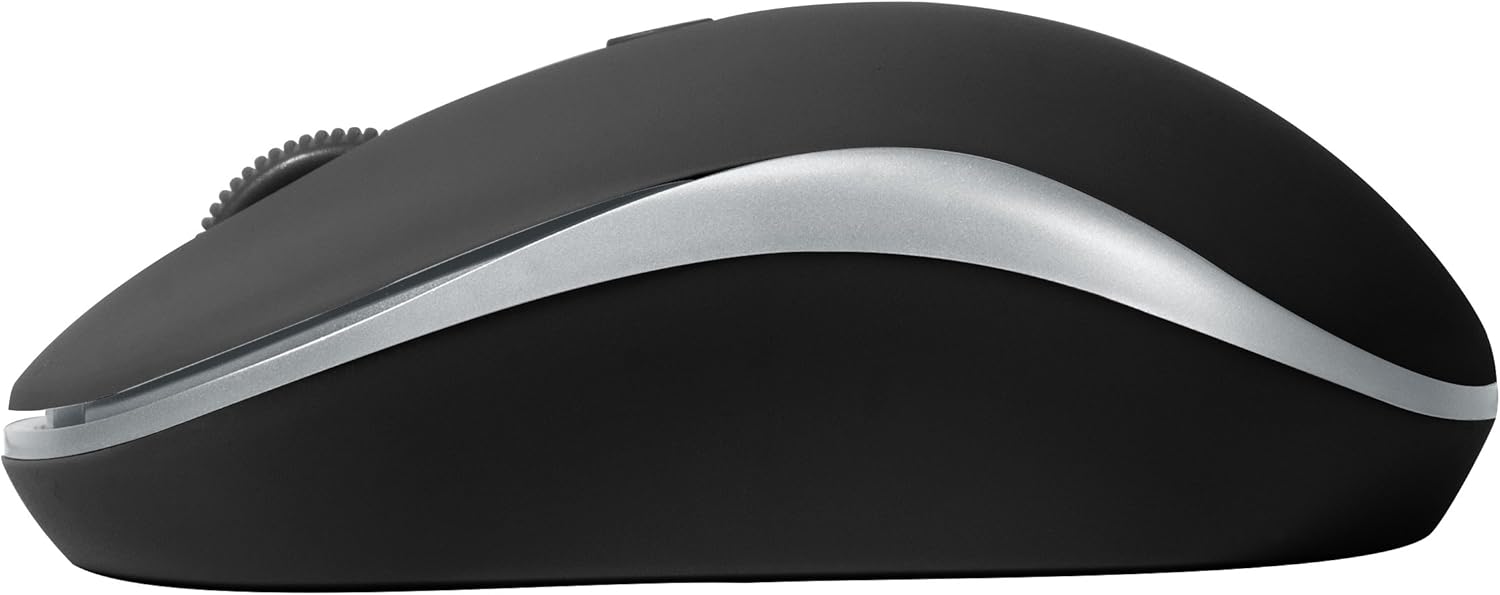
Şekil 2: Yan view of the BYTECH Wireless Optical Mouse. This angle highlights the ergonomic curve and the silver accent line that runs along the side of the mouse.
Kurmak
1. Pil Kurulumu
- Farenin alt tarafındaki pil bölmesini bulun.
- Pil bölmesinin kapağını açın.
- Insert one AA battery (not included) into the compartment, ensuring the correct polarity (+/-) as indicated inside.
- Pil bölmesi kapağını sıkıca kapatın.
2. USB Alıcı Bağlantısı
- USB alıcısını, genellikle pil bölmesinin içinde veya yakınında bulunan saklama yuvasından çıkarın.
- USB alıcısını bilgisayarınızdaki veya dizüstü bilgisayarınızdaki kullanılabilir bir USB bağlantı noktasına takın.
- İşletim sisteminiz gerekli sürücüleri otomatik olarak algılayıp yükleyecektir. Bu işlem birkaç dakika sürebilir.
3. Açma
- Locate the On/Off switch on the underside of the mouse.
- Slide the switch to the "On" position. The mouse should now be ready for use.
Kullanım Talimatları
Temel Fonksiyonlar
- Sol tık: Öğeleri seçmek, bağlantıları açmak veya işlevleri etkinleştirmek için sol düğmeye basın.
- Sağ tık: Bağlam menülerini açmak veya ek seçeneklere erişmek için sağ düğmeye basın.
- Kaydırma tekerleği: Belgeler arasında gezinmek için tekerleği yukarı veya aşağı kaydırın. web Sayfalar. Orta tıklama işlevi için (örneğin, bağlantıları yeni sekmelerde açmak) fare tekerleğini basılı tutun.
DPI Ayarlaması
The mouse features a DPI (Dots Per Inch) button, typically located behind the scroll wheel. Press this button to cycle through different sensitivity settings. Each press will change the cursor speed, allowing you to find the optimal setting for your task.
- Basın DPI düğmesi once to switch to the next sensitivity level.
- Repeat until you find your preferred cursor speed.
Güç Tasarrufu Modu
To conserve battery life, the BYTECH Wireless Optical Mouse is designed to automatically enter a sleep mode after a period of inactivity. To wake the mouse, simply move it or click any button.
Bakım
Temizlik
- Temizlemeden önce farenin kapalı olduğundan emin olun.
- Yumuşak, tiftiksiz bir bez kullanın ve hafifçe kurulayın.ampsu veya hafif bir temizleme solüsyonu ile sonlandırıldı.
- Farenin yüzeyini nazikçe silin. Aşırı nemden kaçının.
- For the optical sensor, use a dry cotton swab to carefully remove any dust or debris.
- Yüzeye zarar verebileceğinden aşındırıcı temizleyiciler, alkol veya çözücüler kullanmayın.
Pil Değişimi
When the mouse performance degrades or the cursor becomes erratic, it may be time to replace the battery. Follow the battery installation steps outlined in the "Setup" section.
Depolamak
When not in use for an extended period, it is recommended to turn off the mouse to conserve battery life. The USB receiver can be stored in its dedicated slot on the mouse's underside to prevent loss.
Sorun giderme
- Fare yanıt vermiyor:
- Farenin açık olduğundan emin olun.
- Pil seviyesini kontrol edin ve gerekirse değiştirin.
- USB alıcısının çalışan bir USB bağlantı noktasına güvenli bir şekilde takılı olduğundan emin olun. Farklı bir USB bağlantı noktası deneyin.
- Bilgisayarınızı yeniden başlatın.
- Cursor erratic or jumping:
- Farenin alt tarafındaki optik sensörü temizleyin.
- Ensure you are using the mouse on a suitable surface (non-reflective, non-transparent). A mouse pad is recommended.
- Diğer cihazlardan gelen güçlü elektromanyetik parazitleri kontrol edin.
- Bağlantı sorunları:
- Fare ile USB alıcısı arasındaki mesafeyi azaltın.
- Remove any large metal objects or electronic devices that might be obstructing the wireless signal.
- If using a USB hub, try connecting the receiver directly to the computer.
Özellikler
| Özellik | Detay |
|---|---|
| Marka | Baytek |
| Örnek | BYTECH Wireless Optical Mouse |
| Bağlantı Teknolojisi | Kablosuz (USB Alıcı) |
| Hareket Algılama Teknolojisi | Optik |
| Renk | Siyah |
| Güç Kaynağı | Pil ile çalışır (1x AA, dahil değildir) |
| İşletim Sistemi Uyumluluğu | macOS, Android (and generally Windows) |
| Ürün Ağırlığı | 3.56 ons |
| Ürün Boyutları (UxGxY) | 1 x 1 x 1 inç (Yaklaşık) |
Not: Özellikler önceden haber verilmeksizin değiştirilebilir.
Garanti ve Destek
Bytech products are manufactured to the highest quality standards. For information regarding warranty coverage, technical support, or service, please refer to the warranty card included with your product or visit the official Bytech webSite. Satın alma fişinizi, garanti talepleriniz için satın alma belgeniz olarak saklayın.
For further assistance, please contact Bytech customer support through their official channels.
Ask a question about this manual
Ask about setup, troubleshooting, compatibility, parts, safety, or missing instructions. Manuals+ will review the question and use this page’s manual context to help answer it.