
giriiş
Thank you for choosing the MeeTion K9310 Gaming Keyboard. This manual provides detailed instructions for setting up, operating, and maintaining your new keyboard. The K9310 is designed for an enhanced gaming experience with features such as multicolor backlighting, anti-ghosting, and dedicated shortcut keys.
Paket İçeriği
- MeeTion K9310 Gaming Keyboard
- Kullanım Kılavuzu (bu belge)
Kurmak
Follow these steps to connect your MeeTion K9310 Gaming Keyboard to your computer:
- Klavyeyi ambalajından çıkarın.
- Bilgisayarınızda kullanılabilir bir USB bağlantı noktası bulun.
- Klavyenin USB konektörünü USB bağlantı noktasına takın.
- Your operating system (Windows XP/Vista/7/8/10) will automatically detect and install the necessary drivers. No additional software installation is typically required.
- The keyboard is ready for use once the drivers are installed.

Resim: Üst view of the MeeTion K9310 Gaming Keyboard with its USB cable, ready for connection.
Kullanım Talimatları
Temel Özellikler
- Multicolor Key Backlit: The keyboard features vibrant multicolor backlighting for enhanced visibility and aesthetic appeal, especially in low-light conditions.
- Comfortable and Soft Keys: Designed with membrane keys offering tactile feedback, providing a comfortable typing and gaming experience.
- 19 Keys Anti-Ghosting: This feature ensures that up to 19 keys can be pressed simultaneously without any input loss, crucial for complex gaming commands.
- Win Lock Function with LED Indication: Prevents accidental presses of the Windows key during gameplay, which can interrupt your game. An LED indicator shows when this function is active.
- 12 FN Shortcut Buttons: Access various multimedia and system functions quickly using the Function (FN) key in combination with the F1-F12 keys.
Arka Işık Kontrolü
The K9310 keyboard features a multicolor backlight. Specific key combinations may be used to adjust brightness or switch lighting modes. Refer to the keyboard's markings for dedicated backlight control keys, often indicated by a sun or light bulb icon, or through FN key combinations.
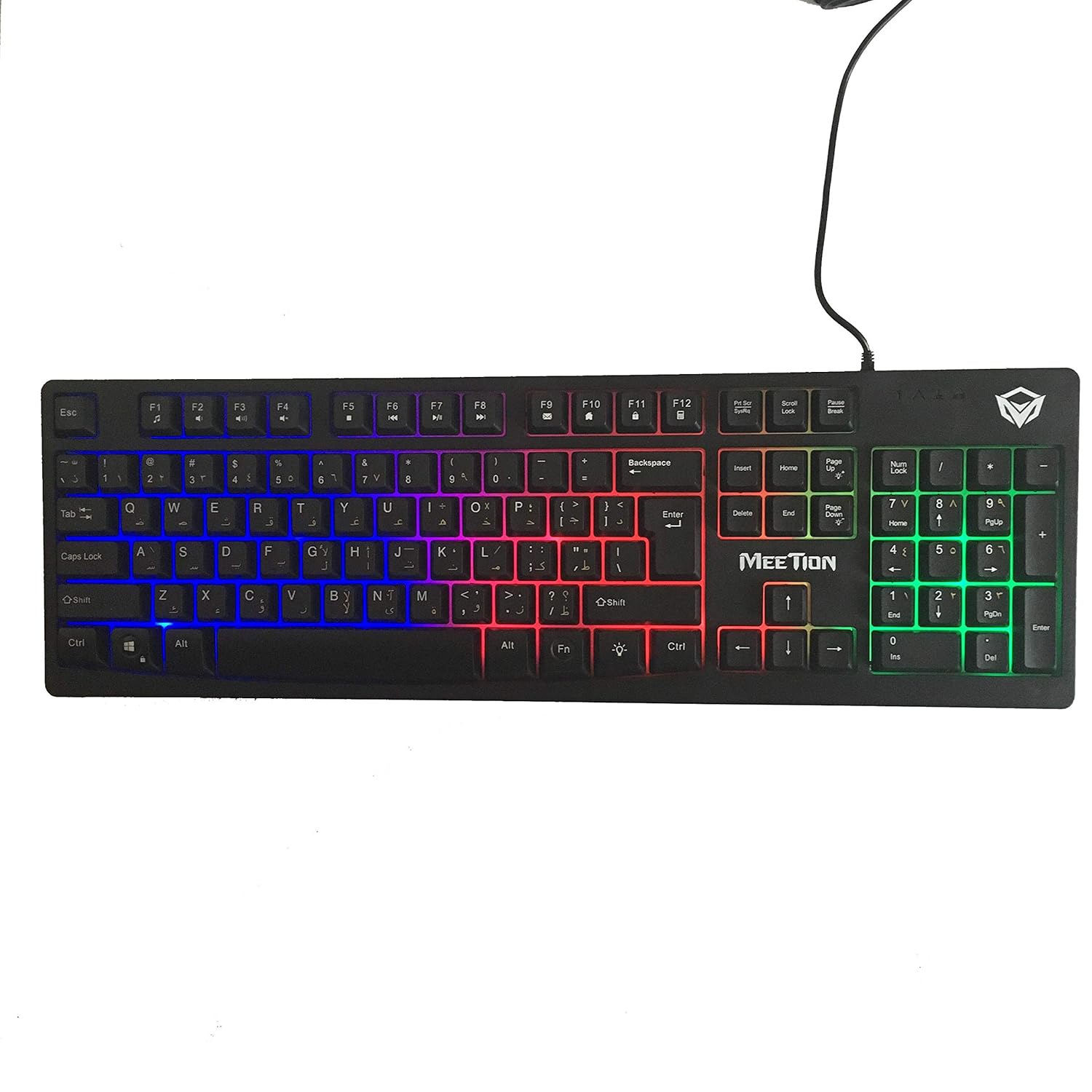
Resim: Üst view of the MeeTion K9310 Gaming Keyboard with its multicolor backlighting illuminated.
FN Shortcut Functions
The keyboard includes 12 FN (Function) shortcut buttons. To activate these functions, press and hold the FN key, then press the desired F-key (F1-F12).
| Anahtar Kombinasyonu | İşlev |
|---|---|
| FN + F1 | Medya Oynatıcısı |
| FN + F2 | Sesi Azalt |
| FN + F3 | Sesi Aç |
| FN + F4 | Sesini kapatmak |
| FN + F5 | Durmak |
| FN + F6 | Önceki Parça |
| FN + F7 | Oynat/Duraklat |
| FN + F8 | Sonraki Parça |
| FN + F9 | E-posta |
| FN + F10 | Web Tarayıcı |
| FN + F11 | Bilgisayarım |
| FN + F12 | Hesap makinesi |
Win Lock Function
To activate or deactivate the Windows key lock function, press FN + Kazanma Tuşu. When active, the Windows key will be disabled, preventing accidental presses during gaming. An LED indicator on the keyboard will typically illuminate to show the Win Lock status.
Bakım
Doğru bakım, klavyenizin uzun ömürlü olmasını ve optimum performans göstermesini sağlar.
- Temizlik: Klavyenin yüzeyini silmek için yumuşak, kuru bir bez kullanın. Daha derinlemesine temizlik için, biraz daha kuru bir bez kullanabilirsiniz.amp Yumuşak sabunlu bir bez kullanılabilir, anahtarlara veya dahili bileşenlere sıvı girmemesine dikkat edilmelidir.
- Toz Giderimi: Tuşların arasında biriken toz ve kalıntıları temizlemek için basınçlı hava kullanın.
- Sıvılardan Kaçının: Do not spill liquids on the keyboard. If a spill occurs, immediately disconnect the keyboard from the computer and allow it to dry completely before reconnecting.
- Depolamak: Uzun süre kullanılmayacaksa klavyeyi serin, kuru ve doğrudan güneş ışığından ve aşırı sıcaklıklardan uzak bir yerde saklayın.

Resim: Alt view of the MeeTion K9310 Gaming Keyboard, showing the product label and rubber feet.
Sorun giderme
If you encounter issues with your MeeTion K9310 Gaming Keyboard, refer to the following troubleshooting steps:
- Klavye Yanıt Vermiyor:
- USB kablosunun bilgisayarınızdaki çalışan bir USB portuna güvenli bir şekilde takılı olduğundan emin olun.
- Klavyeyi farklı bir USB portuna takmayı deneyin.
- Bilgisayarınızı yeniden başlatın.
- Sorunun klavyede mi yoksa bilgisayarda mı olduğunu belirlemek için klavyeyi başka bir bilgisayarda deneyin.
- Keys Not Working (e.g., 'W' key):
- Check for any debris or foreign objects lodged under the affected key. Use compressed air to clear it.
- If only specific keys are not responding, and the keyboard is otherwise functional, it might indicate a hardware issue.
- Arka Aydınlatma Çalışmıyor veya Titriyor:
- Klavyenin düzgün bağlandığından emin olun.
- Check if the backlight brightness is set to minimum or turned off via FN key combinations.
- Sorun devam ederse, donanım arızası olabilir.
- Win Lock Function Not Working:
- Ensure you are using the correct key combination (FN + Win Key) to toggle the function.
- Check the LED indicator for Win Lock status.
Özellikler
| Özellik | Detay |
|---|---|
| Marka | TOPLANTI |
| Örnek | K9310 |
| Klavye Türü | Oyun Klavyesi |
| Anahtar İrtibat Kişisi | Membrane with tactile feedback |
| Düzen | Cyrillic alphabet layout (Windows Keys) |
| Anti-Ghosting | 19 anahtar |
| Arka ışık | Çok renkli tuş arkadan aydınlatmalı |
| Win Lock Function | Evet, LED göstergeli |
| FN Shortcut Buttons | 12 |
| Error-Free Running Time | More than 10 million strokes |
| İşletim Sistemi Uyumluluğu | Windows XP/Vista/7/8/10 |
| Boyutlar | 17.5 × 5.5 x 1.5 inches (approximate) |
| Ağırlık | 1.2 pound (yaklaşık) |
| Uyumlu Cihazlar | Dizüstü Bilgisayar (ve Masaüstü Bilgisayarlar) |
Garanti ve Destek
For warranty information or technical support, please refer to the documentation provided at the time of purchase or visit the official MEETION webSite. Satın alma belgenizi herhangi bir garanti talebi için saklayın.