
BenQ EX3501R
BenQ EX3501R Ultrawide Curved Gaming Monitor User Manual
Model: EX3501R
1. Kurulum
1.1 Monitörün Paketini Açma
Tüm bileşenleri ambalajından dikkatlice çıkarın. Aşağıda listelenen tüm öğelerin mevcut olduğundan emin olun:
- BenQ EX3501R Monitor
- Monitör Standı (Taban ve Boyun)
- Güç Adaptörü
- Güç Kablosu
- HDMI Kablosu
- DisplayPort Kablosu
- USB-C Kablosu
- Kullanım Kılavuzu (bu belge)
1.2 Standın Montajı
Monitör standını takmak için şu adımları izleyin:
- Çizilmeleri önlemek için monitörü yumuşak ve temiz bir bezin üzerine yüzü aşağı bakacak şekilde yerleştirin.
- Attach the stand neck to the back of the monitor. Ensure it clicks securely into place.
- Connect the stand base to the neck, tightening any screws as indicated in the quick start guide.

Şekil 1: Ön view of the BenQ EX3501R monitor with its stand.
1.3 Bağlantı Kabloları
Connect the necessary cables to the monitor and your computer. The monitor supports various input options:
- Güç: Güç adaptörünü monitöre ve ardından bir elektrik prizine bağlayın.
- Video Girişi: Use either the HDMI, DisplayPort, or USB-C cable to connect your computer to the monitor.
- USB C: The USB-C port supports video, data transfer, and power delivery, allowing for a single-cable connection with compatible devices.
- USB 3.0 Bağlantı Noktaları: Utilize the integrated USB 3.0 ports for connecting peripherals.
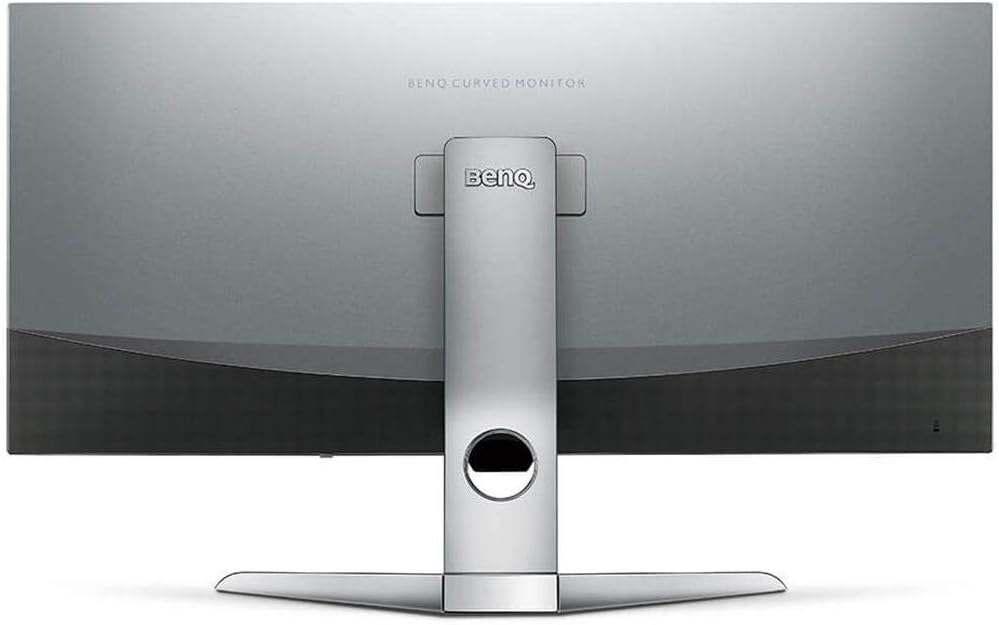
Şekil 2: Arka view of the monitor displaying the connectivity ports.
2. Monitörü Çalıştırma
2.1 Güç Açma/Kapatma
Press the power button, usually located on the bottom right side of the monitor, to turn it on or off. The power indicator light will illuminate when the monitor is active.
2.2 Ekran Üstü Görüntüleme (OSD) Navigasyonu
Use the joystick or buttons located on the monitor's underside to navigate the On-Screen Display (OSD) menu. This menu allows you to adjust various settings such as brightness, contrast, color modes, and input sources.
2.3 Display Features and Eye-Care Technology
The BenQ EX3501R incorporates several technologies designed to enhance viewDaha iyi bir deneyim yaşayın ve göz yorgunluğunu azaltın:
- Parlaklık Zekası Artı (BI+): This patented technology automatically senses ambient lighting conditions and adjusts the screen's brightness and color temperature to provide optimal viewing comfort and protect your eyes during extended use.
- Düşük Mavi Işık: Filters out harmful blue light emissions to reduce eye fatigue. Multiple levels of blue light reduction are available.
- ZeroFlicker™: Eliminates screen flickering at all brightness levels, further reducing eye strain and discomfort.
- HDR (Yüksek Dinamik Aralık): Offers enhanced brightness and contrast, bringing greater detail and vibrancy to HDR video content.
Video 1: Bir overview of BenQ's Eye-Care technology, including Low Blue Light, ZeroFlicker, and Brightness Intelligence Plus, demonstrating how these features work to reduce eye strain and adjust screen settings automatically based on ambient light.
2.4 Çözünürlük ve Yenileme Hızı
The monitor features a QHD (3440x1440) resolution and a 100Hz refresh rate, providing a smooth and detailed visual experience. The 21:9 ultrawide aspect ratio offers ample screen space for multitasking, such as viewing multiple documents side-by-side without needing a second monitor.
2.5 AMD FreeSync
For a fluid gaming experience, the monitor supports AMD FreeSync technology, which synchronizes the monitor's refresh rate with your graphics card's frame rate to eliminate screen tearing and stuttering.
3. Bakım
3.1 Monitörün Temizlenmesi
To maintain optimal performance and appearance, regularly clean your monitor:
- Ekran: Ekranı yumuşak, tüy bırakmayan bir bezle nazikçe silin. İnatçı lekeler için, doğrudan ekrana değil, beze uygulanan monitöre özel bir temizleme solüsyonu kullanın.
- Dış: Use a soft, dry cloth to wipe dust and debris from the monitor casing and stand.
Avoid using abrasive cleaners, waxes, or solvents as they can damage the monitor's surface.
3.2 Genel Bakım İpuçları
- Monitördeki havalandırma açıklıklarını kapatmayın.
- Monitörü doğrudan güneş ışığına veya ısı kaynaklarının yakınına yerleştirmekten kaçının.
- Fiziksel hasarı önlemek için monitörü dikkatli tutun.
4. Sorun Giderme
If you encounter issues with your BenQ EX3501R monitor, refer to the following common troubleshooting steps:
4.1 No Display or Black Screen
- Güç kablosunun hem monitöre hem de elektrik prizine güvenli bir şekilde bağlandığından emin olun.
- Video kablosunun (HDMI, DisplayPort veya USB-C) hem monitöre hem de bilgisayarınıza sağlam bir şekilde bağlı olduğundan emin olun.
- Monitörün OSD menüsünde doğru giriş kaynağının seçili olup olmadığını kontrol edin.
- Bilgisayarınızı yeniden başlatın.
4.2 Flickering or Unstable Image
- Ensure the ZeroFlicker™ feature is enabled in the OSD menu.
- Video kablo bağlantılarında gevşeklik olup olmadığını kontrol edin.
- Grafik kartı sürücülerinizi en son sürüme güncelleyin.
- AMD FreeSync kullanıyorsanız, grafik kartı ayarlarınızda doğru şekilde yapılandırıldığından emin olun.
4.3 Color or Brightness Issues
- Ekran üstü menü (OSD) üzerinden parlaklık, kontrast ve renk ayarlarını yapabilirsiniz.
- Enable or disable Brightness Intelligence Plus (B.I.+) to see if it resolves the issue.
- OSD menüsü üzerinden fabrika ayarlarına sıfırlama işlemi gerçekleştirin.
5. Özellikler
Key technical specifications for the BenQ EX3501R monitor:
| Özellik | Şartname |
|---|---|
| Ekran Boyutu | 35 inç |
| Maksimum Ekran Çözünürlüğü | 3440 x 1440 Pixels (QHD Ultrawide) |
| En Boy Oranı | 21:9 |
| Yenileme Hızı | 100 Hz |
| Eğrilik | 1800R |
| Panel Tipi | VA (Dikey Hizalama) |
| Bağlantı | USB-C, HDMI, DisplayPort |
| Özel Özellikler | AMD FreeSync, Brightness Intelligence Plus, Low Blue Light, ZeroFlicker |
| Ürün Ağırlığı | 21.3 pound |
| Ürün Boyutları | 6.88 x 3.47 x 12.93 inç |
6. Garanti ve Destek
6.1 Ürün Garantisi
The BenQ EX3501R monitor typically comes with a 3-year manufacturer's warranty. Please refer to the warranty card included in your product packaging for specific terms and conditions, or visit the official BenQ webayrıntılı garanti bilgileri için site.
6.2 Müşteri Desteği
For further assistance, technical support, or warranty claims, please contact BenQ customer service. You can find contact information and support resources on the official BenQ webalan: www.benq.com/en-us/support.html
Ask a question about this manual
Ask about setup, troubleshooting, compatibility, parts, safety, or missing instructions. Manuals+ will review the question and use this page’s manual context to help answer it.