
giriiş
The HP Sprocket Portable Photo Printer is a compact and lightweight device designed for instant photo printing from your smartphone or tablet. It utilizes ZINK (Zero Ink) technology to produce vibrant 2x3-inch sticky-backed photos, perfect for sharing and personalizing. This manual provides essential information for setting up, operating, and maintaining your HP Sprocket printer.

Image: The HP Sprocket printer, a compact white device, shown actively printing a colorful photo. The printer features a sleek design with rose gold accents.
Kutuda Neler Var?
Upon unboxing your HP Sprocket Portable Photo Printer, ensure all the following components are present:

Resim: Patlamış bir view diagram illustrating the items included in the HP Sprocket packaging. These include the HP Sprocket Photo Printer, a setup card, a pack of HP ZINK Sticky-Backed Photo Paper (10 sheets), a Micro USB Cable, and a Regulatory Sheet.
- HP Sprocket Fotoğraf Yazıcısı
- Kurulum Kartı
- HP ZINK® Arkası Yapışkan Fotoğraf Kağıdı (10 sayfa)
- Mikro USB Kablosu
- Mevzuat Sayfası
Başlarken: Kurulum
Follow these steps to set up your HP Sprocket printer for the first time:
- Yazıcıyı Şarj Edin: Connect the Micro USB cable to the printer's charging port and the other end to a USB power adapter (not included) or a computer's USB port. The LED indicator will show charging status.
- Fotoğraf Kağıdını Yükleyin:
- Slide open the top cover of the HP Sprocket printer.
- Insert the HP ZINK photo paper pack with the blue Smartsheet™ facing down. Ensure the paper is aligned correctly.
- Üst kapağı güvenli bir şekilde kapatın.
- Download the HP Sprocket App:
Arama "HP Sprocket" in your device's app store (Apple App Store for iOS or Google Play Store for Android) and download the free application.
- Bluetooth ile bağlanın:
- Turn on your HP Sprocket printer by pressing the power button.
- Akıllı telefonunuzda veya tabletinizde Bluetooth'u etkinleştirin.
- Open the HP Sprocket App. The app will guide you through connecting to your printer. Select your HP Sprocket from the list of available Bluetooth devices.
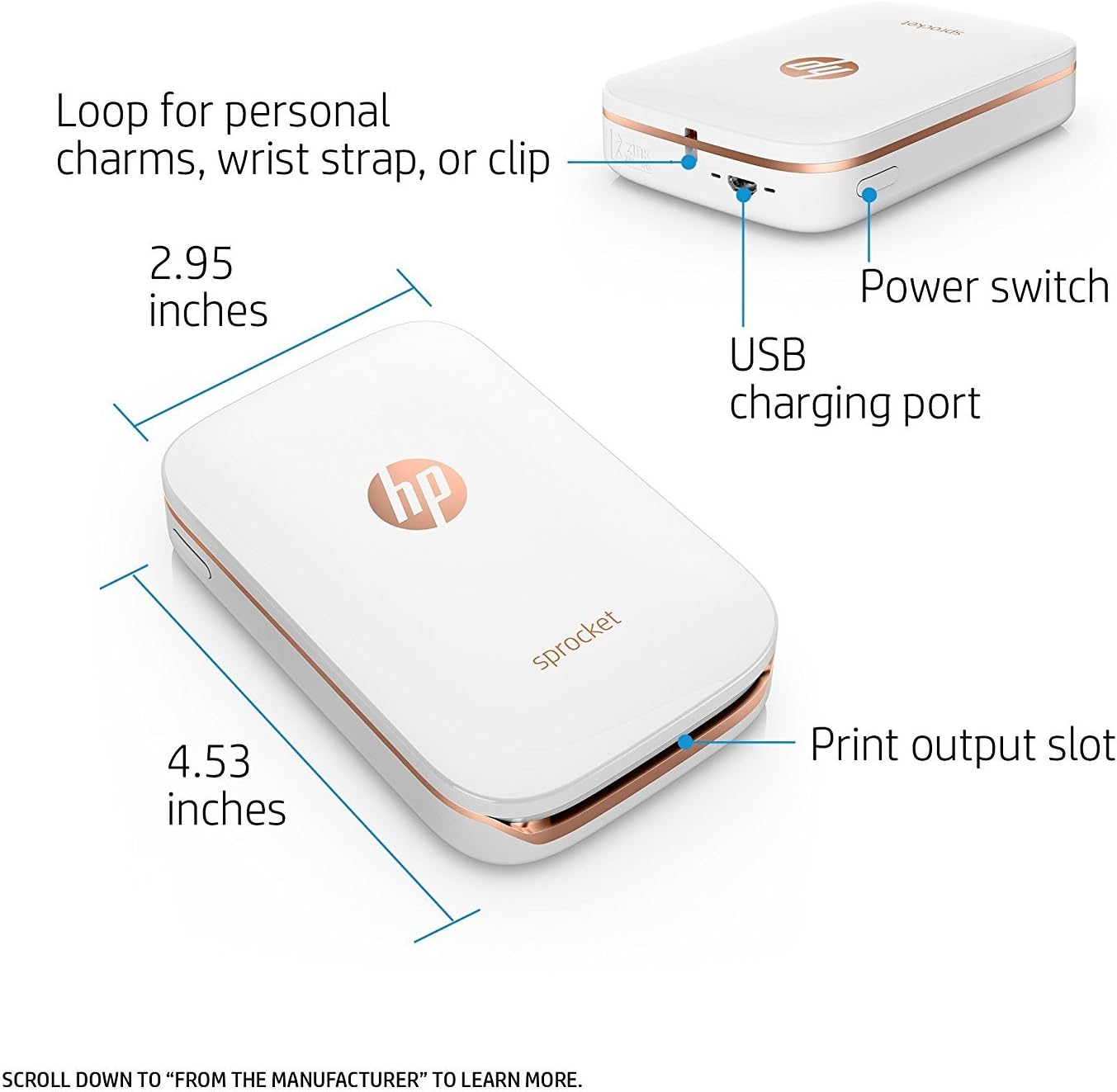
Resim: Ayrıntılı view of the HP Sprocket printer highlighting its dimensions (2.95 inches by 4.53 inches) and key features such as the USB charging port, power switch, print output slot, and a loop for charms or straps.
Kullanım Talimatları
Fotoğraf Yazdırma
- Ensure your HP Sprocket printer is powered on and connected to your mobile device via Bluetooth.
- Open the HP Sprocket App on your smartphone or tablet.
- Select the photo you wish to print from your device's gallery or social media.
- Use the app's editing tools to customize your photo with filters, borders, emojis, or text.
- Tap the print icon within the app. The photo will be sent to your Sprocket printer and emerge from the print output slot.
Using the HP Sprocket App Features
- Fotoğrafları Düzenle: The app provides various tools to enhance your photos before printing, including cropping, rotating, adding text, stickers, and frames.
- Scan Printed Photos: Use the app's scan feature to view digital versions of your printed Sprocket photos, or to unlock hidden content if available.
- Photo Collections: Organize edin ve view your printed photos within the app.
- Ayarlar: Access printer settings, check battery status, and update firmware through the app.
Bakım
Proper maintenance ensures the longevity and optimal performance of your HP Sprocket printer.
- Temizlik:
- Use a soft, lint-free cloth to gently wipe the exterior of the printer.
- Sıvı temizleyiciler veya aşındırıcı maddeler kullanmayınız.
- The blue Smartsheet™ included with HP ZINK paper packs helps clean the print head automatically with each new pack.
- Kağıt İşleme:
- Store HP ZINK photo paper in its original packaging in a cool, dry place to prevent damage and maintain print quality.
- Avoid touching the glossy side of the photo paper before printing.
- Only use genuine HP ZINK photo paper for best results and to prevent printer damage.
- Pil Bakım:
- Pil ömrünü korumak için, yazıcıyı sık kullanmasanız bile düzenli olarak şarj edin.
- Yazıcıyı aşırı sıcaklıklara maruz bırakmaktan kaçının.
Sorun giderme
If you encounter issues with your HP Sprocket printer, refer to the following common problems and solutions:
| Sorun | Olası Neden | Çözüm |
|---|---|---|
| Yazıcı açılmıyor | Düşük pil veya güç sorunu. | Charge the printer using the Micro USB cable. Ensure the power button is pressed firmly. |
| Bluetooth üzerinden bağlanılamıyor | Bluetooth is off, printer is out of range, or interference. | Ensure Bluetooth is enabled on your device and the printer. Move closer to the printer. Restart both the printer and your device. Forget and re-pair the device in Bluetooth settings. |
| Baskı kalitesi düşük / Boş baskılar | Incorrect paper loading, low battery, or dirty print head. | Ensure paper is loaded correctly with the blue Smartsheet™ at the bottom of the stack. Charge the printer. The Smartsheet™ cleans the print head; try printing with a new pack of paper. |
| Kağıt sıkışması | Improper paper loading or foreign object. | Turn off the printer. Gently open the paper tray and carefully remove any jammed paper. Do not force it. Reload paper correctly. |
| Uygulama yazıcıyı tanımıyor | App glitch or firmware outdated. | Close and reopen the app. Restart your device. Check for app updates. If available, update printer firmware via the app. |
Özellikler
Key technical specifications for the HP Sprocket Portable Photo Printer:
- Modeli: X7N07A
- Marka: HP
- Baskı Teknolojisi: Çinko Teknolojisi
- Yazıcı Çıktısı: Renk
- Basılı Medya: Glossy photo paper (2x3 inches)
- Bağlantı: Bluetooth
- Uyumlu Cihazlar: Akıllı Telefonlar, Tabletler (Android, iOS)
- Kontrol Yöntemi: Uygulama
- Renk: Beyaz
- Ürün Ağırlığı: 6.1 ons
- Boyutlar: Yaklaşık 4.53 x 2.95 inç
- Üretici: HP
- İlk Mevcut: 14 Kasım 2017
Garanti ve Destek
For warranty information and technical support, please refer to the official HP support channels.
- Çevrimiçi destek: HP'nin resmi destek sitesini ziyaret edin. website for FAQs, drivers, and troubleshooting guides. destek.hp.com
- Destek Ekibiyle İletişime Geçin: Contact HP customer service for direct assistance. Refer to the HP webbölgesel iletişim numaraları için site.
- Garanti: This product is sold as "Renewed." Please refer to the specific warranty terms provided by the seller or Amazon Renewed at the time of purchase. Standard HP manufacturer warranties may not apply to renewed products.