
1. Giriş
This manual provides essential information for the safe and efficient operation of your Xerox AltaLink C8030 Multifunction Printer. Please read these instructions carefully before using the device and retain them for future reference. This device integrates printing, scanning, copying, and faxing capabilities to support various office tasks.
2. Güvenlik Bilgileri
Always follow basic safety precautions to reduce the risk of fire, electric shock, and injury. Ensure the device is connected to a grounded power outlet. Do not block ventilation openings. Keep the device away from water and excessive humidity. Refer to the safety labels on the product for specific warnings.
3. Ürün Bittiview
The Xerox AltaLink C8030 is a color multifunction printer designed for high-volume office environments. It features a 10-inch touchscreen for intuitive navigation and control. Key capabilities include:
- Print Speed: Up to 30 pages per minute (ppm) for both color and monochrome.
- Copy Resolution: 600 x 600 DPI.
- Memory: 8 GB RAM, 1 GB RAM, 250 GB HDD.
- Connectivity: NFC, Wireless, USB.
- Paper Supply: Multiple trays including 2 x 520-sheet trays, a 2,000-sheet high-capacity tandem tray, and a 100-sheet bypass tray.
- Features: Single Pass DADF, Data Security, Job Accounting, PostScript Kit, Network Scanning, Server Fax, iFax, Standard Output Tray, Office Finisher LX.
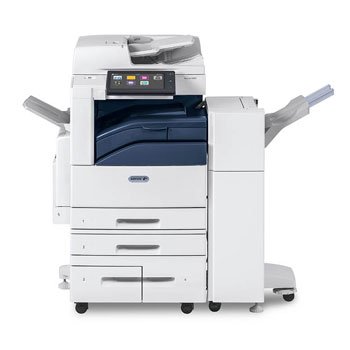
Resim: Ön view of the Xerox AltaLink C8030 multifunction printer, showing its various paper trays and the integrated touchscreen control panel.
4. Kurulum
4.1 Paketten Çıkarma ve Yerleştirme
- Yazıcıyı ambalajından dikkatlice çıkarın.
- Yazıcıyı yeterli havalandırmaya sahip, sabit ve düz bir yüzeye yerleştirin.
- Ensure sufficient space around the printer for maintenance and paper loading.
4.2 Güç Bağlantısı
- Yazıcının güç kablosunu yazıcıya, ardından da topraklı bir elektrik prizine bağlayın.
- Cihazı açmak için güç düğmesine basın.
4.3 Kağıt Yükleme
- Open the desired paper tray (e.g., Tray 1, Tray 2, or Bypass Tray).
- Kağıt kılavuzlarını kağıt boyutuna uyacak şekilde ayarlayın.
- Kağıt yığınını, maksimum doldurma çizgisini aşmamaya dikkat ederek doldurun.
- Kağıt tepsisini güvenli bir şekilde kapatın.
4.4 Ağ ve USB Bağlantısı
- Ağ: Connect an Ethernet cable to the printer's network port and to your network router/switch. Configure network settings via the touchscreen if necessary.
- Kablosuz: Access the network settings on the touchscreen, select your Wi-Fi network, and enter the password.
- USB BAĞLANTI: Connect a USB cable from your computer to the printer's USB port for direct connection.
5. Kullanım Talimatları
5.1 Baskı
- From your computer or mobile device, open the document you wish to print.
- Uygulamanın menüsünden 'Yazdır' seçeneğini seçin.
- Choose the Xerox AltaLink C8030 as your printer.
- Adjust print settings (e.g., number of copies, color/monochrome, paper size) as needed.
- 'Yazdır'a tıklayın.
5.2 Tarama
- Place your document face-down on the scanner glass or face-up in the Automatic Document Feeder (ADF).
- On the printer's touchscreen, select the 'Scan' function.
- Choose your scan destination (e.g., email, network folder, USB drive).
- Configure scan settings (e.g., resolution, file format, color mode).
- Tarama işlemine başlamak için 'Başlat' düğmesine basın.
5.3 Kopyalama
- Belgenizi tarayıcı camına veya otomatik belge besleyiciye yerleştirin.
- On the touchscreen, select the 'Copy' function.
- Enter the desired number of copies.
- Adjust copy settings (e.g., enlargement/reduction, 2-sided, color/monochrome).
- Kopyalama işlemine başlamak için 'Başlat' düğmesine basın.
5.4 Faks Gönderme
- Belgenizi tarayıcı camına veya otomatik belge besleyiciye yerleştirin.
- Dokunmatik ekranda 'Faks' işlevini seçin.
- Alıcının faks numarasını girin.
- Configure fax settings (e.g., resolution, delayed send).
- Press 'Start' to send the fax.
6. Bakım
6.1 Toner Kartuşlarının Değiştirilmesi
- Yazıcının ön kapağını açın.
- Identify the empty toner cartridge.
- Grasp the handle and pull the cartridge out.
- Yeni toner kartuşunu ambalajından çıkarın ve hafifçe sallayın.
- Insert the new cartridge until it clicks into place.
- Ön kapağı kapatın.
6.2 Tarayıcı Camının Temizlenmesi
- Yazıcıyı kapatın ve güç kablosunu çıkarın.
- Tarayıcı kapağını açın.
- Wipe the scanner glass with a soft, lint-free cloth dampened with a mild glass cleaner.
- Ensure the glass is dry before closing the cover and restoring power.
7. Sorun Giderme
7.1 Kağıt Sıkışmaları
- Follow the on-screen instructions to locate and clear the paper jam.
- Open all accessible covers and trays to check for jammed paper.
- Kağıdı, kağıt yolunun yönüne doğru yavaşça çekin.
7.2 Baskı Kalitesi Sorunları
- Check toner levels and replace cartridges if low.
- Perform a print head cleaning or calibration from the printer's maintenance menu.
- Ensure you are using appropriate paper types for your print job.
7.3 Bağlantı Sorunları
- Verify all cables (Ethernet, USB) are securely connected.
- For wireless connections, check Wi-Fi signal strength and network settings.
- Restart the printer, router, and computer/device.
8. Özellikler
| Özellik | Şartname |
|---|---|
| Marka | Fotokopi |
| Model Adı | AltaLink C8030 |
| Baskı Teknolojisi | Lazer |
| Yazıcı Çıktısı | Renk |
| Maksimum Baskı Hızı (Siyah Beyaz) | 30 ppm |
| Maksimum Kopyalama Hızı (Siyah Beyaz) | 30 ppm |
| Bağlantı Teknolojisi | NFC, Wireless |
| Ürün Ağırlığı | 349 Pound |
| Kontrol Yöntemi | Uzaktan, Dokunmatik |
| Uyumlu Cihazlar | PC |
| GTIN / UPC | 095205880151 |
9. Garanti ve Destek
For warranty information, please refer to the documentation included with your product or visit the official Xerox website. For technical support, driver downloads, or service requests, please contact Xerox customer support through their official channels. Keep your product's serial number and purchase date readily available when contacting support.
Çevrimiçi Kaynaklar: Xerox Resmi Webalan