
1. Giriş
This manual provides detailed instructions for setting up, operating, and maintaining your Epson L485 Wi-Fi Inktank Printer. Please read this manual thoroughly to ensure proper use and to maximize the performance and longevity of your device.
Ürün Bittiview
The Epson L485 is a versatile all-in-one printer offering print, scan, and copy functionalities with the added convenience of Wi-Fi Direct. It features an innovative ink tank system designed for high-volume printing with impressive page yields and a high print resolution for quality output.

Şekil 1: Ön view of the Epson L485 Wi-Fi Inktank Printer.
Kutuda Neler Var?
- Epson L485 Printer Unit
- Yazılım CD'si
- Güç kablosu
- Garanti Kartı
- Set of Original Epson Ink Bottles (Black, Cyan, Magenta, Yellow)
Video 1: Bir overview of the Epson L485 Wi-Fi Inktank Printer's features and design.
2. Kurulum Kılavuzu
Follow these steps to set up your Epson L485 printer for the first time.
Video 2: Step-by-step guide on how to set up your Epson InkTank Printer.
2.1 Initial Printer Preparation
- Yazıcıyı Ambalajından Çıkarın: Yazıcıyı ambalajından dikkatlice çıkarın. Tüm koruyucu bantları ve malzemeleri çıkarın.
- Check Valve Position: Locate the ink tank valve on the side of the printer. Ensure it is in the upright (printing) position.
- Open Ink Tank Unit: Gently unhook the ink tank unit from the side of the printer and open its lid to access the ink tanks.
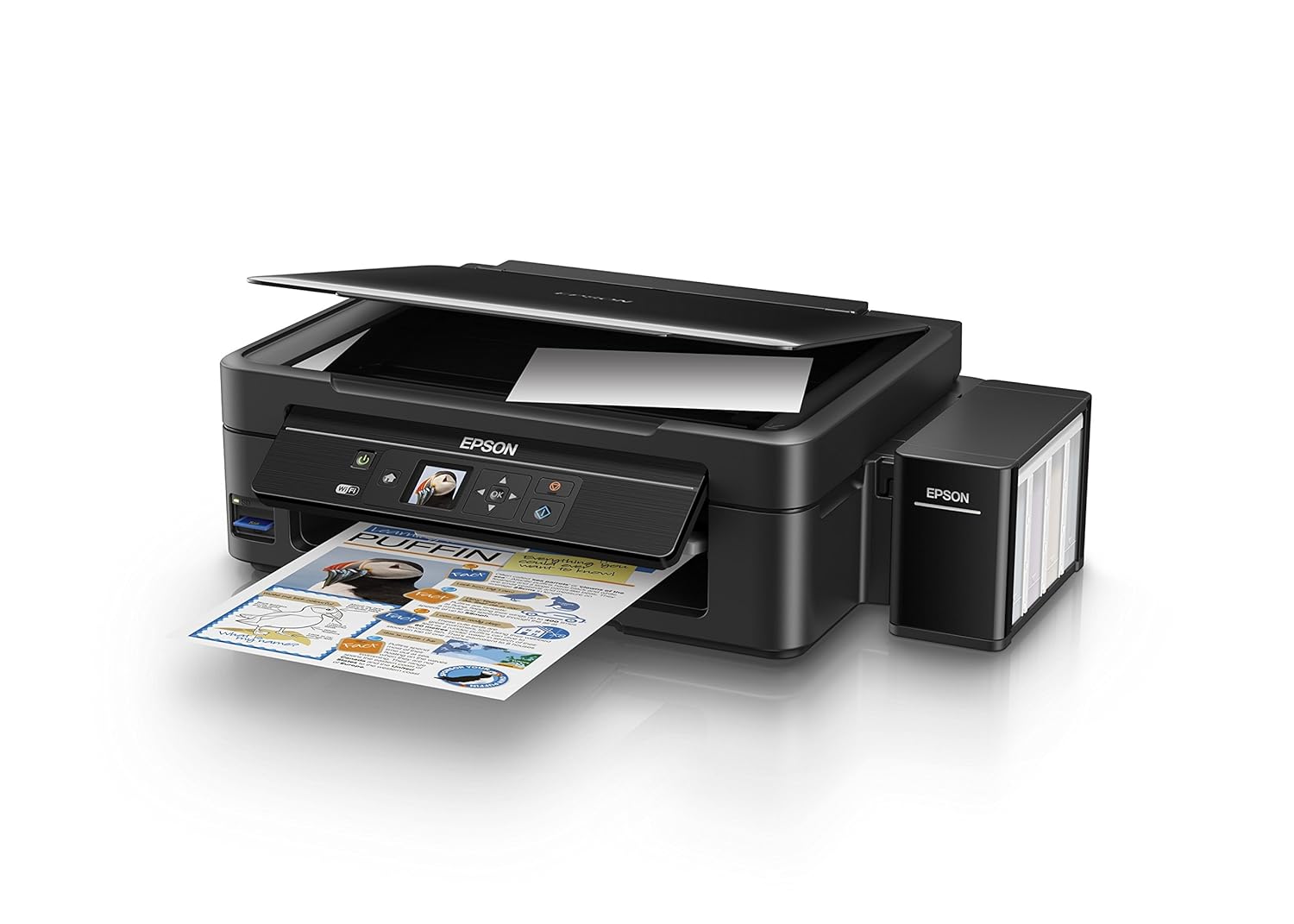
Figure 2: The ink tank unit unhooked and open, showing the ink reservoirs.
2.2 Mürekkep Tanklarının Doldurulması
- Prepare Ink Bottles: Snap off the tip of each ink bottle and remove the cap.
- Fill Ink Tanks: Match the color of the ink bottle with the corresponding ink tank. Carefully pour the entire contents of each ink bottle into its respective tank. Do not overfill.
- Secure Caps: Once all tanks are filled, replace the caps securely on the ink tanks.
- Close Ink Tank Unit: Close the lid of the ink tank unit and re-hook it to the printer.

Figure 3: Demonstrating the process of filling an ink tank with a yellow ink bottle.

Figure 4: The four color ink bottles used for the Epson L485 printer.
2.3 Power On and Ink Charging
- Gücü bağlayın: Plug the power cable into the printer and then into a wall outlet.
- Turn On Printer: Yazıcıyı açmak için güç düğmesine basın.
- Initiate Ink Charge: Press and hold the 'Ink Charge' button (usually indicated by a droplet icon) for 3 seconds until the lights start blinking. The initial ink charging process takes approximately 20 minutes. Do not turn off or unplug the printer during this process.
- Tamamlama: The lights will stop blinking when ink charging is complete.
2.4 Sürücü Kurulumu
- Yazılım CD'sini takın: Insert the provided Software CD into your computer's CD/DVD drive. If your computer does not have a CD drive, download the latest drivers from the official Epson support webalan.
- Ekrandaki Talimatları İzleyin: Follow the prompts on your computer screen to install the printer drivers and utilities. Agree to the license agreement and select 'Start & Connection' for setup.
- Connect USB Cable (if prompted): If setting up via USB, connect the USB cable between the printer and your computer when prompted by the installation software.
2.5 Connectivity Setup
The Epson L485 supports both USB and Wi-Fi connectivity.
USB Bağlantısı
Connect the USB cable from the printer to an available USB port on your computer. The printer should be recognized automatically after driver installation.
Wi-Fi Kurulumu
The printer features an LCD screen for easy Wi-Fi setup without needing a PC.
- Access Wi-Fi Setup: On the printer's control panel, navigate to the 'Wi-Fi Setup' option using the arrow keys and press 'OK'.
- Ağ Seçin: Choose your desired wireless network from the list and enter the password if required.
- Bağlantıyı Onayla: Once connected, the Wi-Fi indicator light will be solid, and the LCD screen will confirm the setup is complete.

Figure 5: Demonstrating wireless printing from a smartphone to the Epson L485 printer.
3. Yazıcının Çalıştırılması
3.1 Baskı
The Epson L485 delivers high-quality prints with a resolution of 5760 dpi. It offers print speeds of up to 33 ppm for black and 15 ppm for color documents.
- Kagit yukle: Arka kağıt besleme haznesine kağıt yerleştirin. Kağıt kılavuzlarını kağıt boyutuna göre ayarlayın.
- Yazdırma İşini Seçin: From your computer or mobile device, select the document or image you wish to print.
- Ayarları Düzenle: Choose your print settings (e.g., paper size, print quality, color/black & white) in the print dialog box.
- Yazdır: Yazdırma işlemini yazıcıya göndermek için 'Yazdır' düğmesine tıklayın.

Figure 6: The Epson L485 printer in action, producing a vibrant print.
3.2 Tarama
The printer features a sheetfed scanner with an optical resolution of 1200 dpi x 2400 dpi for clear and detailed scans.
- Belgeyi Yerleştir: Lift the scanner lid and place your document face-down on the scanner glass, aligning it with the corner mark.
- Taramayı Başlat: From your computer, open the Epson Scan software or use the scan function on the printer's control panel.
- Ayarları Düzenle: Çözünürlük, renk modu ve hedef klasör gibi tarama ayarlarını seçin.
- Taramayı Başlat: Begin the scanning process.

Figure 7: The scanner bed of the Epson L485 printer with the lid open.
3.3 Kopyalama
Make copies directly from the printer's control panel.
- Belgeyi Yerleştir: Place the document you wish to copy on the scanner glass.
- Kopyala işlevini seçin: On the printer's LCD screen, navigate to the 'Copy' option.
- Ayarları Düzenle: Select the number of copies, color or black & white, and other copy settings.
- Kopyalamaya Başla: Kopyalama işlemine başlamak için 'Başlat' düğmesine basın.
3.4 Wi-Fi Direct
Wi-Fi Direct allows you to connect your mobile devices directly to the printer without a router, enabling convenient wireless printing.
- Enable Wi-Fi Direct: On the printer's control panel, go to 'Wi-Fi Setup' and select 'Wi-Fi Direct'. Follow the on-screen instructions to enable it and view ağ adı ve şifre.
- Mobil Cihazı Bağlayın: On your mobile device, go to Wi-Fi settings, find the printer's Wi-Fi Direct network, and connect using the provided password.
- Yazdır: Use an Epson printing app (e.g., Epson iPrint) or your device's native print function to print directly to the printer.
4. Bakım
4.1 Mürekkep Dolumu
When ink levels are low, refill the tanks using genuine Epson ink bottles. Refer to section 2.2 for detailed ink filling instructions. Always use the correct color ink for each tank.
4.2 Temizlik
Düzenli temizlik baskı kalitesinin korunmasına yardımcı olur ve yazıcınızın ömrünü uzatır.
- Dış Temizlik: Yazıcının dışını yumuşak bir bezle silin.amp bez. Aşındırıcı temizleyiciler kullanmaktan kaçının.
- Yazdırma Kafasının Temizlenmesi: If print quality declines (e.g., missing lines, incorrect colors), perform a print head cleaning using the printer's utility software on your computer or through the printer's control panel menu.
- Meme kontrolü: Run a nozzle check pattern to diagnose print quality issues before performing a head cleaning.
5. Sorun Giderme
Bu bölümde, Epson L485 yazıcınızla karşılaşabileceğiniz yaygın sorunlar ele alınmaktadır.
5.1 Yazıcı Yanıt Vermiyor
- Ensure the printer is powered on and connected securely to the power outlet.
- Check the USB cable connection to both the printer and computer, or verify the Wi-Fi connection status.
- Hem yazıcıyı hem de bilgisayarınızı/mobil cihazınızı yeniden başlatın.
5.2 Düşük Baskı Kalitesi
- Perform a nozzle check to identify clogged nozzles. If necessary, run a print head cleaning cycle.
- Mürekkep seviyelerini kontrol edin ve düşük olan tankları doldurun.
- Ensure you are using genuine Epson ink and appropriate paper types for your print job.
5.3 Kağıt Sıkışmaları
- Turn off the printer and carefully remove any jammed paper from the paper tray, output tray, or inside the printer.
- Kağıdın doğru şekilde yerleştirildiğinden ve kırışmadığından emin olun.urled.
6. Özellikler
| Marka | Epson |
| Model Adı | L485 |
| Bağlantı Teknolojisi | Wifi |
| Baskı Teknolojisi | Mürekkep püskürtmeli |
| Özel Özellik | Hafıza Kartı Yuvası |
| Renk | Siyah |
| Yazıcı Çıktısı | Renk |
| Maksimum Baskı Hızı (Renkli) | 15 ppm |
| Maksimum Baskı Hızı (Siyah Beyaz) | 33 ppm |
| Ürün Ağırlığı | 6001 Gram |
| Yazıcı Türü | Mürekkep püskürtmeli |
| Tarayıcı Türü | Yaprak beslemeli |
| Maximum Copy Speed (Black and White) | 33 ppm |
| Görüntü Türü | LCD |
| Uyumlu Cihazlar | Akıllı telefonlar |
| Mürekkep Rengi | Siyah, Camgöbeği, Macenta, Sarı |
| Çözünürlük | 5760 x 5760 DPI |
| Ek Yazıcı İşlevleri | Hepsi Bir Arada (Yazdırma, Tarama, Kopyalama) |
| Maksimum Medya Boyutu | A4 |
| Kağıt Boyutu | A4 |
| Çift taraflı baskı | HAYIR |
7. Garanti ve Destek
Your Epson L485 Wi-Fi Inktank Printer comes with a free installation service and an onsite warranty.
7.1 Free Installation and Onsite Warranty
To avail free installation for your printer, please contact Epson support after receiving your product. The onsite warranty covers manufacturing defects and ensures professional assistance at your location.
7.2 Destek Ekibiyle İletişime Geçin
For installation, support, or any technical assistance, please contact Epson customer service:
- Telefon: 1860 3000 1600 (Timings: 9 am - 6 pm)