
1. Giriş
This manual provides essential information for the safe and efficient operation of your Argox OX-330 Barcode Monochrome Printer. Please read this manual thoroughly before using the printer and retain it for future reference. The Argox OX-330 is designed for direct thermal and thermal transfer printing, offering a resolution of 203 dpi for clear and precise label output.
2. Güvenlik Bilgileri
- Güç Kaynağı: Use only the power adapter supplied with the printer. Ensure the power outlet matches the voltage gereksinimleri.
- Atama: Place the printer on a stable, level surface. Avoid locations with excessive dust, humidity, or direct sunlight.
- Havalandırma: Do not block ventilation openings. Ensure adequate airflow around the printer.
- İşleme: Avoid touching the print head immediately after printing, as it may be hot.
- Temizlik: Disconnect the power cord before cleaning the printer. Use a soft, dry cloth. Do not use liquid or aerosol cleaners.
- Onarımlar: Do not attempt to repair the printer yourself. Refer all servicing to qualified service personnel.
3. Ürün Bittiview
The Argox OX-330 is a compact desktop thermal label printer capable of both direct thermal and thermal transfer printing. It features 8MB DRAM (5MB user available) and 4MB Flash ROM (2MB user available) for efficient data processing and storage.
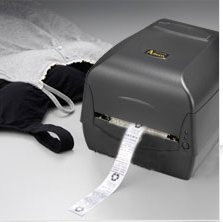
Şekil 3.1: Argox OX-330 Barcode Monochrome Printer. This image shows the printer actively producing a label, demonstrating its primary function.
Temel Bileşenler:
- Yazdırma Kafası: Responsible for transferring the image onto the label.
- Media Guides: Ensure proper alignment of labels.
- Kontrol Paneli: Includes buttons and indicator lights for printer status and basic operations.
- Güç girişi: Güç adaptörünü bağlamak için.
- Veri Bağlantı Noktaları: For connecting to a computer (e.g., USB, Wi-Fi).
- Media Compartment: Where label rolls and ribbons (for thermal transfer) are loaded.
4. Kurulum
4.1 Paketin açılması
- Yazıcıyı ve tüm aksesuarlarını dikkatlice ambalajından çıkarın.
- Verify that all components listed in the package contents are present.
- Yazıcının üzerindeki koruyucu filmleri veya ambalaj malzemelerini çıkarın.
4.2 Gücün Bağlanması
- Güç adaptörünü yazıcının güç girişine bağlayın.
- Güç kablosunu uygun bir elektrik prizine takın.
- Do not power on the printer until all other connections are made.
4.3 Bilgisayara Bağlanma
The Argox OX-330 supports Wi-Fi connectivity for seamless integration with your PC.
- Wi-Fi Bağlantısı: Refer to the separate Wi-Fi setup guide for detailed instructions on connecting your printer to a wireless network. This typically involves installing the printer driver and utility software on your PC.
- USB Connection (if applicable): If using a USB cable, connect one end to the printer and the other to an available USB port on your PC.
4.4 Etiketlerin ve Şeritlerin Yüklenmesi
The OX-330 supports both Direct Thermal and Thermal Transfer printing methods. The loading procedure varies slightly depending on the method.
- Yazıcının üst kapağını açın.
- Adjust the media guides to the width of your label roll.
- Place the label roll onto the media spindle, ensuring the labels feed correctly.
- İçin Termal Transfer printing, also load the ribbon according to the diagrams inside the printer's media compartment. Ensure the ribbon is taut and correctly threaded.
- Üst kapağı kapatın.
5. Kullanım Talimatları
5.1 Açma/Kapatma
- Açmak İçin: Yazıcının üzerinde bulunan güç düğmesine basın. Gösterge ışığı yanacaktır.
- Kapatmak İçin: Yazıcı kapanana kadar güç düğmesini basılı tutun.
5.2 Sürücü ve Yazılım Kurulumu
Before printing, install the appropriate printer drivers and label design software on your PC. These are typically provided on a CD with the printer or available for download from the Argox official webSiteye gidin. Kurulum için ekrandaki talimatları izleyin.
5.3 Etiket Yazdırma
- Ensure the printer is powered on and connected to your PC (via Wi-Fi or USB).
- Open your label design software or application from which you wish to print.
- Create or open your label design.
- Go to the 'Print' option in your software.
- Select the Argox OX-330 as your printer.
- Configure print settings such as label size, print quantity, and printing method (Direct Thermal or Thermal Transfer) if applicable. The printer supports a resolution of 203 dpi.
- Click 'Print'. The printer will begin printing your labels.
6. Bakım
Regular maintenance ensures optimal performance and extends the life of your Argox OX-330 printer.
6.1 Baskı Kafasının Temizlenmesi
The print head is a critical component and should be cleaned regularly, especially if print quality degrades.
- Yazıcıyı kapatın ve güç kablosunu çıkarın.
- Open the top cover to access the print head.
- Using a lint-free cloth moistened with isopropyl alcohol (99% pure), gently wipe the print head surface.
- Kapağı kapatıp gücü tekrar bağlamadan önce baskı kafasının tamamen kurumasını bekleyin.
6.2 Genel Temizlik
- Yazıcının dış yüzeyini yumuşak, kuru bir bezle silin.
- Use a soft brush or compressed air to remove dust and debris from inside the media compartment.
7. Sorun Giderme
This section addresses common issues you might encounter with your Argox OX-330 printer.
7.1 Güç Yok
- Yazıcının güç kablosunun hem yazıcıya hem de elektrik prizine güvenli bir şekilde bağlı olduğundan emin olun.
- Başka bir cihazı takarak elektrik prizinin çalışır durumda olduğunu doğrulayın.
7.2 Düşük Baskı Kalitesi
- Bölüm 6.1'de açıklandığı gibi yazıcı kafasını temizleyin.
- Ensure you are using the correct type of labels for your printing method (Direct Thermal or Thermal Transfer).
- Check if the ribbon (for thermal transfer) is correctly loaded and not depleted.
- Adjust print darkness settings in your printer driver.
7.3 Yazıcı Yanıt Vermiyor
- Check the connection between the printer and your PC (Wi-Fi or USB).
- Hem yazıcınızı hem de bilgisayarınızı yeniden başlatın.
- Ensure the correct printer driver is installed and updated.
- Check the printer's status indicator lights for error messages.
7.4 Labels Not Feeding Correctly
- Etiketlerin doğru şekilde yüklendiğinden ve medya kılavuzlarının etiket genişliğine göre ayarlandığından emin olun.
- Check for any obstructions in the media path.
- Calibrate the printer for the label size if necessary (refer to printer utility software).
8. Özellikler
| Özellik | Şartname |
|---|---|
| Marka | Argoks |
| Model Adı | ÖKÜZ-330 |
| Baskı Teknolojisi | Termal (Doğrudan Termal ve Termal Transfer) |
| Baskı Çözünürlüğü | 203 dpi |
| Yazıcı Çıktısı | Tek renkli |
| Bağlantı Teknolojisi | Wifi |
| Hafıza | 8MB DRAM (5MB user available), 4MB Flash ROM (2MB user available) |
| Uyumlu Cihazlar | PC |
| Printing Media Type | Etiketler |
| Ürün Ağırlığı | 1800 Gram |
| Ürün Boyutları (D x G x Y) | 16D x 6G x 10Y Santimetre |
| Özel Özellik | Kompakt |
| Çift taraflı baskı | Evet |
| Dubleks | Otomatik |
9. Garanti ve Destek
9.1 Garanti Bilgileri
The Argox OX-330 Barcode Monochrome Printer comes with a 1 yıllık garanti from the date of purchase. This warranty covers manufacturing defects under normal use. It does not cover damage caused by misuse, accidents, unauthorized repairs, or consumables.
9.2 Teknik Destek
For technical assistance, troubleshooting beyond this manual, or warranty claims, please contact Argox customer support. Refer to the Argox official website or your purchase documentation for contact details and support resources.