
1. Giriş
This manual provides detailed instructions for the setup, operation, and maintenance of your ELECROW 7 Inch 1024x600 IPS Capacitive Touchscreen Monitor. This display is designed for broad compatibility with devices such as Raspberry Pi (5/4/3B+/3B/2B+), BB Black, Banana Pi, Jetson Nano, and Windows 11/10/8/7 systems.
Temel Özellikler:
- HD Görseller: 7-inch IPS screen with 1024x600 resolution and 170° wide viewing angle for consistent colors and clear viewIng.
- Kapasitif Dokunmatik: Supports up to 5-point touch functionality without requiring driver installation for most compatible systems.
- Tak ve Çalıştır: Simple connectivity via HD (HDMI) and Micro USB ports for immediate use.
- Çok Yönlü Uygulama: Suitable for use as a Raspberry Pi display, mini PC monitor, gaming console screen, or a computer temperature monitor.
2. Kutuda Neler Var?
Lütfen kurulum işlemine başlamadan önce tüm bileşenlerin mevcut olduğundan emin olun.
- 7 Inch Capacitive Display x 1
- HD Kablo x 1
- USB Kablosu x 1
- Micro HD Adapter x 1
- Copper Screws Pack (4pcs) x 1
- DVD x 1 (Contains drivers and documentation)
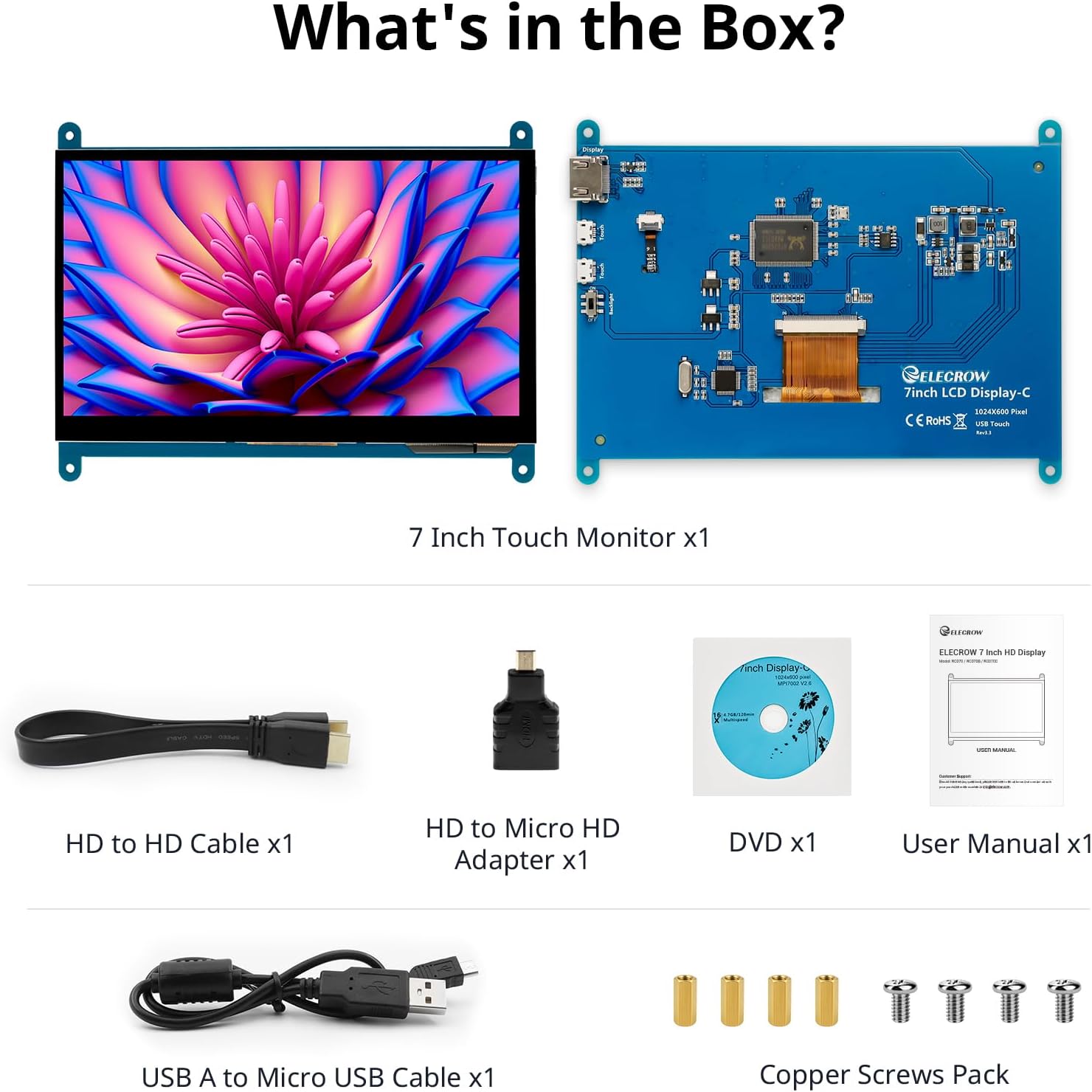
Resim: Ürün ambalajında yer alan tüm bileşenler.
3. Kurulum ve Bağlantılar
Follow these steps to connect your ELECROW 7 Inch Touchscreen Monitor to your device.
3.1 Donanım Bittiview

Resim: Arka view of the monitor highlighting the Standard HD Port, Micro USB Port for touch and power, and Backlight switch.
- Standard HD Port: For video data transfer.
- Mikro USB Bağlantı Noktası: For touch functionality and power supply.
- Arka Işık Anahtarı: To turn the display backlight on or off.
3.2 Raspberry Pi'ye Bağlanma
To connect the monitor to a Raspberry Pi, you will need both the HD cable for video and the USB cable for touch and power.
- Connect one end of the HD cable to the Standard HD Port on the monitor and the other end to the HDMI port on your Raspberry Pi. Use the Micro HD adapter if necessary for your Raspberry Pi model.
- Connect the Micro USB cable to the Micro USB Port on the monitor. Connect the other end of the USB cable to a USB port on your Raspberry Pi for power and touch data.
- Ensure the backlight switch on the monitor is in the 'On' position.
- Power on your Raspberry Pi. The display should automatically detect and show the output.
For touch functionality with Raspberry Pi, power can be supplied via the Raspberry Pi's USB port. If using an external power source for the Raspberry Pi, ensure it is sufficient. For optimal performance, especially with older Raspberry Pi models, an external power supply for the monitor might be beneficial if the Pi cannot provide enough current.
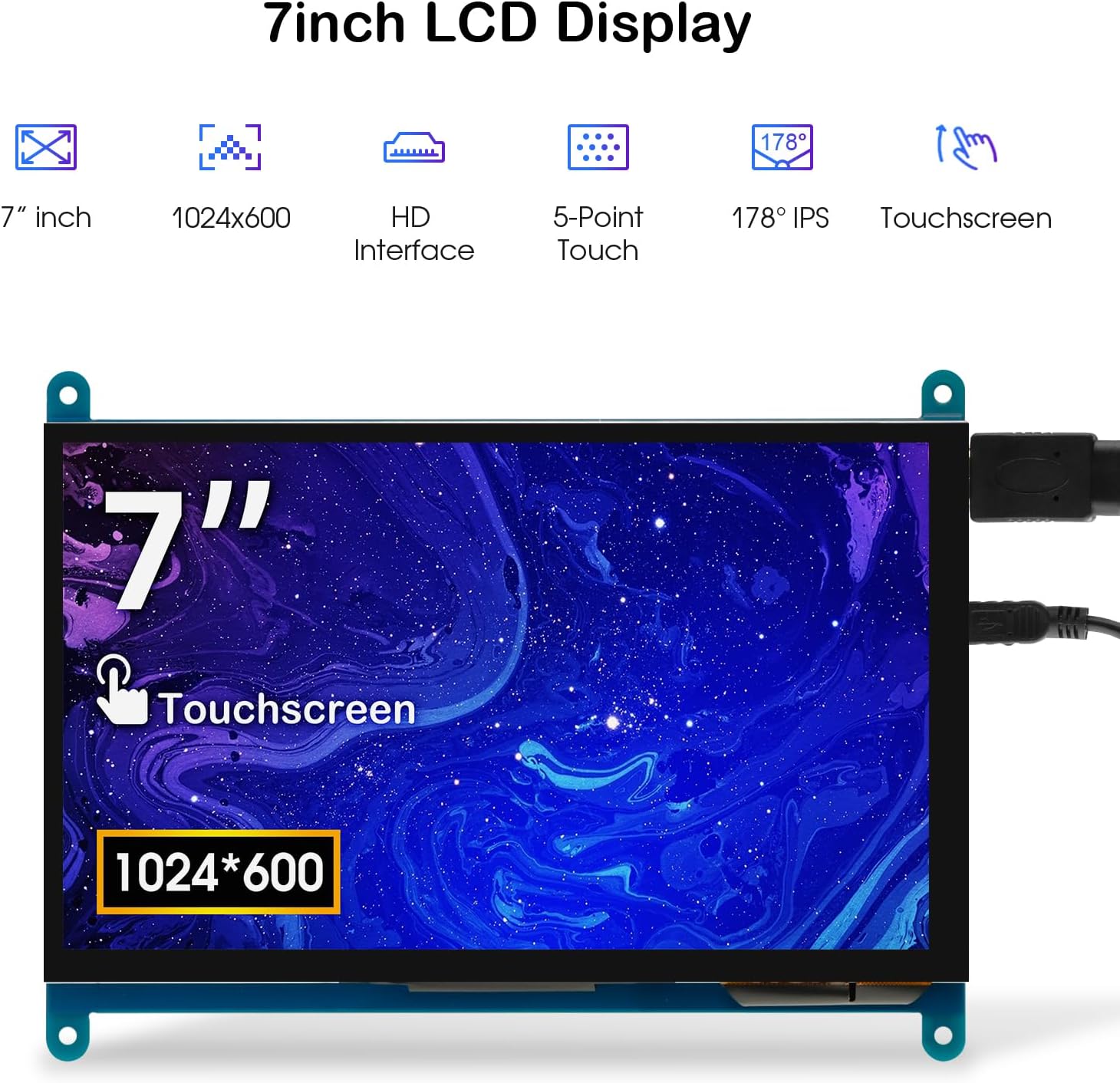
Image: The 7-inch touchscreen connected to a Raspberry Pi board, displaying a graphical user interface.
3.3 Connecting to Windows PC/Laptop
For Windows systems, the monitor functions as a plug-and-play display and touchscreen.
- Connect the HD cable from the monitor's Standard HD Port to an HDMI port on your PC or laptop.
- Connect the Micro USB cable from the monitor's Micro USB Port to a USB-A port on your PC or laptop. This provides power and enables touch functionality.
- Ensure the backlight switch is 'On'.
- Your Windows system should automatically detect the display and touchscreen. No additional drivers are typically required for Windows 7/8/10/11 for basic display and 5-point touch.

Image: The 7-inch touchscreen connected to a laptop, demonstrating seamless connectivity with various operating systems including Windows.
4. Kullanım Talimatları
4.1 Dokunmatik İşlevsellik
The monitor supports 5-point capacitive touch, allowing for various gestures.
- Musluk: Single touch for selection or activation.
- Basmak: Sustained touch for context menus or drag operations.
- Yakınlaştır/Uzaklaştır: Pinch gestures with two fingers.
- Mouse Click: A single tap typically registers as a left-click.
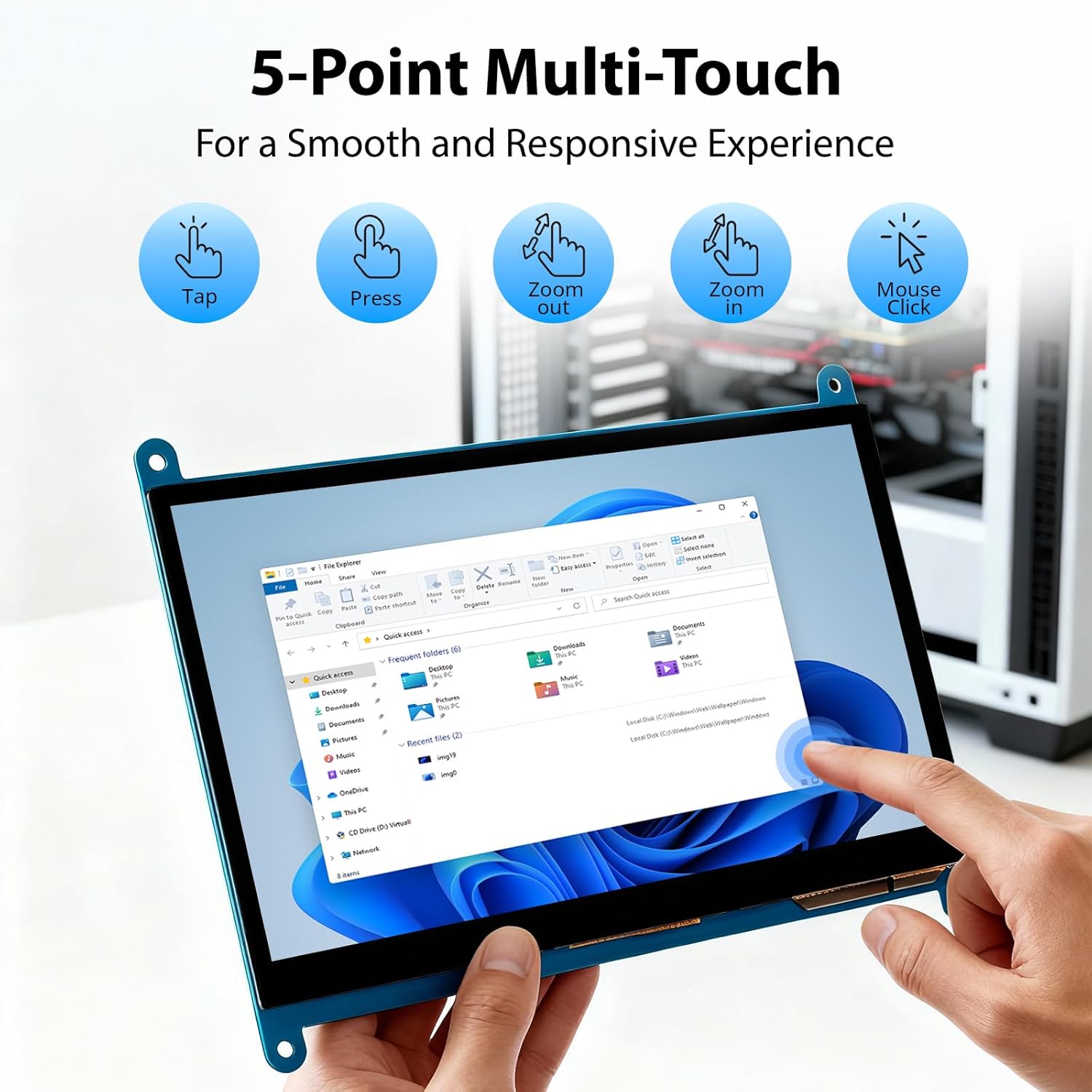
Image: Visual guide to the 5-point multi-touch capabilities of the screen, showing common gestures.
4.2 Görüntü Modları
When connected to a computer, the monitor can operate in several display modes:
- Kopya Modu: Monitör, ana ekranınızın içeriğini yansıtır.
- Uzatma Modu: The monitor acts as an extension of your primary display, providing additional screen space.
- İkinci Ekran Modu: The monitor functions as the sole display, with the primary display turned off.
Bu modlar genellikle işletim sisteminizin ekran ayarları üzerinden yapılandırılabilir.

Image: Illustrations demonstrating the three display modes: Duplicate, Extend, and Second Screen, showing how the monitor can be used with a laptop.
4.3 Arka Işık Kontrolü
The monitor features a physical switch to control the backlight. This allows you to turn the display illumination on or off without disconnecting power. Note that there is no granular brightness control; it is an on/off function only.
Video: This video demonstrates the backlight control switch on the ELECROW 7 Inch Touchscreen, showing how to turn the display illumination on and off.
5. Bakım
Doğru bakım, monitörünüzün uzun ömürlü olmasını ve optimum performans göstermesini sağlar.
- Ekranın Temizlenmesi: Yumuşak, tiftiksiz bir bez kullanın ve hafifçe kurulayın.ampened with water or a screen-cleaning solution. Avoid harsh chemicals or abrasive materials that could damage the screen surface.
- Genel Bakım: Keep the monitor in a clean, dry environment. Avoid exposing it to extreme temperatures, direct sunlight, or high humidity.
- İşleme: Handle the monitor by its edges. Avoid applying excessive pressure to the screen.
6. Sorun Giderme
Monitörünüzle ilgili sorunlarla karşılaşırsanız, aşağıdaki yaygın sorunlar ve çözümlerine bakın.
| Sorun | Olası Neden | Çözüm |
|---|---|---|
| Ekran yok/Siyah ekran |
|
|
| Dokunmatik ekran yanıt vermiyor |
|
|
| Display resolution incorrect |
|
|
| Parlaklık kontrolü yok | The monitor only has an on/off switch for the backlight, not adjustable brightness. | This is expected behavior. The monitor does not support adjustable brightness. |
7. Özellikler
Detailed technical specifications for the ELECROW 7 Inch Touchscreen Monitor.
| Özellik | Detay |
|---|---|
| Marka | ELEKTRİKLİ |
| Model Adı | RC070 |
| Ekran Boyutu | 7 inç |
| Ekran Çözünürlüğü Maksimum | 1024x600 |
| Yerel Çözünürlük | 1024x600 |
| Görüntü Türü | LCD |
| Ekran Teknolojisi | IPS |
| En Boy Oranı | 1.71:1 |
| Yenileme Hızı | 60 Hz |
| Tepki Süresi | 8 Milisaniye |
| Kontrast Oranı | 800:1 |
| Parlaklık | 300 lm |
| ViewAçı | 170 Derece |
| Ekran Yüzeyi Açıklaması | Parlak |
| Bağlantı Teknolojisi | HDMI |
| Donanım Bağlantı | HDMI, USB |
| Total Number of HDMI Ports | 1 |
| Toplam USB Bağlantı Noktaları | 2 (Micro USB for power/touch, USB-A for power/touch) |
| Güç Tüketimi | 12.5 Watt |
| Cilttage | 5 Volt |
| Ürün Boyutları (D x G x Y) | 0.3"D x 6.1"G x 4.8"Y |
| Ürün Ağırlığı | 7.36 ons |
| Uyumlu Cihazlar | Raspberry Pi, BB Black, Banana Pi, Jetson Nano, Computers, Laptops, Gaming Consoles |
8. Garanti ve Destek
Your ELECROW 7 Inch Touchscreen Monitor comes with a manufacturer's warranty.
- Garanti Türü: 1 Yıl Üretici Garantisi
- Garanti Açıklaması: 1 Yıllık Üretici
For technical support or warranty claims, please contact ELECROW customer service through their official webÜrünün satın alındığı site veya platform.