
Ürün Bittiview
The Plugable USB 3.0 to HDMI Video Graphics Adapter (Model: UGA-2KHDMI) allows you to connect an additional HDMI display to your computer via a USB 3.0 port. This adapter utilizes DisplayLink technology to provide high-resolution video output, supporting resolutions up to 2560x1440. It is designed to enhance productivity by enabling multi-monitor setups for various tasks, from professional work to educational use. Its compact and portable design ensures convenience for users on the go.

Figure 1: The Plugable USB 3.0 to HDMI Video Graphics Adapter, showing its HDMI output and USB 3.0 input. It is a compact black device.
Kutuda Neler Var?
- 1x Plugable USB 3.0 to HDMI Video Graphics Adapter (UGA-2KHDMI)
- Hızlı Başlangıç Kılavuzu (bu dijital kılavuza dahil değildir)

Figure 2: The Plugable UGA-2KHDMI adapter shown within its retail packaging, indicating the product and its basic information.
Kurulum Talimatları
- Sürücü Kurulumu: Before connecting the adapter, ensure the necessary DisplayLink drivers are installed on your computer. For Windows and macOS 10.14+, drivers can typically be downloaded from the official DisplayLink website or Plugable support page.
- Bilgisayara Bağlan: Plug the USB 3.0 connector of the UGA-2KHDMI adapter into an available USB 3.0 port on your laptop, desktop, or tablet.
- Ekrana Bağlan: Connect an HDMI cable from your external monitor to the HDMI port on the UGA-2KHDMI adapter.
- Güç Açık: Power on your external monitor. Your computer should detect the new display.
- Ekran Ayarlarını Yapılandırın: Access your operating system's display settings to configure the new monitor (e.g., extend display, duplicate display, resolution).
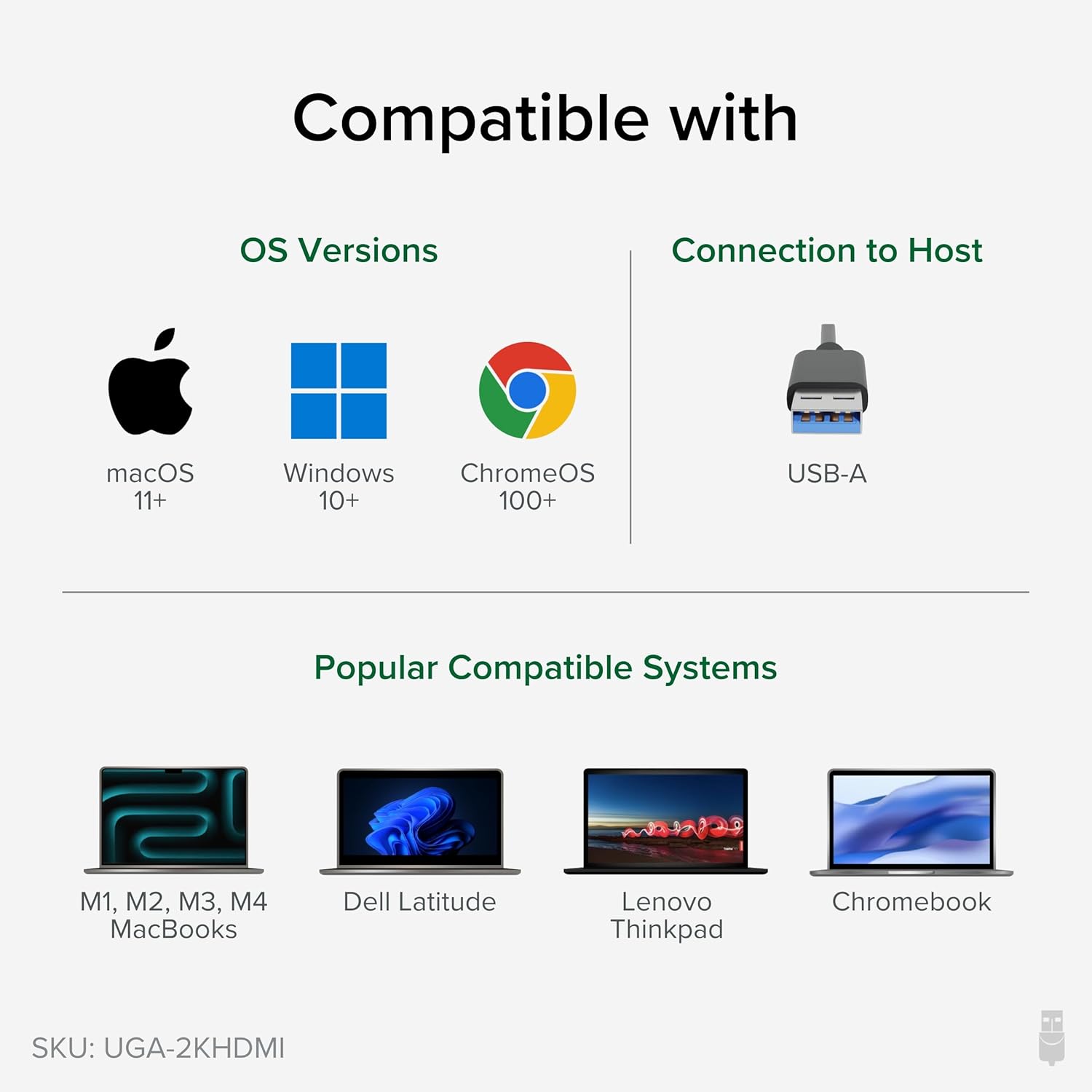
Figure 3: Illustrates the connection process of the adapter, showing the USB end plugged into a laptop and the HDMI end connected to an external monitor.
Video 1: Official Plugable video demonstrating the setup and functionality of the USB 3.0 to 2K HDMI Video Graphics Adapter, showing how to connect it and expand your screen space.
Kullanım Talimatları
Once the adapter is connected and drivers are installed, your operating system will recognize the new display. You can then configure it to suit your needs:
- Ekranı Genişlet: This mode allows you to have a larger desktop area, spreading your applications across multiple screens. This is ideal for multitasking and increasing verimliliği.
- Ekranı Çiftle (Ayna): This mode shows the same content on both your primary and external displays. Useful for presentations or sharing content.
- Birincil Ekran: You can set the external monitor as your primary display, with your laptop screen acting as an extended or secondary display.
The adapter supports resolutions up to 2560x1440. For optimal performance, ensure your monitor and computer graphics card support the desired resolution.

Figure 4: An illustration demonstrating how multiple adapters can be used to create an extensive multi-monitor setup on Windows and ChromeOS, and up to 4 displays on macOS.
Uyumluluk
The UGA-2KHDMI adapter offers broad compatibility:
- İşletim Sistemleri:
- Windows: Compatible with modern Windows laptops, desktops, or tablets, including Windows 11, 10, 7, and XP.
- macOS: Supports M1/M2/M3/M4 Macs on macOS 10.14+ with driver installation.
- Linux: Compatible with Linux (driver installation may be required).
- Bağlantı Türü: USB 3.0 (USB-A) to HDMI.

Figure 5: Visual representation of the adapter's compatibility with macOS, Windows, and ChromeOS, and various laptop models.
Özellikler
| Özellik | Detay |
|---|---|
| Marka | Takılabilir |
| Model Numarası | UGA-2KHDMI |
| Bağlayıcı Türü | USB 3.0 (USB-A) to HDMI |
| Max Çözünürlük | 2560x1440 |
| İşletim Sistemi Uyumluluğu | Windows (11, 10, 7, XP), macOS (10.14+), Linux |
| Ürün Ağırlığı | 3.53 ons |
| Ürün Boyutları (UxGxY) | 8.74 x 5.12 x 1.42 inç |
| Renk | Siyah |
Sorun giderme
- Görüntü Yok/Siyah Ekran:
- Ensure the DisplayLink drivers are correctly installed and updated.
- Tüm kabloların (USB ve HDMI) güvenli bir şekilde bağlı olduğundan emin olun.
- Bilgisayarınızda farklı bir USB bağlantı noktası deneyin.
- Test with a different HDMI cable or monitor if available.
- Restart your computer after driver installation or connection changes.
- Incorrect Resolution/Display Mode:
- Adjust display settings in your operating system (e.g., Windows Display Settings, macOS System Preferences > Displays).
- Ensure your monitor supports the selected resolution.
- Performance Issues (Lag/Choppy Video):
- Ensure the adapter is connected to a USB 3.0 port for optimal bandwidth.
- Sistem kaynaklarını boşaltmak için gereksiz uygulamaları kapatın.
- Bilgisayarınızın grafik sürücülerini güncelleyin.
Bakım
To ensure the longevity and optimal performance of your Plugable USB 3.0 to HDMI Video Graphics Adapter, follow these maintenance guidelines:
- Temizlik: Adaptörü temizlemek için yumuşak, kuru bir bez kullanın. Sıvı temizleyicilerden veya aşındırıcı malzemelerden kaçının.
- Depolamak: Kullanılmadığı zaman adaptörü serin, kuru ve doğrudan güneş ışığından ve aşırı sıcaklıklardan uzak bir yerde saklayın.
- İşleme: Avoid dropping the adapter or subjecting it to strong impacts. Do not bend or twist the attached USB cable excessively.
- Havalandırma: Ensure the adapter is not covered or placed in an enclosed space that could restrict airflow, as proper ventilation helps prevent overheating.
Garanti ve Destek
Plugable products are backed by a 2-year coverage. For technical assistance or warranty claims, please contact Plugable support. North American Lifetime Support is available from the engineers who built the product.
For more information and support resources, visit the official Plugable webalan.