
1. Giriş
This manual provides detailed instructions for installing, configuring, and maintaining your GIGABYTE GA-B150M-D3H Micro ATX motherboard. The GA-B150M-D3H is designed to support 6th Generation Intel Core Processors and features Dual Channel DDR4 memory, PCIe Gen3 x4 M.2 connector, SATA Express, and 8-channel HD audio with Audio Noise Guard.
Please read this manual thoroughly before beginning installation to ensure proper setup and operation.
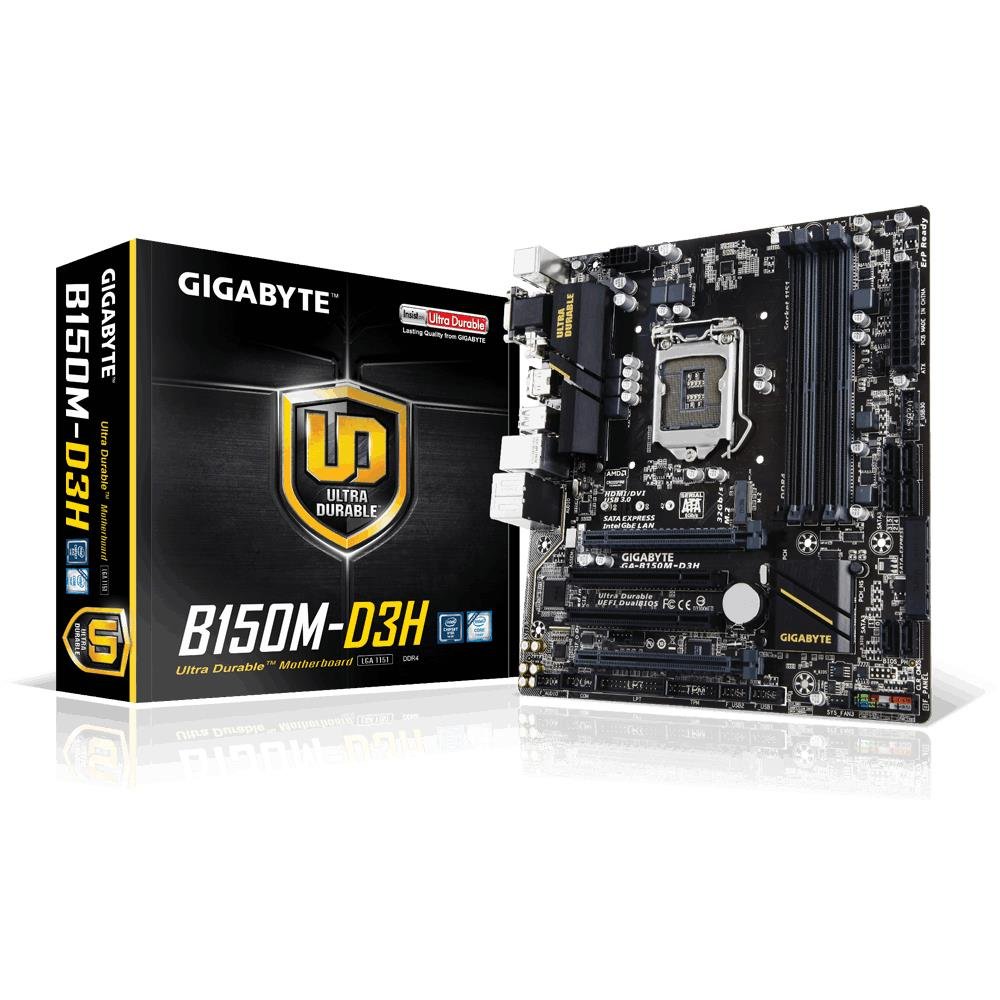
Image 1.1: GIGABYTE GA-B150M-D3H Micro ATX Motherboard. This image displays the overall layout of the motherboard, highlighting its compact Micro ATX form factor and various component slots.
2. Güvenlik Bilgileri
Anakartın hasar görmesini ve kendinize zarar gelmesini önlemek için aşağıdaki güvenlik önlemlerine uyun:
- Herhangi bir bileşene dokunmadan önce mutlaka güç kablosunu duvar prizinden çıkarın.
- Statik elektriği boşaltmak için antistatik bileklik takın veya sık sık topraklanmış metal bir nesneye dokunun.
- Hassas parçalara dokunmaktan kaçınmak için anakartı kenarlarından tutun.
- Anakartı nemden ve aşırı sıcaklıklardan uzak tutun.
- Aşırı ısınmayı önlemek için bilgisayar kasasının içinde uygun havalandırmanın olduğundan emin olun.
3. Paket İçeriği
Anakart paketinizde tüm öğelerin mevcut olduğunu doğrulayın:
- GIGABYTE GA-B150M-D3H Motherboard
- Kullanıcı Kılavuzu
- I / O Kalkanı
- SATA Kabloları
- Sürücü CD/DVD'si
Note: Contents may vary slightly depending on region or revision.
4. Anakart Düzeni
Familiarize yourself with the various components and connectors on the GA-B150M-D3H motherboard.
Image 4.1: GIGABYTE GA-B150M-D3H Motherboard Layout. This image provides a visual reference for the location of key components such as the CPU socket, DIMM slots, PCIe slots, SATA ports, and M.2 connector.
Temel Bileşenler:
- LGA 1151 CPU Soketi: For 6th Generation Intel Core Processors.
- DDR4 DIMM Yuvaları (4): Supports Dual Channel DDR4 memory up to 2133 MHz.
- PCIe Yuvaları: Includes PCIe Gen3 x16 for graphics cards and PCIe x1 slots for expansion.
- M.2 Konnektörü: Supports PCIe NVMe & SATA SSDs with up to 32Gb/s data transfer.
- SATA Express Connector: For up to 16Gb/s data transfer.
- SATA 6Gb/s Bağlantı Noktaları: For connecting traditional SATA storage devices.
- 24 Pinli ATX Güç Konnektörü: Ana güç girişi.
- 8-Pin ATX 12V Power Connector: CPU power input.
- Ön Panel Başlıkları: For power button, reset button, LED indicators, and USB ports.
- Ses Konnektörleri: 8-channel HD Audio with high quality capacitors and Audio Noise Guard.
5. Kurulum ve Kurulum
Anakartınızın ve bileşenlerinin doğru kurulumu için aşağıdaki adımları izleyin.
5.1. CPU'nun Kurulumu
- Locate the LGA 1151 CPU socket.
- CPU soket kolunu açın ve yük plakasını kaldırın.
- İşlemciyi soketle dikkatlice hizalayın ve işlemci üzerindeki altın üçgenin soket üzerindeki üçgenle eşleştiğinden emin olun. İşlemciyi sokete zorla sokmayın.
- Yük plakasını indirin ve kolla sabitleyin.
5.2. Installing the CPU Cooler
Refer to your CPU cooler's instruction manual for specific installation steps. Ensure thermal paste is applied correctly between the CPU and cooler base.
5.3. Bellek (RAM) Takma
- DDR4 DIMM yuvalarının her iki ucundaki klipsleri açın.
- Bellek modülünü yuvayla hizalayın ve modüldeki çentiğin yuvadaki anahtarla eşleştiğinden emin olun.
- Klipsler yerine oturana kadar bellek modülünün her iki ucuna sıkıca bastırın.
- For dual-channel performance, install memory modules in matching colored slots (e.g., DIMM1 and DIMM2).
5.4. Installing Expansion Cards
- Remove the metal bracket from the desired PCIe slot on your computer case.
- Genişletme kartını PCIe yuvasıyla hizalayın ve doğru şekilde oturana kadar sıkıca bastırın.
- Kartı bir vida kullanarak bilgisayar kasasına sabitleyin.
5.5. Depolama Aygıtlarının Bağlanması
- SATA Aygıtları: Connect one end of the SATA data cable to a SATA 6Gb/s port on the motherboard and the other end to your hard drive or SSD. Connect the SATA power cable from your power supply to the device.
- M.2 SSD: M.2 SSD'yi açılı bir şekilde M.2 yuvasına yerleştirin, ardından yavaşça aşağı doğru bastırın ve verilen vidayla sabitleyin.
- SATA Express: If using a SATA Express device, connect it to the designated SATA Express connector.
5.6. Ön Panel Konnektörlerinin Bağlanması
Connect the cables from your computer case's front panel (power button, reset button, HDD LED, power LED, front USB, front audio) to the corresponding headers on the motherboard. Refer to the motherboard layout diagram for exact locations and pin assignments.
5.7. Güç Kaynağının Bağlanması
- Connect the 24-pin ATX main power connector from your power supply to the 24-pin power socket on the motherboard.
- Connect the 8-pin ATX 12V CPU power connector to the 8-pin socket near the CPU.
- Tüm güç bağlantılarının güvenli olduğundan emin olun.
6. Kullanım Talimatları
6.1. İlk Önyükleme
After assembling all components, connect your monitor, keyboard, and mouse. Power on the system. The system should display the GIGABYTE splash screen and then enter the BIOS/UEFI setup or attempt to boot from a connected storage device.
6.2. BIOS/UEFI Kurulumu
BIOS/UEFI kurulumuna girmek için tuşuna basın SİL key repeatedly during the boot process when the GIGABYTE logo appears. Here you can configure system settings, boot order, and monitor hardware status. The GA-B150M-D3H features GIGABYTE UEFI Dual BIOS for enhanced reliability.
6.3. Sürücü Kurulumu
After installing your operating system, install the necessary drivers for the motherboard components. These can be found on the included driver CD/DVD or downloaded from the official GIGABYTE website. Key drivers include chipset, audio (Realtek ALC892 codec), LAN, and any integrated graphics drivers.
6.4. İşletim Sistemi Kurulumu
Insert your operating system installation media (USB drive or DVD) and configure the boot order in the BIOS/UEFI to boot from it. Follow the on-screen instructions to install your preferred operating system (e.g., Windows 8.1, Windows 10).
7. Bakım
7.1. Temizlik
Regularly clean the interior of your computer case to prevent dust buildup, which can lead to overheating. Use compressed air to remove dust from fans, heatsinks, and motherboard components. Ensure the system is powered off and unplugged before cleaning.
7.2. BIOS Güncellemeleri
GIGABYTE periodically releases BIOS updates to improve system stability, compatibility, and performance. Visit the official GIGABYTE website for your motherboard model (GA-B150M-D3H) to check for the latest BIOS version and follow the provided instructions for updating. Exercise caution during BIOS updates, as an interruption can render the motherboard inoperable.
8. Sorun Giderme
Bu bölümde karşılaşabileceğiniz yaygın sorunlar ele alınmaktadır.
8.1. Güç Yok / Sistem Açılmıyor
- Check if the power supply is connected correctly to the motherboard (24-pin and 8-pin connectors).
- Güç kaynağı anahtarının AÇIK konumunda olduğundan emin olun.
- Ön panel güç düğmesi kablosunun anakart başlığına doğru şekilde bağlı olduğundan emin olun.
- Güç kaynağını başka bir sistemle veya bir güç kaynağı test cihazıyla test edin.
8.2. Ekranda Görüntü Çıktısı Yok
- Ensure the monitor is connected to the correct graphics output (either integrated graphics on the motherboard or a dedicated graphics card).
- Grafik kartını ve bellek modüllerini yeniden yerleştirin.
- Yalnızca bir bellek modülü takılıyken önyükleme yapmayı deneyin.
- Monitörün açık olduğundan ve doğru giriş kaynağına ayarlandığından emin olun.
8.3. Sistem Kararsızlığı / Çökmeler
- CPU ve GPU sıcaklıklarının güvenli çalışma sınırları içinde olduğundan emin olmak için kontrol edin.
- Tüm sürücülerin yüklü ve güncel olduğundan emin olun.
- Arızalı RAM'i kontrol etmek için bellek tanılama araçlarını çalıştırın.
- Ensure the power supply provides sufficient and stable power to all components.
9. Özellikler
Detailed technical specifications for the GIGABYTE GA-B150M-D3H motherboard:
| Özellik | Şartname |
|---|---|
| Model Adı | GA-B150M-D3H |
| Form Faktörü | Mikro ATX (24.4 cm x 22.5 cm) |
| CPU Soketi | LGA1151 |
| Uyumlu İşlemciler | 6. Nesil Intel Core İşlemciler |
| Yonga seti | Intel B150 Express Chipset |
| Bellek Teknolojisi | DDR4 |
| Bellek Yuvaları | 4 x DDR4 DIMM sockets (Dual Channel) |
| Maksimum Bellek Kapasitesi | 16 GB |
| Bellek Saat Hızı | 2133 MHz |
| PCIe Yuvaları | 1 x PCI Express x16, 1 x Total PCIe Ports |
| Depolama Arayüzleri | PCIe Gen3 x4 M.2, SATA Express, SATA 6Gb/s |
| Ses Kodlayıcısı | Realtek ALC892 kodeği, 8 kanallı HD Ses |
| USB Bağlantı Noktaları | Total 8 USB Ports (including USB 2.0) |
| Ana Güç Konektörü | 24 Pinli ATX |
| CPU Güç Konektörü | 8-Pin ATX 12V |
| Benzersiz Özellikler | GIGABYTE UEFI Dual BIOS, Audio Noise Guard with LED Trace Path Lighting, App Center (Easy Tune, Cloud Station) |
10. Garanti ve Destek
For warranty information, please refer to the warranty card included in your product package or visit the official GIGABYTE webSite. Garanti şartları ve koşulları bölgeye göre değişiklik gösterebilir.
For technical support, driver downloads, BIOS updates, and further product information, please visit the GIGABYTE official support webalan:
https://www.gigabyte.com/Support
When contacting support, please have your motherboard model (GA-B150M-D3H) and serial number ready.


