
1. Ürün Bittiview
The BUFFALO DriveStation Ultra is a high-performance, high-capacity direct attached storage (DAS) solution designed for demanding data transfer needs, such as high-resolution video editing. This 10-drive desktop model offers a 40 TB storage capacity and features multi-interface support for both Mac and PC systems.
Temel özellikler şunlardır:
- Industry-leading throughput: Up to 972 MB/s Read and 737 MB/s Write speeds.
- Multi-interface support: Thunderbolt 2 for Mac, and eSATA/USB 3.0 for Windows.
- Advanced data protection: Supports RAID 6 configurations, allowing for up to two drive failures without data loss.
- Equipped with enterprise or NAS hard drives for continuous operation.
1.1 Kutuda Neler Var?
- DriveStation™ Ultra unit
- yıldırım kablosu
- USB 3.0 kablosu
- eSATA kablosu
- Hızlı kurulum kılavuzu
- Garanti beyanı
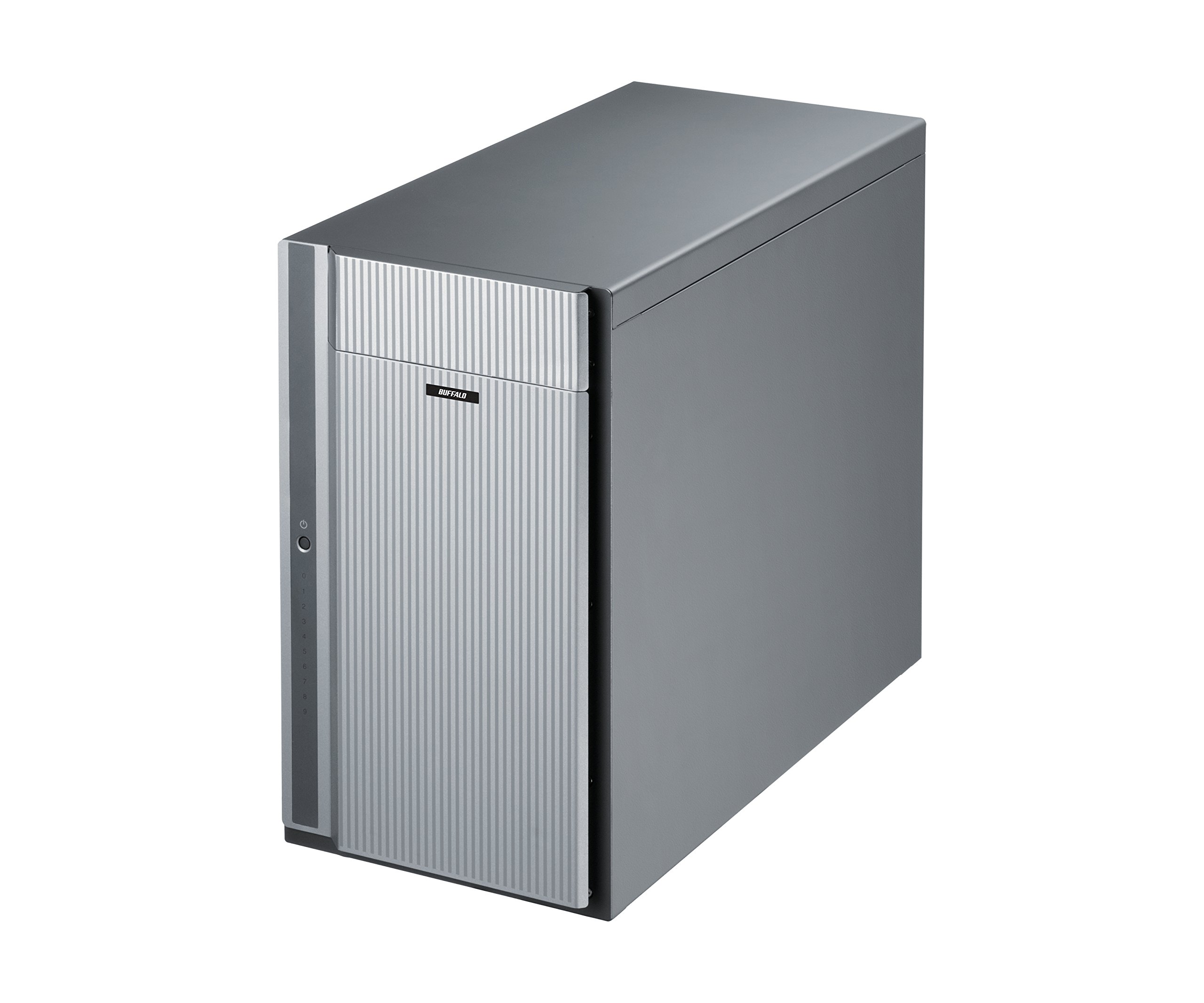
Şekil 1: Ön view of the BUFFALO DriveStation Ultra unit.
2. Kurulum Talimatları
Follow these steps to set up your DriveStation Ultra:
- Cihazın Paketini Açın: Carefully remove the DriveStation Ultra and all accessories from its packaging.
- Cihazı Konumlandırın: Place the unit on a stable, flat surface with adequate ventilation. Ensure no vents are obstructed.
- Gücü bağlayın: Connect the power cable to the unit and then to a power outlet. Do not power on the device yet.
- Bilgisayara Bağlan: Aşağıdaki bağlantı yöntemlerinden birini seçin:
- Thunderbolt 2 (Mac): Use the provided Thunderbolt cable to connect the DriveStation Ultra to your Mac's Thunderbolt port.
- USB 3.0 (PC/Mac): Use the provided USB 3.0 cable to connect the DriveStation Ultra to your computer's USB 3.0 port.
- eSATA (PC): Use the provided eSATA cable to connect the DriveStation Ultra to your computer's eSATA port.
- Güç Açık: Once connected, press the power button on the DriveStation Ultra. The device will initialize.
- Sürücü Kurulumu (gerekirse): Your operating system should automatically detect the device. If prompted, install any necessary drivers from the included software or BUFFALO's support webalan.
- RAID Yapılandırması: The DriveStation Ultra comes pre-configured. For advanced RAID configurations (e.g., changing from default RAID 6), refer to the detailed software manual available on the BUFFALO support webalan.

Şekil 2: Arka view of the DriveStation Ultra, highlighting Thunderbolt, USB 3.0, and eSATA ports.
3. Kullanım Talimatları
Once the DriveStation Ultra is set up and recognized by your computer, it functions as an external storage device. You can access it like any other connected drive.
- Veri Transferi: Sürükle ve bırak files to and from the DriveStation Ultra. For optimal performance, use the Thunderbolt 2 connection on Mac systems or USB 3.0/eSATA on PC systems.
- Performans: Expect high-speed data transfers, particularly with large files, due to the optimized hardware and RAID configuration.
- Güvenli Kaldırma: Always safely eject the DriveStation Ultra from your operating system before disconnecting the cables or powering down the unit to prevent data corruption.
- Güç yönetimi: The device is designed for continuous operation. If you need to power it off, use the power button on the unit after safely ejecting it from your computer.
4. Bakım
Proper maintenance ensures the longevity and reliability of your DriveStation Ultra:
- Temizlik: Use a soft, dry cloth to clean the exterior of the unit. Do not use liquid cleaners or aerosols directly on the device.
- Havalandırma: Ensure that the ventilation openings are clear of dust and obstructions to prevent overheating.
- Donanım Yazılımı Güncellemeleri: Periodically check the BUFFALO support website for firmware updates. Keeping the firmware updated can improve performance and stability.
- Veri Yedekleme: While the DriveStation Ultra offers RAID 6 for data protection, it is always recommended to maintain separate backups of critical data.
- Sağlığı Sürün: Monitor the health of the drives using the included utility software or your operating system's disk management tools.
5. Sorun Giderme
If you encounter issues with your DriveStation Ultra, try the following steps:
- Cihaz Algılanamadı:
- Güç kablosunun güvenli bir şekilde bağlı olduğundan ve cihazın açık olduğundan emin olun.
- Verify that the data cable (Thunderbolt, USB, or eSATA) is firmly connected to both the DriveStation Ultra and your computer.
- Try connecting to a different port on your computer or using a different cable.
- Restart your computer and the DriveStation Ultra.
- Yavaş Performans:
- Ensure you are using the correct high-speed interface (Thunderbolt 2, USB 3.0, or eSATA) and compatible cables.
- Check for background processes on your computer that might be consuming resources.
- Verify that the DriveStation Ultra has adequate ventilation to prevent thermal throttling.
- Sürücü Arızası Göstergesi:
- The DriveStation Ultra's RAID 6 configuration provides protection against up to two drive failures. Consult the detailed manual or BUFFALO support for drive replacement procedures.
- Do not attempt to replace drives without proper guidance to avoid data loss.
- Diğer Konular: If the problem persists after trying these steps, refer to the comprehensive user manual on the BUFFALO support websitesine bakın veya teknik destekle iletişime geçin.
6. Özellikler
| Özellik | Detay |
|---|---|
| Sabit Disk Kapasitesi | 40 TB Mekanik Sabit Disk |
| Marka | BIZON |
| Seri | DriveStation Ultra |
| Model Numarası | HD-DN040T/R6 |
| Donanım Platformu | Mac, PC |
| Ürün Ağırlığı | 39.7 pound |
| Ürün Boyutları (UxGxY) | 15.24 x 7.48 x 12.6 inç |
| Renk | Gümüş |
| Sabit Sürücü Arayüzü | eSATA |
| Sabit Sürücü Dönüş Hızı | 7200 RPM |
| Bağlantı Teknolojisi | Thunderbolt, USB, eSATA |
| Kurulum Türü | Harici Sabit Sürücü |
| İlk Mevcut Tarih | 22 Temmuz 2015 |
7. Garanti Bilgileri
The BUFFALO DriveStation Ultra 10-Drive Thunderbolt Desktop DAS 40 TB (Model HD-DN040T/R6) comes with a 3 Yıllık Sınırlı Garanti.
For detailed terms and conditions of the warranty, please refer to the warranty statement included in your product packaging or visit the official BUFFALO webalan.
8. Destek
For technical assistance, additional documentation, or to download the latest drivers and firmware, please visit the official BUFFALO support webalan.
You can typically find support resources by searching for your product model (HD-DN040T/R6) on the BUFFALO support portal.
Contact information for customer service may also be available on the BUFFALO website or in your product's quick setup guide.