
1. Üzeriview
The Intel NUC NUC5i5RYH is a compact desktop system designed for versatile computing. It integrates the capabilities of a full desktop PC into a small form factor, measuring approximately 4x4 inches. This unit is built with a 5th generation Intel Core i5 processor, offering performance suitable for various tasks including media consumption, content creation, and general office use. Its design allows for customization with user-supplied memory and storage components, including support for a 2.5-inch drive.
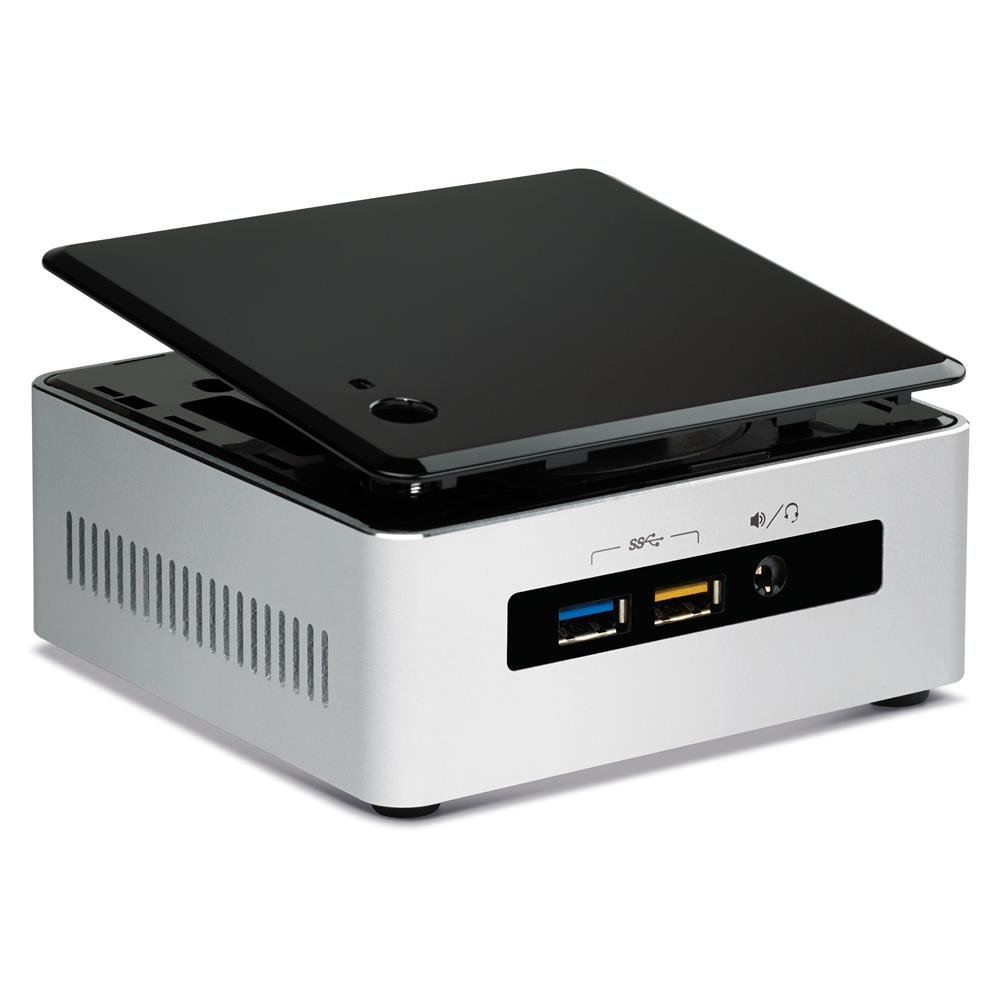
Figure 1: Intel NUC NUC5i5RYH Mini PC
Ürün Videosu Bittiview
Video 1: Resmi ürün bittiview highlighting the compact size and versatile applications of the Intel NUC.
2. Kutuda Neler Var?
The Intel NUC NUC5i5RYH is a barebones kit, meaning essential components like RAM and storage are not included and must be purchased separately. The package typically contains:
- Intel NUC NUC5i5RYH Unit
- Güç Adaptörü
- VESA Mounting Plate and Screws
- Hızlı Başlangıç Kılavuzu
Not: Memory (RAM), storage (SSD/HDD), and an operating system are not included and must be installed by the user.
3. Kurulum ve Kurulum
This section outlines the general steps for setting up your Intel NUC. For detailed instructions, refer to the comprehensive installation guide available on the Intel support webalan.
3.1 Bellek (RAM) Takma
- Unscrew the bottom cover of the NUC unit.
- Locate the two SODIMM memory slots.
- Insert DDR3L SODIMM modules (up to 16GB total) into the slots, ensuring they are seated correctly and the clips engage. If installing a single 8GB module, use the lower slot.
- Alt kapağı değiştirin.
3.2 Installing Storage
The NUC5i5RYH supports both 2.5-inch SATA drives (HDD or SSD) and M.2 SSDs.
For 2.5-inch SATA Drive:
- Alt kapağı çıkardıktan sonra, 2.5 inçlik sürücü yuvasını bulun.
- Carefully connect the SATA data and power cables to your 2.5-inch drive.
- Secure the drive in the bay using the provided screws. Ensure the drive height does not exceed 7mm.
For M.2 SSD:
- Anakart üzerindeki M.2 yuvasını bulun.
- Insert the M.2 SSD into the slot at an angle and then gently push it down.
- Secure the M.2 SSD with the small screw provided with the NUC.
3.3 Çevre Birimlerini Bağlama
- Görüntülemek: Connect your monitor to the NUC using an HDMI or DisplayPort cable. Note that the NUC features a Mini-HDMI port, which may require an adapter for standard HDMI cables.
- USB Cihazları: Klavyenizi, farenizi ve diğer USB aygıtlarınızı mevcut USB 3.0 bağlantı noktalarına bağlayın.
- Ağ: Connect an Ethernet cable for wired network access, or use the built-in Wi-Fi.
- Ses: Connect speakers or headphones to the audio jack.
3.4 İşletim Sistemi Kurulumu
After installing memory and storage, install your preferred operating system (e.g., Windows 7, 8.1, 10, or Linux distributions like Ubuntu) from a USB drive or network source. Ensure you download the latest drivers from the Intel support webEn iyi performans için site.
4. Intel NUC'unuzu Çalıştırma
Once setup is complete and the operating system is installed, your Intel NUC is ready for use.
4.1 Güç Açma/Kapatma
Press the power button located on the top of the unit to turn the NUC on or off. A short press will typically put the system to sleep, while a longer press will force a shutdown.
4.2 Ekran ve Ses
The Intel NUC NUC5i5RYH supports high-resolution displays up to 3840x2160 (4K) via HDMI and DisplayPort. Ensure your display is set to the correct input source. Audio output is available through HDMI (for displays with integrated speakers) or the 3.5mm audio jack.
4.3 Bağlantı
Utilize the multiple USB 3.0 ports for high-speed data transfer and peripheral connections. The integrated Wi-Fi and Ethernet port provide flexible network options.
5. Bakım
Düzenli bakım, Intel NUC'unuzun uzun ömürlü olmasını ve en iyi performansı göstermesini sağlamaya yardımcı olur.
- Temiz tut: Periodically clean the exterior of the NUC with a soft, dry cloth. Ensure ventilation openings are free from dust and obstructions to prevent overheating.
- Yazılım Güncellemeleri: Regularly update your operating system, drivers, and BIOS. Visit the Intel support website for the latest driver and BIOS updates specific to the NUC5i5RYH model.
- Fan Gürültüsü: The NUC is designed to be quiet, but fan noise may become noticeable under heavy load. Ensure proper ventilation and keep the unit in an area where minor fan sounds are not disruptive.
6. Sorun Giderme
Bu bölümde, Intel NUC'unuzla karşılaşabileceğiniz yaygın sorunlar ele alınmaktadır.
6.1 Ekran Sorunları
- Görüntü Yok/Siyah Ekran: Ensure all display cables are securely connected. Verify the monitor is set to the correct input source. If using a Mini-HDMI to HDMI adapter, ensure it is functioning correctly.
- Occasional Display Snow: This can sometimes occur. Try changing the HDMI input on your TV/monitor and then switching back. Ensure your display drivers are up to date. Consider trying a different Mini-HDMI to HDMI cable.
- 4K Resolution at 30Hz instead of 60Hz: The Mini-HDMI port is HDMI 1.4, which supports 4K at 30Hz. For 4K at 60Hz, use the DisplayPort with an active adapter to HDMI 2.0 if your display requires HDMI.
- DRM Issues with DisplayPort: Some users have reported issues with Digital Rights Management (DRM) when using DisplayPort with certain applications (e.g., Windows Media Center). This may be a limitation of the DisplayPort or the adapter used.
6.2 Performans Sorunları
- Yavaş Performans: Ensure sufficient RAM is installed (up to 16GB DDR3L). Verify that your storage drive (SSD/HDD) is functioning correctly and has enough free space. Check for background processes consuming resources.
- Aşırı Isınma: Ensure the NUC is placed in a well-ventilated area and that its vents are not blocked. Dust accumulation can impede airflow; refer to the maintenance section for cleaning.
6.3 Bağlantı Sorunları
- Wi-Fi/Bluetooth Problems: Ensure wireless drivers are installed and up to date. Check for interference from other devices.
- USB Aygıtı Tanınmadı: Cihazı farklı bir USB bağlantı noktasına bağlamayı deneyin. Cihaz sürücülerinin yüklü olduğundan emin olun.
7. Özellikler
| Özellik | Detay |
|---|---|
| Marka | Akıllı |
| Model Numarası | BOXNUC5i5RYH |
| CPU Modeli | Intel Core i5-5250U |
| CPU Hızı | 2.5 GHz |
| Grafik Eş İşlemcisi | Intel HD Grafik 6000 |
| RAM Bellek Teknolojisi | DDR3L 1600 MHz |
| Max RAM Memory | 16 GB |
| Sabit Disk Arayüzü | Serial ATA (for 2.5" HDD/SSD), M.2 |
| Depolama Sürücüsü Desteği | 2.5-inch SATA HDD/SSD (max 7mm height) |
| USB Bağlantı Noktaları | 6 (USB 3.0) |
| Video Çıkışı | Mini-HDMI (HDMI 1.4), Mini DisplayPort |
| Maksimum Ekran Çözünürlüğü | 3840x2160 (4K) |
| Kablosuz Bağlantı | Wi-Fi (802.11ac), Bluetooth |
| Ağ Arayüzü | Gigabit Ethernet |
| Ürün Boyutları (U x G x Y) | 5.4 x 3.94 x 4.92 inç |
| Ürün Ağırlığı | 0.9 Pound |
| İşletim Sistemi Desteği | Windows 7, 8.1, 10, Linux (user installed) |
8. Garanti ve Destek
Garanti bilgileri ve teknik destek için lütfen resmi Intel web sitesine bakın. website or contact Intel customer service directly. Intel provides comprehensive support resources, including drivers, documentation, and troubleshooting guides for NUC products.
Users have reported positive experiences with Intel's support, noting prompt and helpful assistance for product-related inquiries and replacements.
Intel Desteği Webalan: https://www.intel.com/content/www/us/en/support/products/83916/mini-pcs/intel-nuc-kits/intel-nuc-kit-with-5th-generation-intel-core-processors.html