1. Giriş
This manual provides essential instructions for the setup, operation, maintenance, and troubleshooting of your IBM Lenovo Preferred Pro USB Wired Keyboard and Mouse Set. Please read this manual thoroughly before using the product to ensure proper functionality and longevity.
2. Ürün Bittiview
The IBM Lenovo Preferred Pro USB Wired Keyboard and Mouse Set offers a reliable input solution for your computer. The keyboard features a standard layout with a numeric keypad, while the mouse is a 2-button optical mouse with a scroll wheel. Both devices connect via a standard USB interface, providing plug-and-play compatibility with most operating systems.

Şekil 2.1: Üst view of the IBM Lenovo Preferred Pro USB Wired Keyboard.
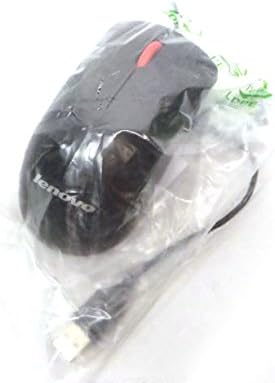
Şekil 2.2: Üst view of the Lenovo USB 2-Button Optical Mouse.
Temel Özellikler:
- USB Wired Connectivity: Ensures a stable and reliable connection.
- Plug-and-Play: No additional drivers typically required for basic functionality.
- Standard Keyboard Layout: Full-size keyboard with numeric keypad.
- Optical Mouse: Precise tracking with a scroll wheel for easy navigation.
3. Kurulum
Follow these steps to connect your keyboard and mouse to your computer.
- Cihazları Paketinden Çıkarın: Klavyeyi ve fareyi ambalajlarından dikkatlice çıkarın.
- Identify USB Connectors: Locate the USB connectors at the end of the keyboard and mouse cables.
- Bilgisayara Bağlan: Insert the USB connector of the keyboard into an available USB port on your computer. Repeat this step for the mouse.
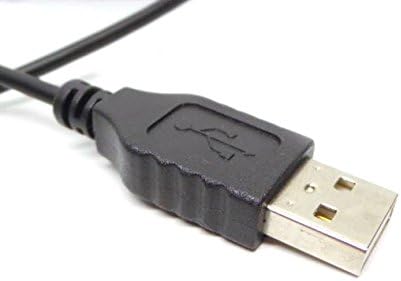
Figure 3.1: Close-up of a standard USB Type-A connector, used for connecting the keyboard and mouse.
Your computer should automatically detect and install the necessary drivers for the keyboard and mouse. No additional software installation is typically required for basic functionality.
4. Kullanım Talimatları
4.1 Klavye Kullanımı
- Yazma: Metin girişi için alfanümerik tuşları kullanın.
- Fonksiyon Tuşları (F1-F12): Bu tuşlar, uygulamaya veya işletim sistemine bağlı olarak çeşitli işlevler yerine getirir.
- Sayısal tuş takımı: Use the dedicated numeric keypad for efficient data entry. Ensure the "Num Lock" indicator light is on.
- Özel anahtarlar: Utilize keys like "Print Screen", "Scroll Lock", "Pause/Break", "Insert", "Home", "Page Up", "Delete", "End", and "Page Down" for their respective functions.
4.2 Fare Kullanımı
- Hareket: Move the mouse across a flat surface to control the cursor on the screen.
- Sol tık: Öğeleri seçmek, bağlantıları açmak veya işlevleri etkinleştirmek için sol düğmeye basın.
- Sağ tık: Press the right button to open context menus.
- Kaydırma tekerleği: Belgeler arasında gezinmek için fare tekerleğini yukarı veya aşağı kaydırın. web Sayfalar. Kaydırma tekerleği aynı zamanda orta tıklama düğmesi olarak da işlev görebilir.
5. Bakım
Proper care and maintenance will extend the life of your keyboard and mouse.
- Temizlik:
- Disconnect devices from the computer before cleaning.
- Yumuşak bir d kullanınamp cloth with a mild cleaning solution (e.g., water or isopropyl alcohol) to wipe surfaces.
- Avoid excessive moisture, especially near keycaps and optical sensors.
- Use compressed air to remove dust and debris from between keyboard keys.
- Depolamak: Cihazları temiz, kuru bir ortamda, aşırı sıcaklıklardan ve doğrudan güneş ışığından uzakta saklayın.
- Dökülmeleri Önleyin: Hasar görmesini önlemek için klavye ve fareyi sıvılardan uzak tutun.
6. Sorun Giderme
If you encounter issues with your keyboard or mouse, refer to the following common problems and solutions:
| Sorun | Olası Neden | Çözüm |
|---|---|---|
| Klavye/Fare yanıt vermiyor | Gevşek USB bağlantısı, arızalı USB portu, sürücü sorunu. |
|
| Keys not working or typing incorrectly | Debris under keys, software conflict, keyboard settings. |
|
| Fare imleci düzensiz veya hareket etmiyor | Dirty optical sensor, unsuitable surface, software issue. |
|
If the problem persists after trying these solutions, contact customer support or your reseller for further assistance.
7. Özellikler
| Özellik | Detay |
|---|---|
| Keyboard Model Numbers | 54Y9400, 41A5289, SK-8825, KB1021 |
| Mouse Model Numbers | 45J4888, 25011476, 45J4889, M-U0025-O |
| Marka | IBM / Lenovo |
| Renk | Siyah |
| Bağlantı Teknolojisi | USB Kablolu |
| Klavye Türü | Preferred Pro USB Wired Keyboard |
| Fare Türü | 2-Button Black Red Scroll Wheel Optical Mouse |
| Paket Boyutları | 22 x 10.2 x 4.7 inç (yaklaşık) |
| Ürün Ağırlığı | 1 pound (yaklaşık) |
| Üretici | Lenovo |
8. Garanti ve Destek
For warranty information, please refer to the documentation provided at the time of purchase or contact your reseller. IBM and Lenovo products typically come with a standard manufacturer's warranty.
For technical support or further inquiries, please contact the product's manufacturer or the authorized reseller from whom you purchased the item. Keep your purchase receipt and product model numbers handy for faster service.