
1. Giriş
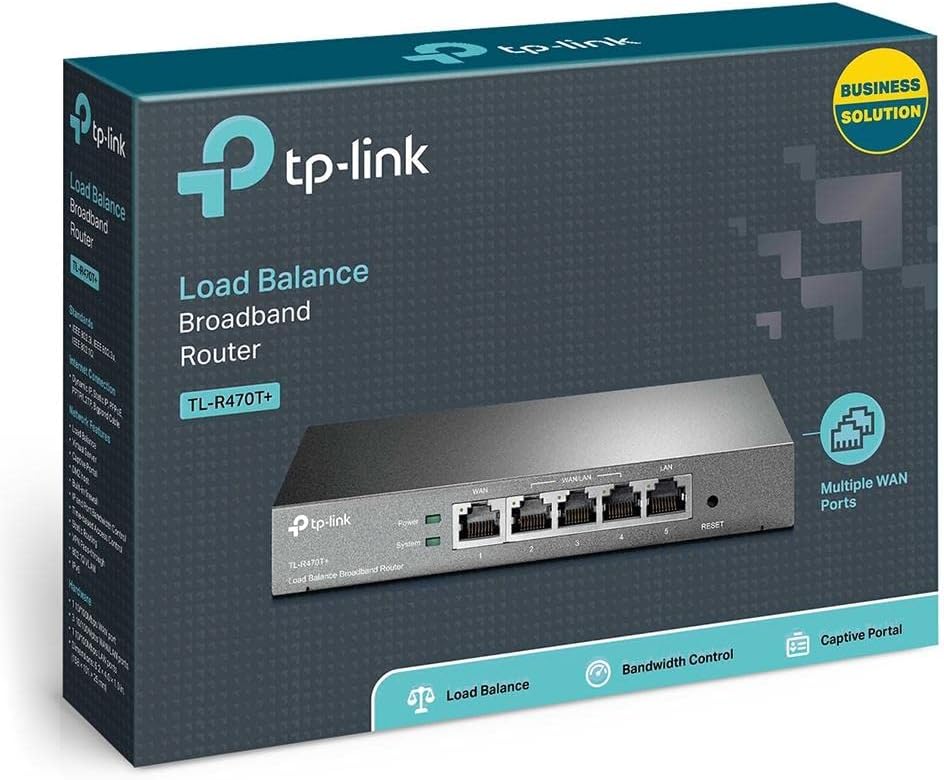
The TP-Link TL-R470T+ Load Balance Broadband Router is designed for small businesses requiring robust and flexible network connectivity. This device offers advanced features to ensure consistent network uptime and reliable Ethernet connectivity, optimizing internet access through multiple WAN connections.
2. Ürün Özellikleri
- Multi-WAN Ports: Features three changeable WAN/LAN ports, allowing configuration for up to four WAN ports to meet diverse internet access requirements.
- Smart Load Balancing: Automatically distributes network traffic across multiple WAN connections based on load and bandwidth, ensuring optimal performance and reliability.
- Gelişmiş Güvenlik: Includes Denial of Service (DoS) attack detection and blocking (TCP/UDP/ICMP flooding, Ping of Death), along with IP/MAC/URL/Web filtering functions to protect against intruders and viruses.
- Efficient Access Management: Supports PPPoE server functionality for user authentication and IP-based bandwidth control to manage bandwidth usage. The e-bulletin feature allows for periodic web-page notifications to user groups.
- Yıldırımdan Korunma: Incorporates professional lightning protection technology designed to prevent electrical surges up to 4KV, safeguarding networking infrastructure.
- DDNS Support: Facilitates easy remote management using a domain name.
- IP and MAC Binding: Prevents ARP virus attacks by binding IP addresses to MAC addresses.
3. Paket İçeriği
Paketinizin aşağıdaki öğeleri içerdiğini doğrulayın:
- TP-Link TL-R470T+ Yük Dengeleme Geniş Bant Yönlendirici
- Güç Kablosu
- RJ-45 Ethernet Kablosu
- Hızlı Kurulum Kılavuzu
4. Kurulum
Follow these steps to set up your TL-R470T+ router:
- Fiziksel Bağlantı:
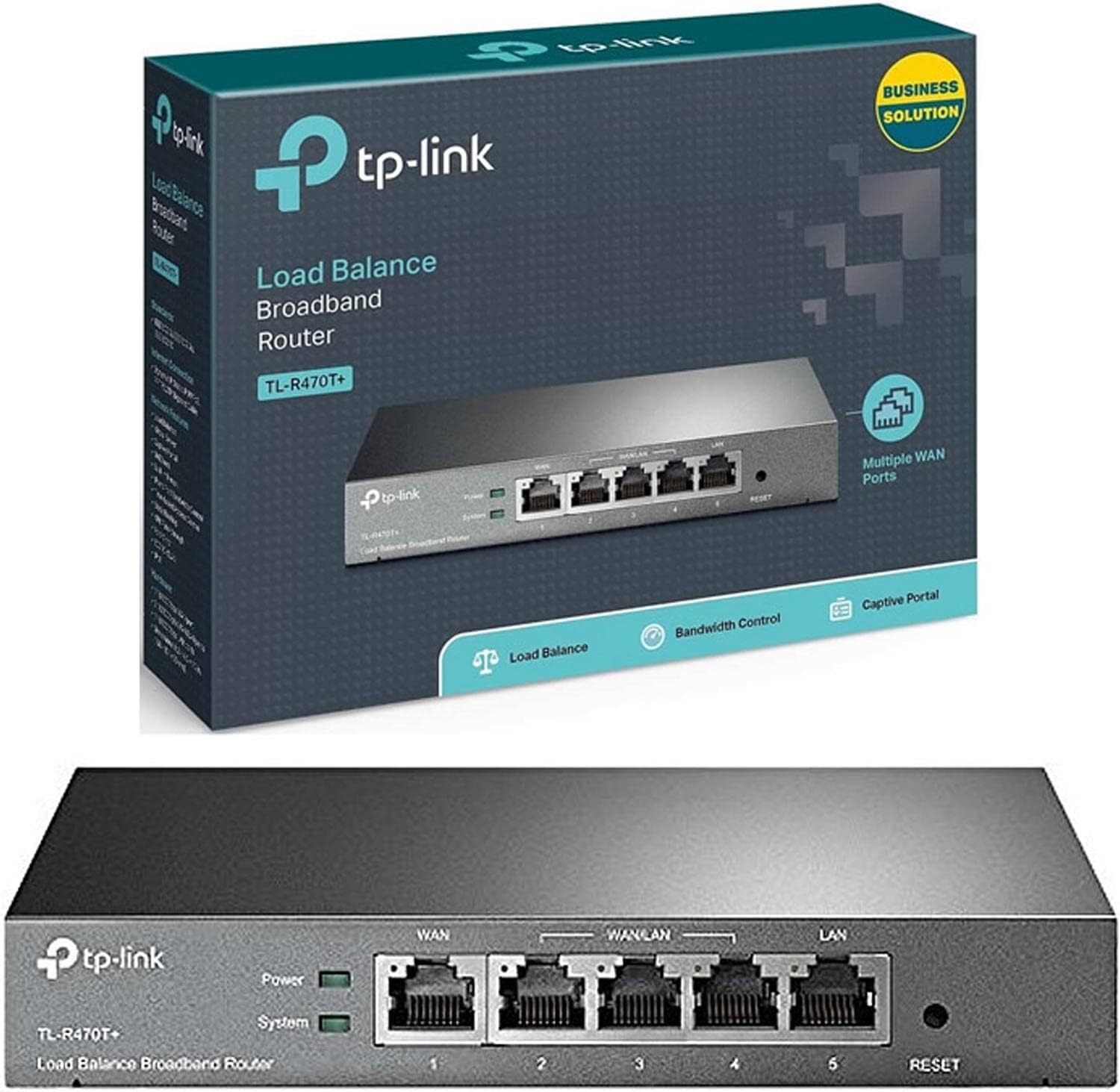
Resim: Ön view of the TL-R470T+ router, displaying the WAN port, three configurable WAN/LAN ports, and one dedicated LAN port, along with power and system LED indicators.
- Connect your modem's Ethernet cable to the router's dedicated WAN port (Port 1).
- If using additional WAN connections, connect them to the configurable WAN/LAN ports (Ports 2-4).
- Connect your local network devices (computers, switches) to the LAN port (Port 5) or other configurable ports set as LAN.
- Connect the power adapter to the router's power input and plug it into an electrical outlet.
Resim: Arka view of the TL-R470T+ router, highlighting the power input (9V=0.6A) and a Kensington lock slot for physical security.
- Başlangıç konfigürasyonu:
- Bir tane aç web browser on a computer connected to the router's LAN port.
- Varsayılan IP adresini girin (genellikle 192.168.0.1) adres çubuğuna girin.
- Log in using the default username and password (refer to the Quick Installation Guide for details).
- Follow the on-screen wizard to configure your WAN connections and basic network settings.
5. Kullanım Talimatları
Once set up, the TL-R470T+ operates to manage your network traffic efficiently.
- Yük dengeleme: The router intelligently distributes internet traffic across active WAN connections. You can configure load balancing policies via the web interface to prioritize certain connections or applications.
- Firewall and Filtering: Access the security settings in the web interface to configure IP/MAC/URL filtering rules and enable DoS attack protection. This helps secure your network from external threats.
- Bant Genişliği Kontrolü: Utilize the IP-based bandwidth control feature to allocate specific bandwidth limits to different users or devices on your network, ensuring fair usage and preventing congestion.
- Port Forwarding (Virtual Servers): For applications requiring external access to internal network resources (e.g., FTP servers, gaming servers), configure Virtual Servers (Port Forwarding) in the router's settings.
- Dinamik DNS (DDNS): If you have a dynamic public IP address, configure DDNS to associate a fixed domain name with your router, enabling consistent remote access.
6. Bakım
Düzenli bakım, yönlendiricinizin optimum performans göstermesini ve uzun ömürlü olmasını sağlar.
- Donanım Yazılımı Güncellemeleri: TP-Link resmi sitesini düzenli olarak kontrol edin. webÜrün yazılımı güncellemeleri için site. Ürün yazılımını güncellemek performansı artırabilir, yeni özellikler ekleyebilir ve güvenlik açıklarını giderebilir.
- Yapılandırma Yedekleme: Yönlendiricinizin yapılandırma ayarlarını düzenli olarak yedekleyin. web interface. This allows for quick restoration in case of accidental changes or a factory reset.
- Fiziksel Çevre: Ensure the router is placed in a well-ventilated area, away from direct sunlight, heat sources, and moisture. Keep the device clean and free from dust accumulation.
- Yıldırımdan Korunma: While the device has built-in lightning protection, ensure proper grounding of your electrical system to maximize its effectiveness.
7. Sorun Giderme
Bu bölümde karşılaşabileceğiniz yaygın sorunlar ele alınmaktadır.
- İnternet erişimi yok:
- Verify that your modem is working correctly and providing an internet connection.
- Check the WAN port LED indicators on the router; they should be lit.
- Ensure WAN settings (IP address, DNS) are correctly configured in the router's web arayüz.
- Hem modeminizi hem de yönlendiricinizi yeniden başlatın.
- Yavaş İnternet Hızı:
- İnternet servis sağlayıcınızın hızını kontrol edin.
- Review load balancing settings to ensure optimal distribution across WANs.
- Check for any active bandwidth control rules that might be limiting speed for your device.
- Erişilemiyor Web Yönetim Sayfası:
- Bilgisayarınızın yönlendiricinin LAN portuna bağlı olduğundan emin olun.
- Bilgisayarınızın IP adresinin yönlendiriciyle aynı alt ağda olduğundan emin olun (örneğin, 192.168.0.x).
- Tarayıcınızın önbelleğini temizlemeyi veya farklı bir tarayıcı kullanmayı deneyin.
- If the issue persists, perform a factory reset by pressing and holding the reset button for approximately 5-10 seconds while the router is powered on. Note: This will erase all custom configurations.
8. Özellikler
| Ürün Model Numarası | TL-R470T+ |
| Marka | TP-Link |
| Arayüz Türü | 1 Fixed Ethernet WAN Port, 1 Fixed Ethernet LAN Port, 3 Changeable Ethernet WAN/LAN Ports |
| Port Sayısı | 5 |
| Veri Aktarım Hızı | Saniyede 100 Megabit |
| Cilttage | 240 Volt |
| Ürün Ağırlığı | 0.46 Kilogram (1.02 pound) |
| Ürün Boyutları | 8.3 x 1.1 x 5 inç |
| İşletim Sistemi Uyumluluğu | Microsoft Windows 8, 7, Vista, XP or MAC OS, NetWare, UNIX or Linux |
| Kablosuz Tip | 802.11ac (Note: This device is a wired router, 802.11ac refers to internal component compatibility, not wireless functionality) |
| Flaş Bellek Boyutu | 4 MB |
9. Garanti ve Destek
For warranty information, technical support, and further assistance, please refer to the official TP-Link website or contact TP-Link customer service directly. The Quick Installation Guide included with your product may also contain specific warranty details for your region.