
giriiş
The ADATA S102PRO is a high-performance USB 3.0 flash drive designed for fast and reliable data storage and transfer. Its durable design and high-speed interface make it ideal for everyday use, allowing you to carry important files, documents, photos, and videos with ease.
Kurmak
Follow these steps to begin using your ADATA S102PRO USB Flash Drive:
- Bir USB Portunu Tanımlayın: Locate an available USB port on your computer. For optimal performance, use a USB 3.0 port (often colored blue internally). The ADATA S102PRO is backward compatible with USB 2.0 ports, but data transfer speeds will be limited to USB 2.0 rates.
- Kapağı çıkarın: Carefully remove the protective cap from the USB flash drive to expose the USB connector.
- Sürücüyü takın: Insert the USB connector firmly into the USB port on your computer. Ensure it is inserted correctly; do not force it.
- Sistem Tanıma: Your operating system (Windows, macOS, Linux) should automatically detect and install the necessary drivers. A notification may appear indicating that the device is ready for use. The drive will typically appear as a removable disk or volume in your file kaşif.
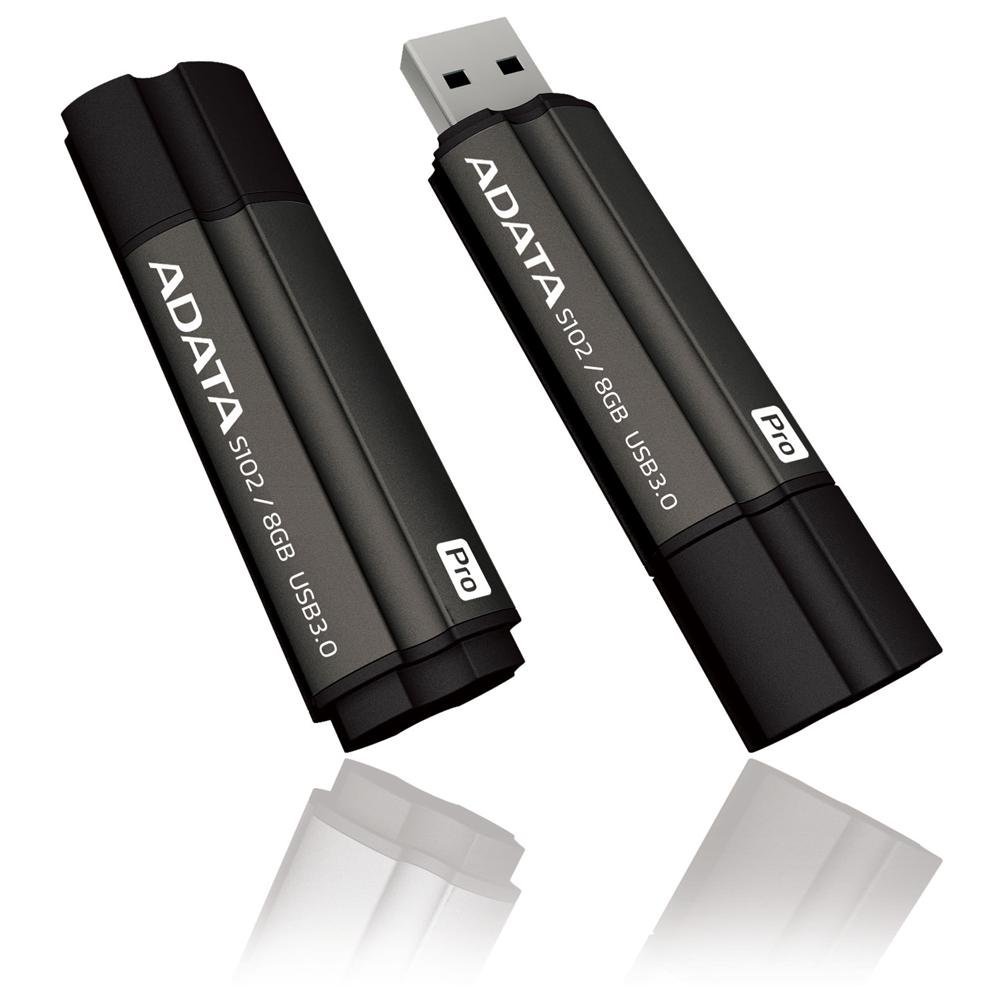
Image: The ADATA S102PRO USB Flash Drive shown with its protective cap on and with the cap removed, revealing the USB 3.0 connector. This illustrates the physical appearance and how to prepare the drive for insertion.
İşletim
Once the ADATA S102PRO is recognized by your computer, you can begin transferring files:
- Sürücüye Erişim:
- Pencereler: Open "This PC" or "My Computer" and locate the drive listed under "Devices and drives" (e.g., "Removable Disk" or a drive letter like E:).
- MacOS: The drive icon will appear on your desktop or in the Finder sidebar under "Locations."
- Transfer ediliyor Files:
- Kopyalamak için files ile the flash drive, drag and drop them from your computer's folders into the flash drive's window.
- Kopyalamak için files itibaren the flash drive, drag and drop them from the flash drive's window to a folder on your computer.
- You can also use the standard copy (Ctrl+C / Command+C) and paste (Ctrl+V / Command+V) functions.
- Sürücüyü Güvenli Şekilde Kaldırma: It is crucial to safely eject the flash drive before physically removing it to prevent data corruption.
- Pencereler: Click the "Safely Remove Hardware and Eject Media" icon in the system tray (bottom-right corner), then select your flash drive and click "Eject." Wait for the "Safe to Remove Hardware" message.
- MacOS: Drag the drive icon from the desktop to the Trash, or click the Eject button next to the drive name in the Finder sidebar. Wait for the icon to disappear before removing the drive.
Bakım
Proper care will help ensure the longevity and reliability of your ADATA S102PRO USB Flash Drive:
- Konektörü koruyun: Always keep the protective cap on the USB connector when the drive is not in use to prevent dust, dirt, and physical damage.
- Aşırı Koşullardan Kaçının: Do not expose the drive to extreme temperatures, direct sunlight, high humidity, or strong magnetic fields.
- Dikkatli Kullanın: Sürücüyü düşürmekten veya şiddetli darbelere maruz bırakmaktan kaçının.
- Do Not Remove During Transfer: Never unplug the drive while data is being read from or written to it. Always follow the safe removal procedure.
- Düzenli Yedeklemeler: While flash drives are reliable, it is always recommended to back up critical data to another storage device or cloud service.
Sorun giderme
If you encounter issues with your ADATA S102PRO, try the following solutions:
- Sürücü Tanınmıyor:
- Sürücünün USB portuna tam olarak takıldığından emin olun.
- Bilgisayarınızda farklı bir USB bağlantı noktası deneyin.
- Bilgisayarınıza özgü bir sorun olmadığından emin olmak için sürücüyü başka bir bilgisayarda deneyin.
- Check your computer's Device Manager (Windows) or System Information (macOS) to see if the drive is listed, even if it doesn't appear in File Kaşif/Bulucu.
- Yavaş Transfer Hızları:
- Ensure you are connected to a USB 3.0 port for optimal performance. USB 2.0 ports will limit speeds.
- Birçok küçük şeyin aktarılması filebirkaç büyük dosyayı aktarmaktan daha yavaş olabilir files.
- Sistem kaynaklarını kullanan veya disk işlemleri gerçekleştiren diğer uygulamaları kapatın.
- Yazamıyor Files to Drive:
- Check if the drive is full. Delete unnecessary files or transfer them to another location.
- Sağlamak file system (e.g., FAT32, NTFS, exFAT) is compatible with your operating system and allows writing. If formatted as NTFS on macOS, you may only have read access without third-party software.
- Check for any software-based write protection or permissions issues on your computer.
Özellikler
| Marka | ADATA |
| Model Adı | S102PRO |
| Model Numarası | AT806-4G-CPK |
| Bellek Depolama Kapasitesi | 4 GB |
| Donanım Arayüzü | USB 3.0 (USB 2.0 ile geriye dönük uyumlu) |
| Üretici | A-DATA TECHNOLOGY (USA) CO. L |
| UPC | 842243005080 |
| ASIN | B004AVOGW8 |
Garanti ve Destek
For detailed warranty information, product registration, and technical support, please visit the official ADATA webSiteyi ziyaret ederek genellikle destek kaynaklarına, sıkça sorulan sorulara ve müşteri hizmetleri iletişim bilgilerine ulaşabilirsiniz.
ADATA Resmi Webalan: www.adata.com