
1. Kurulum
1.1 Paketin Açılması ve İlk Muayene
Carefully remove your ASUS K52F-A2B laptop from its packaging. Inspect the laptop and all accessories for any signs of damage. The package should contain the laptop, AC adapter, power cord, and documentation.
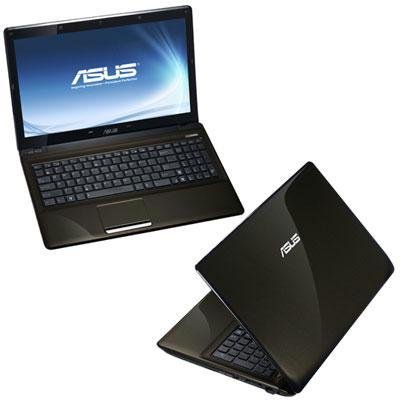
Image 1.1: The ASUS K52F-A2B laptop. This image shows the closed laptop from an angle, highlighting its dark brown finish and sleek design.
1.2 AC Adaptörünü Bağlama
Before initial use, connect the AC adapter to the laptop and a power outlet. This ensures the battery is charged and provides stable power for setup.
- AC adaptörünü dizüstü bilgisayarınızın yan tarafındaki güç girişine takın.
- Güç kablosunu AC adaptörüne takın.
- Güç kablosunun diğer ucunu topraklı bir elektrik prizine takın.
1.3 İlk Güç Açma
Once the AC adapter is connected, open the laptop lid and press the power button. The laptop will begin its initial boot sequence. Follow the on-screen instructions to complete the operating system setup (Windows 7 Professional 64-bit).
2. Operating Your ASUS K52F-A2B Laptop
2.1 Açma/Kapama ve Uyku Modu
- Güç Açık: Klavyenin üstünde bulunan güç düğmesine basın.
- Kapat: Click the Start button, then select 'Shut down'.
- Uyku modu: Close the laptop lid or select 'Sleep' from the Start menu. Press the power button or any key to wake the laptop.
2.2 Klavye ve Dokunmatik Yüzeyin Kullanımı
The ASUS K52F-A2B features a full-sized keyboard and a multi-touch touchpad.
- Klavye: Standard QWERTY layout with function keys (Fn) for brightness, volume, and other system controls.
- Dokunmatik yüzey: Supports multi-touch gestures for scrolling, zooming, and navigation. Refer to the operating system's help for detailed gesture information.
2.3 Harici Cihazların Bağlanması
Your laptop provides various ports for connecting external devices:
- USB Bağlantı Noktaları: Fare, klavye ve harici depolama aygıtları gibi USB cihazlarını bağlamak için kullanılır.
- HDMI Bağlantı Noktası: Connects to external displays or TVs for high-definition video and audio output.
- VGA Bağlantı Noktası: Connects to older external monitors or projectors.
- Ses Jakları: Kulaklıklar ve mikrofonlar için.
- Ethernet Bağlantı Noktası: Kablolu ağ bağlantıları için.
2.4 Using the Optical Disk Drive
The laptop includes a Super Multi Optical Disk Drive for reading and writing CDs and DVDs.
- Sürücü üzerindeki çıkarma düğmesine basarak tepsiyi açın.
- CD veya DVD'yi etiket yüzü yukarı bakacak şekilde tepsiye yerleştirin.
- Tepsiyi yavaşça dizüstü bilgisayarın içine doğru itin ve yerine oturana kadar bastırın.
3. Bakım
3.1 Dizüstü Bilgisayarınızı Temizleme
Düzenli temizlik, dizüstü bilgisayarın görünümünü ve işlevselliğini korumaya yardımcı olur.
- Ekran: Hafifçe yumuşak, tüy bırakmayan bir bez kullanın.ampSu veya ekran temizleyici ile temizleyin. Sıvıyı doğrudan ekrana püskürtmeyin.
- Klavye ve Casing: Yumuşak, kuru bir bez kullanın. İnatçı kirler için, hafifçe kurutulmuş bir bez yeterli olacaktır.ampened with mild soap and water can be used. Ensure the laptop is powered off and unplugged before cleaning.
- Havalandırmalar: Aşırı ısınmayı önlemek için soğutma deliklerindeki tozu basınçlı hava ile temizleyin.
3.2 Pil Bakımı
Pil ömrünü ve performansını en üst düzeye çıkarmak için:
- Pilin sık sık tamamen boşaltılmasından kaçının.
- Uzun süre kullanmayacağınız zaman dizüstü bilgisayarınızı serin ve kuru bir yerde saklayın.
- Uzun süre saklayacaksanız, saklamadan önce pili yaklaşık %50'ye kadar şarj edin.
3.3 Yazılım Güncellemeleri
Regularly update your operating system and drivers to ensure optimal performance and security. Check the ASUS support website for the latest drivers for your K52F-A2B model.
4. Sorun Giderme
This section addresses common issues you might encounter with your ASUS K52F-A2B laptop.
4.1 Güç Sorunları
- Dizüstü bilgisayar açılmıyor: Ensure the AC adapter is securely connected to both the laptop and a working power outlet. Check if the power outlet is functional. If the battery is completely drained, allow it to charge for a few minutes before attempting to power on.
- Laptop shuts down unexpectedly: This could indicate overheating. Ensure cooling vents are clear and the laptop is on a hard, flat surface.
4.2 Ekran Sorunları
- Ekranda görüntü yok: Connect an external monitor to the VGA or HDMI port to check if the issue is with the laptop's internal display. Press Fn+F8 to toggle display output modes.
- Ekranı kıs: Adjust screen brightness using the Fn+F5 (dim) and Fn+F6 (bright) function keys.
4.3 Bağlantı Sorunları
- Wi-Fi bağlanmıyor: Ensure Wi-Fi is enabled (often via a function key, e.g., Fn+F2). Check network settings in Windows.
- USB aygıtı tanınmadı: Cihazı farklı bir USB bağlantı noktasına bağlamayı deneyin. Cihaz sürücülerinin yüklü olduğundan emin olun.
4.4 Operating System Recovery
The ASUS K52F-A2B comes with Windows 7 Professional. For system recovery or reinstallation, it is recommended to use the recovery partition or create recovery media as instructed by ASUS. Note that official support for downgrading to Windows XP Pro may be limited, and recovery media for Windows 7 Pro might need to be created by the user.
5. Teknik Özellikler
| Özellik | Şartname |
|---|---|
| Model Numarası | K52F-A2B |
| İşlemci | Intel Core i3-350M (2.26 GHz) |
| İşletim Sistemi | Windows 7 Profesyonel 64-bit |
| Görüntülemek | 15.6-inch HD (1366x768) LED |
| Grafikler | Intel GMA HD (Integrated) |
| RAM Bellek | 3 GB DDR3 1066MHz (Max 8GB) |
| Depolamak | 320 GB Hard Drive (5400 RPM) |
| Optik Sürücü | DVD SüperMulti |
| Kablosuz Bağlantı | 802.11bgn |
| Limanlar | HDMI, VGA, USB, Audio Jacks |
| Webkam | 0.3 MP |
| Ağırlık | 5.8 Pound |
6. Garanti ve Destek
6.1 Garanti Bilgileri
Your ASUS K52F-A2B laptop comes with the following warranty coverage:
- 2 Yıllık Küresel Garanti
- 1-Year Accidental Damage Warranty
- 30-Day Zero Bright Dot Guarantee
- 2-way FREE shipping for repairs
6.2 Teknik Destek
Teknik yardım, sürücü indirmeleri veya daha fazla bilgi için lütfen resmi ASUS destek sayfasını ziyaret edin website. 24/7 technical support is available as part of your warranty.
For the most up-to-date support contact information, please refer to the documentation included with your product or visit www.asus.com/support.