
1. Giriş
This manual provides detailed instructions for the installation, operation, and maintenance of your AZZA Solano 1000R CSAZ-1000R Full Tower Computer Case. Please read this manual thoroughly before beginning installation to ensure proper setup and to maximize the performance and longevity of your system components.
2. Ürün Özellikleri
- Optimize Edilmiş Termal Yönetim: Features multiple fans for superior cooling, including a 230mm top fan, a 230mm side fan, two 140mm front fans, and a 120mm rear fan.
- Bottom-Mounted Power Supply: Designed for improved thermal separation and stability, allowing installation facing up or down.
- Advanced Cable Management: Pre-drilled motherboard tray and ample space behind for organized cable routing, enhancing airflow and aesthetics.
- Tool-Less Design: Thumb screws for easy installation of optical drives and hard disk drives.
- Kullanışlı Ön Giriş/Çıkış: USB and audio ports, along with an eSATA port, located on the top panel for easy access.
- Geniş İç Mekan: Full tower design accommodates large components, including extended graphics cards and tall CPU coolers.
- Estetik Tasarım: Black exterior with a vibrant red painted interior and red LED fans.
3. Paket İçeriği
Lütfen paketinizde tüm öğelerin mevcut olduğundan emin olun:
- AZZA Solano 1000R CSAZ-1000R Full Tower Case
- Aksesuar Kutusu (vidalar, ara parçalar, kablo bağları vb. içerir)
- Kullanım Kılavuzu (bu belge)
4. Bileşen Üstüview
4.1 Harici Views
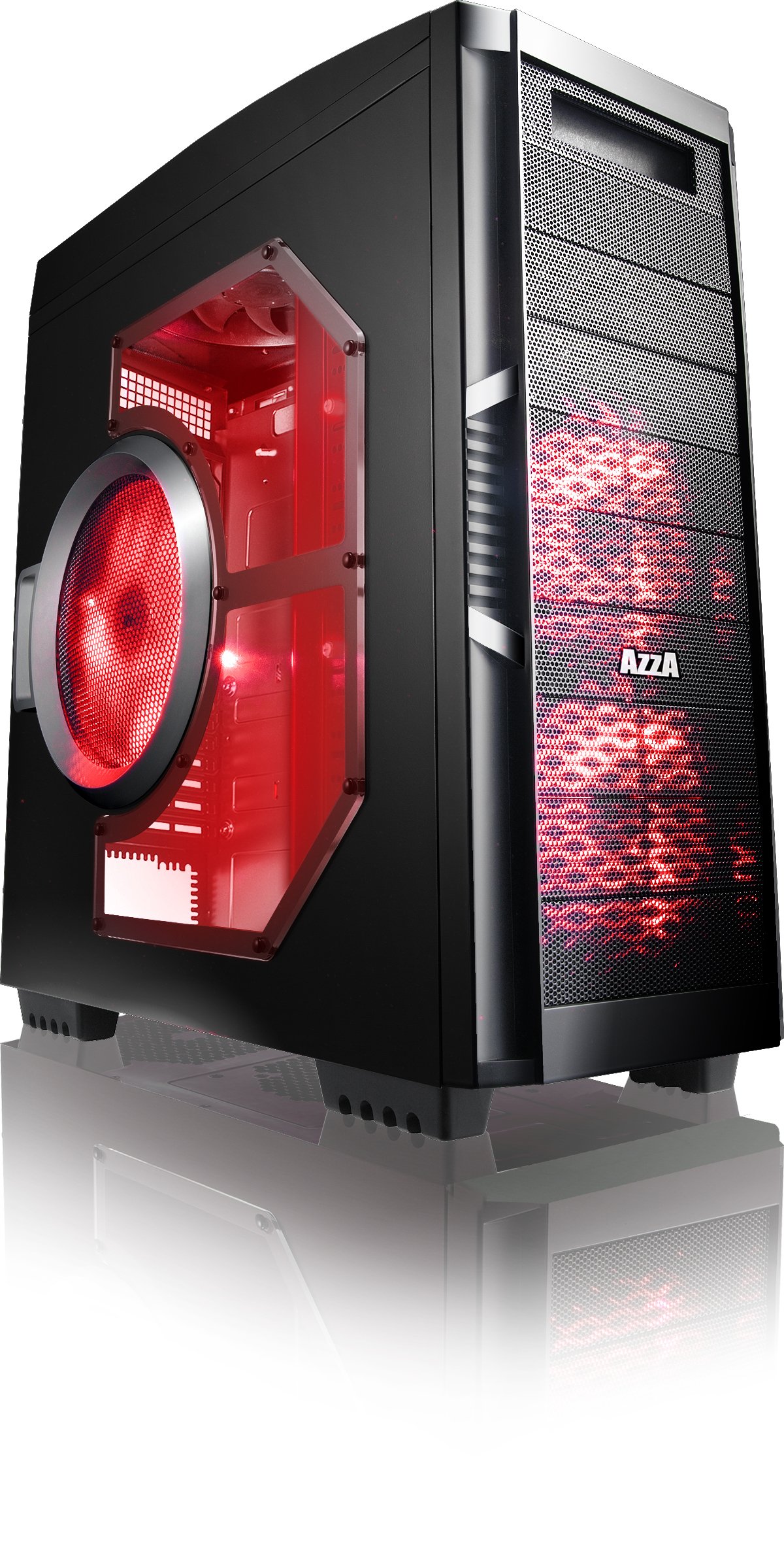
Şekil 4.1: Ön taraf view of the AZZA Solano 1000R case, showcasing the red LED fans on the front and side panel.

Şekil 4.2: Ön view of the AZZA Solano 1000R case, highlighting the two 140mm red LED intake fans behind the mesh panel.

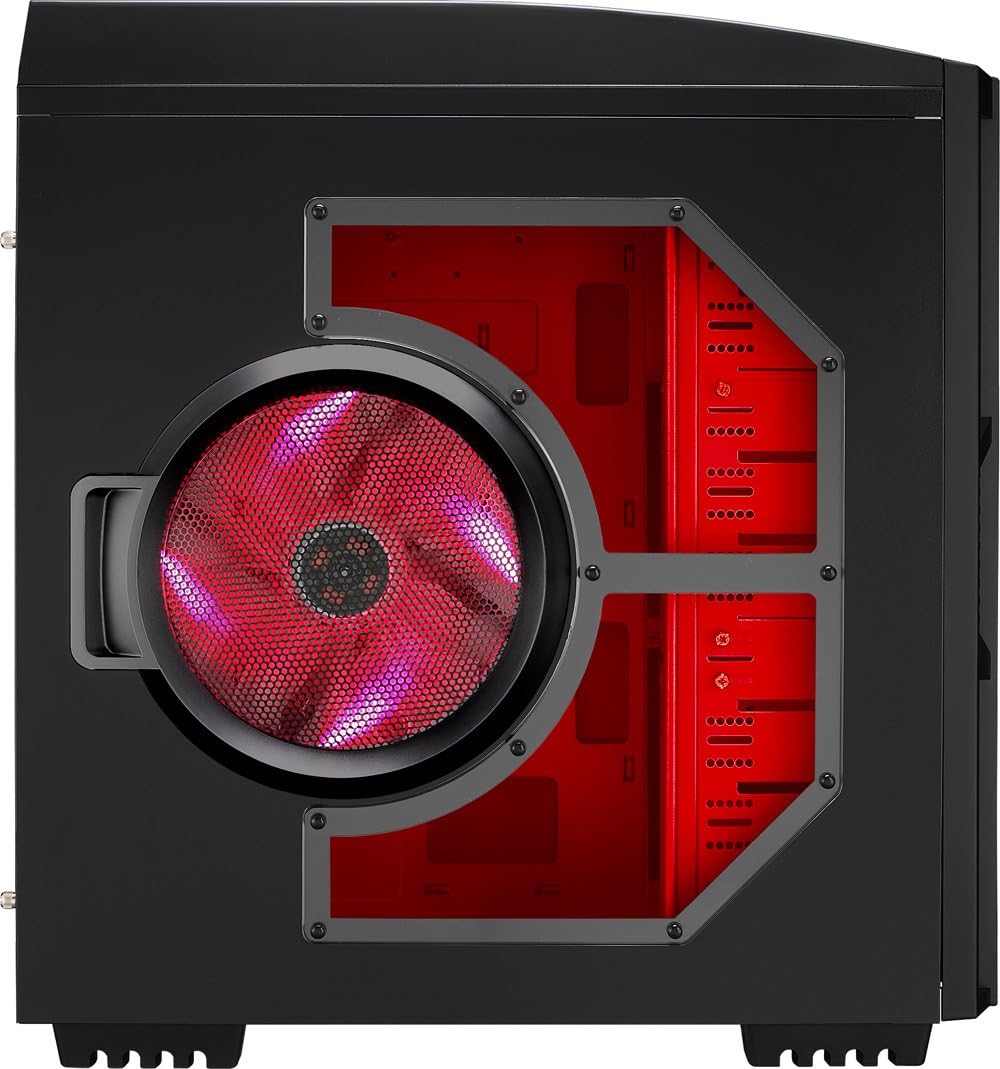
Şekil 4.3: Yan view of the AZZA Solano 1000R case, showing the large 230mm red LED side panel fan and the transparent window.

Figure 4.4: Top-front angled view of the AZZA Solano 1000R case, showing the top ventilation grille, front I/O panel with USB and audio ports, and power button.
Şekil 4.5: Arka taraf view of the AZZA Solano 1000R case, displaying the red interior, rear exhaust fan, and expansion slots.
4.2 Dahili Views

Şekil 4.6: İç mekan view of the AZZA Solano 1000R case with the left side panel removed, revealing the red painted motherboard tray, drive bays, and cable routing cutouts.

Figure 4.7: Angled interior view of the AZZA Solano 1000R case, focusing on the multiple 5.25" and 3.5" drive bays.

Figure 4.8: Angled interior view of the AZZA Solano 1000R case, showing the rear 120mm exhaust fan, expansion slots, and the extensive drive bay structure.

Şekil 4.9: İç mekan view of the AZZA Solano 1000R case with the right side panel removed, showing the space behind the motherboard tray for cable management.
5. Kurulum Kılavuzu
Kuruluma başlamadan önce çalışma alanınızın temiz ve statik elektrikten arındırılmış olduğundan emin olun. Antistatik bileklik takmanız önerilir.
5.1 Davanın Hazırlanması
- Kılıfı düz ve sağlam bir yüzeye yerleştirin.
- Kasanın arkasındaki kelebek vidaları sökerek yan panelleri çıkarın ve panelleri geriye doğru kaydırın.
5.2 Anakart Kurulumu
- Anakartınızla birlikte verilen giriş/çıkış koruma kalkanını kasanın arka tarafındaki açıklığa takın.
- Align the motherboard with the pre-installed standoffs. If necessary, install additional standoffs according to your motherboard's form factor.
- Carefully place the motherboard onto the standoffs, ensuring the I/O ports align with the shield.
- Anakartı, aksesuar kutusunda bulunan uygun vidalarla sabitleyin.
5.3 Güç Kaynağı Kurulumu
- Position the power supply unit (PSU) in the bottom-rear compartment of the case. You can orient it with the fan facing up or down, depending on your cooling preference and PSU design.
- Güç kaynağınızla birlikte verilen vidaları kullanarak PSU'yu kasaya sabitleyin.
5.4 Depolama Sürücüsü Kurulumu (HDD/SSD)
- For 3.5" HDDs, slide the drive into an available drive bay until it clicks into place. Use the provided thumb screws for additional security if desired.
- For 2.5" SSDs, an adapter bracket (not included) may be required to fit into the 3.5" bays. Secure the SSD to the adapter, then install the adapter into a 3.5" bay.
- Connect the SATA data and power cables to your installed drives.
5.5 Optical Drive Installation
- Remove the desired 5.25" front bay cover from the case.
- Slide the optical drive into the bay from the front until it aligns with the screw holes.
- Secure the optical drive using the provided thumb screws.
- Connect the SATA data and power cables to the optical drive.
5.6 Genişletme Kartı Kurulumu
- Kasanın arka tarafındaki gerekli genişletme yuvası kapaklarını çıkarın.
- Insert your graphics card or other expansion card into the appropriate PCIe/PCI slot on your motherboard.
- Secure the card with the provided screw or tool-less latch mechanism.
5.7 Kablo Yönetimi
Utilize the cutouts and space behind the motherboard tray to route and organize your cables. This improves airflow and gives your build a cleaner appearance. Use cable ties from the accessory box to bundle cables.
5.8 Ön Panel Giriş/Çıkış Bağlantıları
Connect the front panel cables (USB, Audio, Power Switch, Reset Switch, Power LED, HDD LED) to the corresponding headers on your motherboard. Refer to your motherboard manual for exact header locations.
6. Operasyon
6.1 Güç Açma/Kapatma
Press the power button located on the top panel to turn your system on or off. A power LED will illuminate when the system is active.
6.2 Fan Kontrolü
The case features a fan speed control switch (L/M/H) at the rear, primarily for the top, side, and rear fans. Adjust this switch to balance cooling performance and noise levels according to your preference.
7. Bakım
7.1 Temizlik
Regular cleaning helps maintain optimal airflow and component longevity.
- Dış: Dış yüzeyleri yumuşak, damp bez. Aşındırıcı temizleyicilerden kaçının.
- Toz Filtreleri: The case includes mesh filters at the bottom. Periodically remove and clean these filters to prevent dust buildup.
- İç mekan: Use compressed air to remove dust from inside the case, especially from fans and heatsinks. Ensure the system is powered off and unplugged before cleaning the interior.
8. Sorun Giderme
- Sistem Açılmıyor: Ensure all power cables (24-pin ATX, 8-pin CPU, GPU power) are securely connected. Verify the PSU switch is in the 'ON' position. Check front panel power switch connection to the motherboard.
- Fanlar Dönmüyor: Check fan power connections to the motherboard or fan controller. Ensure the fan speed switch is not set to 'Off' or 'Low' if fans are not spinning at all.
- Side Panel Not Closing: If a large CPU cooler or tall components prevent the side panel from closing, especially due to the side fan, consider relocating the side fan to the exterior of the panel if possible, or ensure your cooler fits within the case's clearance specifications.
- Cable Management Difficulty: If the rear panel bulges due to thick cables, try rerouting cables more efficiently or using flatter cables where possible.
9. Özellikler
| Özellik | Detay |
|---|---|
| Model Numarası | CSAZ-1000R |
| Dava Türü | Tam kule |
| Renk | Siyah/Kırmızı |
| Ürün Boyutları (U x G x Y) | 19.7 x 8.1 x 21.5 inç (500 x 206 x 546 mm) |
| Ürün Ağırlığı | 24 pound (10.89 kg) |
| Soğutma Yöntemi | Hava |
| Güç Kaynağı Montaj Tipi | Alt Montaj |
| Toplam USB Bağlantı Noktaları | 2 (USB 2.0) + 1 (eSATA) |
| Hard Disk Form Factor Support | 3.5 inç |
| Dahil Fanlar | 2x 230mm (Top, Side), 2x 140mm (Front), 1x 120mm (Rear) |
10. Garanti ve Destek
For warranty information and technical support, please refer to the official AZZA webSatın alma belgenizi saklayın veya yerel perakendecinizle iletişime geçin. Garanti talepleriniz için satın alma belgenizi saklayın.